How can I help you?
Tools Support
14 May 20264 minutes to read
Purpose
The Tools Support feature in Syncfusion Code Studio empowers developers to perform specific actions within the development environment, such as creating folders, reading files, searching within files, and interacting with browsers. This guide provides a step-by-step approach to use the built-in and MCP tools, enabling you to streamline your development workflow and automate tasks efficiently with simple prompts.
When to use
The tools are designed to automate and simplify common development tasks, allowing you to focus on writing code. Key purposes include:
1. File Management
- Create new files or edit existing ones
- Perform bulk search-and-replace operations
- Organize project structures efficiently
2. Terminal Integration
- Run CLI commands like
npm installoryarn start - Install dependencies or launch development servers
- Automate build and deployment processes
3. Code Insights
- Identify and fix bugs with AI-driven suggestions
- Refactor code for better performance or readability
- Generate inline documentation automatically
4. Web and Browser Tools
- Perform web searches to fetch relevant resources
- Automate browser tasks like testing or scraping
Prerequisites
- For MCP Tools - MCP servers must be installed and configured before they can be used. See MCP Marketplace for installation instructions.
Types of Tools
Syncfusion Code Studio provides a suite of tools to streamline your workflow. You can use two types of tools in chat:
1. Built-In Tools
- Built-in tools are automatically available in chat.
- They cover common development tasks and are optimized for working within your workspace.
- No installation or configuration is required — they are ready to use as soon as you start.
2. MCP Tools
- Model Context Protocol (MCP) is an open standard that enables AI models to use external tools and services through a unified interface.
- MCP servers provide tools that you can add to Syncfusion Code Studio to extend chat with additional capabilities.
- To use MCP tools, you must install and configure MCP servers first.
- MCP servers can run locally on your machine or be hosted remotely.
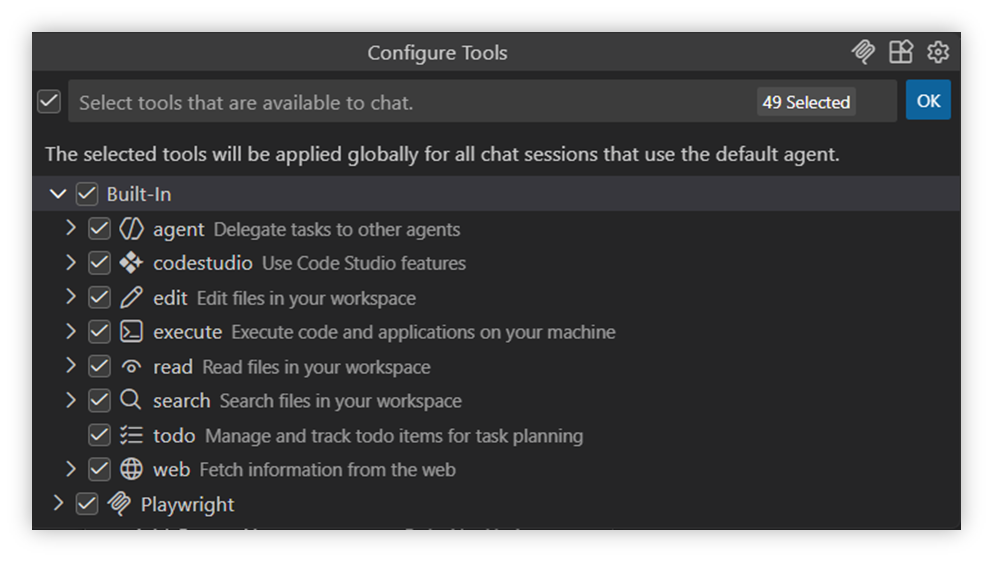
Toolset Overview
Below is a list of available tools and their descriptions for reference:
| Tool Name | Description |
|---|---|
| agent | Delegate tasks to other agent. |
| codestudio | Use Code Studio features |
| edit | Edit files in your workspace |
| execute | Execute code and applications on your machine. |
| read | Read files in your workspace |
| search | Search files in your workspace |
| todo | Manage and track todo items for task planning |
| web | Fetch information from the web |
Steps
How to Enable Tools for Chat
Before you can use tools in chat, you need to enable them in the Chat view. Tools can be enabled or disabled on a per-request basis using the tools picker.
Note: Select the agent after the tools picker is visible in the chat. Select only the tools that are relevant to your prompt to improve results.
How to access the tools picker
Step 1 : Click the Syncfusion Code Studio icon. The chat window is displayed.
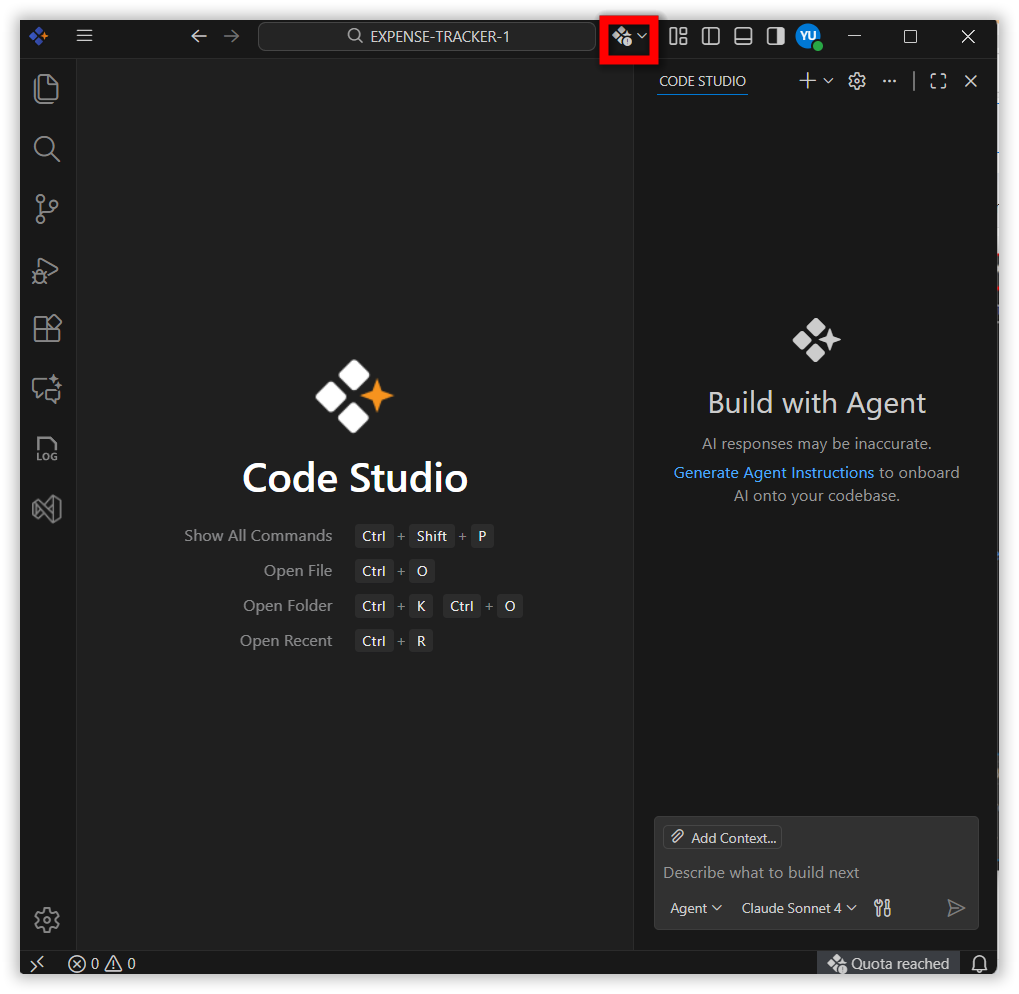
Step 2: Select the Agent in the chat window.
Step 3 : Click the Configure Tools button in the chat input field. The tools are displayed.
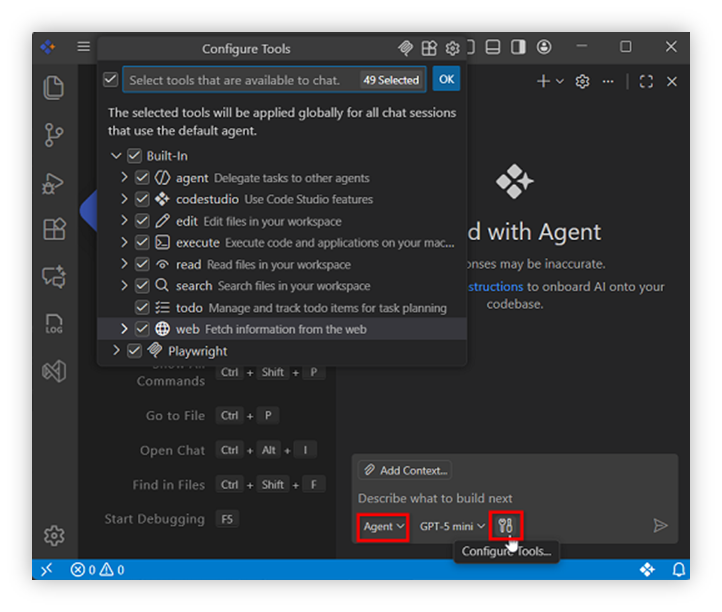
Note: Must select the Agent to access the configuration tools.
Step 4 : Select or deselect tools to control which ones are available for the current request.
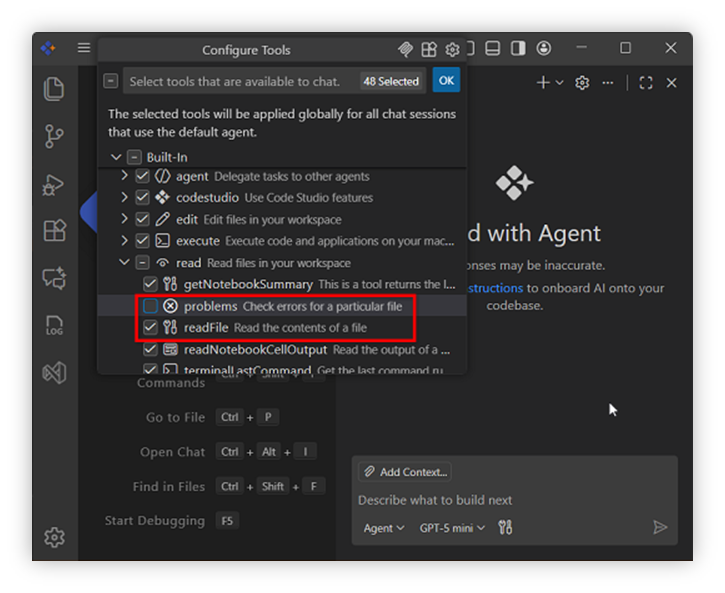
💡Tip : Use the search box to quickly filter the list of tools.
How to Use Tools in Your Prompt
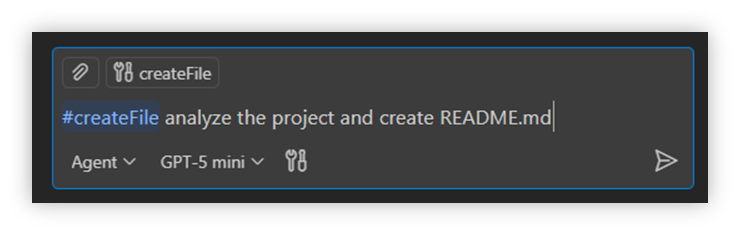
You can explicitly reference tools in your prompts by typing # followed by the tool name. This is useful when you want to ensure that a specific tool is used. Type # in the chat input field to see a list of available tools.
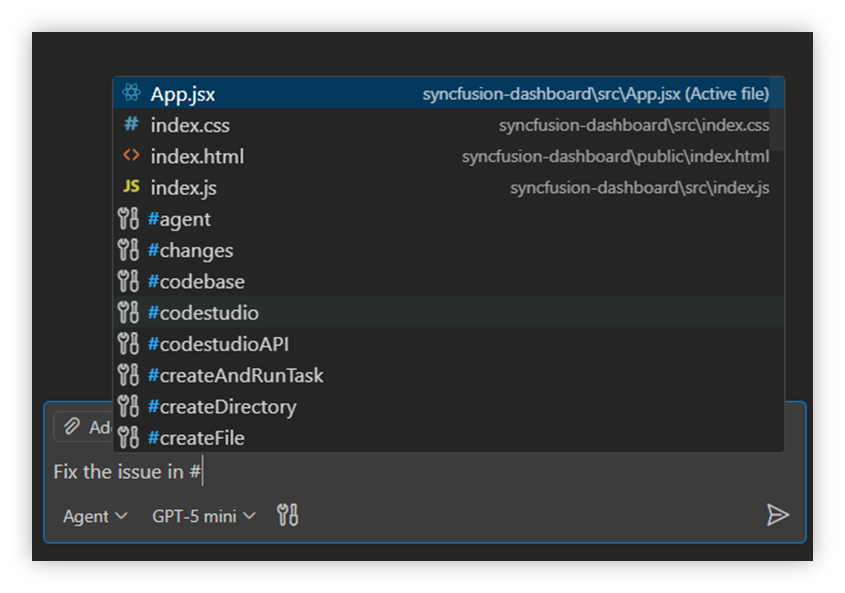
Example of a tool reference:
Tools Approval
When using agents, the agent automatically determines which tools to use from the enabled set based on your prompt and the context of your request. The agent autonomously selects and invokes the relevant tools needed to accomplish the task.
Some tools require your approval before they can run. This is a security measure because tools may perform actions that modify files, change your environment, or attempt prompt injection attacks through malicious output.
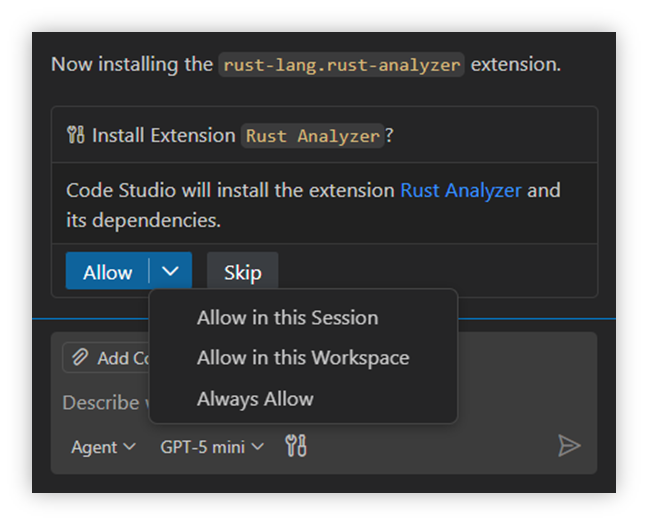
Note: Always review tool parameters carefully before approving, especially for tools that modify files, run commands, or access external services.