Set Budget Alerts
14 May 20263 minutes to read
Overview
Administrators can set up alerts for a team or a specific user to get notified when budget usage exceeds a defined threshold.Team Owners can configure alerts specifically for their team members. Team Owner can set up alert for their team users.Team alerts are emailed to the recipient you choose; individual user alerts are emailed to that user’s email address.
When to use
Use budget alerts when you want an email notification as soon as spending crosses a defined threshold.
- Team budgets: Use this when a team shares a budget and you want alerts to go to a chosen recipient who can take further action.
- Individual user budgets: Use this when you want the individual user to be notified about their own budget usage so they can adjust their usage, ask queries efficiently and appropriately, and avoid unnecessary credit usage.
Prerequisites
- Admin Access: Can configure alerts and create, edit, and assign budgets.
- Team Owners Access: Can configure alerts, and create, edit, and assign budgets specifically for their team members.
-
Team Leads and Users Access: Can only view budgets.
- Budget configured: Refer to the Create Budget guide to create and assign a budget for the team or the individual user before setting an alert.
Steps to Configure Budget Alerts for Teams and Individual Users
Steps to Configure Budget Alerts for Teams:
Step 1: Go to the Budget tab in CodeStudio dashboard. Team budgets are displayed on a table, with a three-dot (More options) menu on the right side of each row.
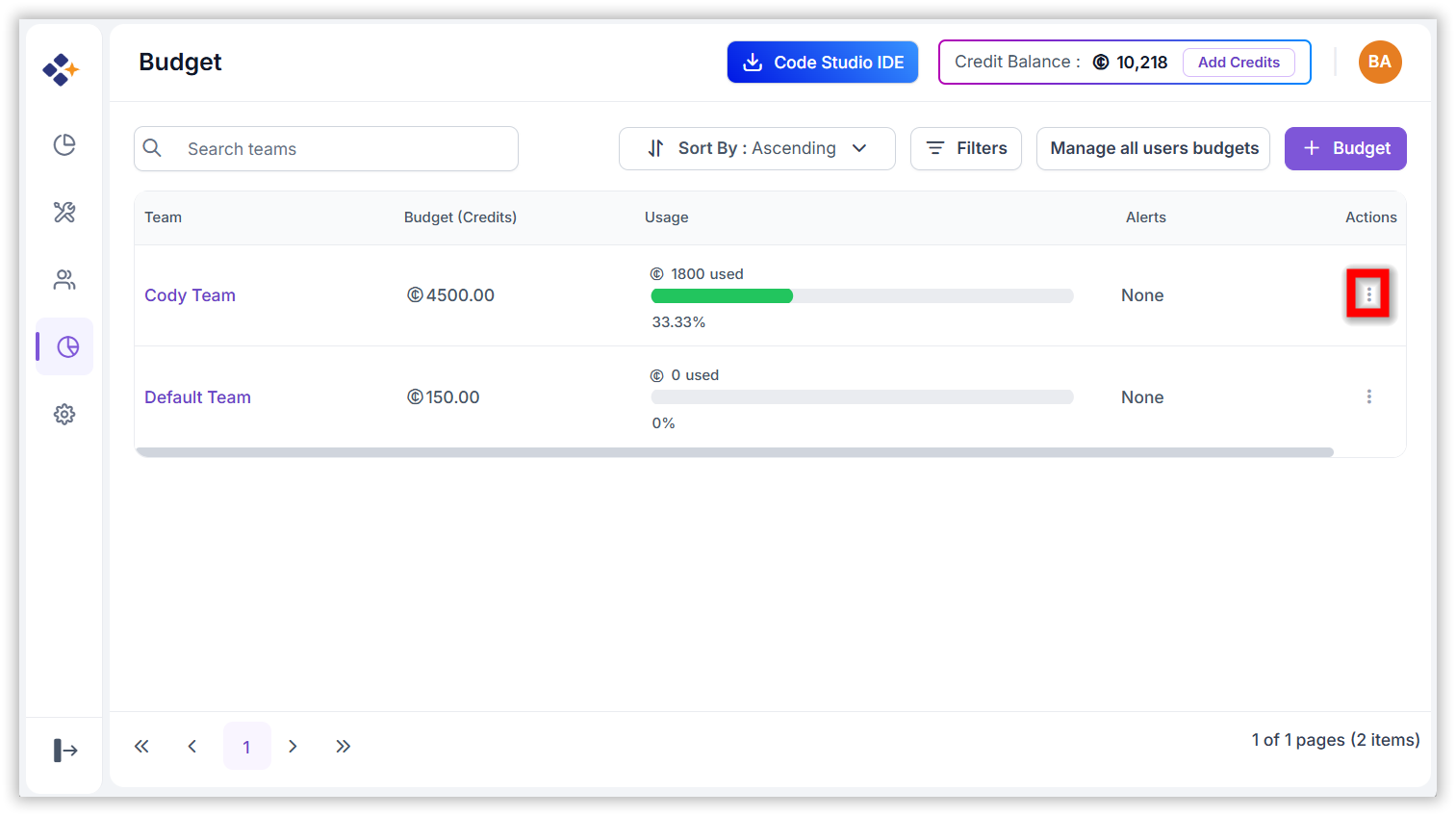
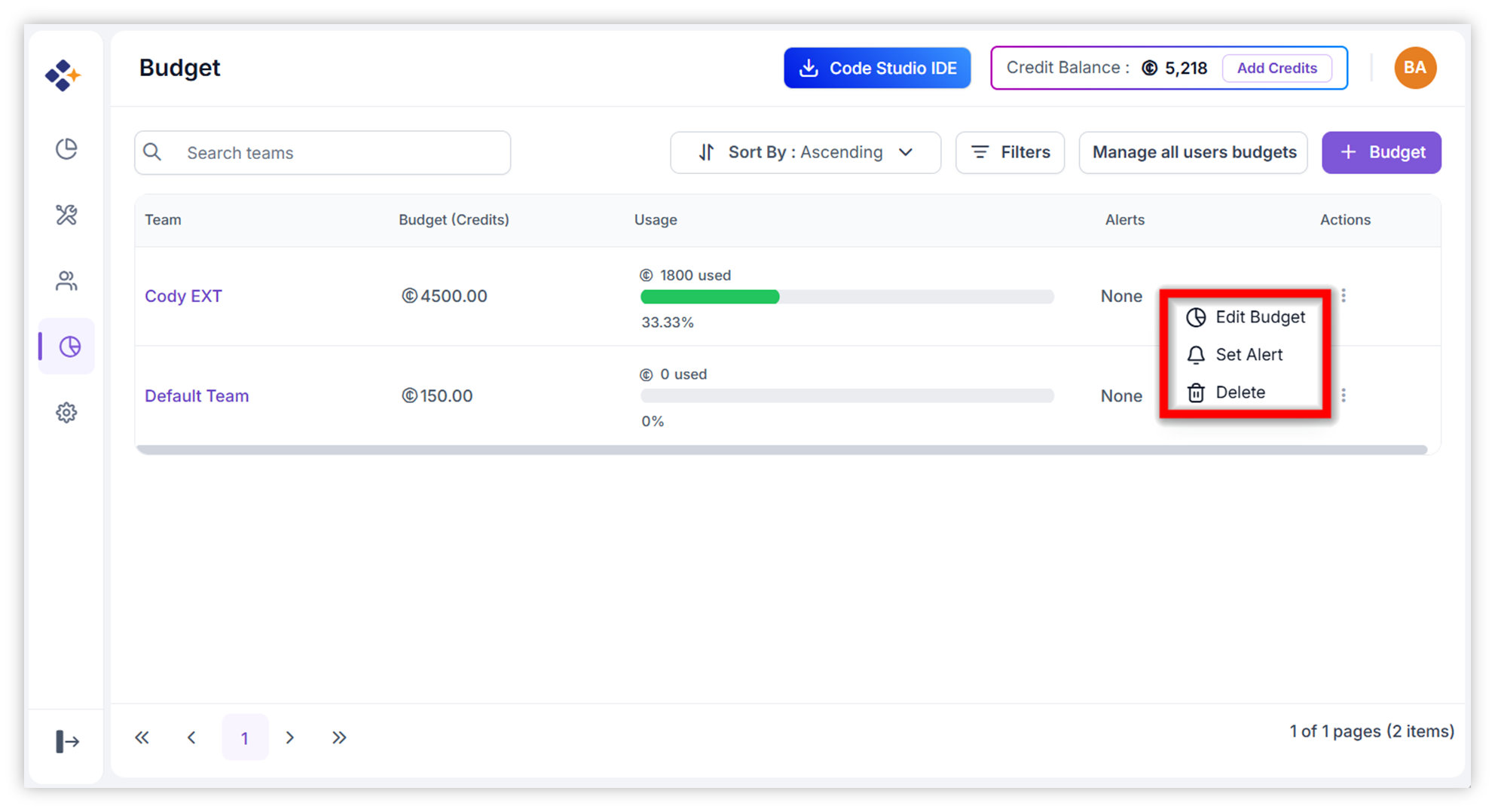
Step 2: Click the three-dot (More options) icon. The following options are displayed: Edit Budget, Set Alert, and Delete.
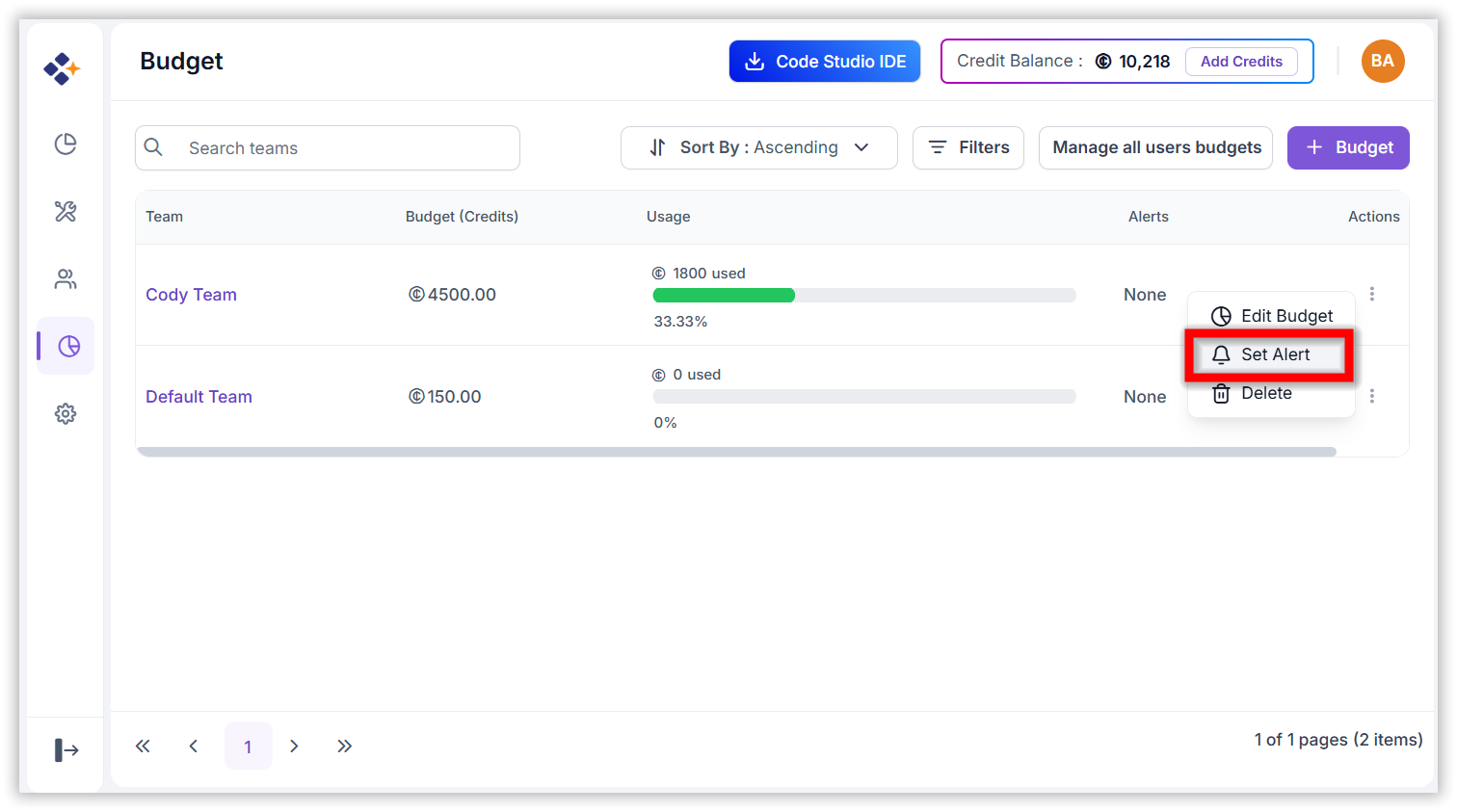
Step 3: Click Set Alert.
Step 4:
The Set Alert dialog box opens. You can configure alerts to be triggered when budget usage reaches 25%, 50%, 75%, or 100% of the budget limit you created.
Follow the steps below to create the budget alert.
-
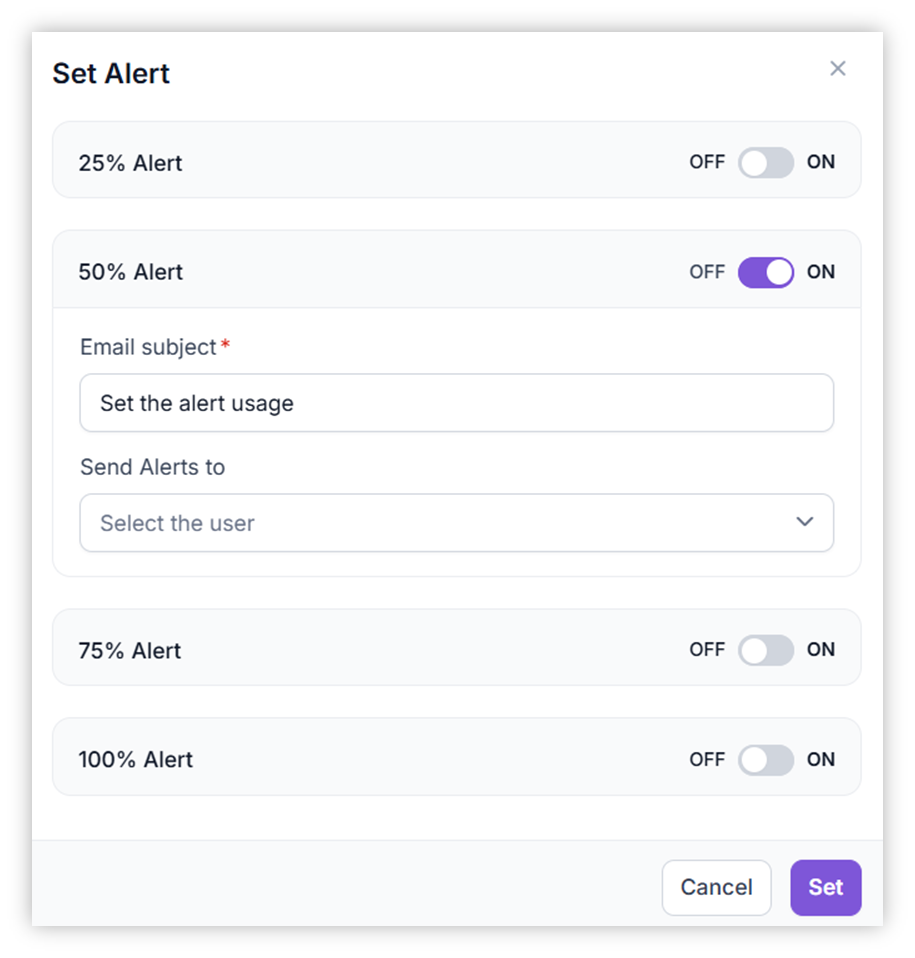
Turn the toggle On. Two input fields are displayed; enter the required values in both fields.
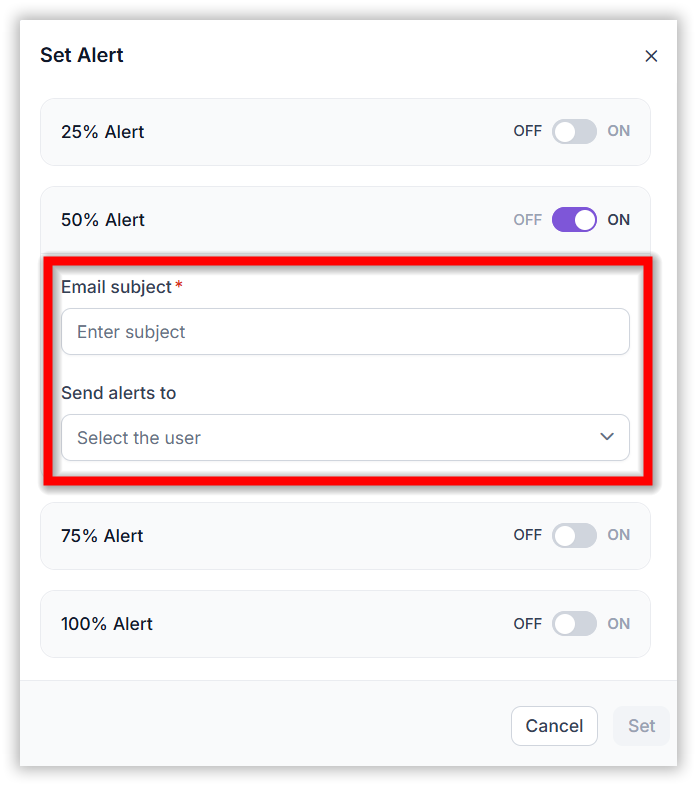
- Email subject: Enter the email subject line that will appear in the alert email.
- Send alerts to: Select the users in the team who should receive the alert email.
-
Click Set.
How to Verify and Manage Budget Alerts?
To verify that a budget alert is created and to modify an existing alert, follow these steps,
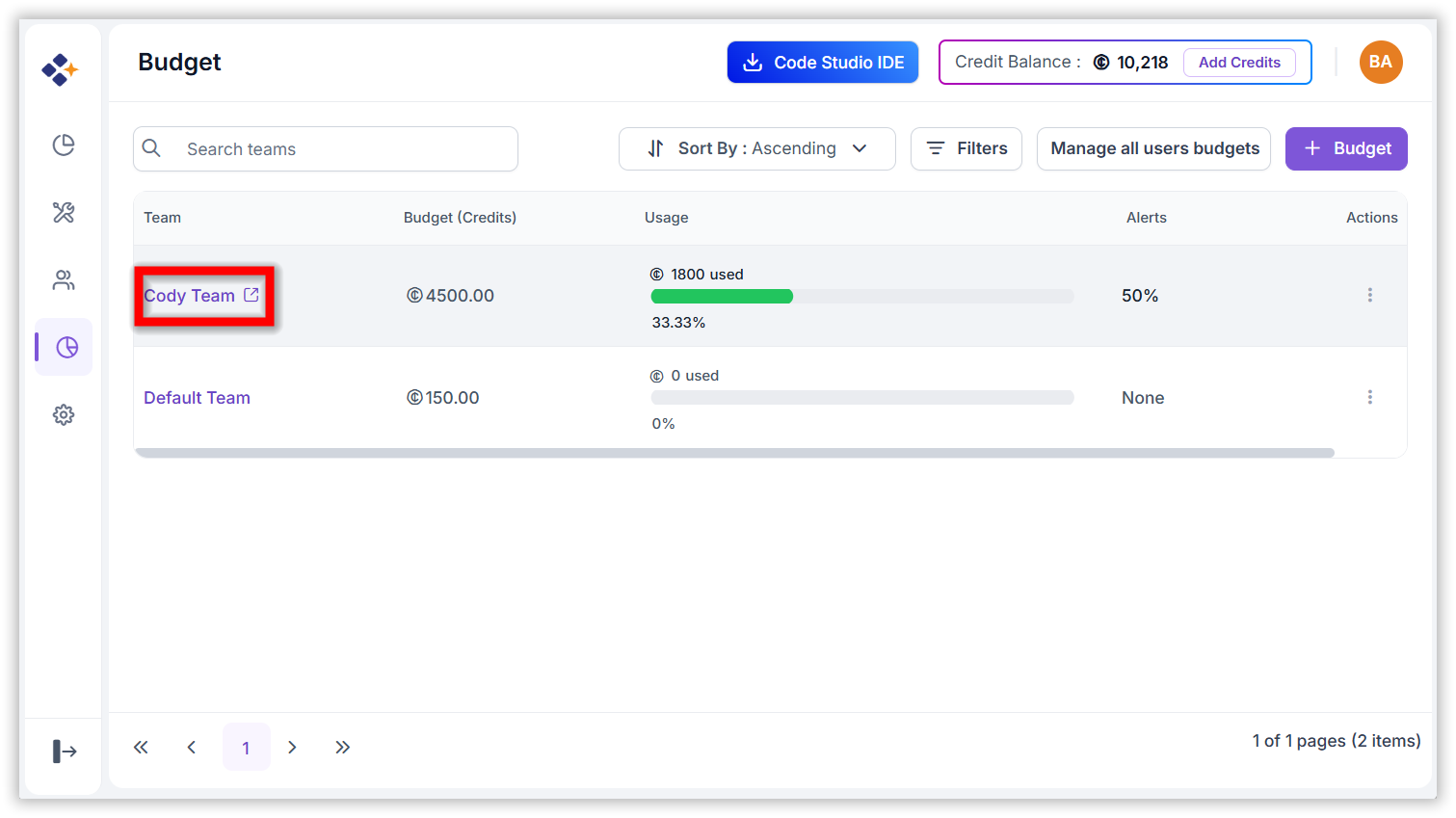
- In the Budget tab, click the team name or hover over the team name. A navigate icon appears—click it to open the team’s Budget details window.
- In the team’s Budget window, view the configured Usage Alerts. When you hover over an alert percentage, the UI displays the user(s) who will receive the alert email.
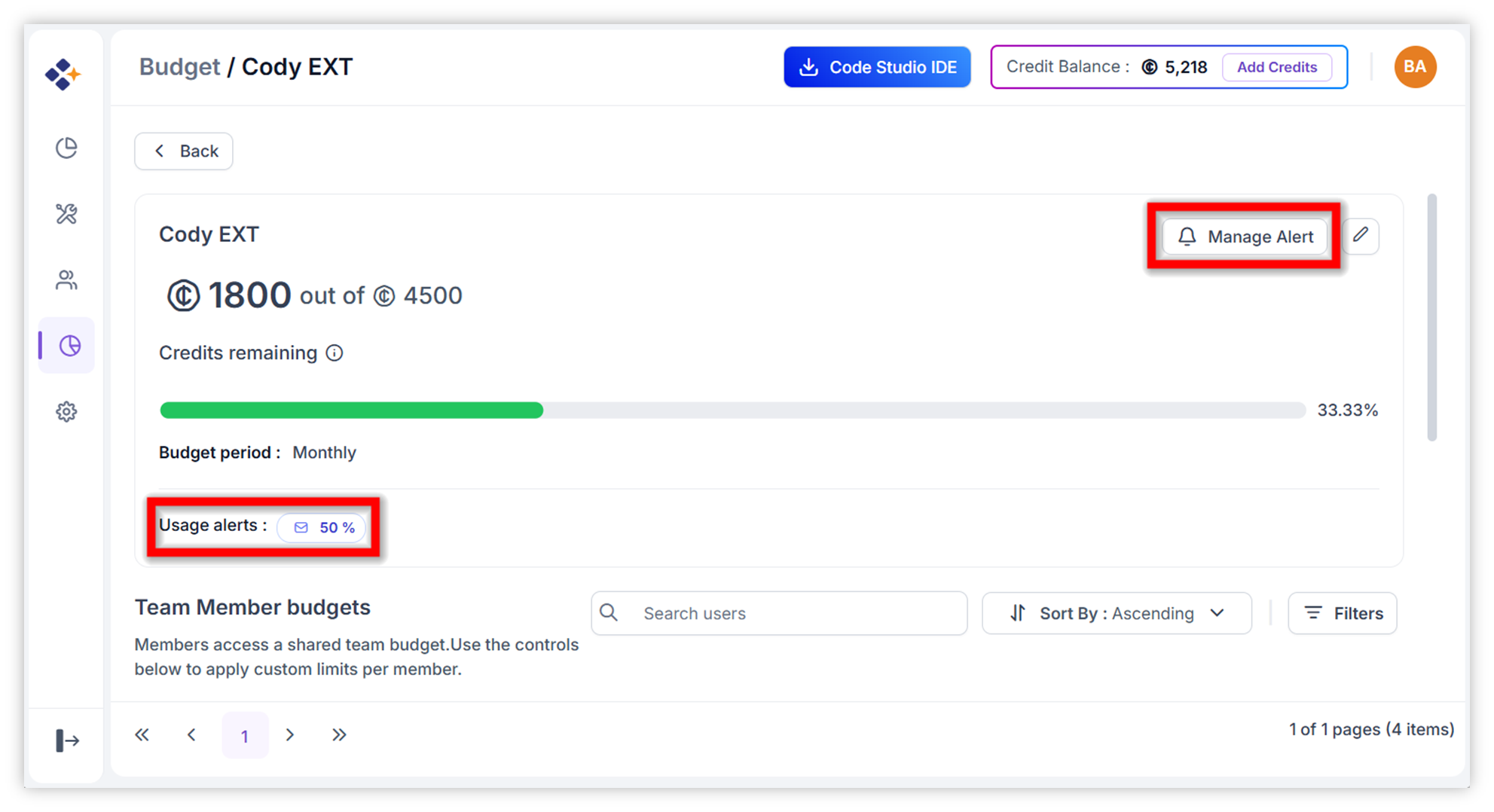
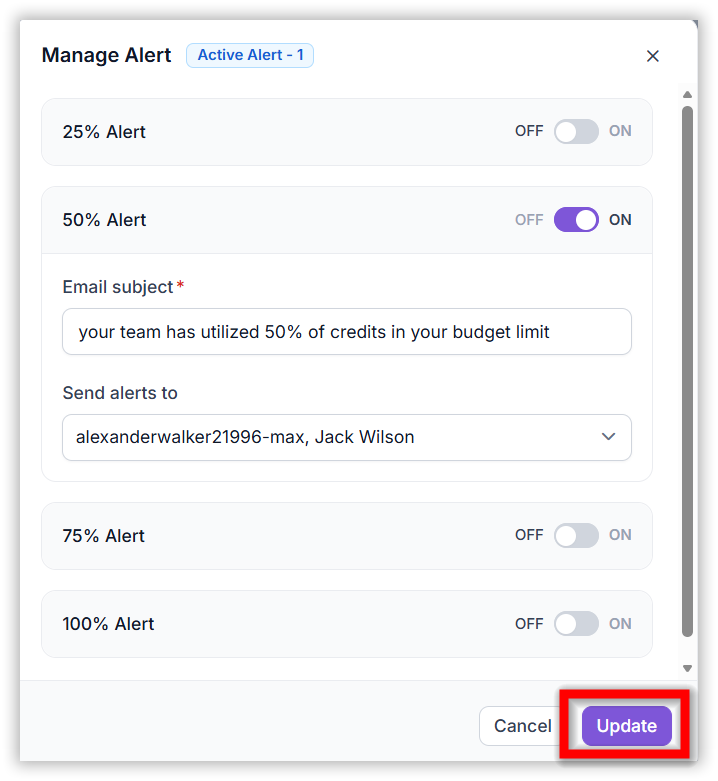
- To modify an alert, click Manage Alert, update the alert details (for example, add another recipient), and then click Update to save the changes.
Steps to Configure Budget Alert for Individual Users in a team:
Step 1: In the Budget tab, click the team name or hover over the team name. A navigate icon appears—click it to open the team’s Budget details window.
Step 2: The Team Member Budgets section lists the team members and the budgets assigned to each member.
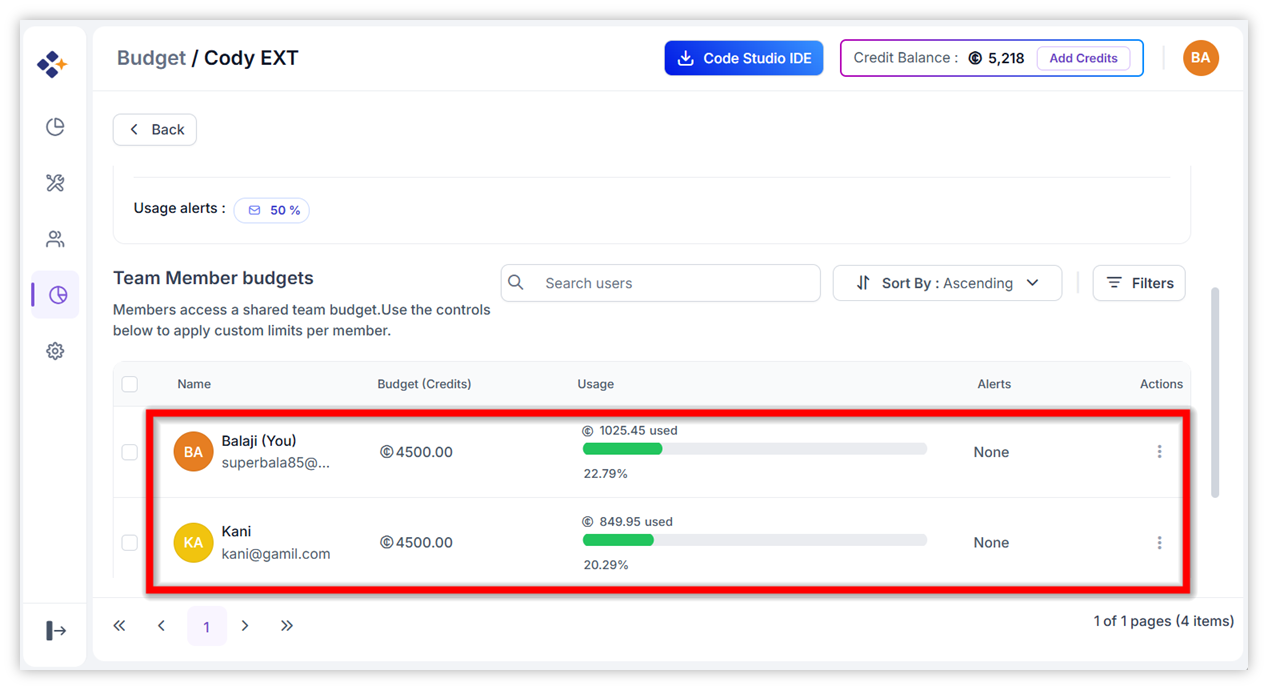
Step 3: Follow the same steps as setting a team budget alert (Steps 1–2). Enter the Email subject; the Send alerts to field is automatically prefilled with the individual user’s email.
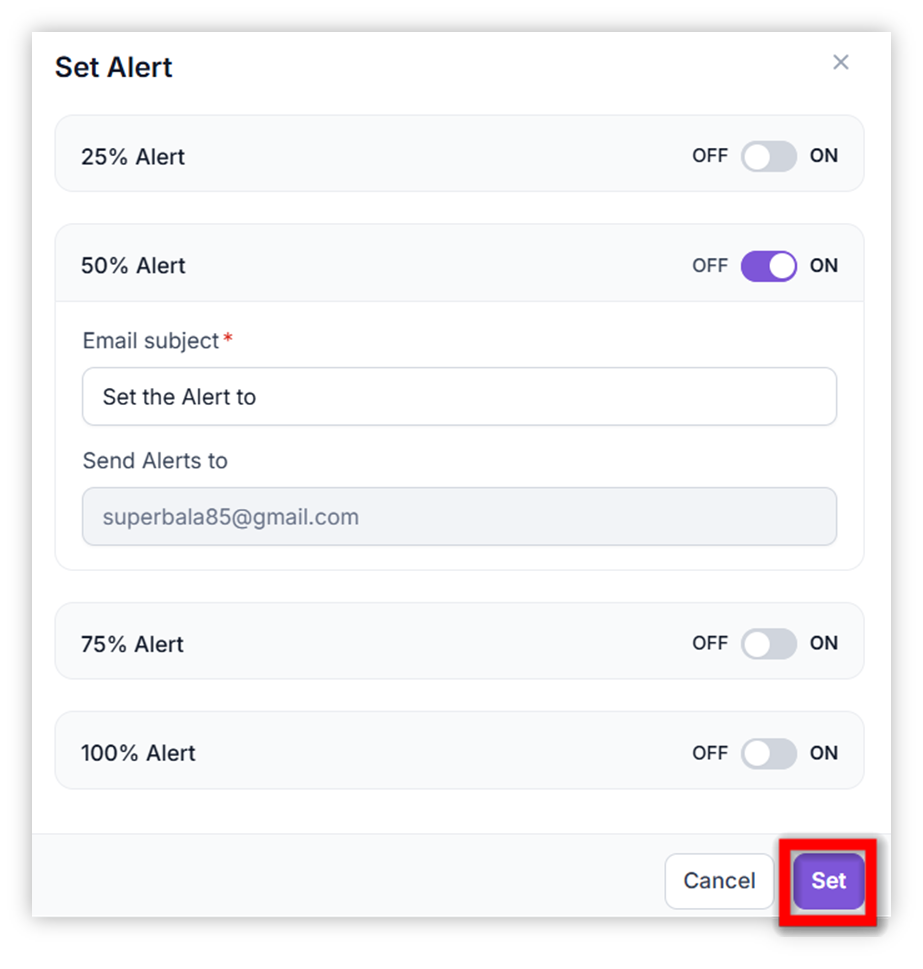
Step 4: After you click Set, the budget alert is created.
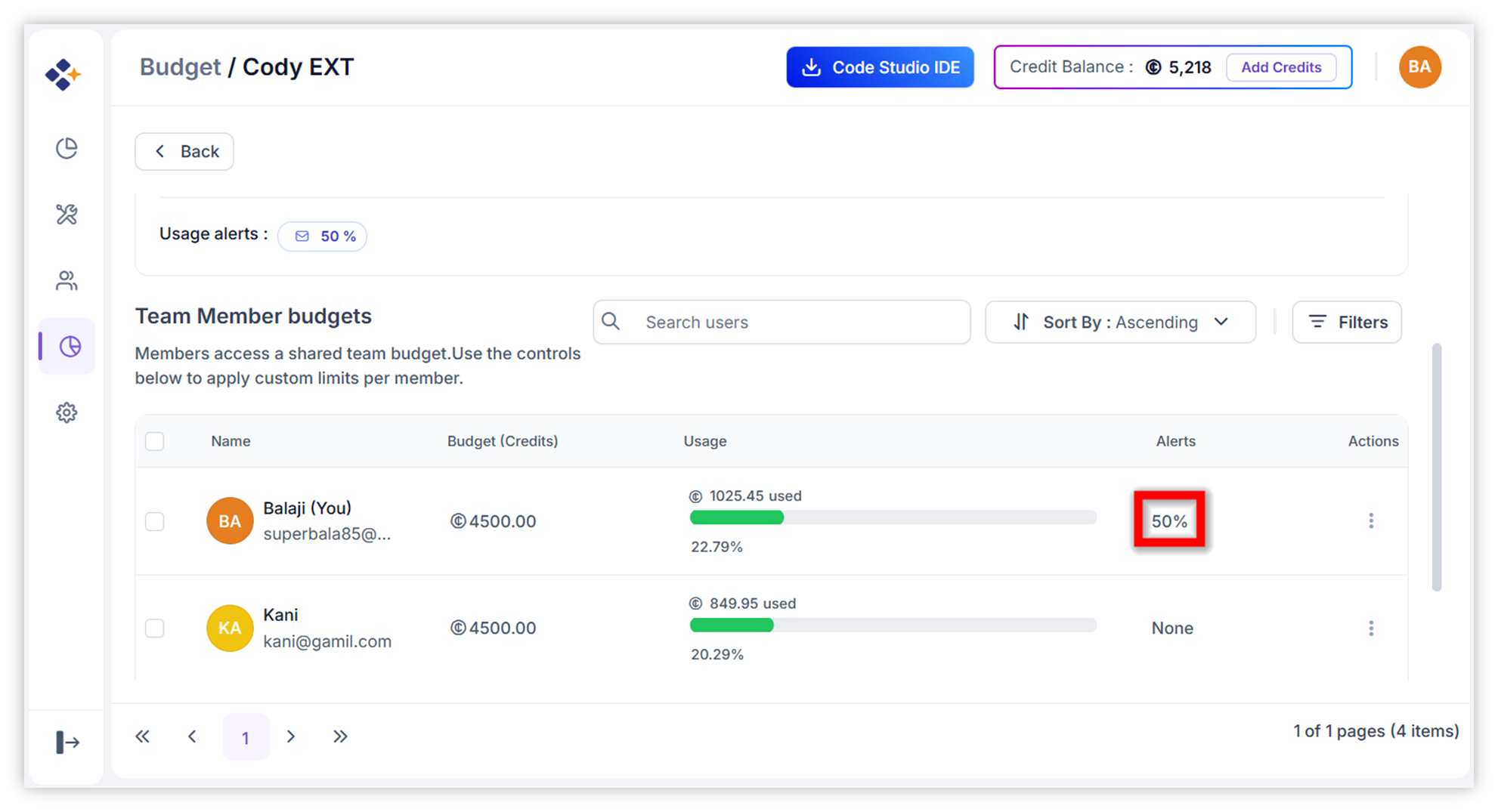
How to Manage Budget Alerts for Individual Users?
- Click the three-dot (More options) menu on the right side of the user’s row in Team Member Budgets section.
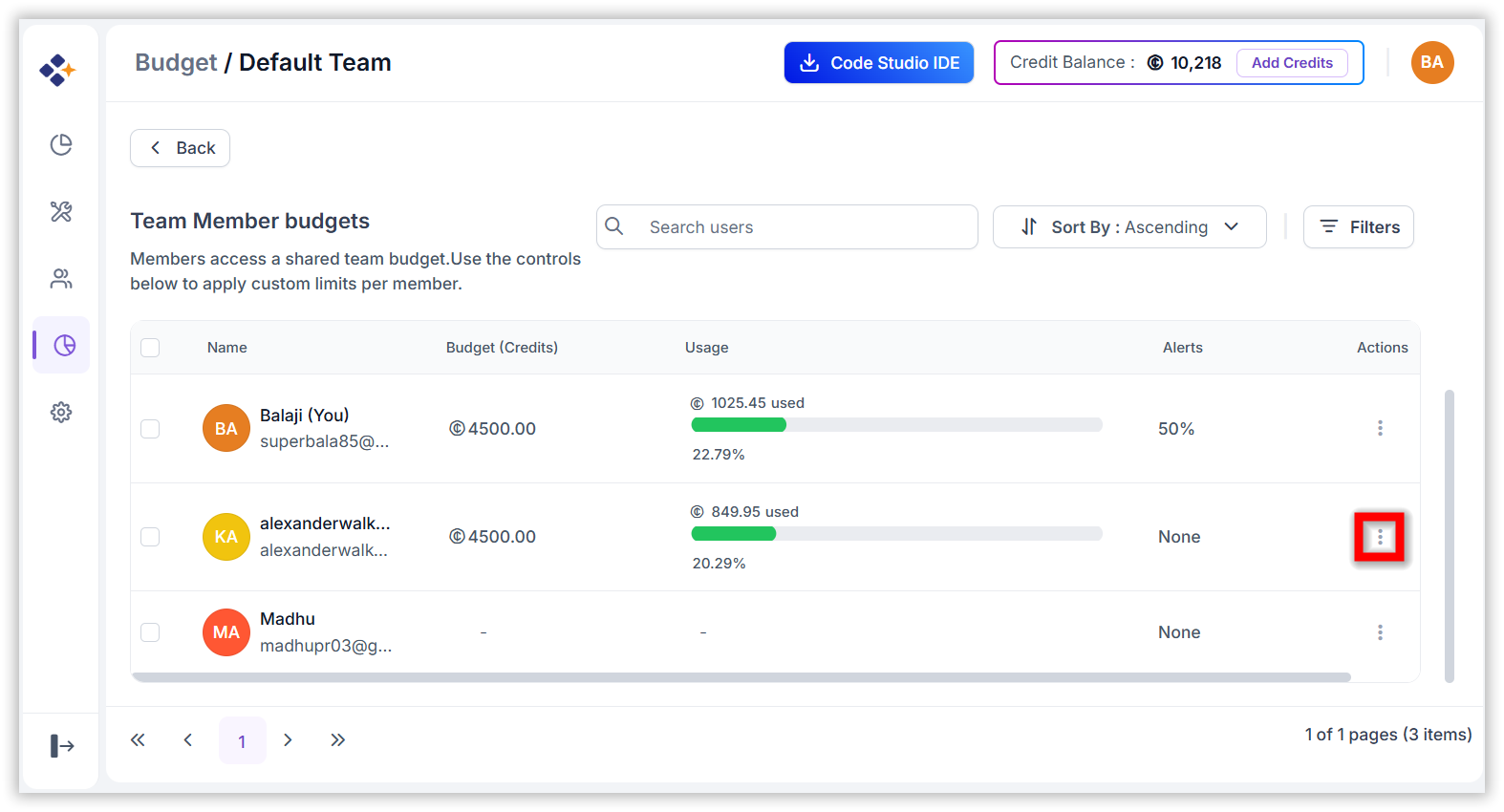
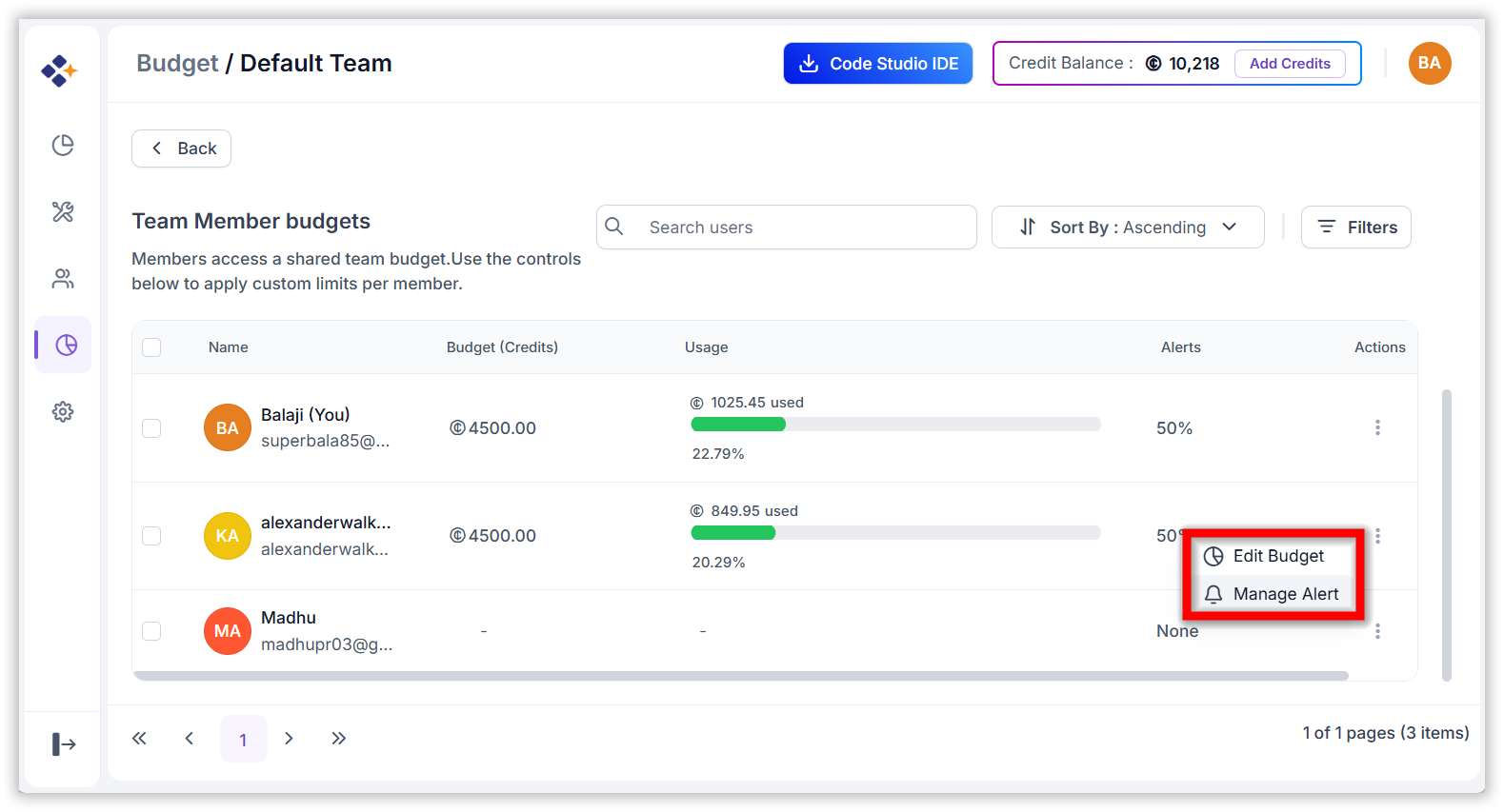
- Click the three-dot (More options) icon. The following options are displayed: Edit Budget and Manage Alert.
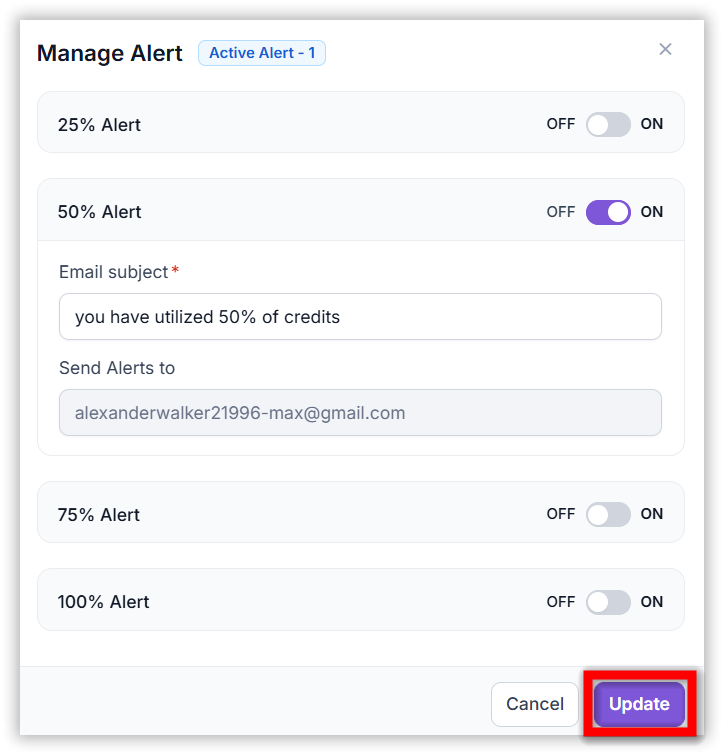
- Click Manage Alert. Update the alert settings (for example, turn 50% Off and turn 75% On), enter the required values in the input fields, and then click Update to save the changes.
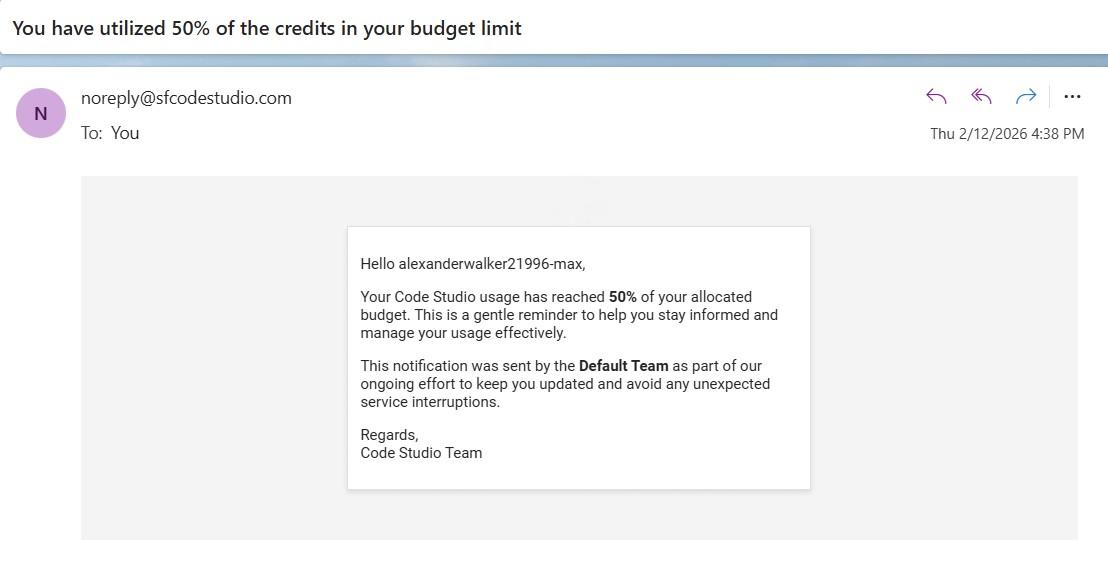
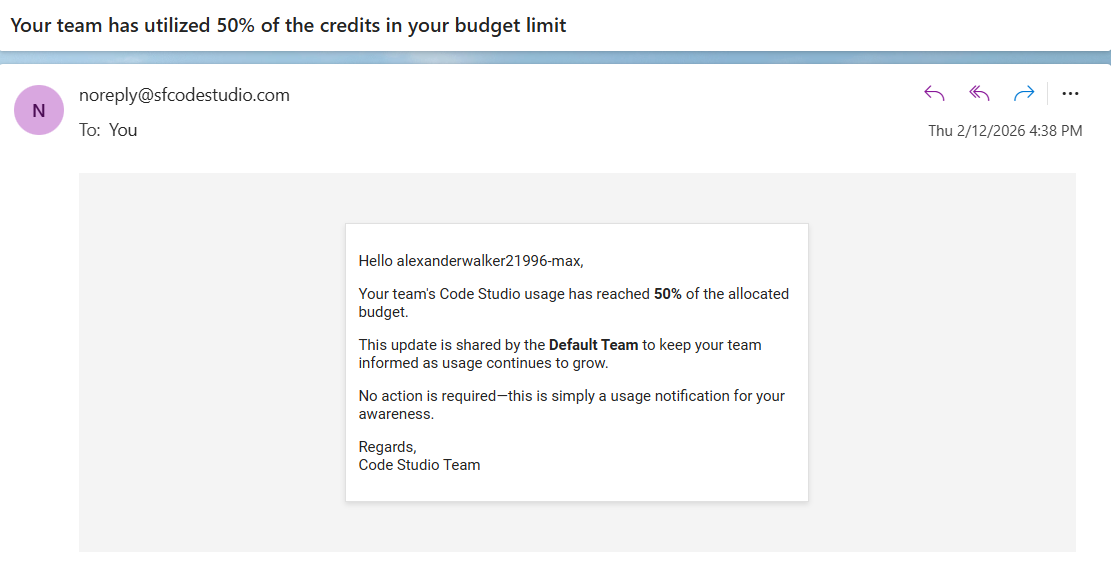
Finally, you will receive the alert email as shown in the images below,
Team Budget Alert Email:
Individual User Budget Alert Email: