Create Budget
18 Mar 20264 minutes to read
The Budget feature in Code Studio enables administrators to allocate and monitor AI usage budgets for teams and individual users. This helps organizations manage costs effectively and optimize AI resource utilization.
Note: Admins can edit and assign budget for all. A Team Owner can add budgets and set alerts for their users, but not for the entire team. Team Lead and User can view their team and user budget.
1. Team Budget Setup
Steps:
-
Open the Code Studio page and navigate to the Budget page from the left sidebar.

- Click the “Budget” button on the top right of the page.
-
Open the Add Budget dialog box.

- Choose the desired Team in the team selection field.
- Set the Maximum Budget for the team.
- Choose the Budget Period:
- Monthly
- Quarterly
- Half-Yearly
- Annually
- (Optional) Enable Auto-Renewal and set the Reset amount. This will automatically reset the budget at the end of each period.
- Click the “Create” button to add the team budget.
2. Individual User Budget Allocation
Steps:
-
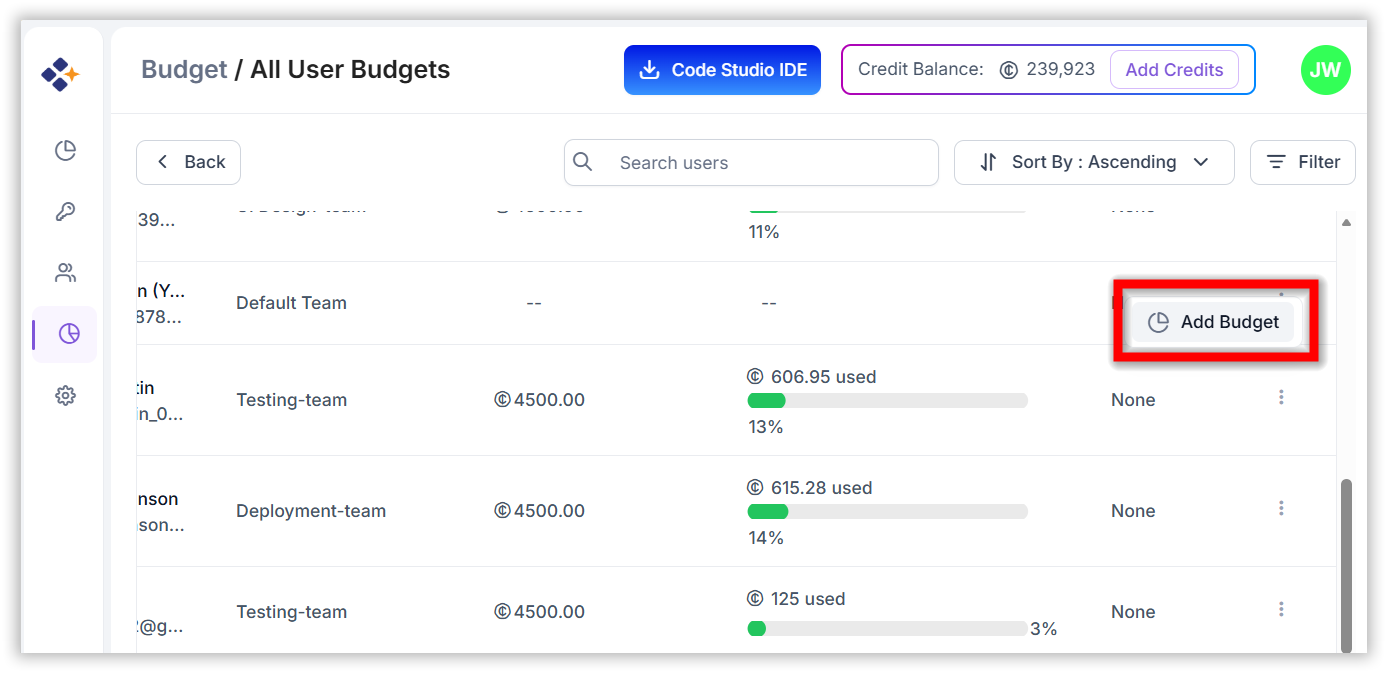
Click “Manage All users budgets” on the top right of the page.

- All users are listed in the table.
-
For a user, open the Context Menu and click “Add Budget”.
- Now the Budget Dialog Box will be open:
- Set the Maximum Budget.
- Choose the Budget Period.
-
Click the “Add” button to assign the budget to the user.

3. Team Members Budget Setup
Steps:
-
Click on the desired Team to go to its details page.

- The selected team members are listed in the grid.
- Open the Context Menu and click “Add Budget”.
- Now the Budget Dialog Box will be open:
- Set the Maximum Budget.
- Choose the Budget Period.
-
Click the “Add” button to assign the budget to the team member.
4. Bulk Budget Setup for Users
Steps:
-
Select multiple users by clicking the checkboxes in the users grid table.

- Click “Add Budget” (appears after selecting users).
- In the Bulk Budget dialog box:
- Set the Maximum Budget.
- Choose the Budget Period.
-
Click the “Add” button to assign budgets to all selected users.
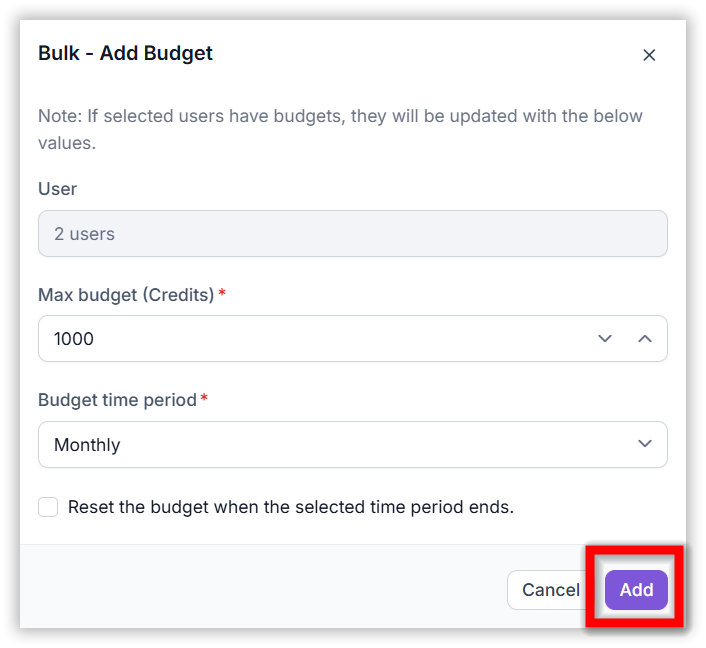
Note: If selected users already have budgets, they will be updated with the new values.
5. Edit Budget
Steps:
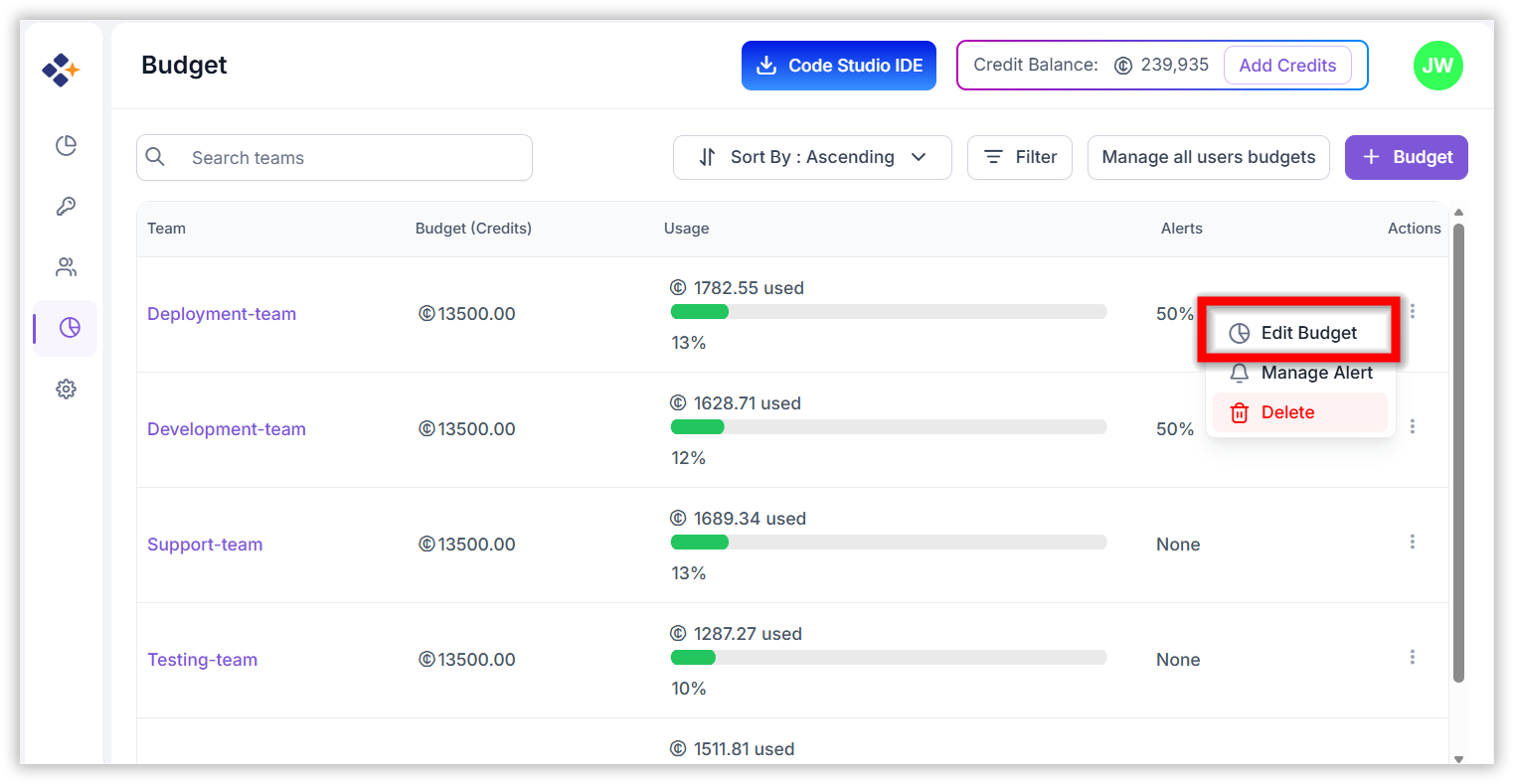
- Click “Edit Budget” from the context menu of a team or user.
- Modify the Maximum Budget, Budget Period, or Reset amount (if applicable).
-
Click Update to save the changes.
6. Delete Budget
6.1 Delete Team Budget
Steps:
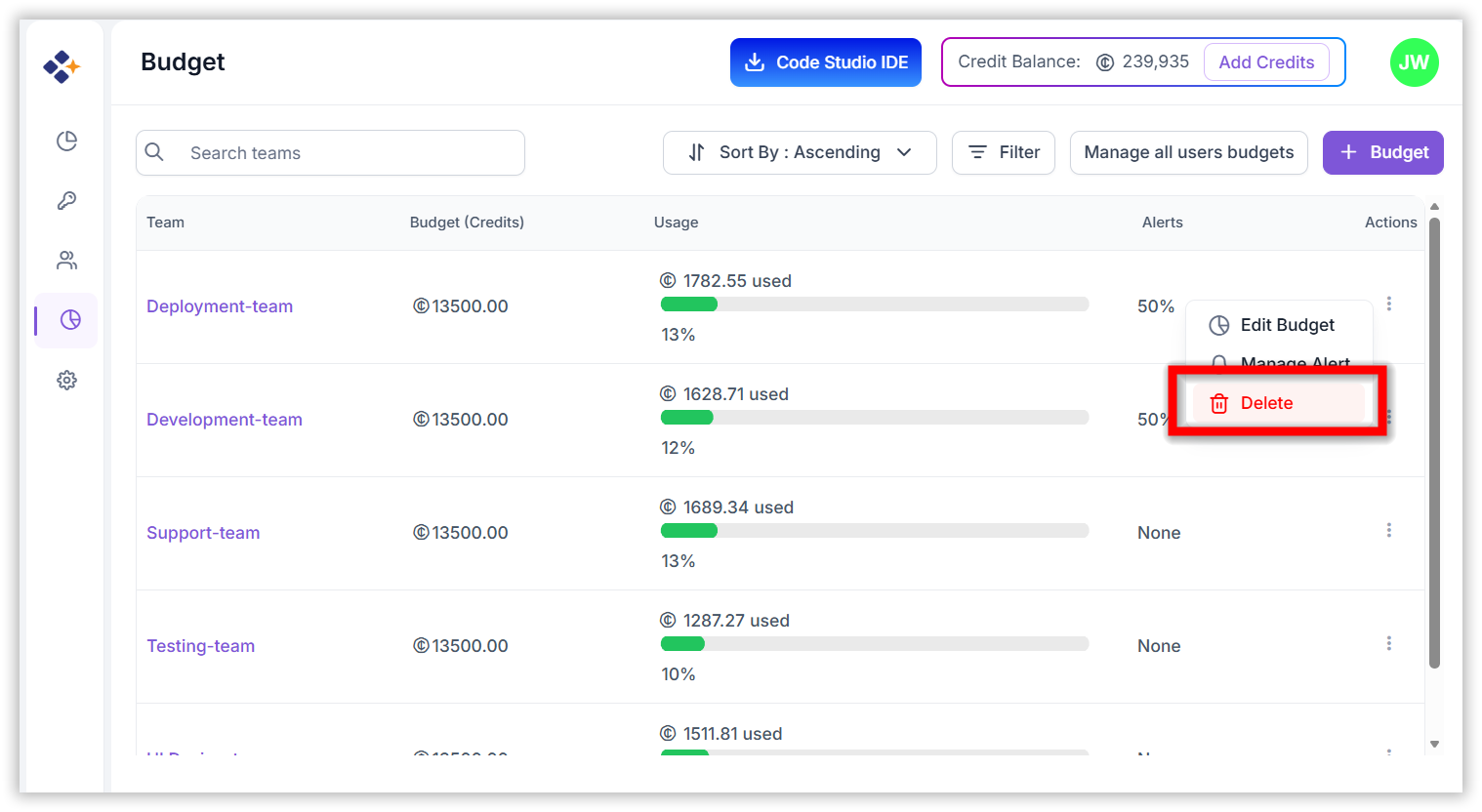
- Click “Delete” in the context menu.
-
In the Delete Dialog Box, click “Delete” to confirm.
6.2 Delete User Budget
Steps:
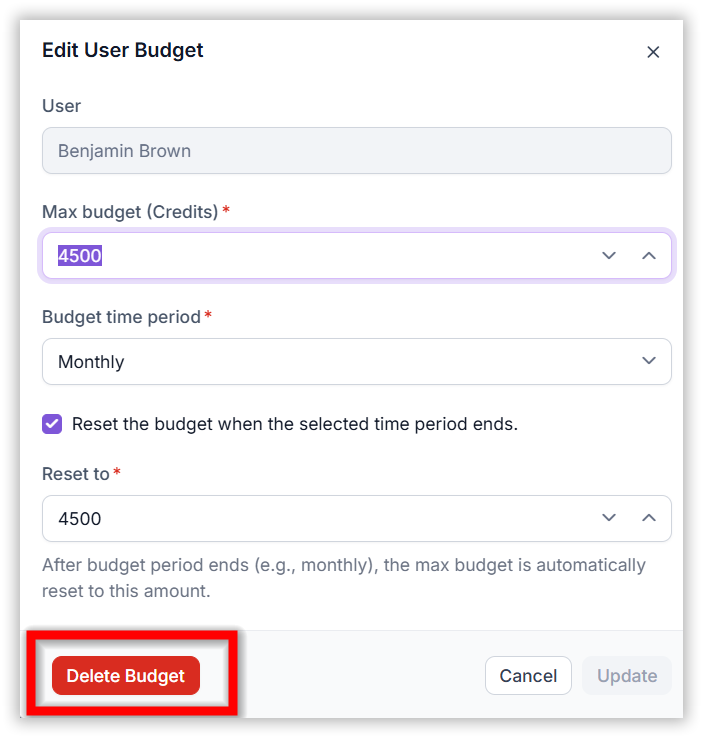
- Click “Edit Budget” from the user’s context menu.
- In the Edit Budget dialog, click “Delete”.
-
In the Delete Dialog Box, click “Delete” to confirm.
7. Usage Alerts
Administrators can set up alerts for a team or a specific user to notify us when budget usage exceeds a defined threshold.
Steps:
-
Click “Set Alert” from the context menu to open the Alert dialog box.
(If an alert is already set, click “Manage Alert” instead.)
- Set the Usage Threshold (e.g., 50%).
- Enter the Email Subject (required).
- Specify the Recipients for the alert (e.g., team lead or manager). An alert email will be sent to these recipients.
-
Click Set to activate the alert.

Note: Alerts help proactively manage budget overruns and ensure timely action.