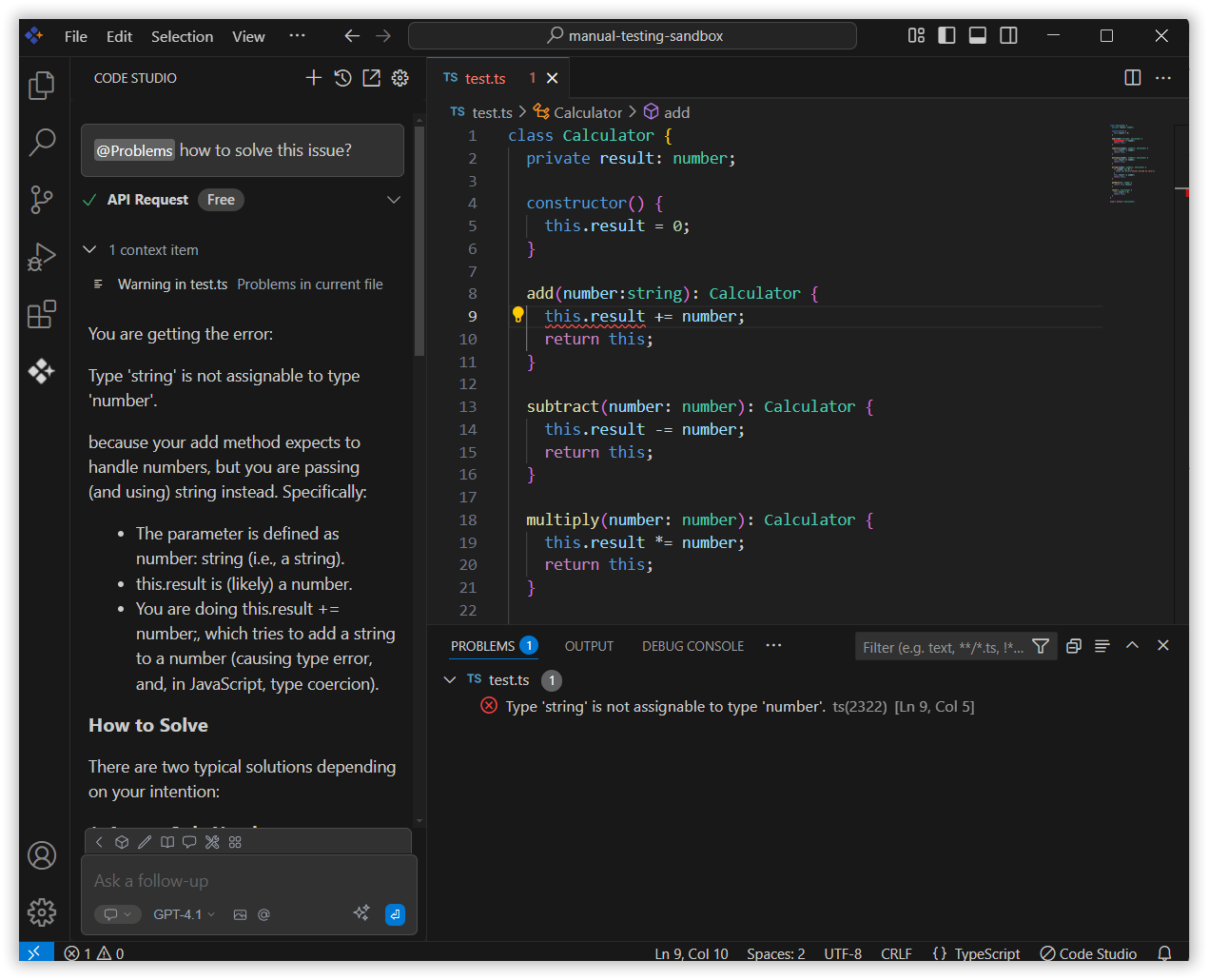
Problems
18 Nov 20181 minute to read
The problems context in Syncfusion Code Studio makes it easier to fix problems in your code. With the problems context, you can quickly focus on specific issues found in your project. This is useful when you need help with a particular error or bug. It shows file-specific problems and lets the AI give better support based on the code you are currently looking at.
How to Use the Problems context
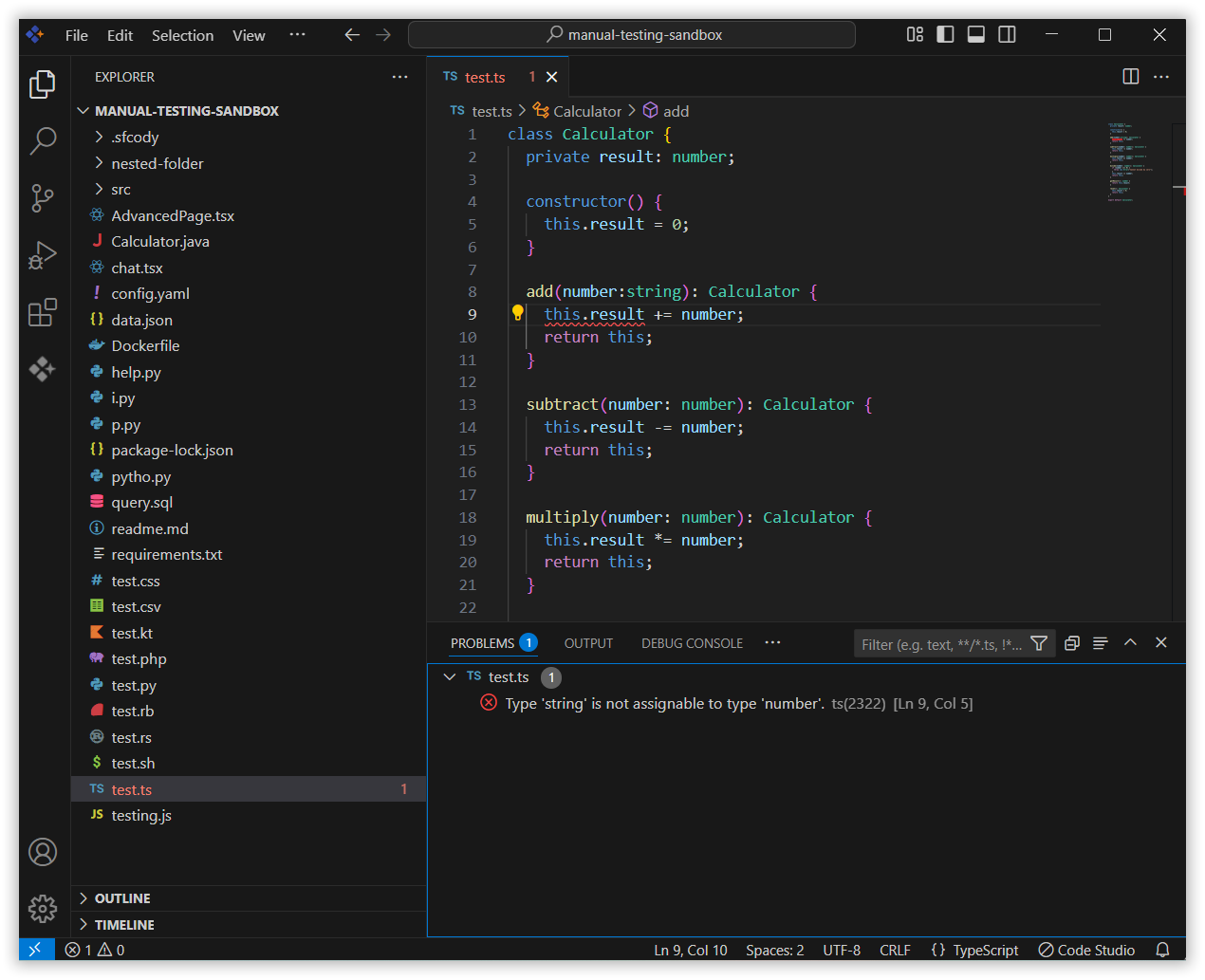
1. Open the File
Ensure the file with the problem is open in your VS Code editor.
2. Access the Chat Window
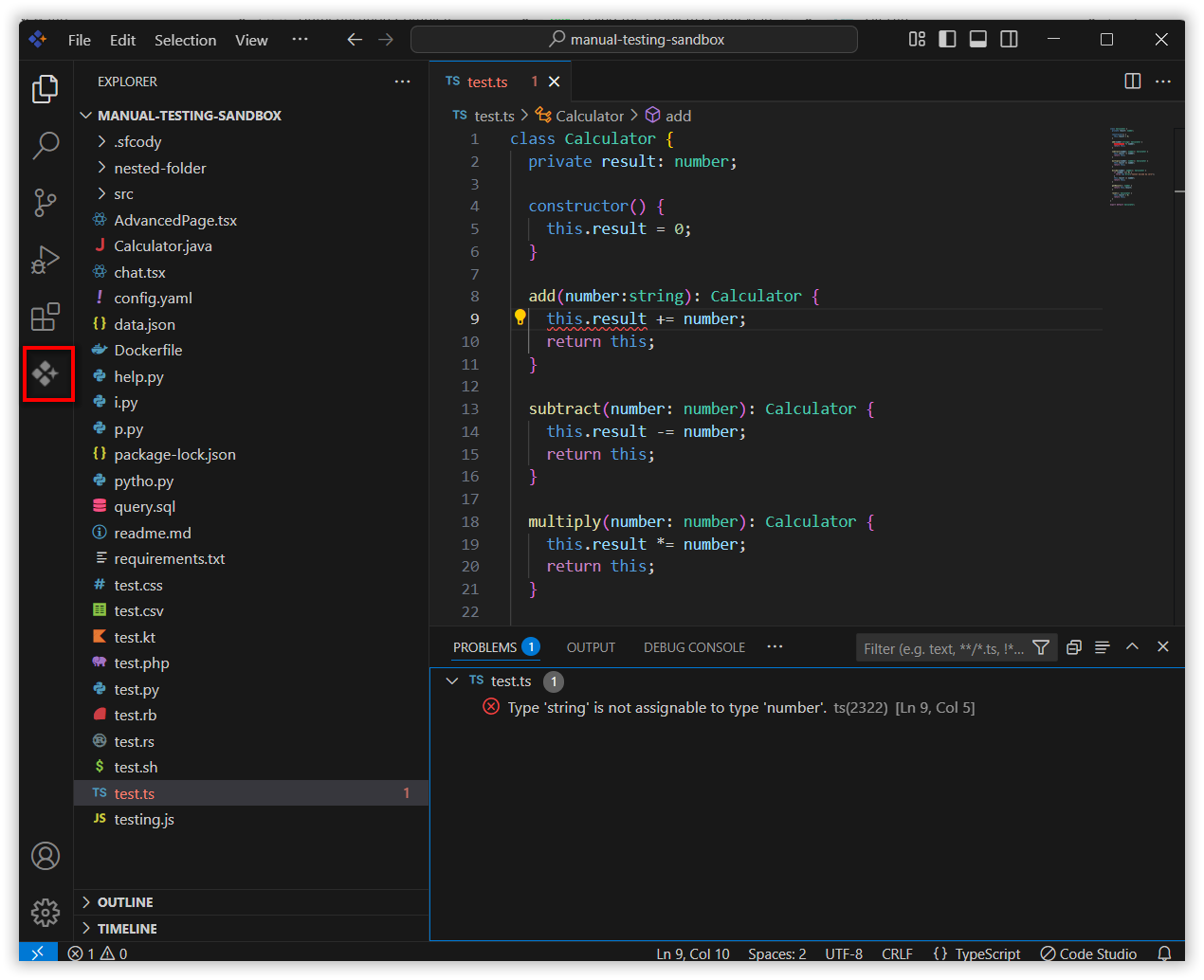
Open the chat model window of the Syncfusion Code Studio by clicking the Syncfusion Code Studio icon on the left toolbar.
3. Select Problems context
In the chat window, click the @ button.
Note: If you cannot locate the problems context option in the list, you will need to add it manually by including this context provider in the config.yaml file. Please follow the steps outlined in this link to do so.
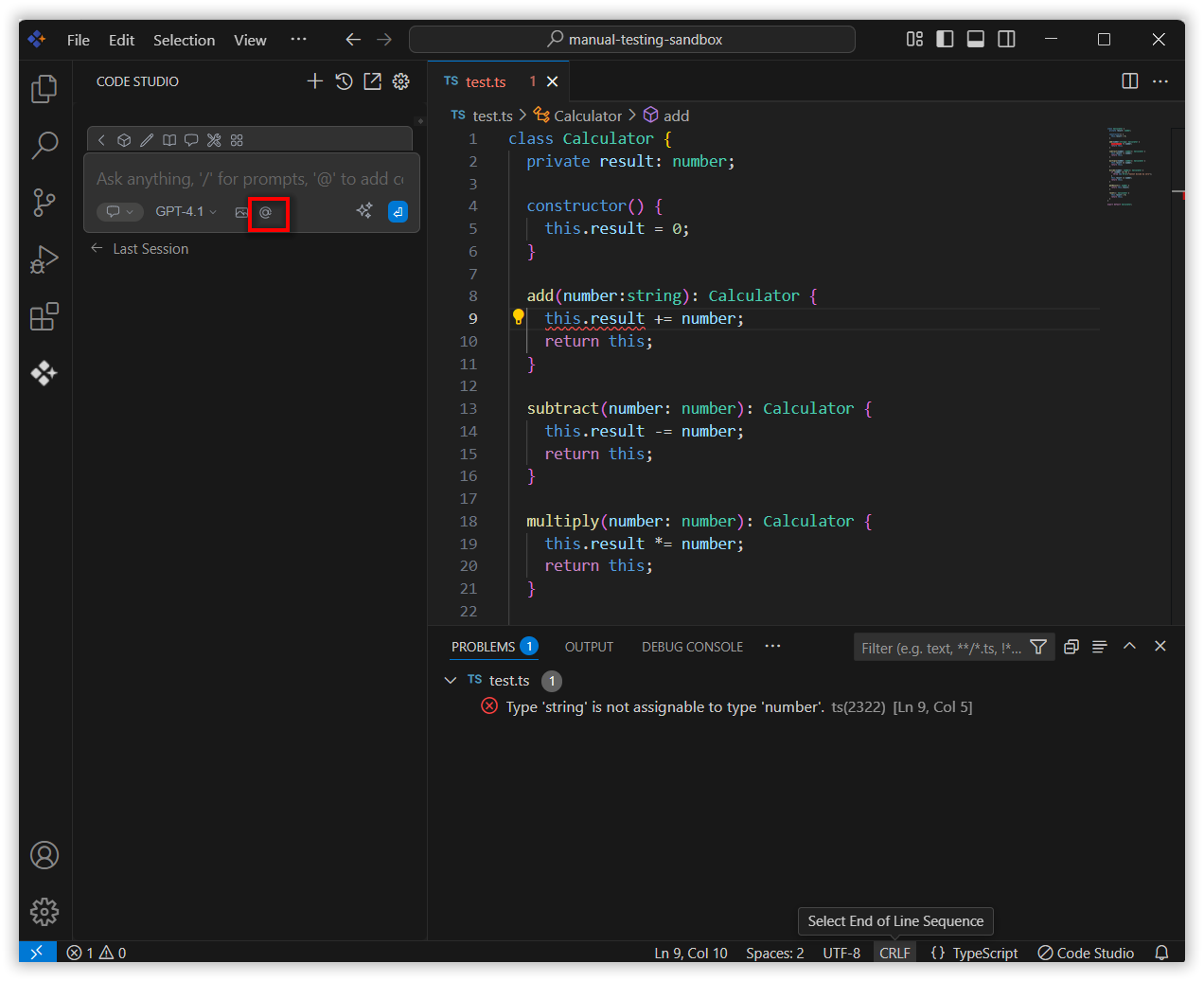
From the context menu that appears, choose problems.
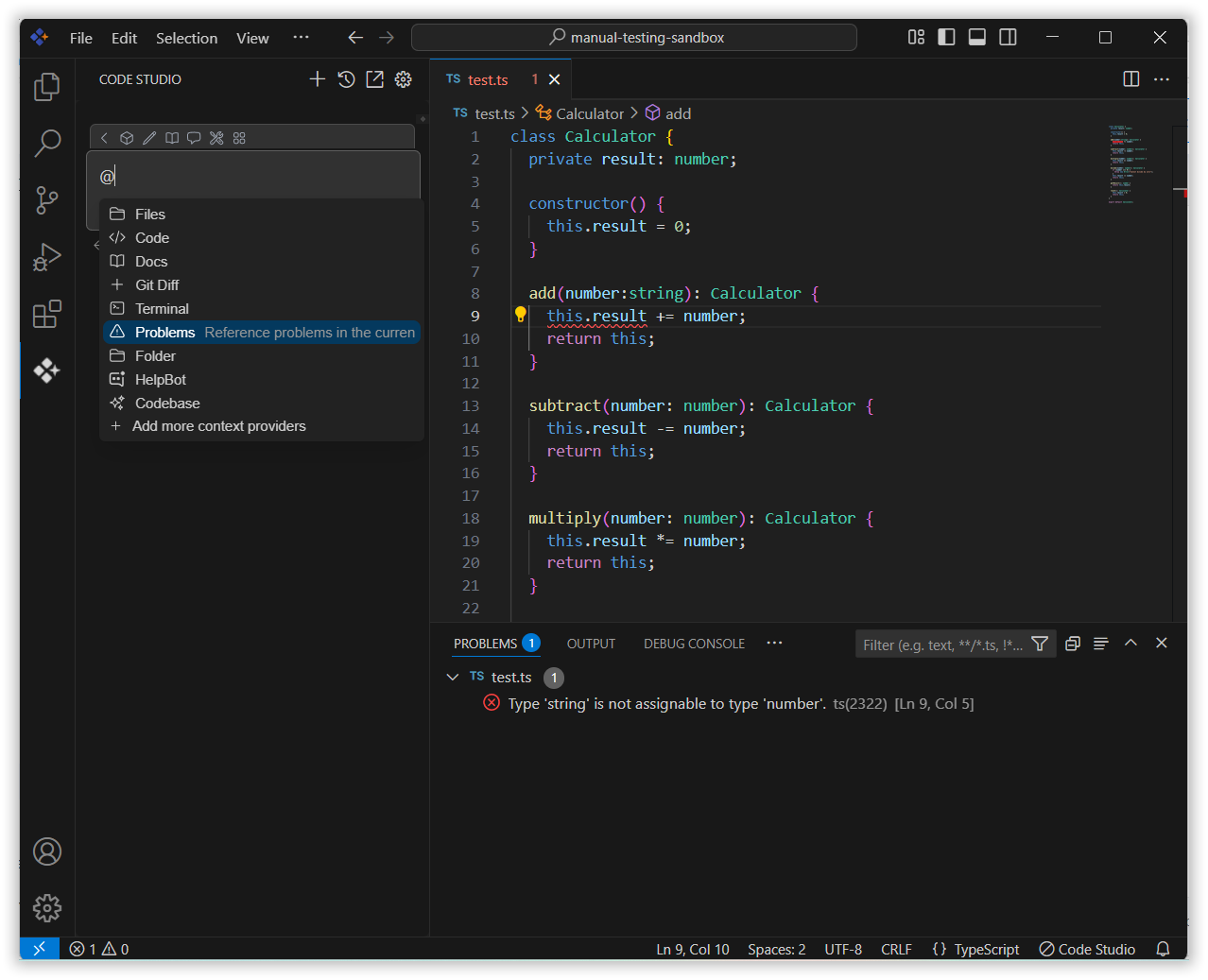
4. Use problems Context with Query
Input relevant details about the issue in the chat model window and click Enter.
The AI will analyze the problems data and offer suggestions or solutions for issues in the currently opened file directly in the chat window. This will help you resolve issues in the file you’re working on in the VS Code editor.