PostgreSQL
18 Nov 20181 minute to read
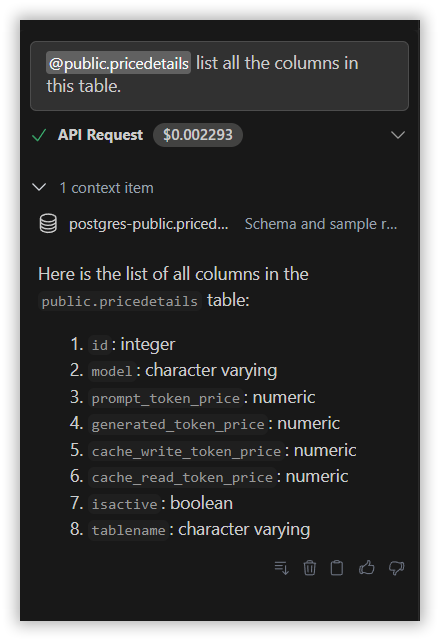
The PostgreSQL context provider in Syncfusion Code Studio enables seamless integration with PostgreSQL databases, allowing you to interact with your database directly from your development environment.
How to Use the PostgreSQL context
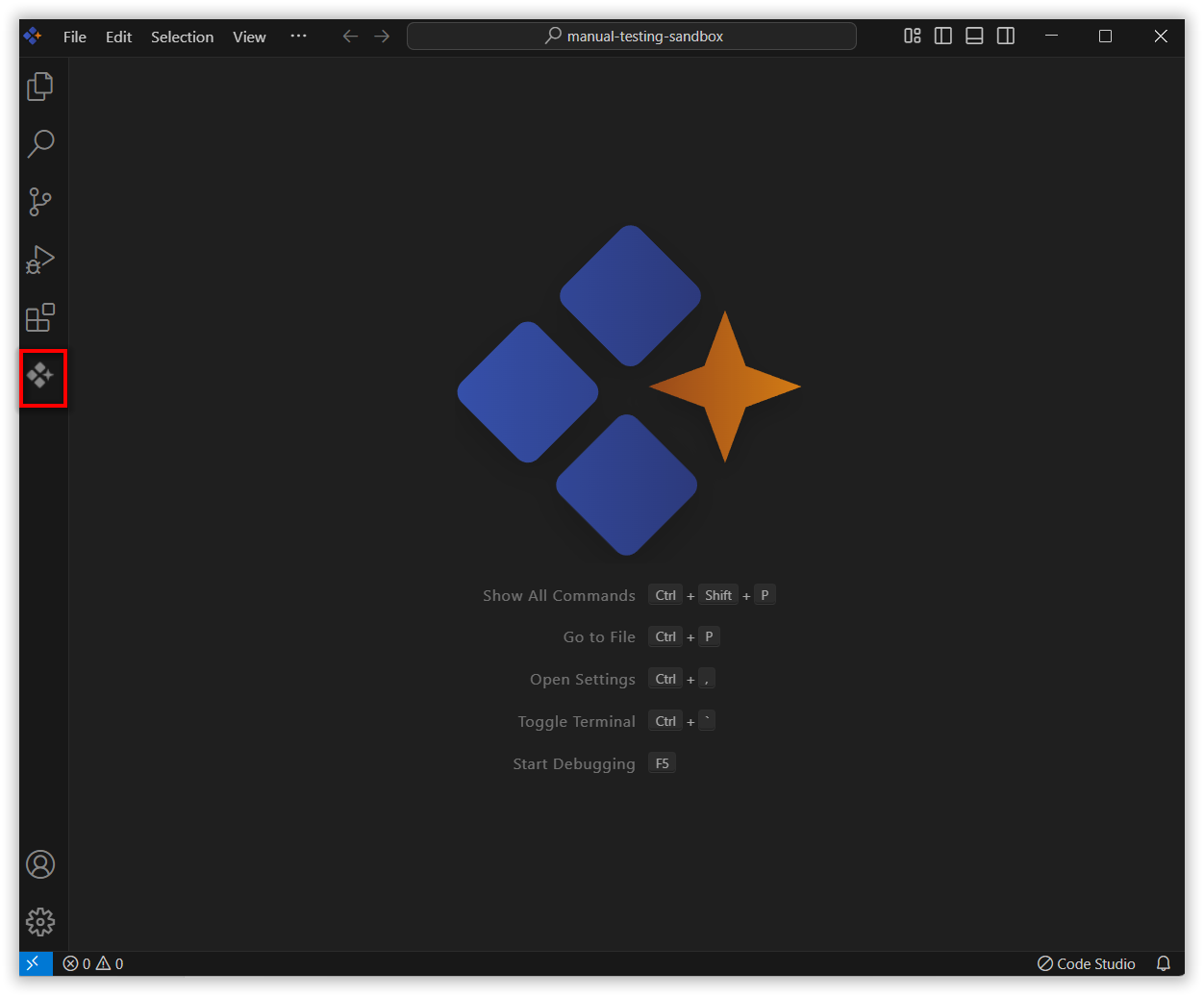
1. Open the Syncfusion Code Studio
In the Syncfusion Code Studio, the chat interface is located on the left-hand side. This is where you can interact with AI and ask questions or get assistance.
2. Select PostgreSQL context
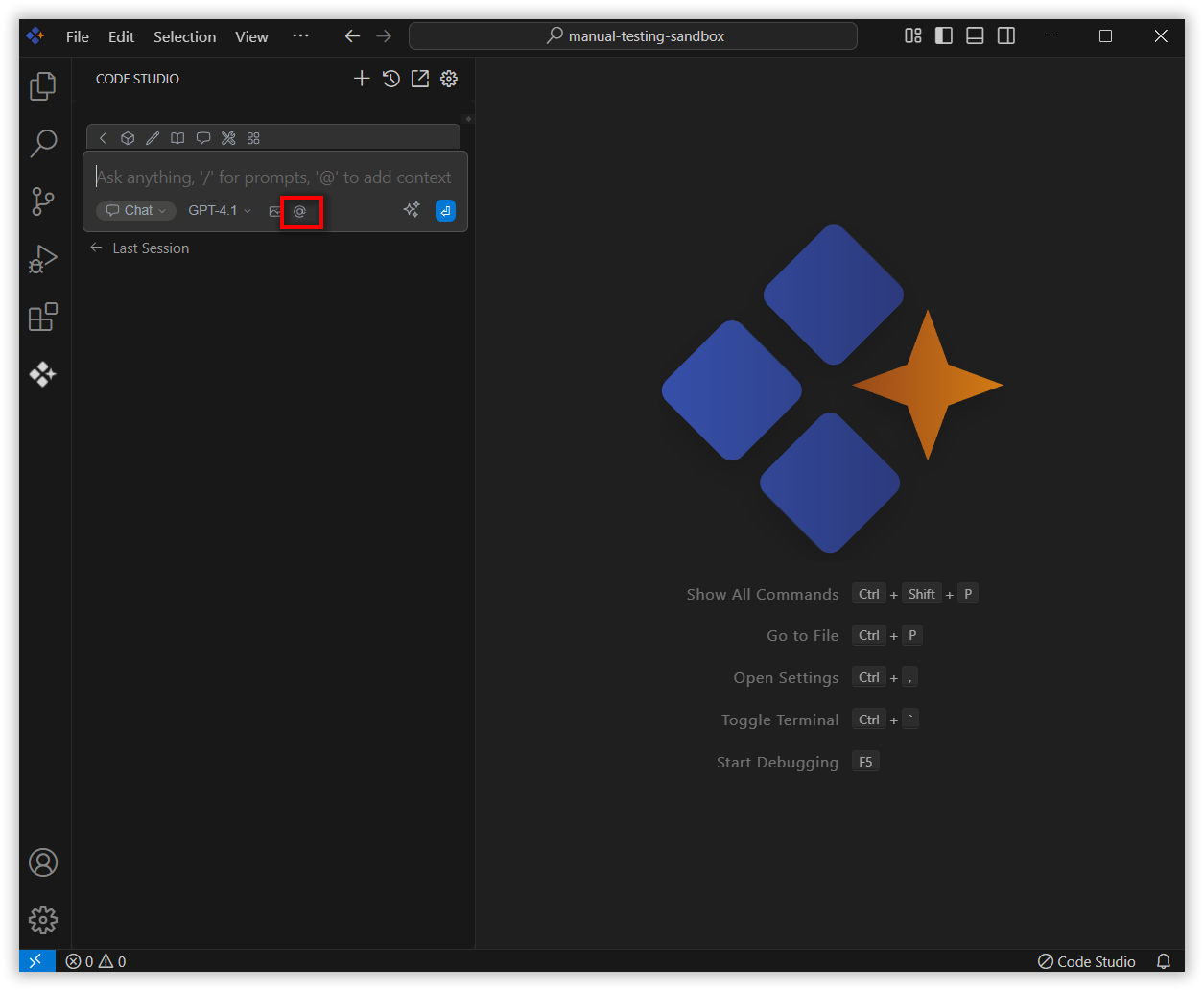
In the chat window, click the @ button.
Note: If you cannot locate the PostgreSQL context option in the list, you will need to add it manually to include this context provider. Please follow the steps outlined in this link to do so.
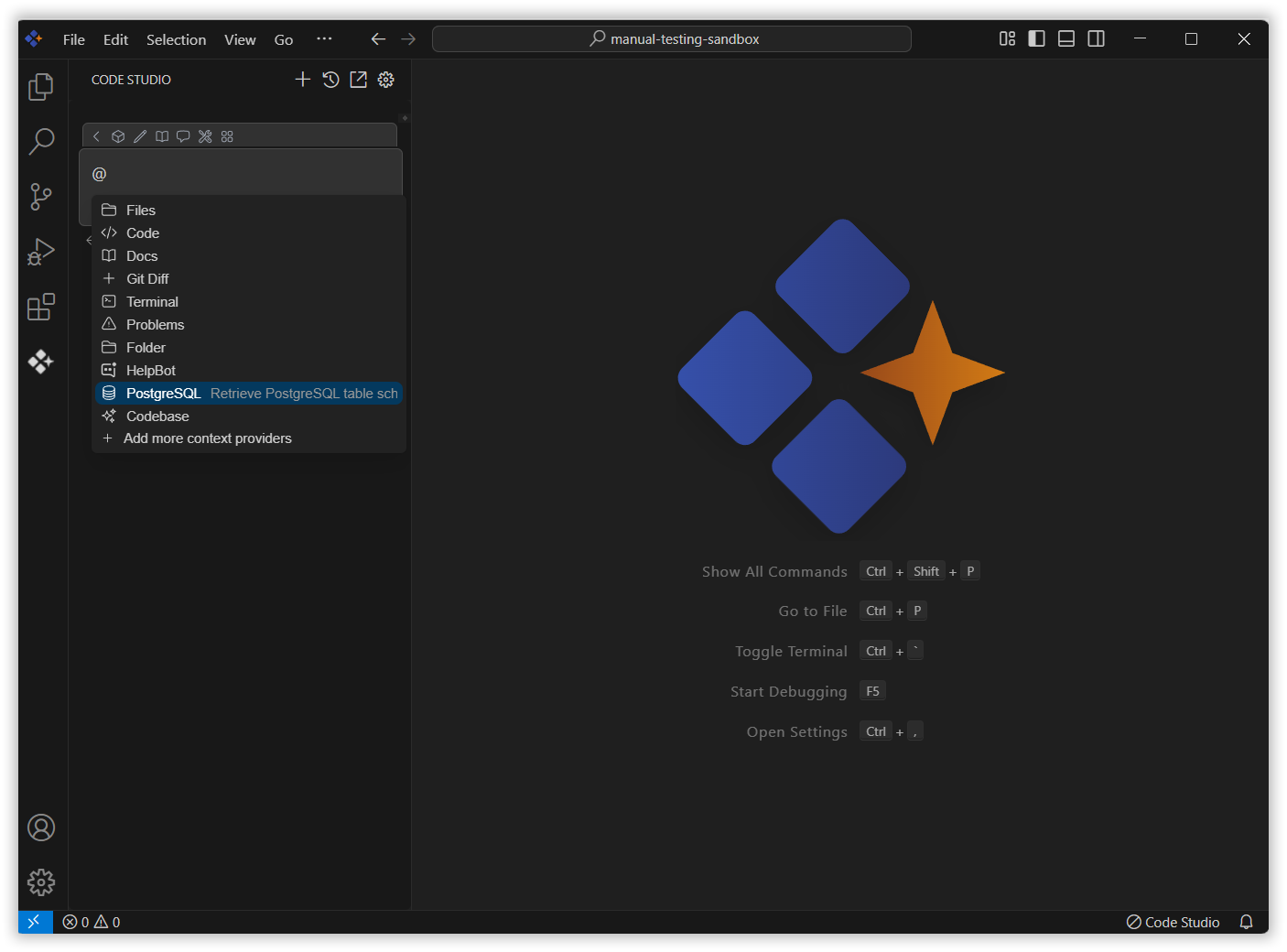
A menu will appear—select PostgreSQL. This allows the AI to access your PostgreSQL database and utilize its data for context.
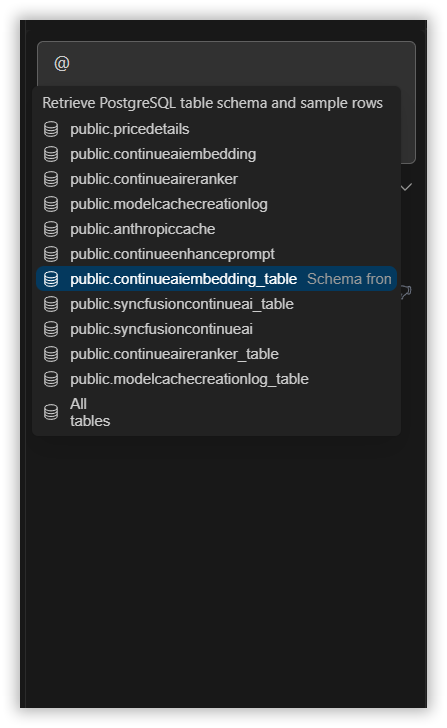
3. Select Required Table Schema
Select the table schemas from the list to enable the AI to access the connected database and deliver accurate, data-driven responses.
4. Describe the Query
Give the detailed query in the chat model window and click Enter.
The AI will provide responses based on the PostgreSQL database context.