Autocomplete
9 Sep 20265 minutes to read
Overview
Syncfusion Code Studio provides an AI‑powered Autocomplete system designed to accelerate coding by offering intelligent inline suggestions and completing code based on context. The feature supports multiple programming languages and frameworks, helping developers write faster, cleaner, and more consistent code.
Key capabilities include:
- Inline code suggestions (ghost text)
- Automatic code completion for functions, loops, and patterns
- Code generation from comments
- Style‑aware suggestions that match your existing coding patterns
- Multi‑suggestion alternatives
- Next Edit Suggestions for guided sequential editing and refactoring
Use Cases
- Faster Code Writing
Autocomplete reduces repetitive typing and automatically completes structures like loops, functions, and common patterns. -
Maintaining Coding Style Consistency
Code Studio analyzes your codebase and aligns suggestions with your naming conventions, patterns, and structure. -
Code Generation from Comments
By writing descriptive comments, Code Studio can generate classes, fields, and method logic automatically. -
Error Correction and Refactoring
Next Edit Suggestions help predict and guide your next change. - Sequential Edits Across Code
When performing multi‑step updates—like renaming, refactoring, or modifying patterns—Code Studio highlights and suggests the next best edit to maintain flow.
How Autocomplete Works
Inline Suggestion
Inline suggestions appear as light, faded (ghost) text directly at the cursor while you type. These suggestions help you complete code quickly without interrupting your flow.
How to get your first inline suggestion in Code Studio
Steps:
- Start typing normally in the file which is inside the Code Studio editor.
- A faded (ghost) suggestion will appear based on your context.
-
Accept full suggestion: Press
Tab -
Dismiss suggestion: Press
Esc -
Accept suggestion word-by-word: Press
Ctrl/Cmd + →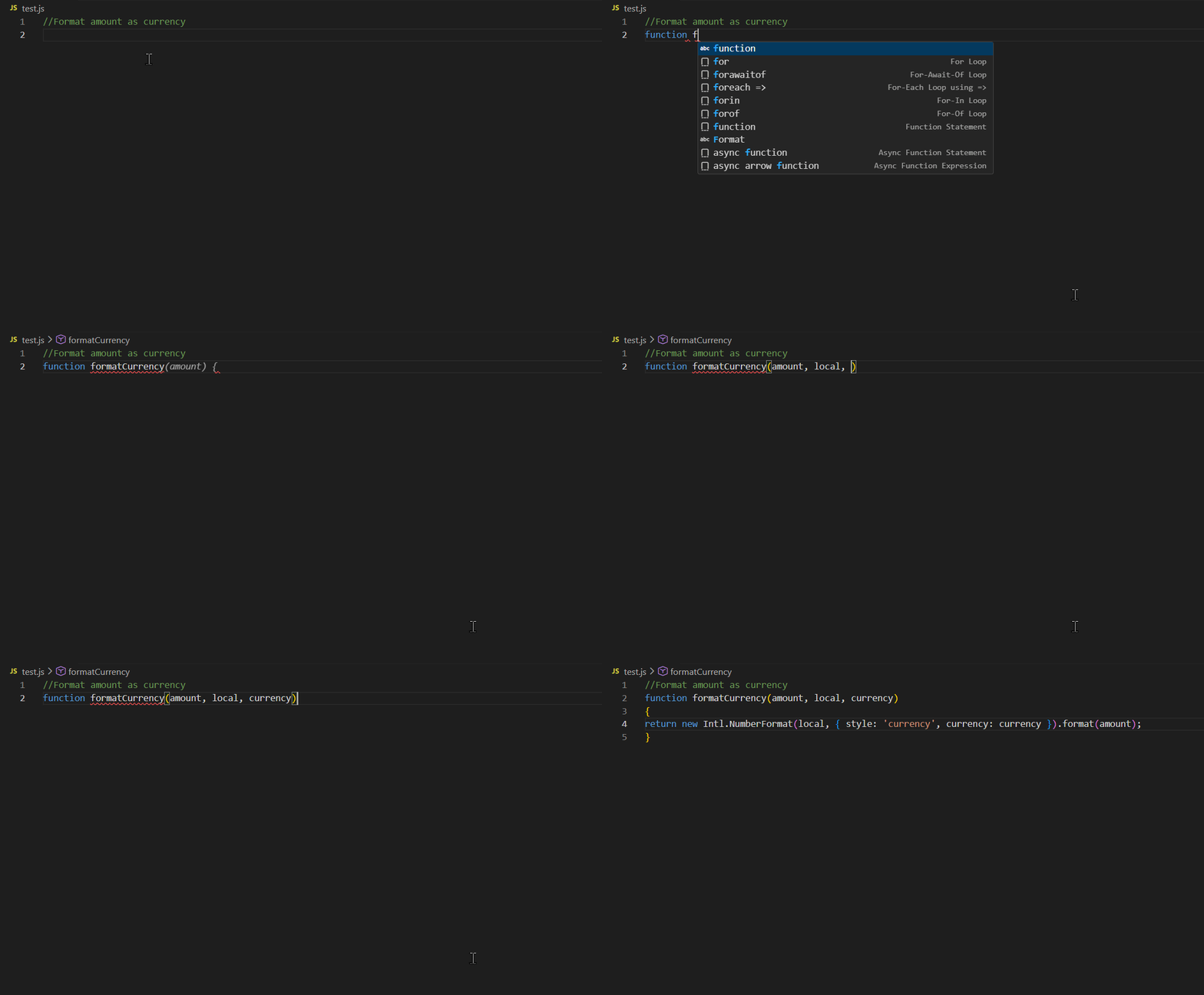
Maintaining Coding Style Consistency
Code Studio analyzes your existing code patterns—such as parameter names, method structure, and naming conventions—and automatically suggests completions that match your style. This ensures consistent code quality across your project.
Example:
If your method calculateTotal uses parameters like price and quantity, then when you start writing a new method such as calculateDiscountedTotal, Code Studio will suggest the same parameter names to maintain consistency.
Alternative Suggestions
Code Studio may provide multiple alternative suggestions. Hover over a suggestion to view alternatives and choose the one that best fits your code.
Code Generation from Comments
You can provide hints to Code Studio to generate code by simply writing a comment that describes what you want.
Example:
If you write comment like,
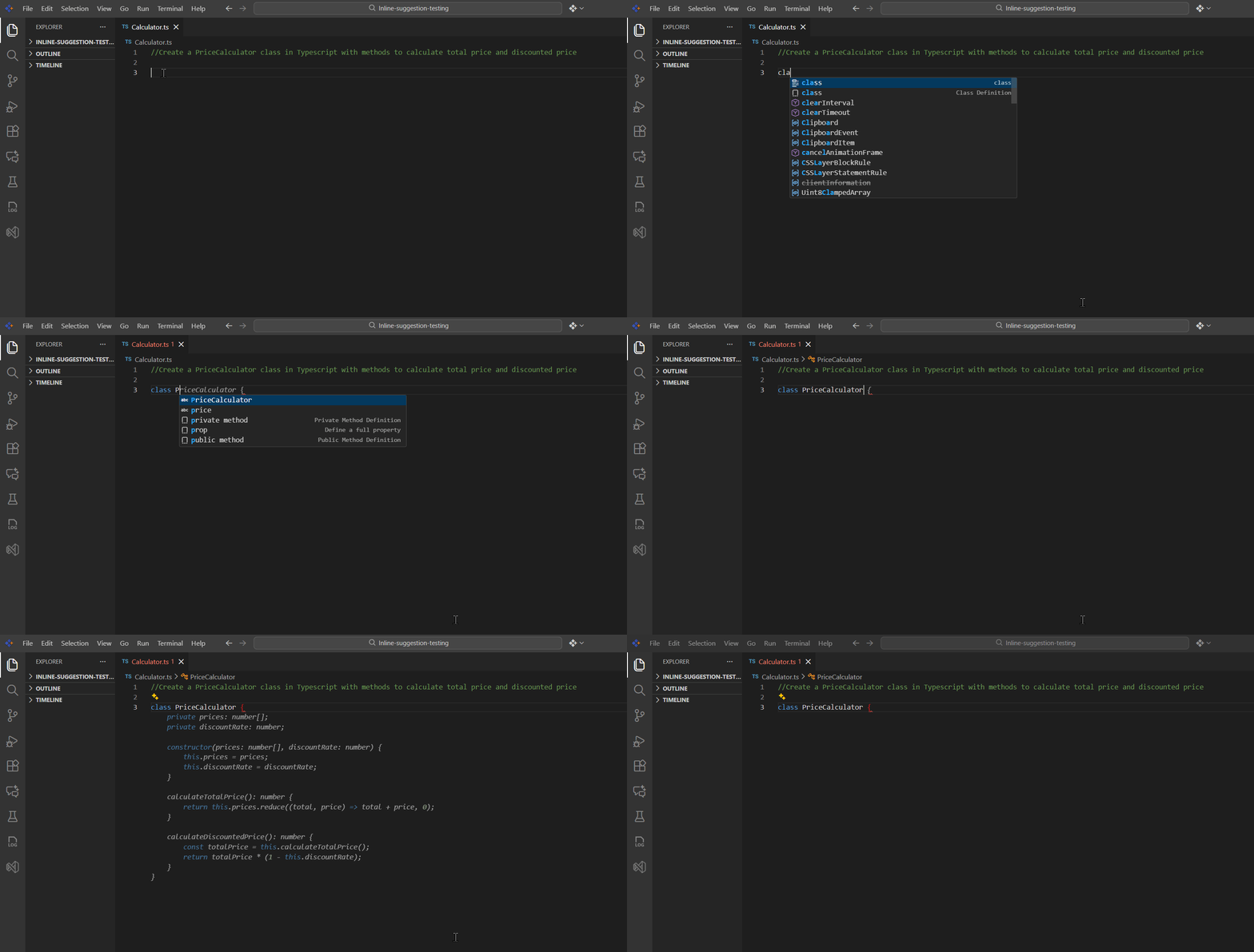
// Create a PriceCalculator class in Typescript with methods to calculate total price and discounted price
Code Studio may automatically generate the corresponding class with:
- Fields
- Methods
- Default logic matching your description
Next Edit Suggestion
-
Next Edit Suggestions in Syncfusion Code Studio help you move quickly through related edits by predicting where your next change should occur and suggesting what that change might be.
-
This feature keeps you in the flow of editing—especially when making sequential updates, correcting mistakes, or refactoring code across multiple lines.
How Next Edit Suggestions Work
1. Predicting the Next Edit:
When you start editing a block of code, Code Studio analyzes the intent and predicts where your next edit is likely needed.
For example, if you rename a variable in one place, Code Studio suggests updating other references automatically.
2. Navigating to the Suggested Edit
- A small arrow icon appears in the gutter to indicate an upcoming edit suggestion.
- Press
Tabto accept the suggestion. - Press
Escto reject the suggestion.
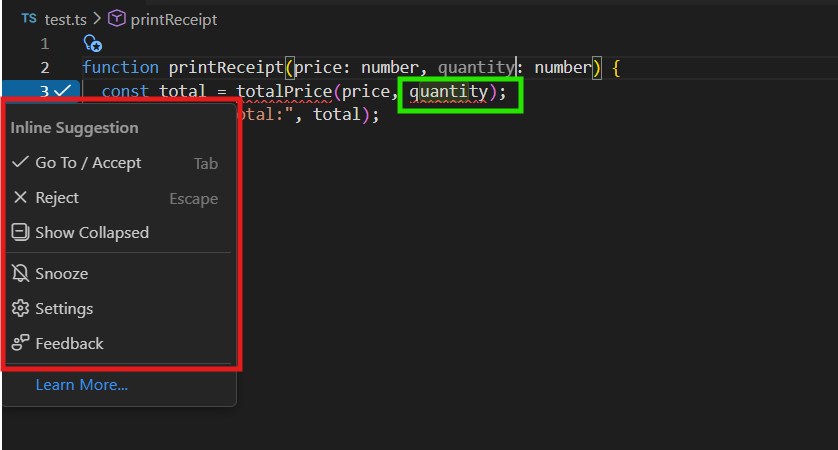
Use Cases for Next Edit Suggestions
1. Correcting Mistakes
Correcting incorrect comparison operator: Code Studio identifies cases where an incorrect comparison operator is used and suggests a correction based on the intended logic of the code.
Example: A developer intends to compare numbers to find the largest value, but mistakenly uses the < operator instead of >. Code Studio identifies this logical mistake and suggests replacing the incorrect operator:
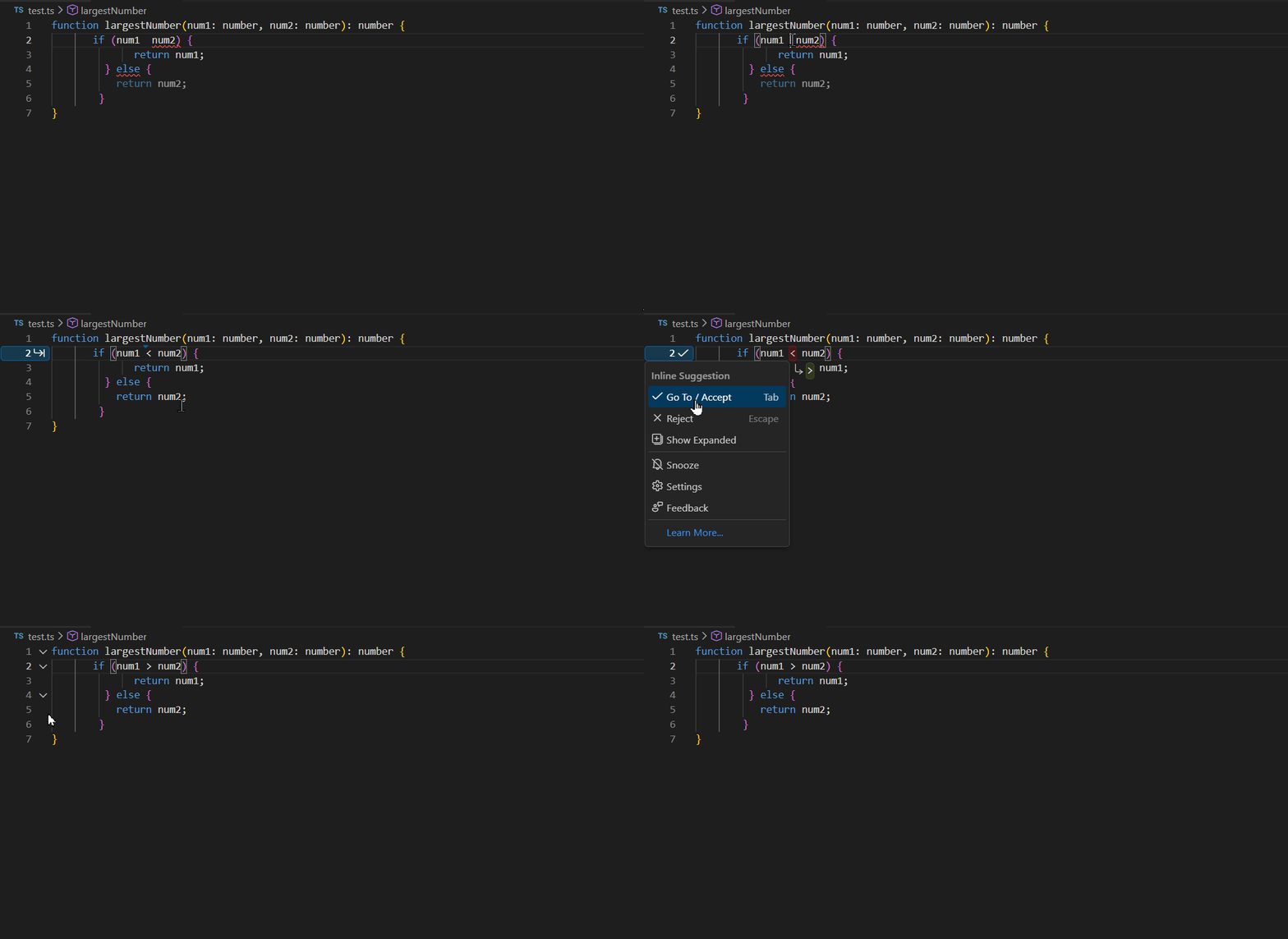
Correcting incorrect variable declaration: Code Studio identifies cases where the developer’s intent is clear, but the code is written incorrectly due to a typo or swapped identifier.
Example: The developer intends to return a constant value, but accidentally types cont instead of const and refers to the function name instead of the variable. Code Studio infers the intended logic and suggests the corrected declaration and return value:
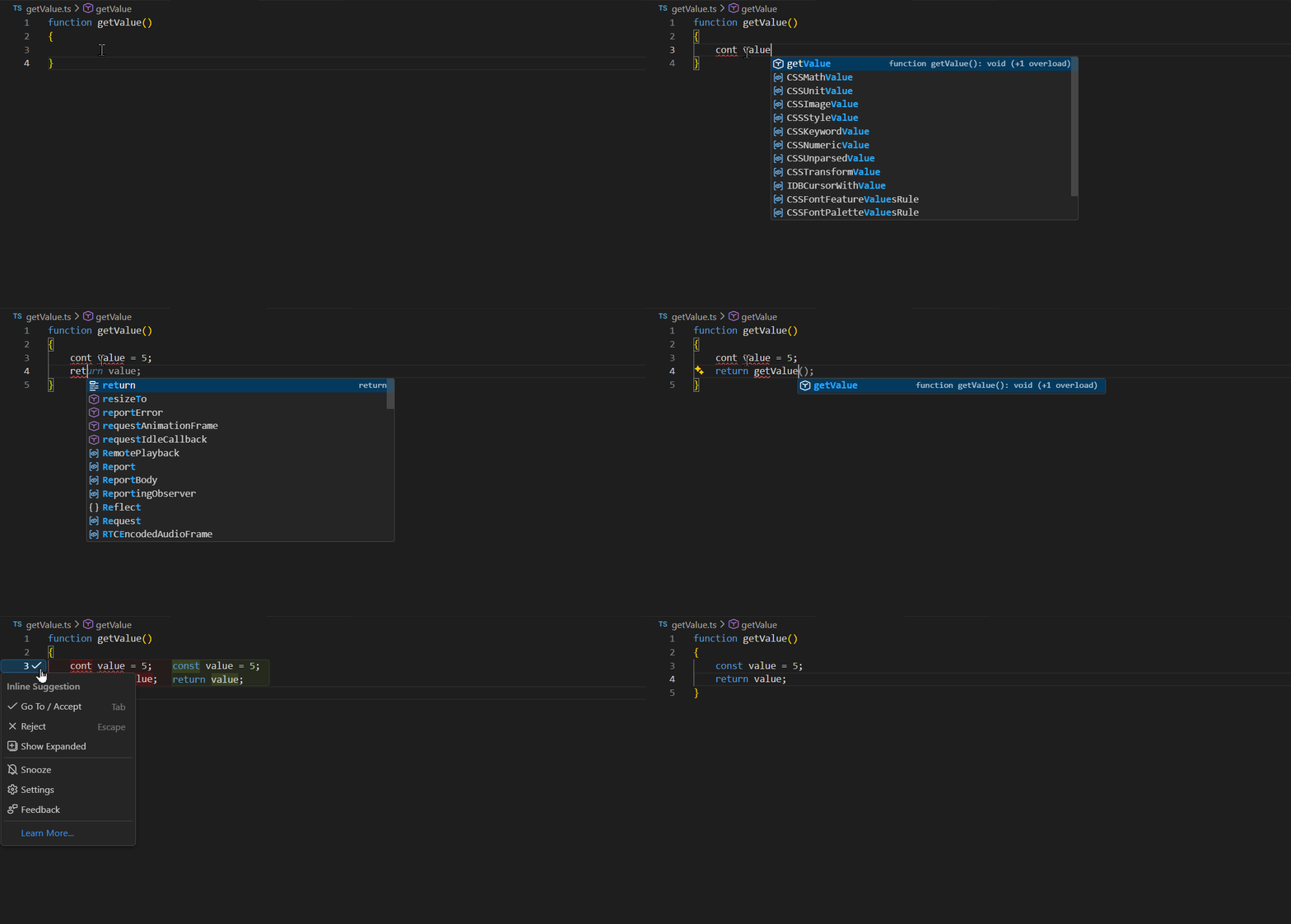
2. Updating variable names consistently
Code Studio identifies when a variable has been renamed and suggests updating all related references to keep the code consistent.
Example: When a developer renames a variable or introduces a new naming pattern, Code Studio detects the intent and recommends updating subsequent occurrences of the variable to match the new name:
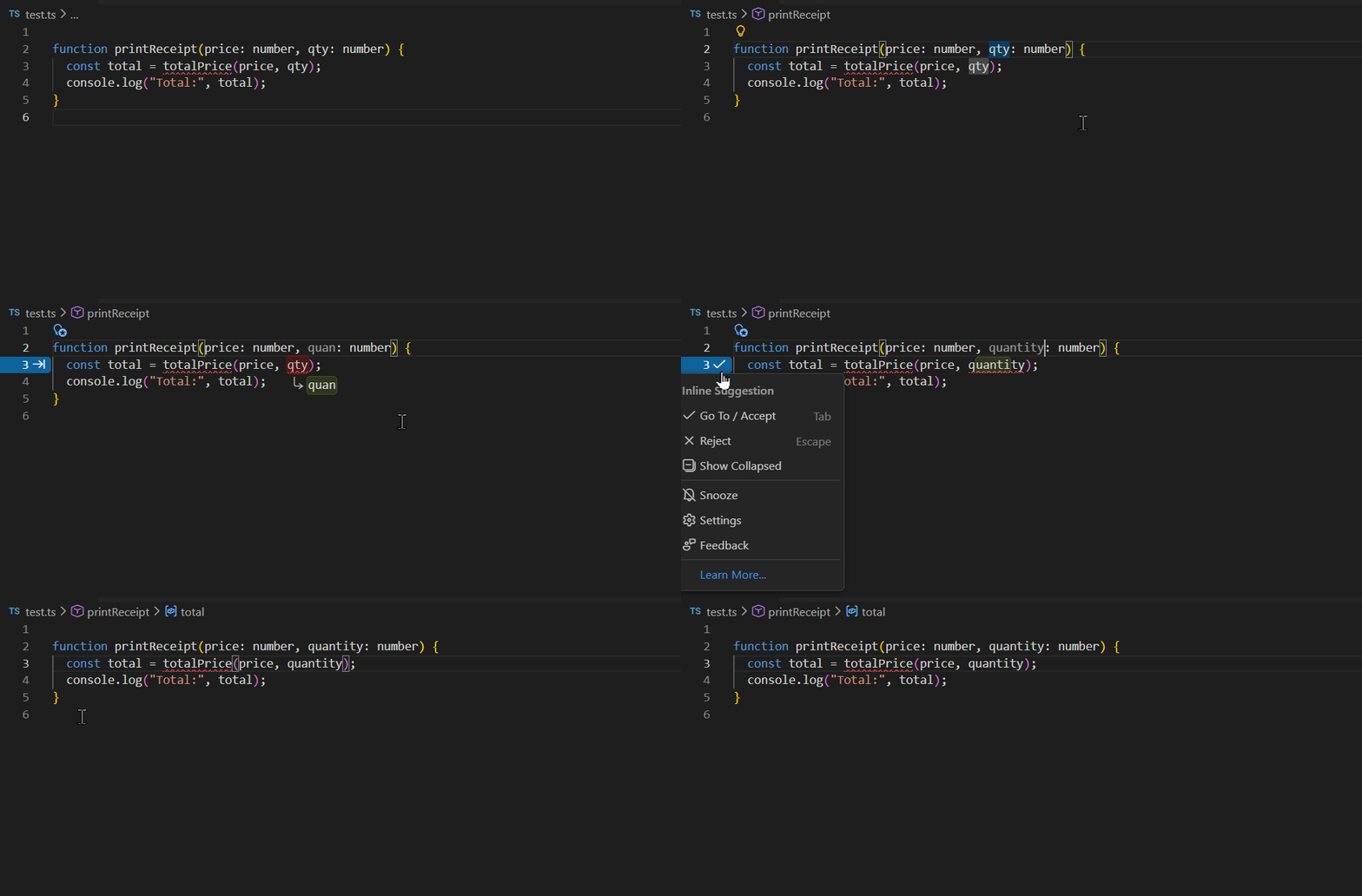
Configuration Options
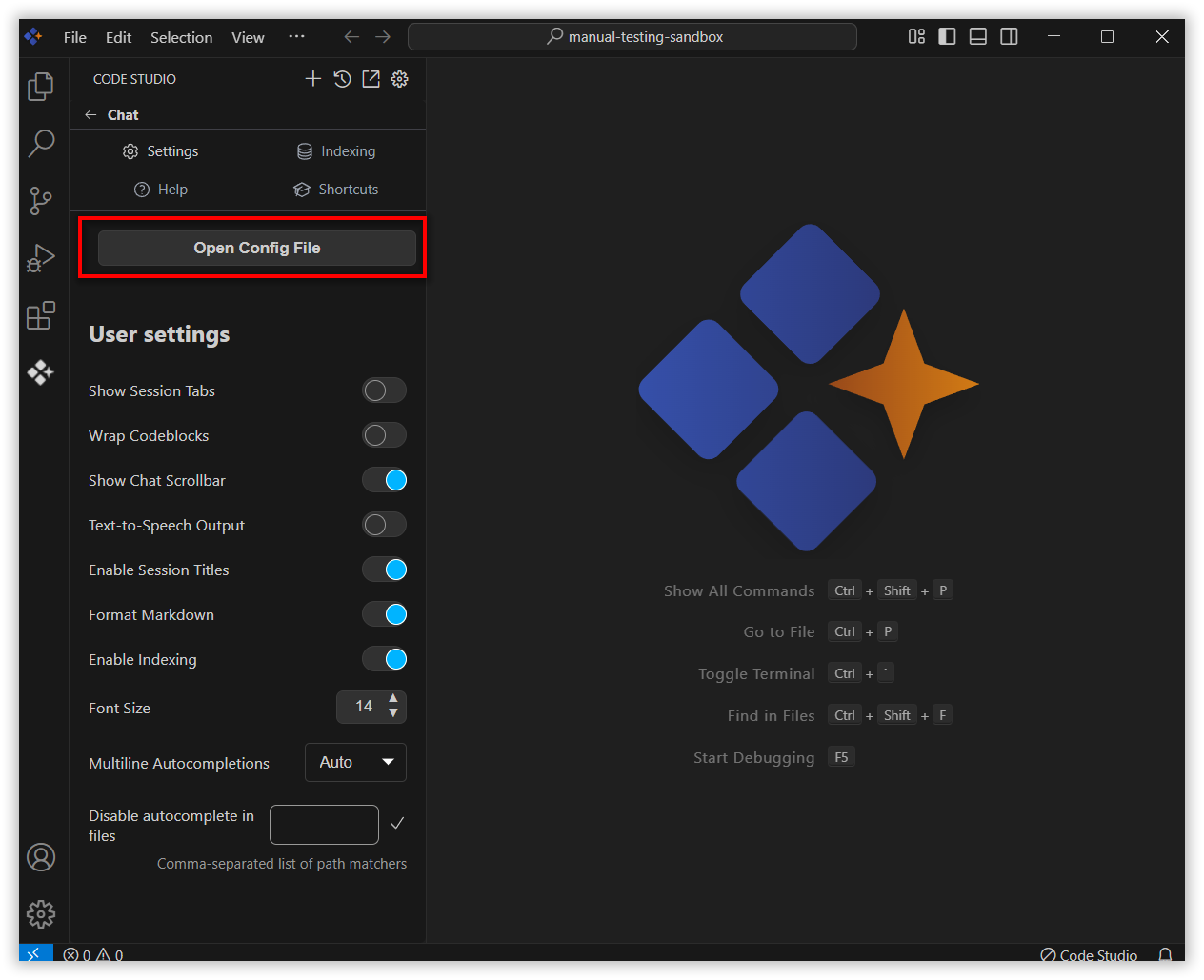
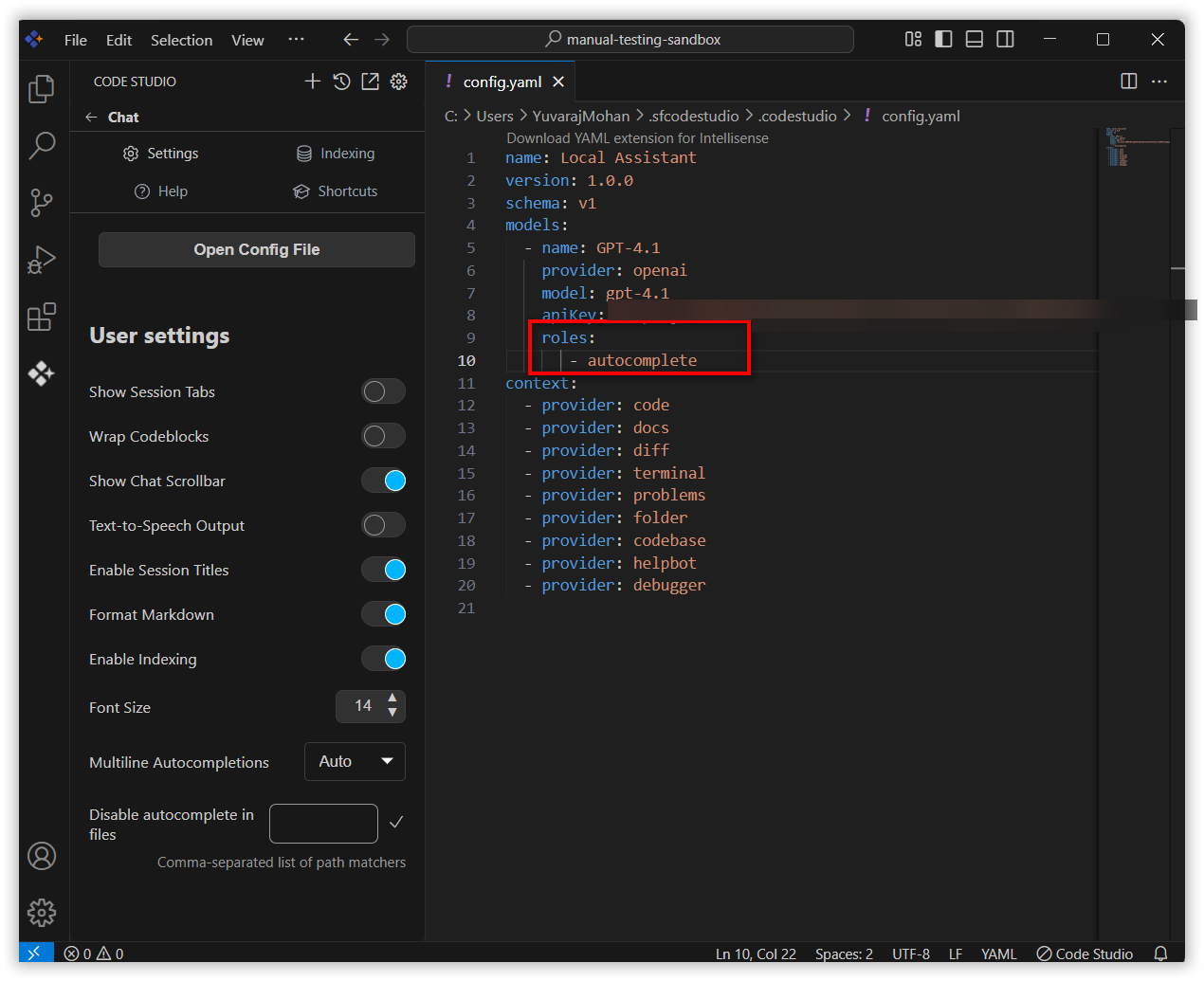
Enable or Disable Autocomplete
Steps:
- Click the Gear icon at the bottom-left corner.
-
Select Code Studio Settings.
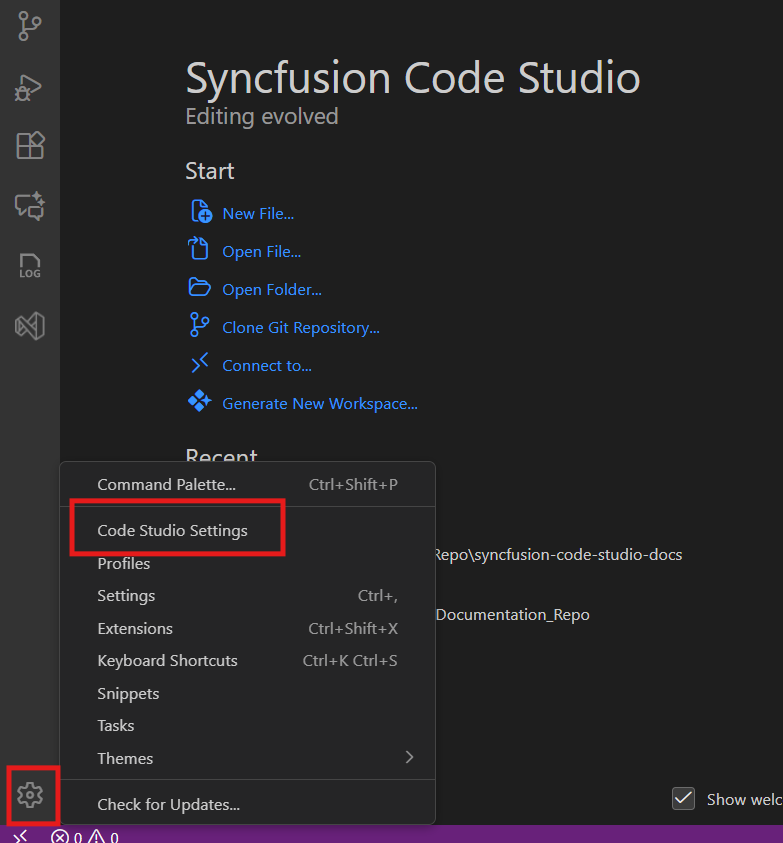
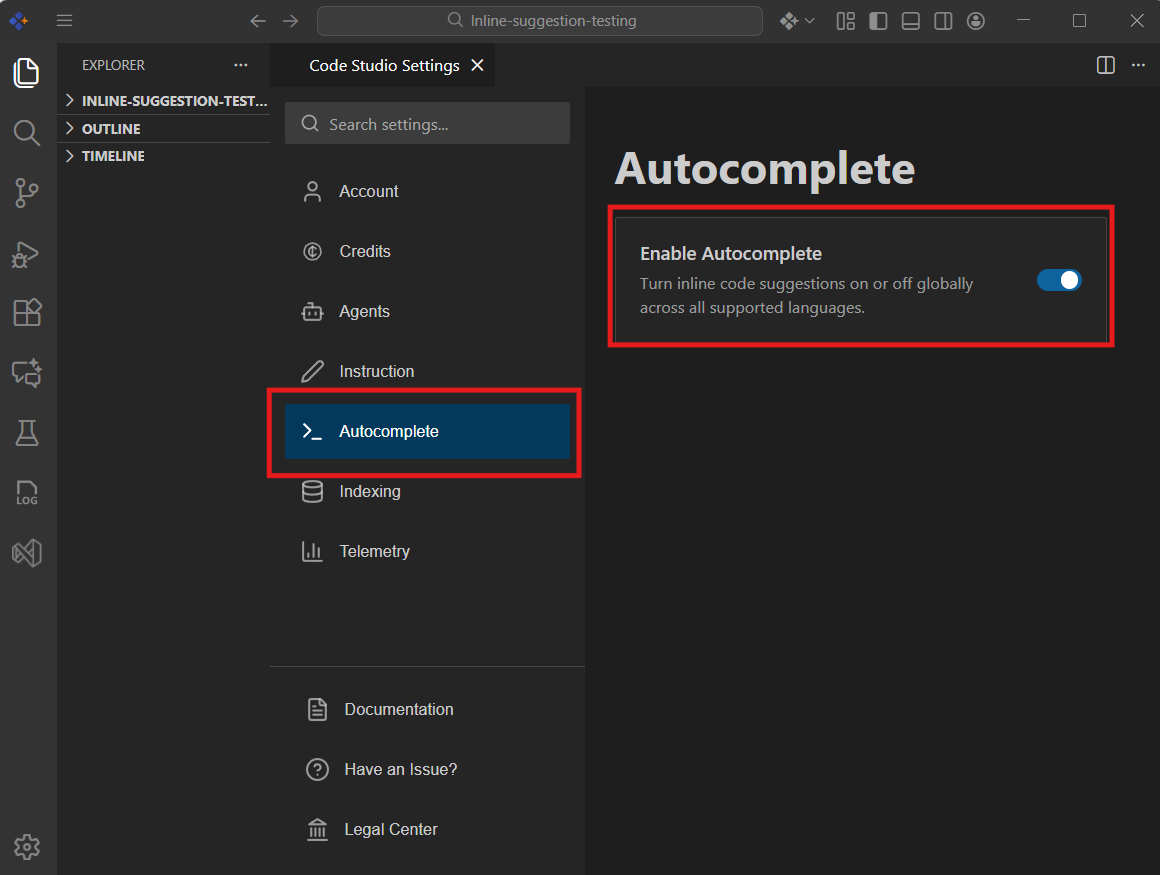
- In the left panel, select Autocomplete.
-
Toggle Enable Autocomplete ON or OFF.
Select a Completion Model
Steps:
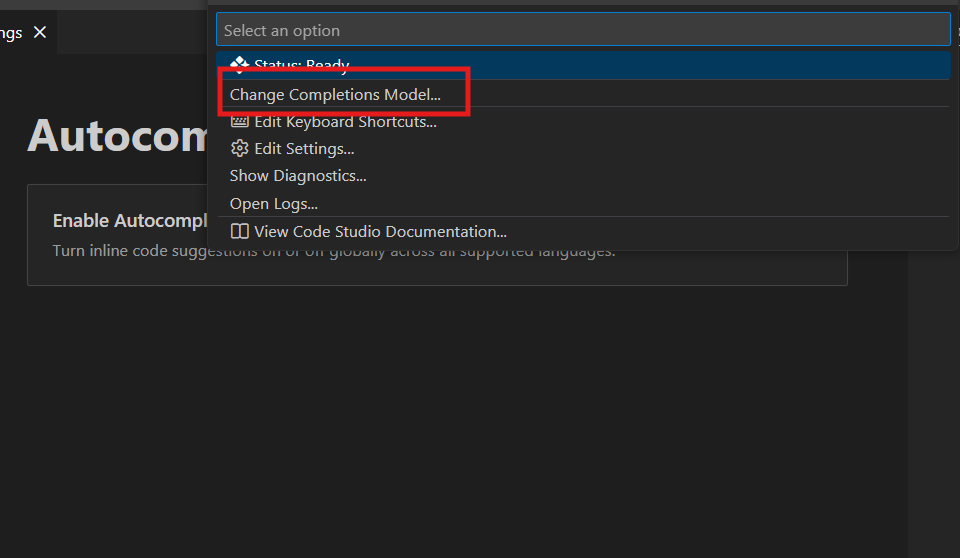
- Open command palette by pressing
Ctrl/Cmd + Shift + P. -
Type Change completions model.
-
Choose Code Studio: Change Completions Model.
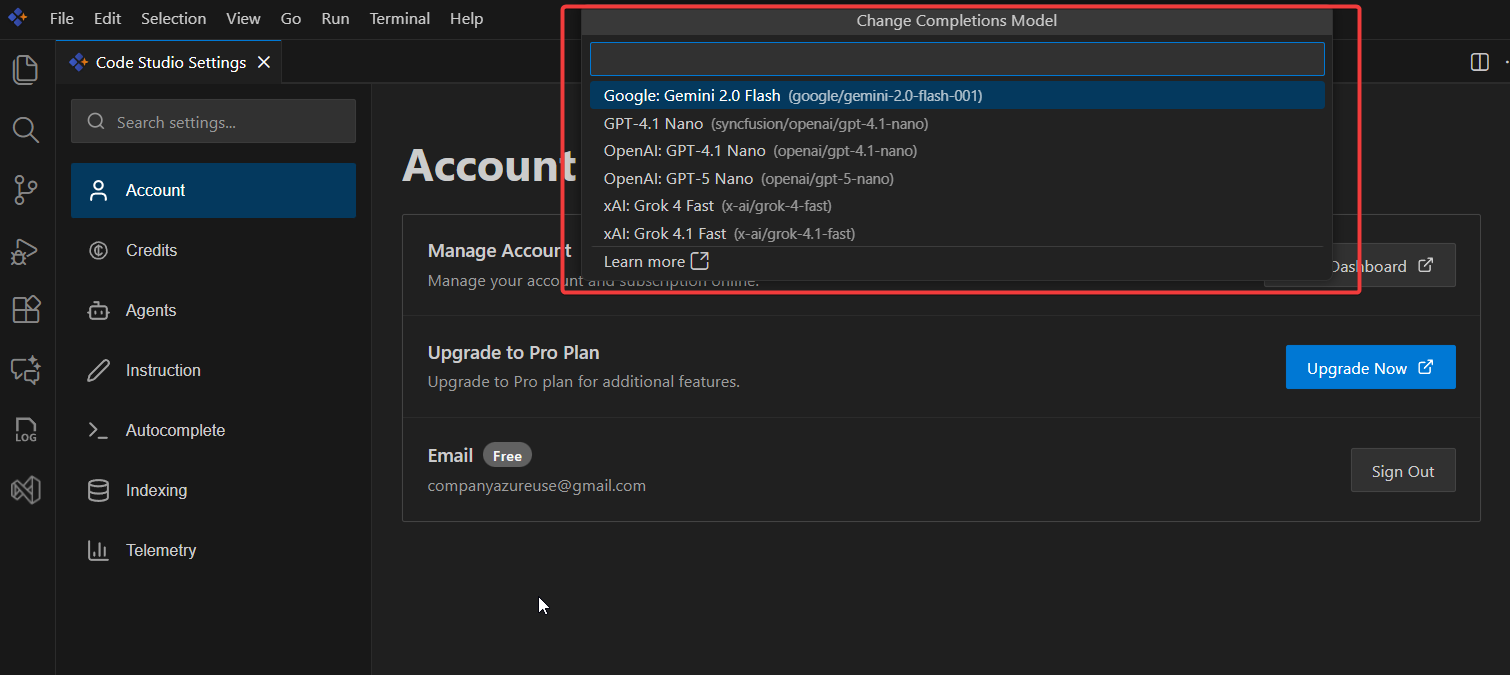
-
Choose the model you prefer from the dropdown list.
Best Practices
- Write meaningful comments: Better clarity leads to more accurate code generation.
- Review suggestions carefully: Avoid unintended logic.
- Maintain consistent coding style: Improves the accuracy and quality of suggestions.
- Make intentional edits: When you rename, reorganize, or modify code with a clear purpose, Code Studio can more accurately infer your intent and provide aligned follow up suggestions.
- Validate propagated changes: Next Edit Suggestions may update related code across the file or project. Review these changes to ensure they match your design intent.
Releted Features
- Inline Chat Inline Chat in Syncfusion Code Studio lets you talk to AI directly inside your code or terminal without switching screens.
- Generate Code The Generate Code feature speeds up development by automatically handling repetitive tasks and giving instant AI-powered help right inside your editor.