Configure LLM Providers and Models
28 Jan 20262 minutes to read
This guide provides step-by-step instructions for administrators to configure Large Language Model (LLM) providers and manage models within Code Studio.
Note: Only admins can configure LLM providers and models.
Prerequisites
- You need an active account on Code Studio
- OpenRouter API Key - Follow the detailed instructions here to obtain an OpenRouter API key and the list of recommended free models for integration.
1. Adding an LLM Provider
To integrate an LLM provider into Code Studio:
Steps
-
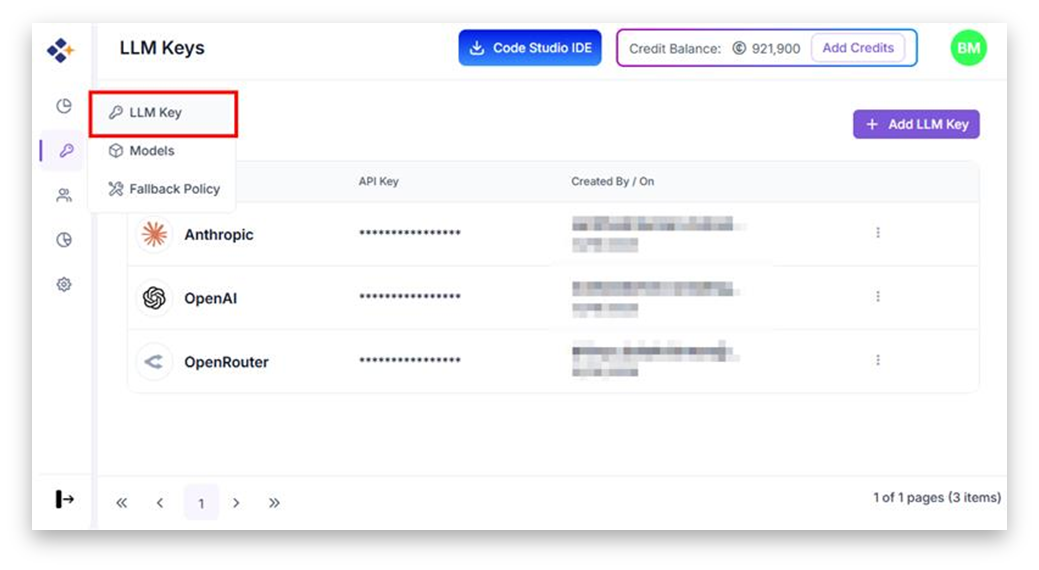
Navigate to the LLM Keys page under the BYOK section.
-
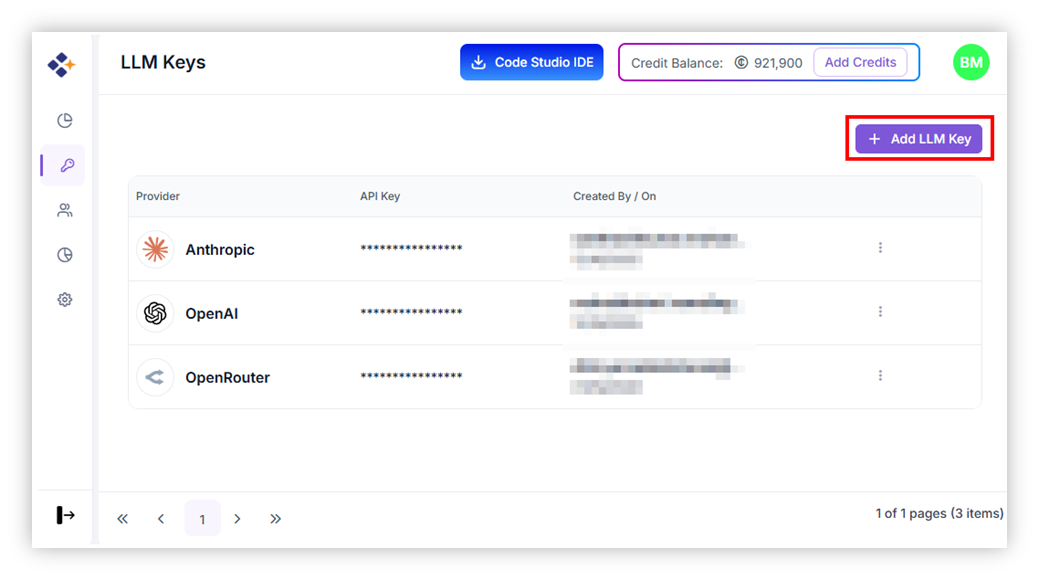
Click “Add LLM Key”.
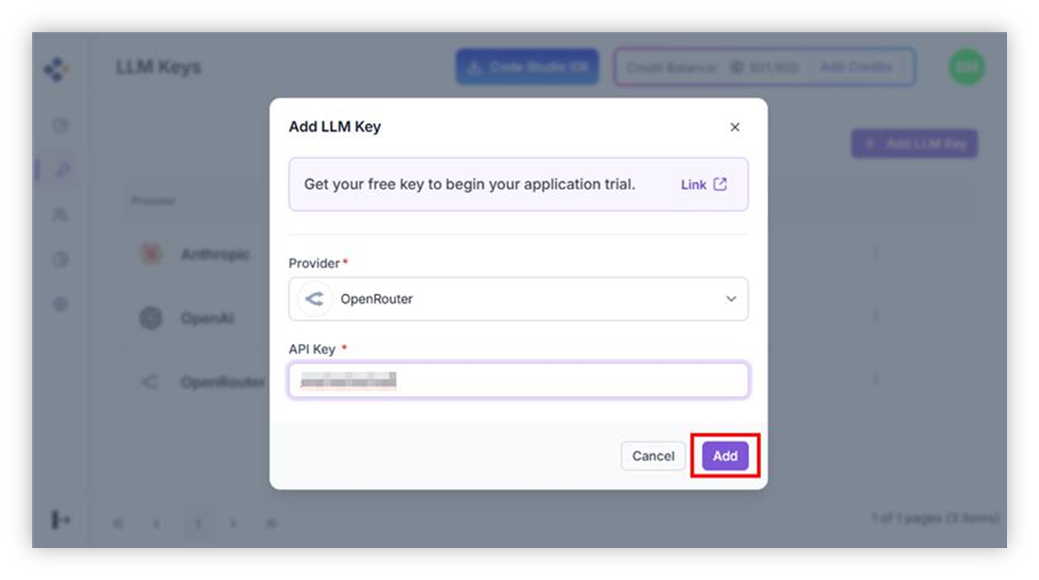
- In the dialog box:
- Provider Name: Enter the name of the LLM provider (e.g., OpenAI, Anthropic).
- API Key: Paste the API key provided by the LLM service.
-
Click Add to save the provider.
✅ Once added, the provider becomes available for model selection.
2. Adding BYOK Models
To add a model under a configured provider:
Steps
-
Go to the Models page under the BYOK section.
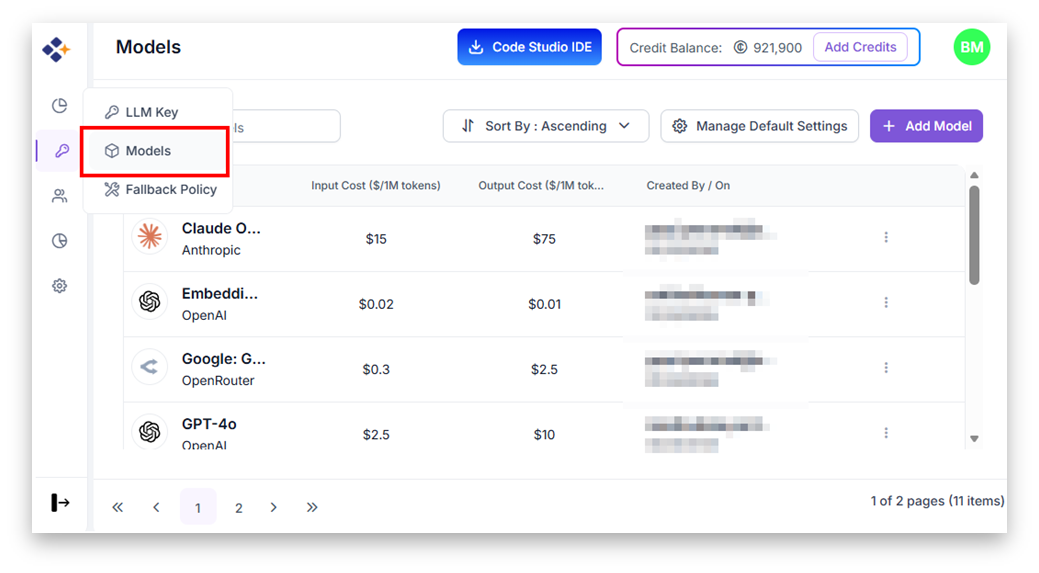
- Use the search bar to look for a specific model.
-
Click “Add Model”.
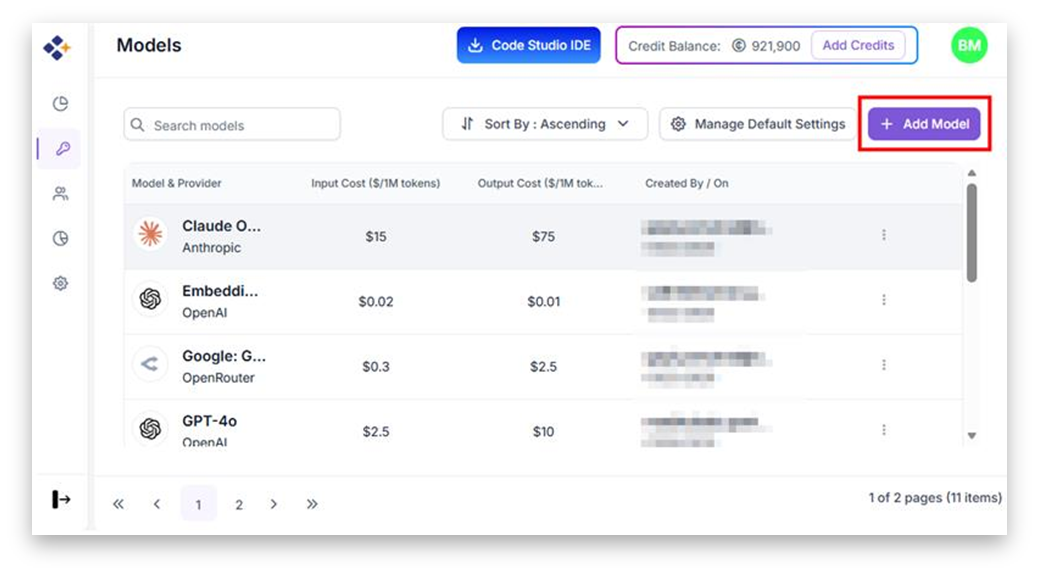
- In the form:
- Provider: Select from the list of configured providers.
- Model: Choose from the dropdown list of models available under the selected provider. Each model lists its input and output cost.
- Modes: Select Chat,Autoccomplete or both modes in which the model should be used. This is a multi-select field.
- Click Add to include the model in your BYOK model list.
-
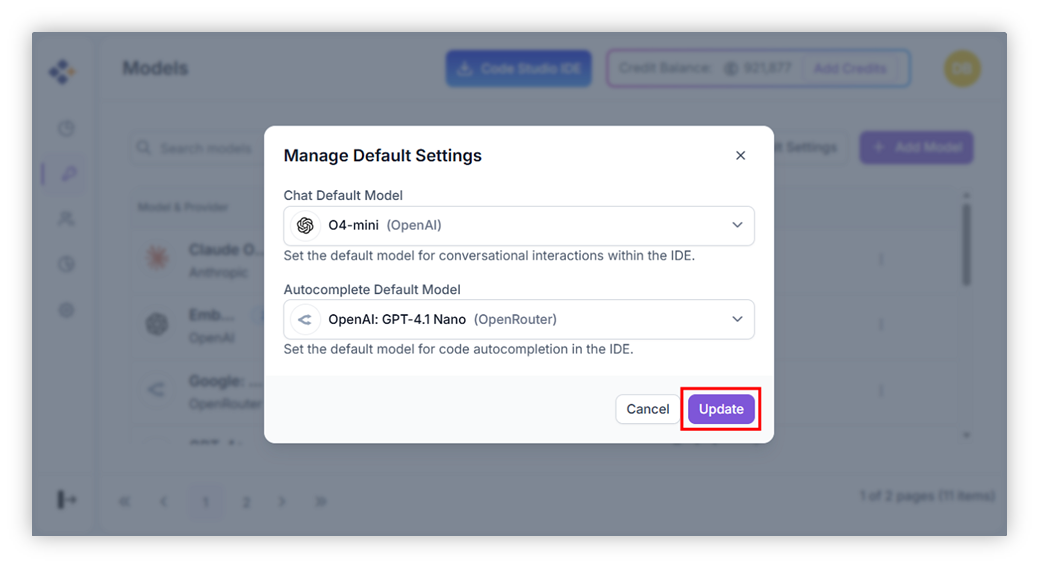
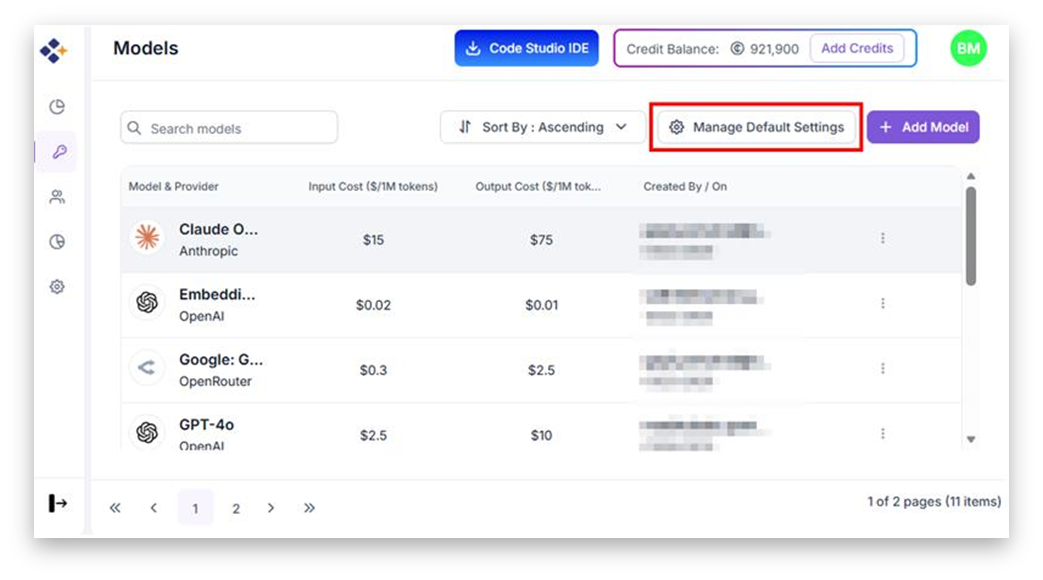
Click Manage Default Settings to customize which AI models are used for IDE functionalities like chat and autocomplete.
-
Select default models for each mode from the dropdown. Click Update to save settings.