Customize segment brush in WPF Sparkline (SfSparkline)
18 Nov 20181 minute to read
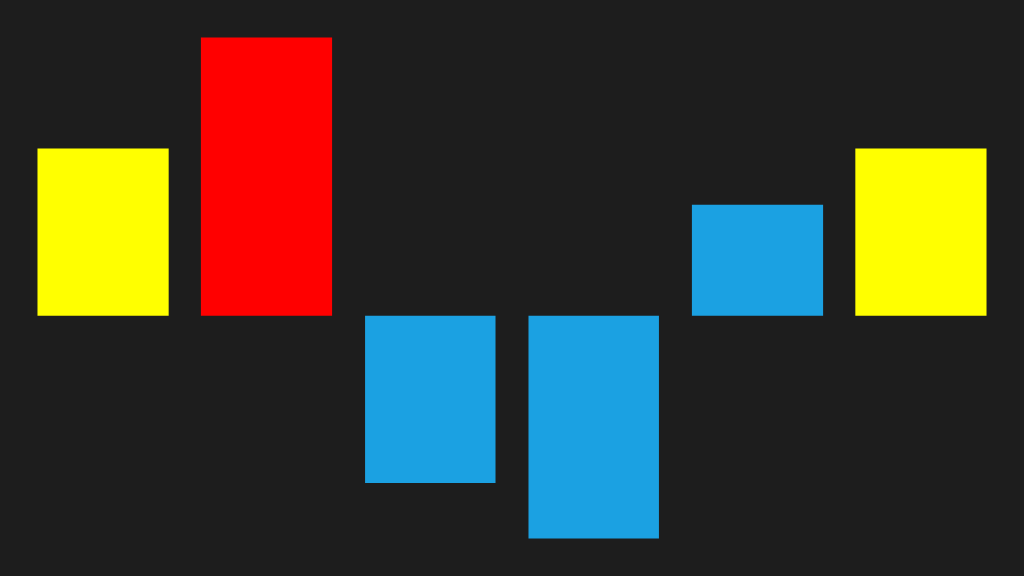
We can able to customize the first, last, negative, high and low point brushes as like markers in area and line sparkline.
<Syncfusion:SfColumnSparkline
     ItemsSource="{Binding UsersList}"
     YBindingPath="NoOfUsers">

     <Syncfusion:SfColumnSparkline.SegmentTemplateSelector>
         <Syncfusion:SegmentTemplateSelector
             FirstPointBrush="Yellow"
             LastPointBrush="Yellow"
             HighPointBrush="Red"/>
     </Syncfusion:SfColumnSparkline.SegmentTemplateSelector>

 </Syncfusion:SfColumnSparkline>
SfColumnSparkline sparkline = new SfColumnSparkline()
{
ItemsSource = new SparkViewModel().UsersList,
YBindingPath = "NoOfUsers"
};
SegmentTemplateSelector selector = new SegmentTemplateSelector()
{
FirstPointBrush = new SolidColorBrush(Colors.Yellow),
LastPointBrush = new SolidColorBrush(Colors.Yellow),
HighPointBrush = new SolidColorBrush(Colors.Red)
};
sparkline.SegmentTemplateSelector = selector;The following is a snapshot of the customize segment.