Getting Started with the Vue Circular Gauge Component in Vue 3
This article provides a step-by-step guide to creating a Vite JavaScript project and integrating the Syncfusion® Vue Circular Gauge component using either the Composition API or the Options API.
The Composition API groups related logic into reusable functions. The Options API organizes component logic with options such as data, methods, and life cycle hooks. Choose the API that best fits the application’s structure.
The Circular Gauge visualizes numeric values on a circular scale. It can be configured as a speedometer, meter gauge, analog clock, or other radial indicator by customizing its axes, pointers, ranges, ticks, and labels.
Prerequisites
Ensure that the development environment meets the system requirements for Syncfusion® Vue UI components.
Set Up the Vite Project
Create a Vite project using either npm or yarn.
npm
npm create vite@latest my-app -- --template vueyarn
yarn create vite my-app --template vueIf Vite prompts you to install dependencies and start the project immediately, select No. The project dependencies and Syncfusion package are installed in the following steps.
Navigate to the project directory:
cd my-appInstall the project dependencies.
npm
npm installyarn
yarn installNote: To create a TypeScript project, use
npm create vite@latest my-app -- --template vue-tsoryarn create vite my-app --template vue-ts.
Add the Syncfusion® Vue Circular Gauge Package
Syncfusion® Vue packages are available on npm. Refer to the product documentation or npm search when identifying the package used by another Syncfusion component.
npm
npm install @syncfusion/ej2-vue-circulargaugeyarn
yarn add @syncfusion/ej2-vue-circulargaugeNote: For TypeScript projects, refer to Vue 3 with the Composition API and TypeScript or Vue 3 with the Options API and TypeScript.
Add the Syncfusion® Vue Circular Gauge Component
Follow these steps to add the Vue Circular Gauge component using the Composition API or Options API.
Step 1: Import and Register the Component
Import the Circular Gauge component in src/App.vue.
In the Composition API example, the aliases correspond to the custom-element names used in the template. Components imported in <script setup> are available to the template without a components option.
<script setup>
import {
  CircularGaugeComponent as EjsCirculargauge
} from '@syncfusion/ej2-vue-circulargauge';
</script><script>
import {
CircularGaugeComponent
} from '@syncfusion/ej2-vue-circulargauge';
export default {
name: 'App',
components: {
'ejs-circulargauge': CircularGaugeComponent
}
};
</script>Step 2: Define the Circular Gauge in the Template
Add the Circular Gauge to the template section of src/App.vue.
<template>
<div id="app">
<ejs-circulargauge id="circulargauge" :title="title">
</ejs-circulargauge>
</div>
</template>Here is the summarized code for the above steps. Replace the contents of src/App.vue with either the Composition API or Options API example.
<template>
<div id="app">
<ejs-circulargauge id="circulargauge" :title="title">
</ejs-circulargauge>
</div>
</template>
<script setup>
import {
CircularGaugeComponent as EjsCirculargauge
} from '@syncfusion/ej2-vue-circulargauge';
</script><template>
<div id="app">
<ejs-circulargauge id="circulargauge" :title="title">
</ejs-circulargauge>
</div>
</template>
<script>
import {
  CircularGaugeComponent
} from '@syncfusion/ej2-vue-circulargauge';

export default {
  name: 'App',
  components: {
    'ejs-circulargauge': CircularGaugeComponent
  }
};
</script>Run the Project
Save src/App.vue, and then start the development server.
npm
npm run devyarn
yarn run devOpen the URL displayed in the terminal, commonly http://localhost:5173, and verify that the Circular Gauge is displayed correctly.
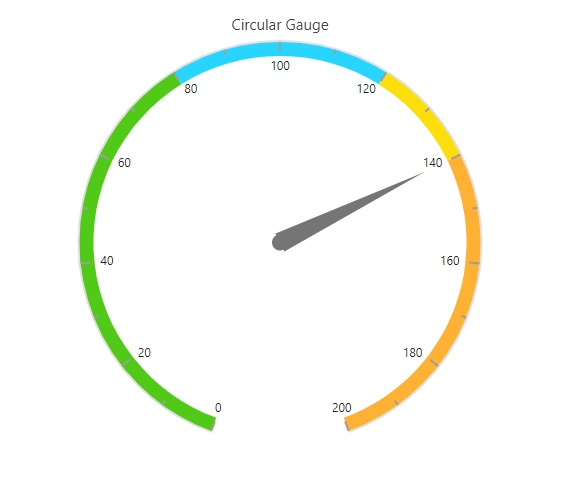
Sample: Explore the Vue Circular Gauge getting-started sample.
Troubleshooting
- The Circular Gauge is not rendered. Verify that the component and all child directives are imported or registered correctly and check the browser console for component, package, or licensing errors.
-
The gauge is blank. Ensure that at least one
e-axisis declared insidee-axesand that the axis contains a pointer or other visible elements. - A module-not-found error occurs. Ensure that the required Circular Gauge package is installed, and then restart the development server.
- A package or Vue version error occurs. Confirm that the installed package release supports Vue 3 and the project’s Node.js version.
For additional assistance, refer to the Vue Circular Gauge API documentation.