Selection in UWP Sunburst Chart (SfSunburstChart)
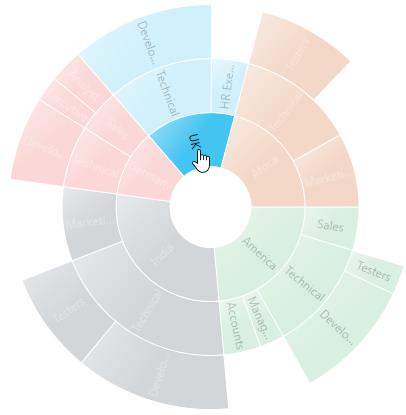
Sunburst chart supports selection that enables you to select a segment by using SunburstSelectionBehavior.
The following code shows how to enable the selection behavior.
<sunburst:SfSunburstChart.Behaviors>
   <sunburst:SunburstSelectionBehavior/>
</sunburst:SfSunburstChart.Behaviors>
SunburstSelectionBehavior selection = new SunburstSelectionBehavior();
chart.Behaviors.Add(selection);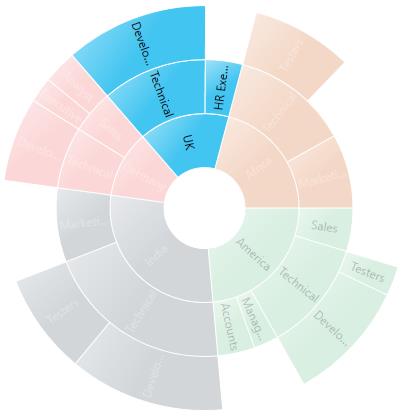
SelectionDisplayMode
You can customize the selected segment appearance by using brush or opacity. You can choose between color or opacity using the SelectionDisplayMode property in the selection behavior
- HighlightByColor – To display the selected segment appearance using brush.
- HighlightByOpacity – To display the selected segment appearance using opacity.
The following code shows how to set the display mode using brush.
<sunburst:SfSunburstChart.Behaviors>
   <sunburst:SunburstSelectionBehavior EnableSelection="True" SelectionBrush="Black"
                                       SelectionDisplayMode="HighlightByColor"/>
</sunburst:SfSunburstChart.Behaviors>
SunburstSelectionBehavior selection = new SunburstSelectionBehavior();
selection.EnableSelection = true;
selection.SelectionBrush = new SolidColorBrush(Colors.Black);
selection.SelectionDisplayMode = SelectionDisplayMode.HighlightByColor;
chart.Behaviors.Add(selection);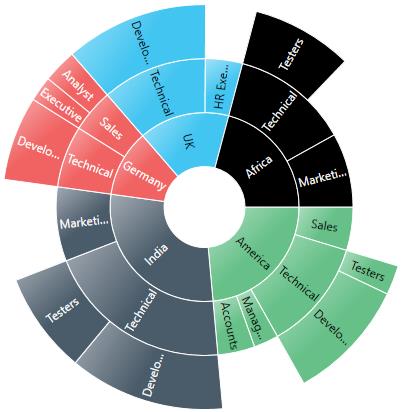
NOTE
The default value of SelectionDisplayMode is HighlightByOpacity.
SelectionMode
Sunburst chart provides support to select or highlight the segment by clicking or hovering the mouse over a segment. By default, this property value is MouseClick.
- Both – Select the segment using mouse move and mouse click.
- MouseClick – Select the segment using mouse click.
- MouseMove – Select the segment using mouse move.
<sunburst:SfSunburstChart.Behaviors>
   <sunburst:SunburstSelectionBehavior EnableSelection="True"
                                       SelectionMode="MouseClick"/>
</sunburst:SfSunburstChart.Behaviors>
SunburstSelectionBehavior selection = new SunburstSelectionBehavior();
selection.EnableSelection = true;
selection.SelectionMode = Syncfusion.UI.Xaml.SunburstChart.SelectionMode.MouseClick;
chart.Behaviors.Add(selection);SelectionType
Sunburst chart provides multiple options to represent the selected categories. You can select the segment categories by using the SelectionType property in selection behavior.
- Child – To select the child of selected parent.
- Group – To select the entire categories in group.
- Parent – To select the parent of selected child.
- Single - To select single item in the category.
Child
The following code shows how to set the selection type as child.
<sunburst:SfSunburstChart.Behaviors>
   <sunburst:SunburstSelectionBehavior EnableSelection="True"
                                       SelectionType="Child" />
</sunburst:SfSunburstChart.Behaviors>
SunburstSelectionBehavior selection = new SunburstSelectionBehavior();
selection.EnableSelection = true;
selection.SelectionType = SelectionType.Child;
chart.Behaviors.Add(selection);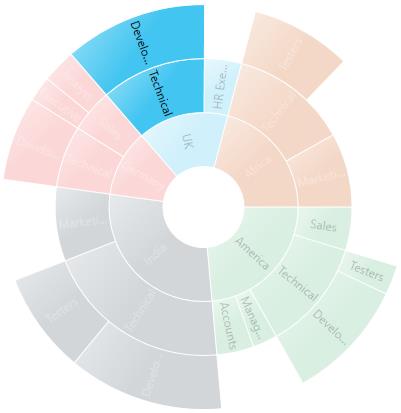
Group
The following code shows, how to set the selection type as group.
<sunburst:SfSunburstChart.Behaviors>
   <sunburst:SunburstSelectionBehavior EnableSelection="True"
                                       SelectionType="Group"  />
</sunburst:SfSunburstChart.Behaviors>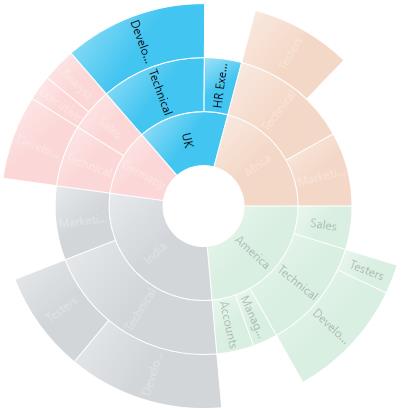
Parent
The following code shows, how to set the selection type as parent.
<sunburst:SfSunburstChart.Behaviors>
   <sunburst:SunburstSelectionBehavior EnableSelection="True"
                                       SelectionType="Parent" />
</sunburst:SfSunburstChart.Behaviors>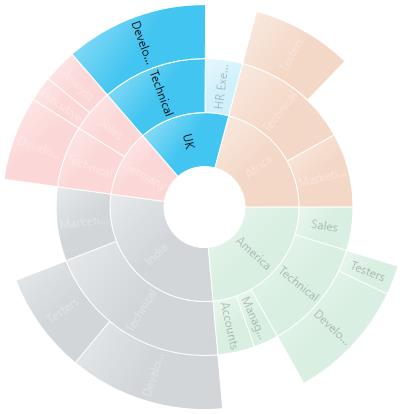
Single
The following code shows, how to set the selection type as single.
<sunburst:SfSunburstChart.Behaviors>
   <sunburst:SunburstSelectionBehavior EnableSelection="True"
                                       SelectionType="Single"  />
</sunburst:SfSunburstChart.Behaviors>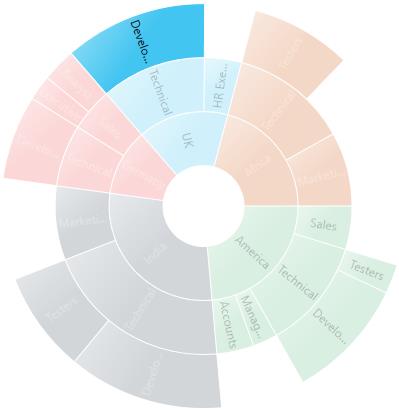
Selection cursor
The SelectionCursor property allows you to customize the cursor when the mouse is hovered over the segment.
The following code shows how to set the selection cursor as hand.
<sunburst:SfSunburstChart.Behaviors>
   <sunburst:SunburstSelectionBehavior EnableSelection="True"
                                       SelectionCursor="Hand" />

</sunburst:SfSunburstChart.Behaviors>
SunburstSelectionBehavior selection = new SunburstSelectionBehavior();
selection.EnableSelection = true;
selection.SelectionCursor = Windows.UI.Core.CoreCursorType.Hand;
chart.Behaviors.Add(selection);