How to Add Barcodes in FlutterFlow (SfBarcodeGenerator)
Overview
FlutterFlow enables you to create native applications using its graphical interface, reducing the need to write extensive amounts of code. Additionally, it offers the capability to include custom widgets that are not included in the default FlutterFlow widget collection. This article explains how to incorporate our SfBarcodeGenerator widget as a custom widget in FlutterFlow.
To get started with the Flutter Barcode Generator and set up the package, refer to the Getting Started with Flutter Barcodes documentation.
Create a new project
Navigate to the FlutterFlow dashboard and click the + Create New button to create a new project.
Create the custom widget
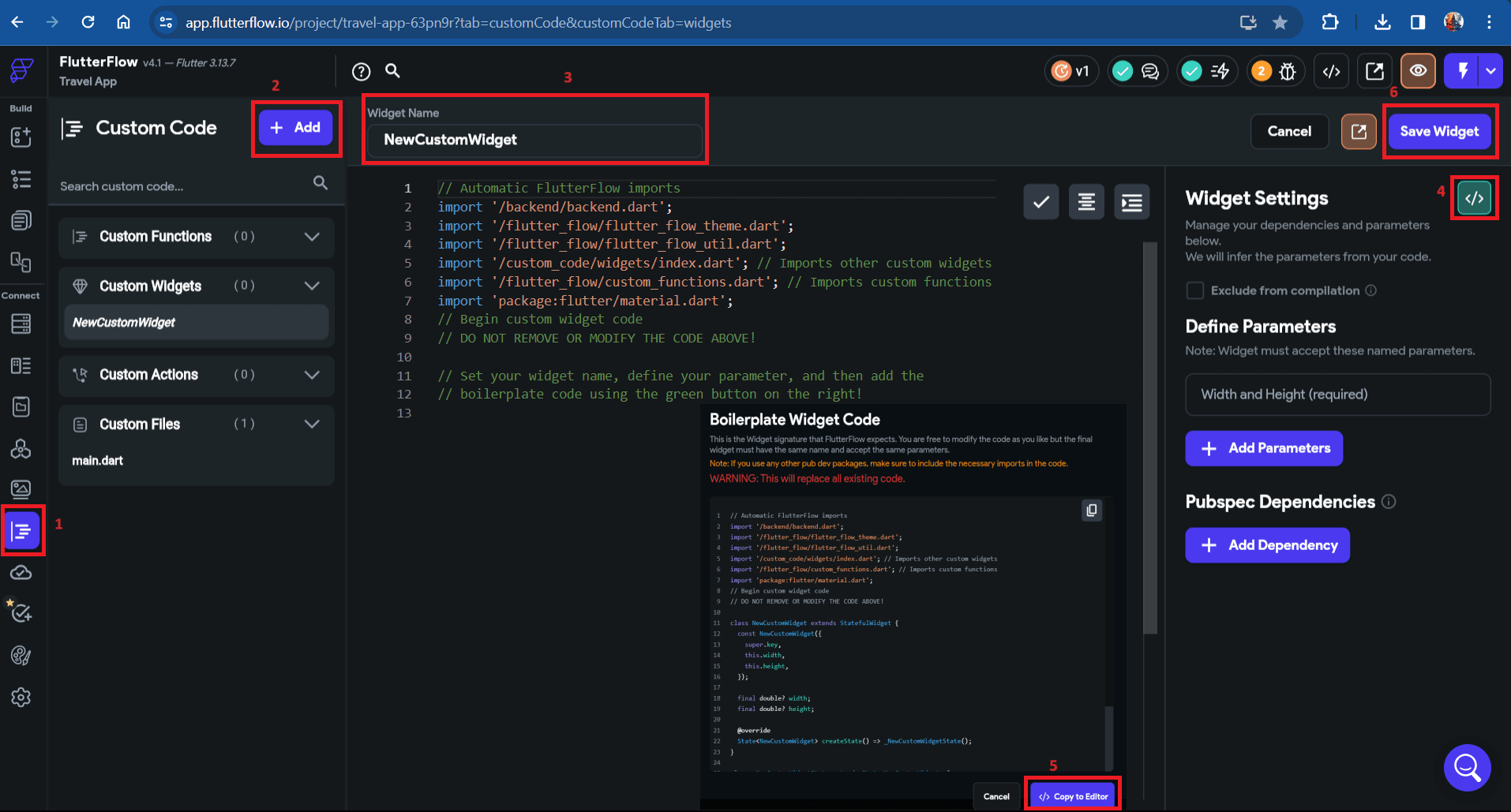
- Navigate to the
Custom Codesection in the left side navigation menu. - Click on the
+ Addbutton to open a dropdown menu, then selectWidget. - Update the widget name as desired.
- Click on the
View Boilerplate Codebutton on the right side, represented by the[</>]icon. - A popup will appear with startup code; locate the button labeled
</> Copy to Editorand click on it. - Save the widget.
Add the Barcodes widget as a dependency
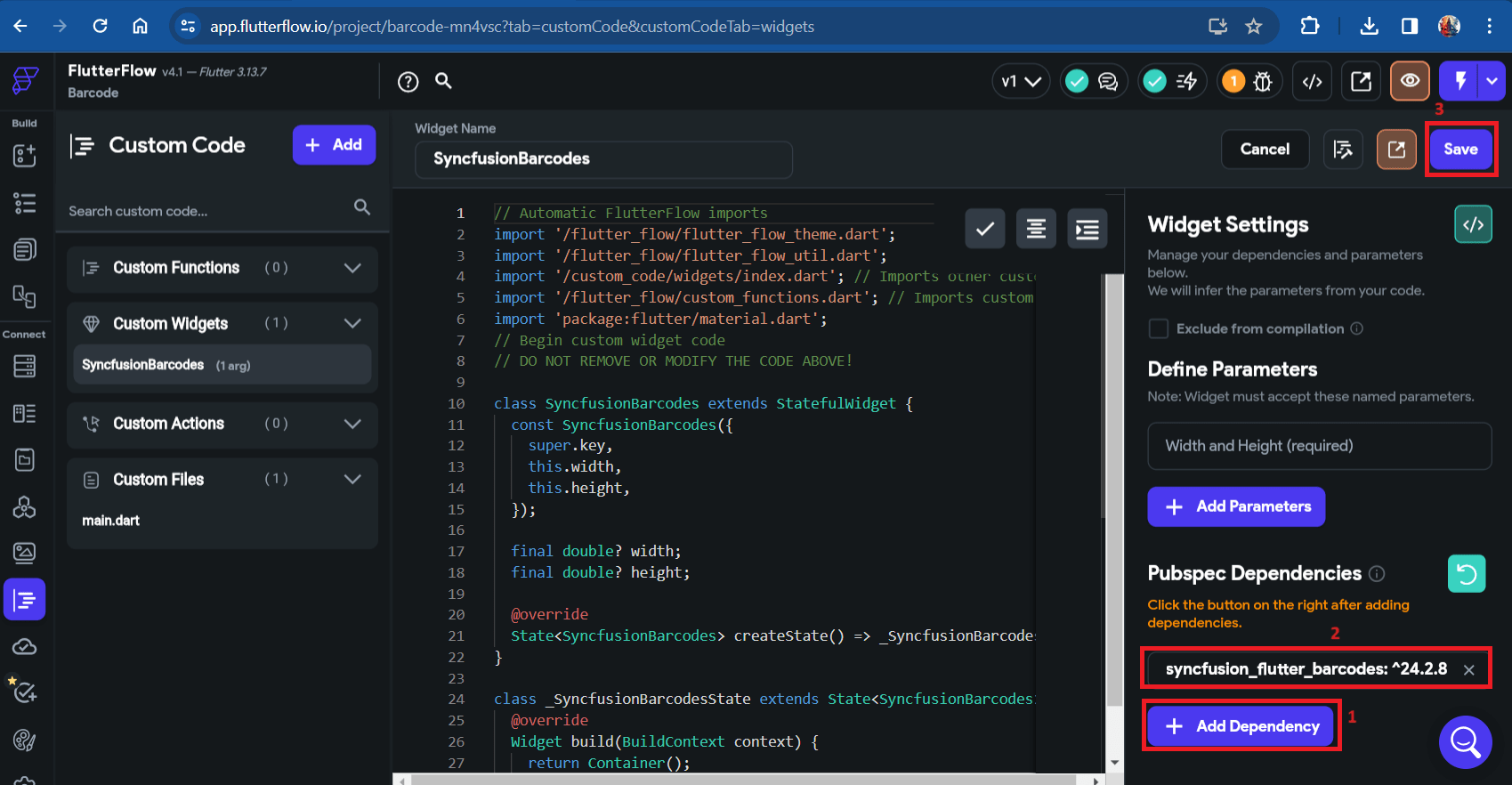
- Click on
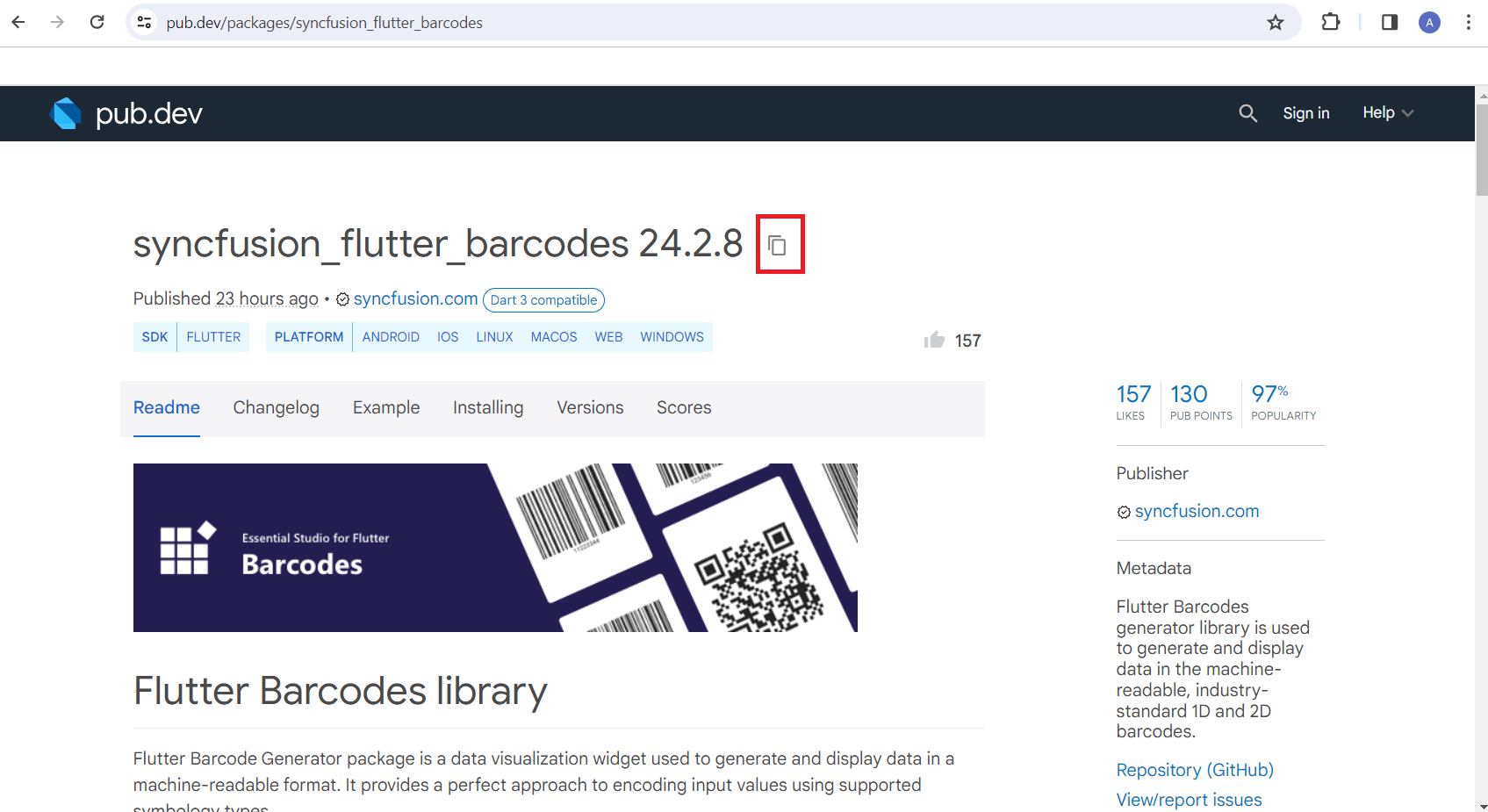
+ Add Dependency; a text editor will appear. - Navigate to Syncfusion® Flutter Barcodes in pub.dev and copy the dependency name and version using the
Copy to Clipboardoption.
- Paste the copied dependency into the text editor, then click
Refreshand save it.
The live version of Syncfusion® Flutter Barcodes has been migrated to the latest version of Flutter SDK. To ensure compatibility, check FlutterFlow’s current Flutter version and obtain the corresponding version of Syncfusion® Flutter Barcodes by referring to the SDK compatibility.
If you are using an older version of a dependency instead of the latest one, remove the caret symbol (^) prefix in the version number after pasting the dependency. For example, change
^21.3.0to21.3.0.
Since Syncfusion® Flutter Barcodes depends on the Syncfusion® Flutter Core package, make sure to add it as a dependency following the same steps mentioned above.
Import the package
- Navigate to the
Installingtab on the Syncfusion® Flutter Barcodes page. Under theImport itsection, copy the package import statement.
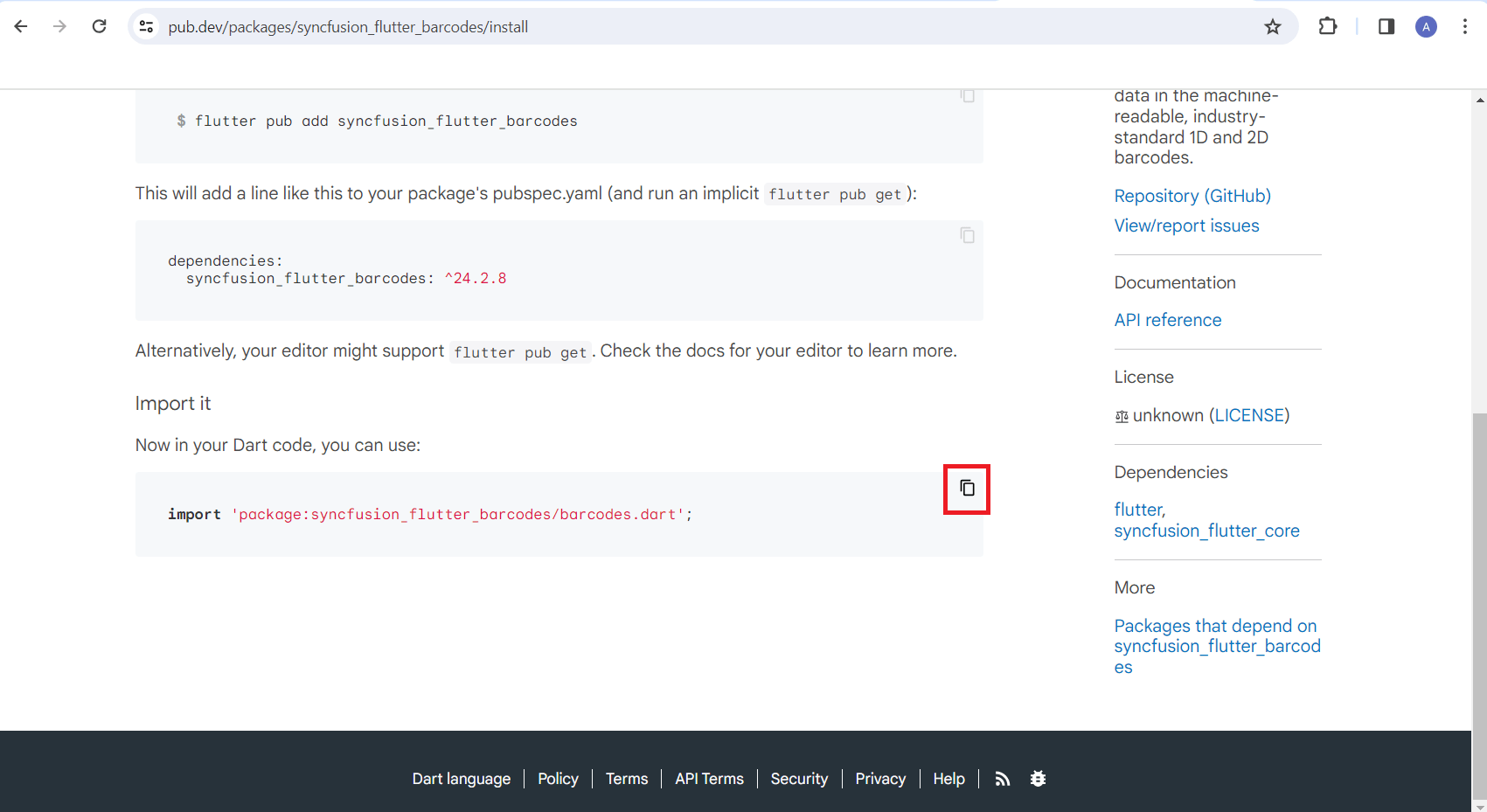
- Paste the copied import statement into the code editor, and then save it.
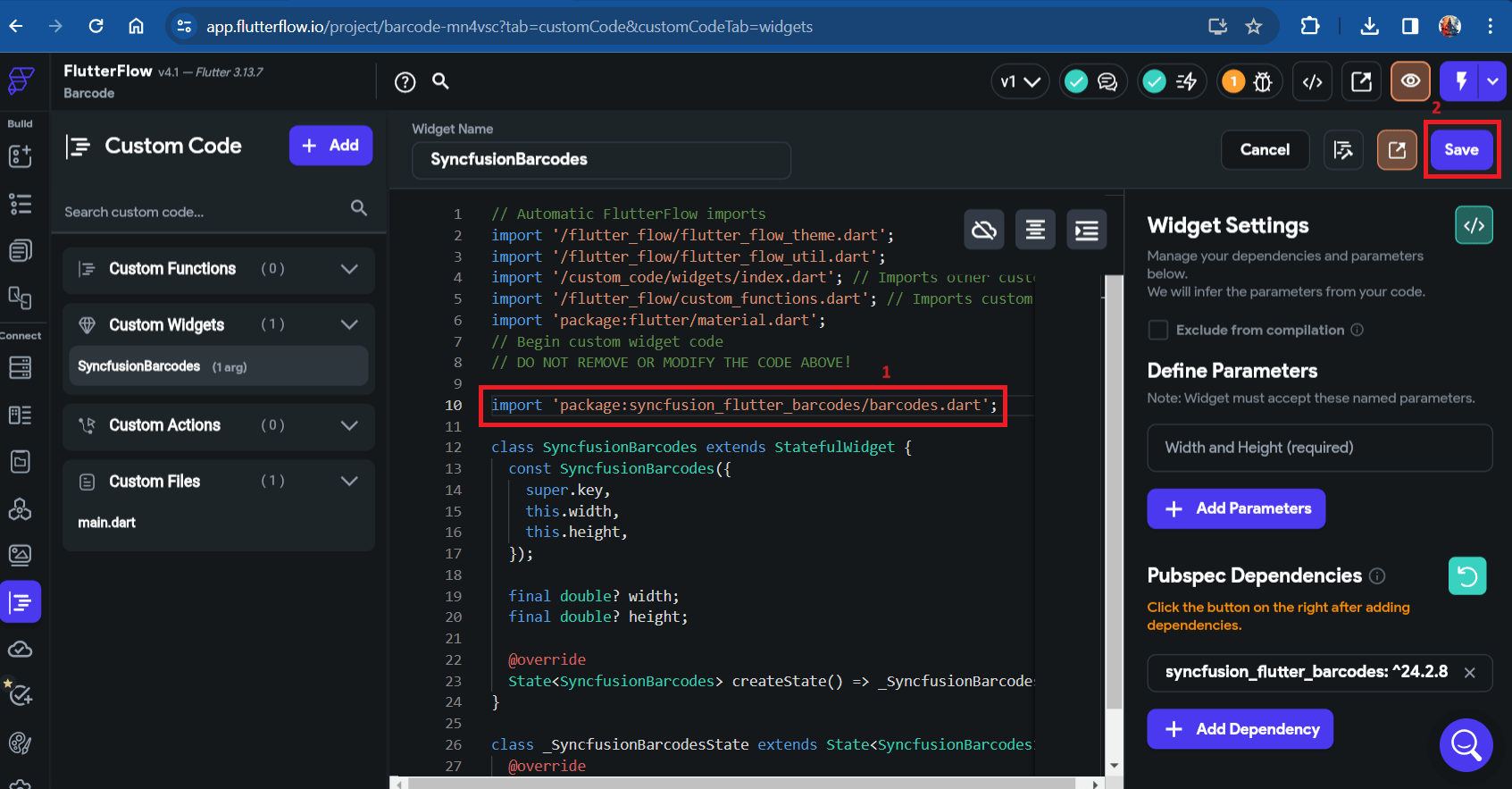
Add a widget code snippet in the code editor
- Navigate to the Example tab on the Syncfusion® Flutter Barcodes page, and copy the widget-specific code.
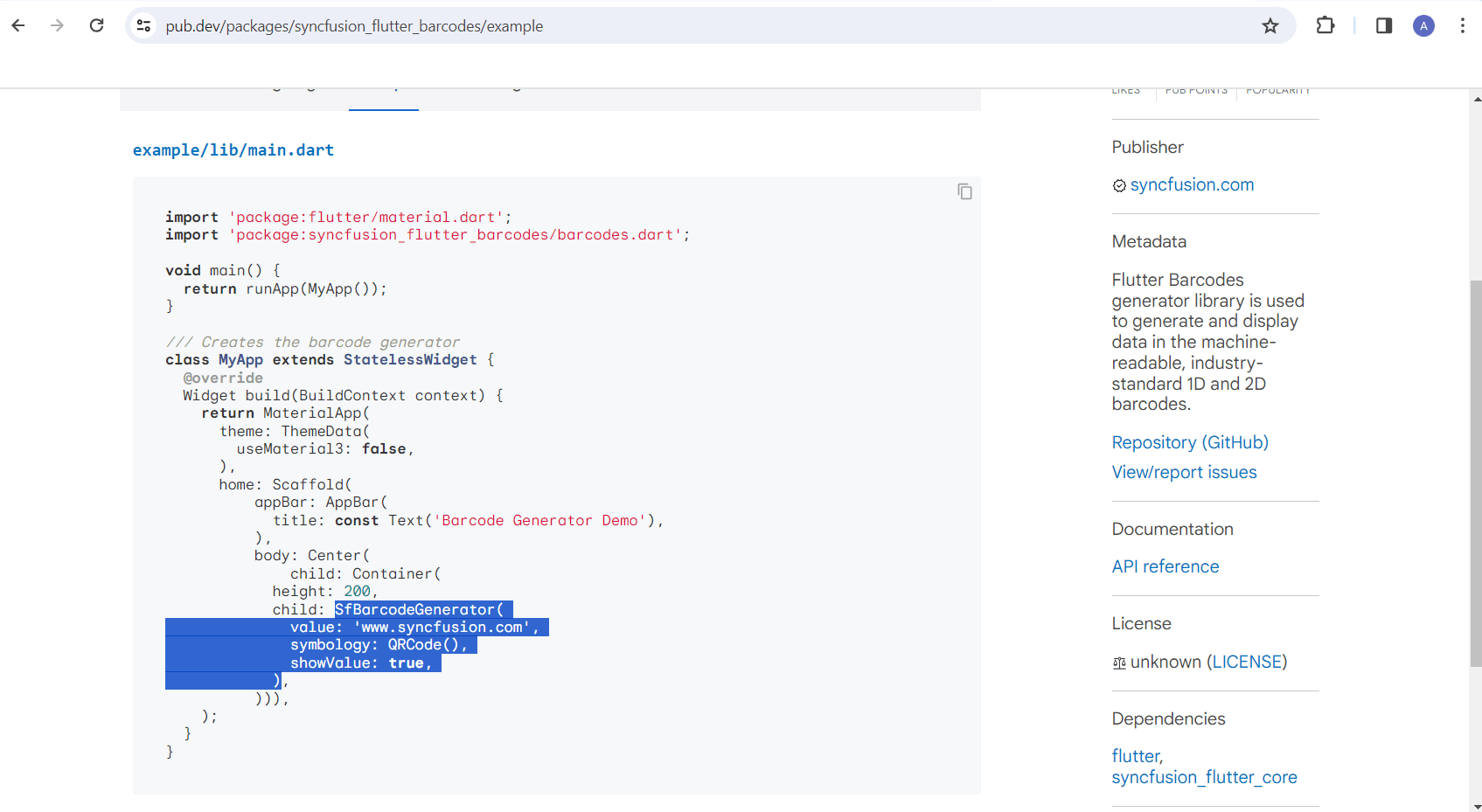
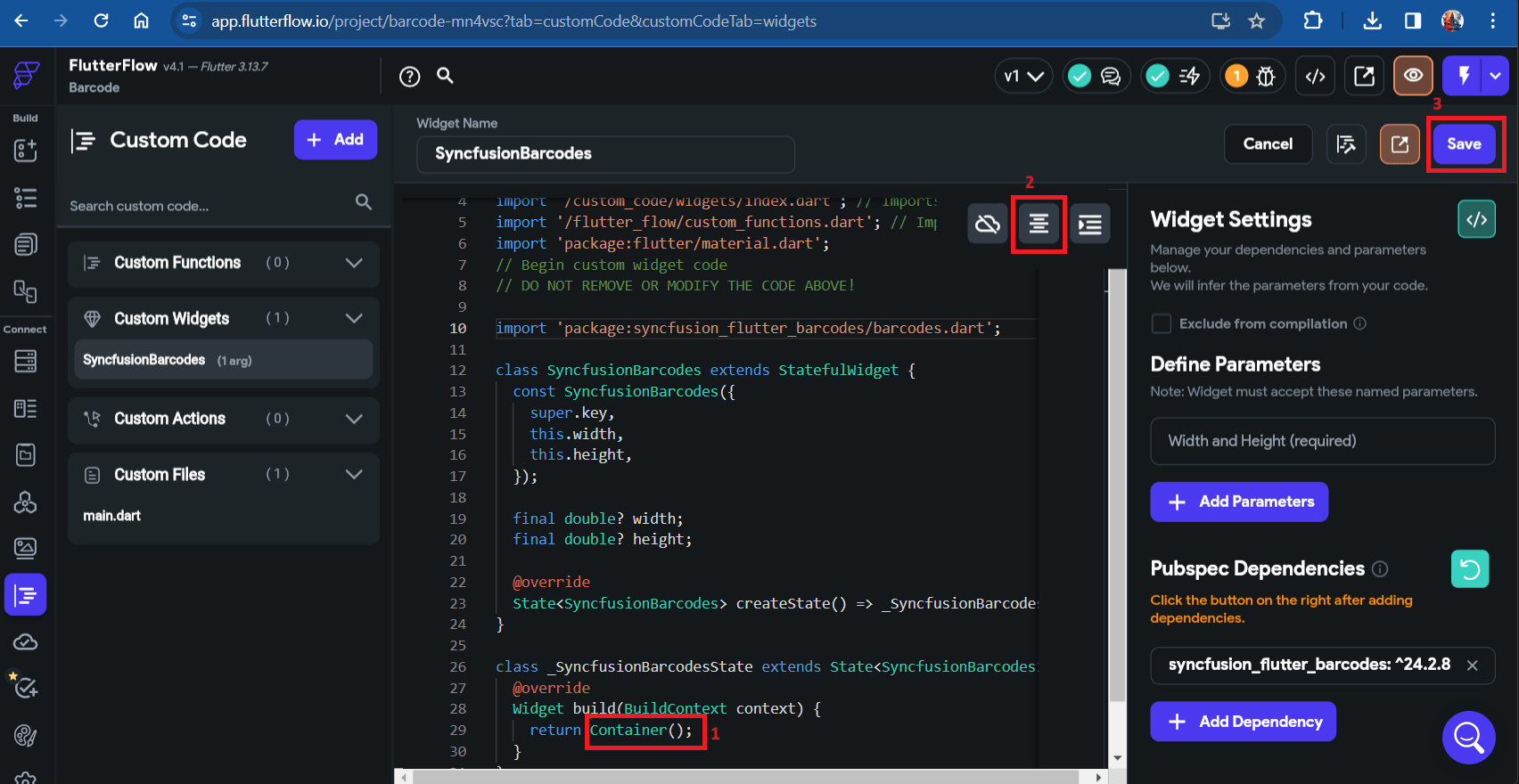
- Paste the copied code sample into the code editor, click
Format Code, and then save it.
Compile the code
- Click the
Compile Codebutton located in the top right corner. - If there are no errors, save the process. If errors are present, fix them and compile the code again. Once the code has been successfully compiled, save the process.
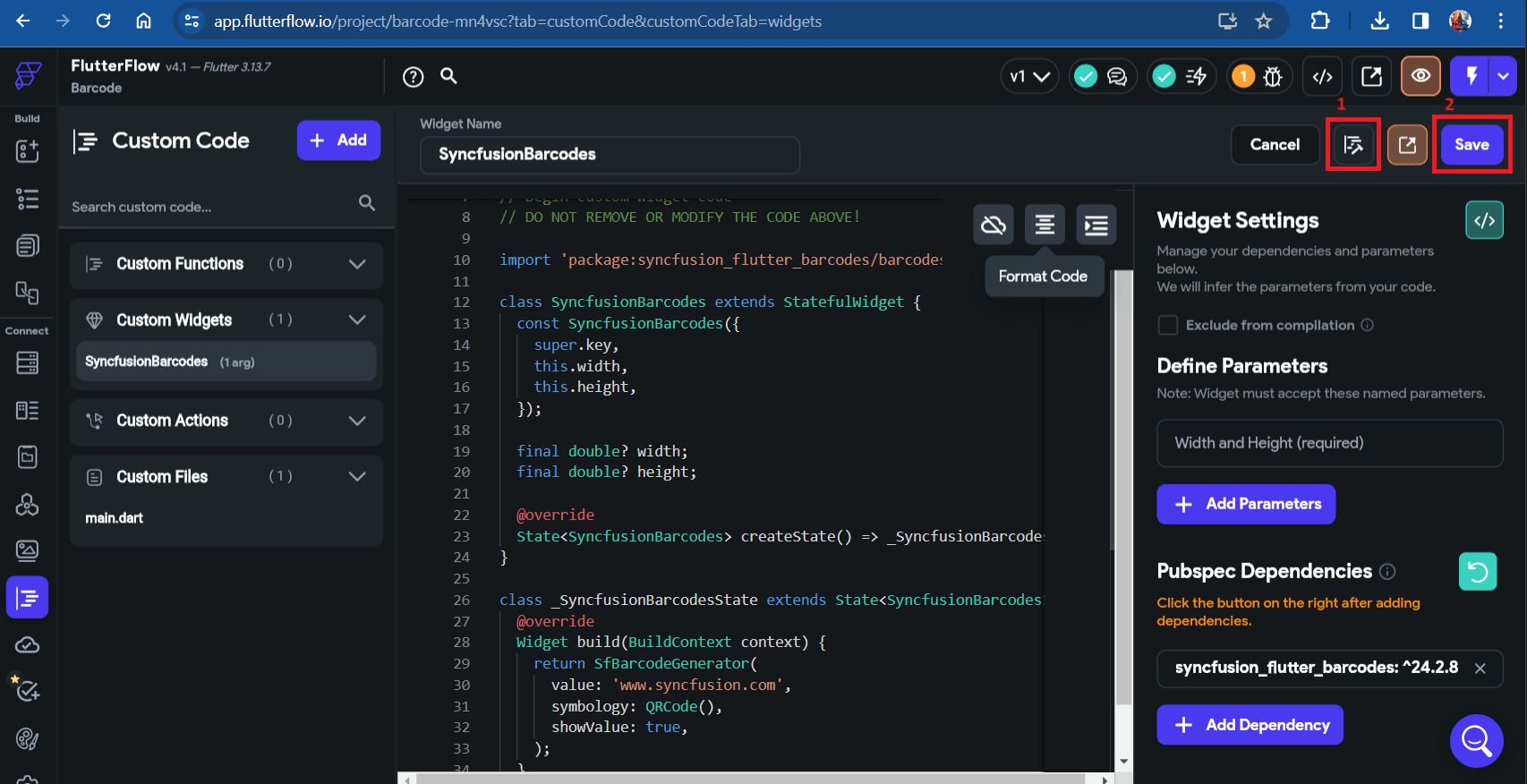
The compilation progress takes 2 to 3 minutes to complete.
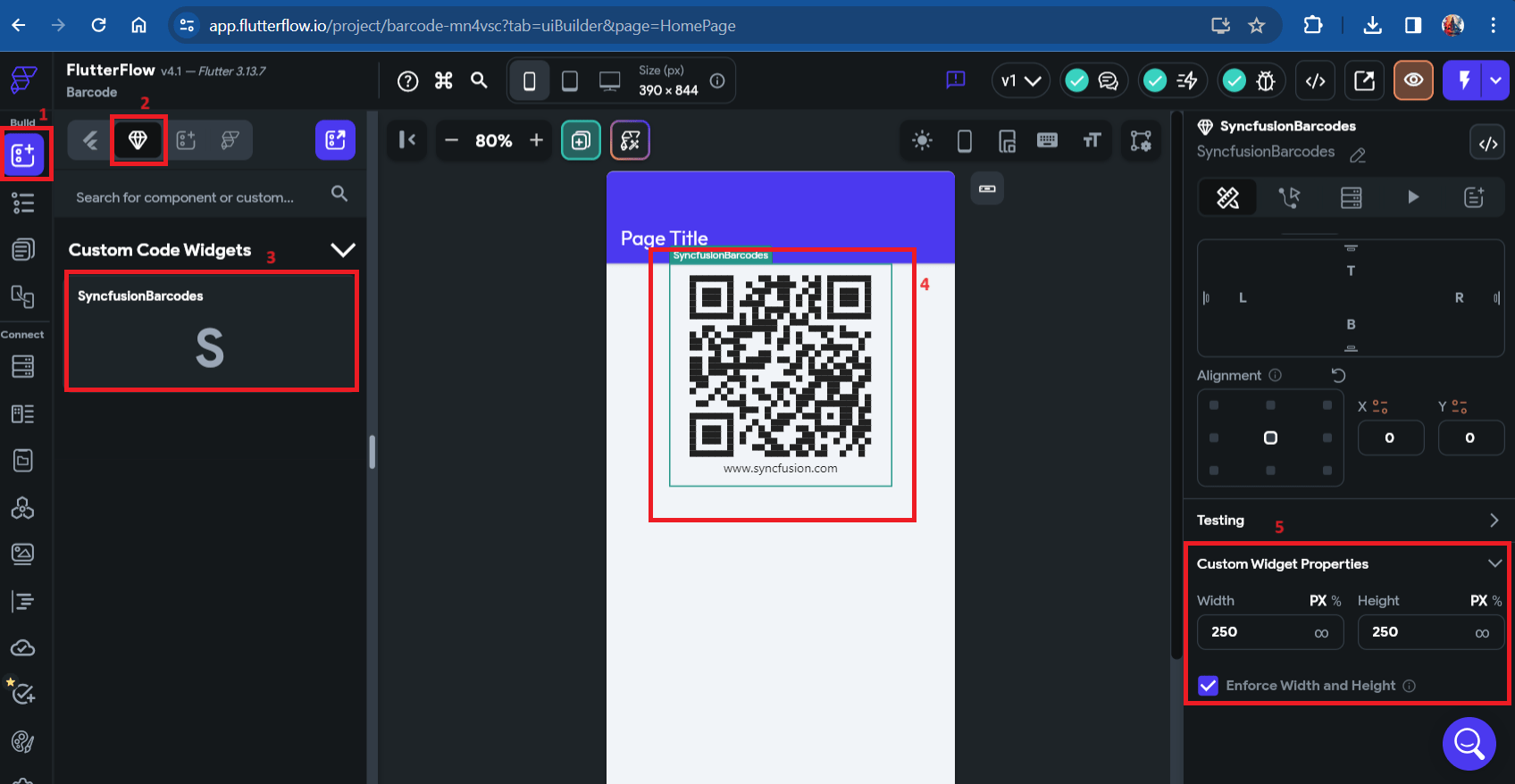
Use the custom widget
- Navigate to
Widget Palettelocated in the left side navigation menu. - Click on the
Componentstab. - Your custom widget will be under
Custom Code Widgets. Drag and drop the custom widget onto your page.