Getting Started with Blazor Barcode Component in Blazor Server App
This section briefly explains about how to include Blazor Barcode component in a Blazor Server App using Visual Studio, Visual Studio Code, and the .NET CLI.
Prerequisites
Create a new Blazor App in Visual Studio
Create a Blazor Server App by using the Blazor Web App template in Visual Studio via Microsoft Templates or the Syncfusion® Blazor Extension. For detailed instructions, refer to the Blazor Server App Getting Started documentation.
Prerequisites
Create a new Blazor App in Visual Studio Code
Create a Blazor Server App using Visual Studio Code via Microsoft Templates or the Syncfusion® Blazor Extension. For detailed instructions, refer to the Blazor Server App Getting Started documentation.
Alternatively, create a Server application by using the following command in the integrated terminal (Ctrl+`).
dotnet new blazor -o BlazorApp -int Server
cd BlazorApp
Prerequisites
Install the latest version of .NET SDK. If the .NET SDK is already installed, determine the installed version by running the following command in a command prompt (Windows), terminal (macOS), or command shell (Linux).
dotnet --versionCreate a Blazor Server App using .NET CLI
Run the following command to create a new Blazor Server App in a command prompt (Windows) or terminal (macOS) or command shell (Linux). For detailed instructions, refer to the Blazor Server App Getting Started documentation.
dotnet new blazor -o BlazorApp -int Server
cd BlazorApp
NOTE
Configure the appropriate Interactive render mode and Interactivity location while creating a Blazor Server App. For detailed information, refer to the interactive render mode documentation.
Install the required Blazor packages
Install Syncfusion.Blazor.BarcodeGenerator and Syncfusion.Blazor.Themes NuGet packages in your project using the NuGet Package Manager in Visual Studio (Tools → NuGet Package Manager → Manage NuGet Packages for Solution), or the integrated terminal in Visual Studio Code (dotnet add package), or the .NET CLI.
Alternatively, run the following commands in the Package Manager Console to achieve the same.
Install-Package Syncfusion.Blazor.BarcodeGenerator -Version 34.2.2
Install-Package Syncfusion.Blazor.Themes -Version 34.2.2
NOTE
All Syncfusion Blazor packages are available on nuget.org. See the NuGet packages topic for details.
Add import namespaces
After the packages are installed, open the ~/_Imports.razor file and import the Syncfusion.Blazor and Syncfusion.Blazor.BarcodeGenerator namespaces.
@using Syncfusion.Blazor
@using Syncfusion.Blazor.BarcodeGenerator
Register Blazor service
Register the Blazor service in the Program.cs file of your Blazor Server App.
....
using Syncfusion.Blazor;
....
builder.Services.AddSyncfusionBlazor();
....
Add stylesheet and script resources
The theme stylesheet and script can be accessed from NuGet through Static Web Assets. Include the stylesheet and script references in the ~/Components/App.razor file.
<link href="_content/Syncfusion.Blazor.Themes/fluent2.css" rel="stylesheet" />
....
<script src="_content/Syncfusion.Blazor.Core/scripts/syncfusion-blazor.min.js" type="text/javascript"></script>
NOTE
Check out the Blazor Themes topic to discover various methods (Static Web Assets, CDN, and CRG) for referencing themes in the Blazor application. Also, check out the Adding Script Reference topic to learn different approaches for adding script references in the Blazor application.
Add Blazor Barcode component
Add the Blazor Barcode component in the ~/Components/Pages/Home.razor file. If the interactivity location is set to Per page/component, define a render mode at the top of the ~Pages/Home.razor file.
NOTE
If the Interactivity Location is set to
Global, the render mode is automatically configured in theApp.razorfile by default.
@* desired render mode define here *@
@rendermode InteractiveServer<SfBarcodeGenerator Width="200px" Height="150px" Type="@BarcodeType.Codabar" Value="123456789"></SfBarcodeGenerator>- Press Ctrl+F5 (Windows) or ⌘+F5 (macOS) to launch the application. This renders the Blazor Barcode component in the default web browser.
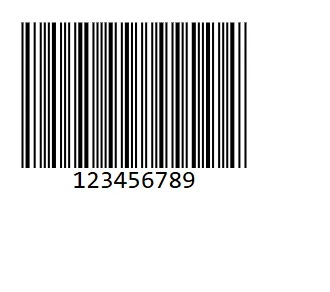
NOTE
Adding QR Generator control
Add a QR code in our barcode generator component.
<SfQRCodeGenerator Width="200px" Height="150px" Value="Syncfusion"></SfQRCodeGenerator>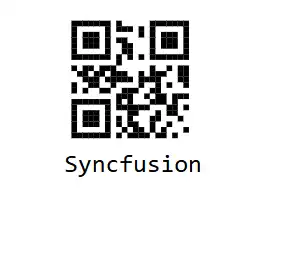
Adding Data Matrix Generator control
Add a Data Matrix code in our barcode generator component.
<SfDataMatrixGenerator Width="200" Height="150" Value="SYNCFUSION"></SfDataMatrixGenerator>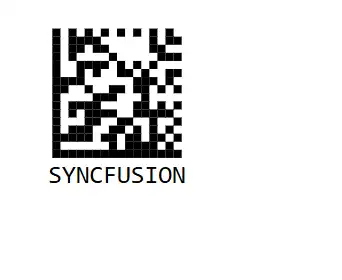
NOTE
Explore the Blazor Barcode Generator example that shows you how to render and configure the barcode.