Getting started with Angular Sparkline component
This section explains the steps required to create a simple Angular Sparkline and demonstrates the basic usage of the Sparkline component in an Angular environment.
Note: This guide supports Angular 21 and other recent Angular versions. For detailed compatibility with other Angular versions, please refer to the Angular version support matrix. Starting from Angular 19, standalone components are the default, and this guide reflects that architecture.
Ready to streamline your Syncfusion® Angular development? Discover the full potential of Syncfusion® Angular components with Syncfusion® AI Coding Assistant. Effortlessly integrate, configure, and enhance your projects with intelligent, context-aware code suggestions, streamlined setups, and real-time insights—all seamlessly integrated into your preferred AI-powered IDEs like VS Code, Cursor, Syncfusion® CodeStudio and more. Explore Syncfusion® AI Coding Assistant
Prerequisites
Before getting started, ensure that your environment meets the system requirements for Syncfusion® Angular UI components, which covers supported Node.js, Angular, and @syncfusion/ej2-angular-charts versions.
Setup Angular environment
A straightforward approach to begin with Angular is to create a new application using the Angular CLI. Install Angular CLI globally with the following command:
npm install -g @angular/cliAngular 21 Standalone Architecture: Standalone components are the default in Angular 21. This guide uses the modern standalone architecture. For more information about the standalone architecture, refer to the Standalone Guide.
Installing a specific version
To install a particular version of Angular CLI, use:
npm install -g @angular/[email protected]Create an Angular application
With Angular CLI installed, execute this command to generate a new application:
ng new syncfusion-angular-app- This command will prompt you to configure settings like enabling Angular routing and choosing a stylesheet format.
? Which stylesheet format would you like to use? (Use arrow keys)
> CSS             [ https://developer.mozilla.org/docs/Web/CSS                     ]
  Sass (SCSS)     [ https://sass-lang.com/documentation/syntax#scss                ]
  Sass (Indented) [ https://sass-lang.com/documentation/syntax#the-indented-syntax ]
Less [ http://lesscss.org ]- By default, the CLI creates a CSS-based application. Use SCSS if preferred:
ng new syncfusion-angular-app --style=scss- During project setup, when prompted for the Server-side rendering (SSR) option, choose the appropriate configuration.

- Select the required AI tool or
noneif you do not need any AI tool.
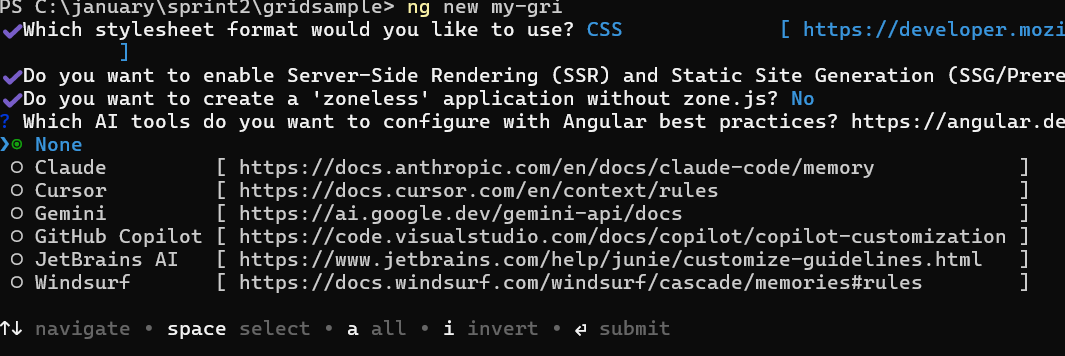
- Navigate to your newly created application directory:
cd syncfusion-angular-appNote: In Angular 19 and below, the CLI generates files like
app.component.ts,app.component.html,app.component.css, etc. In Angular 20+, the CLI generates a simpler structure withsrc/app/app.ts,app.html, andapp.css(no.component.suffixes). The remaining steps in this guide target the Angular 19 and below file layout; for Angular 20+, rename the file references accordingly (for example,app.component.ts->app.ts).
Adding Syncfusion Sparkline Package
After the Angular application is created, navigate to its directory and add the Syncfusion® Charts package, which also includes the Sparkline component.
cd syncfusion-angular-app
ng add @syncfusion/ej2-angular-charts
The ng add command performs the following configurations:
- Adds the
@syncfusion/ej2-angular-chartspackage and its peer dependencies topackage.json. - Imports the Sparkline component in your application.
For more details on version compatibility, refer to the Version Compatibility section.
Syncfusion® offers two package structures for Angular components:
- Ivy library distribution package format.
- Angular compatibility compiler (ngcc), which is Angular’s legacy compilation pipeline.
Ivy Library Distribution Package
Syncfusion®’s latest Angular packages are Ivy-compatible and suited for Angular 12 and above. Use the ng add command shown above to install the package.
Angular Compatibility Compiled Package (ngcc)
For applications not compiled with Ivy, use the ngcc-tagged packages:
The ngcc packages are still compatible with Angular CLI versions 15 and below. However, they may generate warnings suggesting the use of Ivy compiled packages. Starting from Angular 16, support for the ngcc package has been completely removed. If you have further questions regarding ngcc compatibility, please refer to the following FAQ.
npm install @syncfusion/[email protected]Add Sparkline Component
Open src/app/app.component.ts (Angular 19 and below) or src/app/app.ts (Angular 20+) and replace its contents with the following to render the Sparkline component.
import { SparklineModule } from '@syncfusion/ej2-angular-charts';
import { Component } from '@angular/core';

@Component({
    imports: [SparklineModule],
    standalone: true,
    selector: 'app-root',
    // specifies the template string for the Sparkline component
    template: `<ejs-sparkline id='sparkline-container'></ejs-sparkline>`,
})
export class AppComponent { }
Module injection
Sparkline features are provided by optional services. To enable a feature, register its service either in the application module providers (module-based applications) or in a standalone component’s providers array. Relevant services include:
-
SparklineTooltipService- Inject this provider to enable tooltip support for the Sparkline.
The following example demonstrates enabling tooltip support. Import SparklineTooltipService from @syncfusion/ej2-angular-charts and add it to the component’s providers array.
import { SparklineModule, SparklineTooltipService } from '@syncfusion/ej2-angular-charts';
import { Component } from '@angular/core';

@Component({
    imports: [SparklineModule],
    standalone: true,
    selector: 'app-container',
    providers: [SparklineTooltipService],
    template: `<ejs-sparkline id='sparkline-container'></ejs-sparkline>`
})
export class AppComponent {}
Bind data source to Sparkline
The dataSource property binds data to the Sparkline. This property accepts an array of primitive values or an array of objects. For object arrays, set xName and yName to map object fields to the Sparkline’s X and Y values. Example data shape: { x: 'Jan', y: 10 } with xName='x' and yName='y'.
import { SparklineModule, SparklineTooltipService } from '@syncfusion/ej2-angular-charts';
import { Component } from '@angular/core';

@Component({
    imports: [SparklineModule],
    providers: [SparklineTooltipService],
    standalone: true,
    selector: 'app-container',
    template: `<ejs-sparkline id='container' [tooltipSettings]='tooltipSettings' width='400px' height='350px' [dataSource]="data" xName="xval" yName="yval" type="Line">
    </ejs-sparkline>`
})
export class AppComponent {
    public data: object[] = [
        { xval: 1, yval: 20090440 },
        { xval: 2, yval: 20264080 },
        { xval: 3, yval: 20434180 },
        { xval: 4, yval: 21007310 },
        { xval: 5, yval: 21262640 },
        { xval: 6, yval: 21515750 },
        { xval: 7, yval: 21766710 },
        { xval: 8, yval: 22015580 },
        { xval: 9, yval: 22262500 },
        { xval: 10, yval: 22507620 }
    ];

    public tooltipSettings: Object = {
        enable: true
    };
};
import { bootstrapApplication } from '@angular/platform-browser';
import { AppComponent } from './app.component';
import 'zone.js';
bootstrapApplication(AppComponent).catch((err) => console.error(err));Run the application
Run the development server with ng serve. Alternatively, npm start works if a start script is configured in package.json.
npm startTroubleshooting
-
ejs-sparkline is not a known elementat build time —SparklineModuleis not imported into the standalone component. Addimports: [SparklineModule]to the component’s@Componentdecorator. -
Tooltip does not appear on hover —
SparklineTooltipServiceis not registered. Addproviders: [SparklineTooltipService]to the component (or to the application module for module-based apps). -
Sparkline renders as an empty SVG —
dataSourceis missing, orwidth/heightare not set. Bind adataSourceand setwidthandheighton<ejs-sparkline>. -
npm installfails with peer-dependency warnings on Angular 16+ — The installed package uses the legacyngccdistribution. Install the Ivy distribution withng add @syncfusion/ej2-angular-chartsinstead of the-ngcctagged version. -
Build fails on Angular 20+ with
app.component.tsnot found — The CLI generatessrc/app/app.ts(no.component.suffix) from Angular 20 onwards. Rename references in the steps above tosrc/app/app.ts,app.html, andapp.css. -
ejs-sparklineselector is unrecognized after upgrade — Stale module references after upgrading@syncfusion/ej2-angular-charts. Re-runng add @syncfusion/ej2-angular-chartsto refresh schematics, then restart the dev server.