How can I help you?
Getting Started with WPF Toast Notification
22 May 20265 minutes to read
This section explains how to get started with SfToastNotification in a WPF application by adding the required assemblies, showing a basic toast notification, configuring application startup for native toast support, defining toast content, and using the supported toast modes.
Assembly Deployment
Add references to the following assemblies to use SfToastNotification in your WPF application:
Syncfusion.SfToastNotification.WPFSyncfusion.Shared.WPF
Alternatively, you can install the Syncfusion.SfToastNotification.WPF NuGet package, which automatically installs the required dependent assemblies.
Showing a Basic Toast
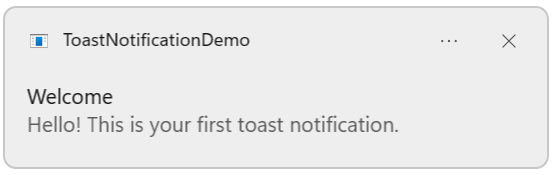
Since SfToastNotification is a non-UI control, you can create and display toast notifications entirely through C# code without adding any XAML configuration. You can display a basic toast notification by using the Show method.
using System;
using System.Windows;
using Syncfusion.UI.Xaml.SfToastNotification;

namespace ToastNotificationDemo
{
    public partial class MainWindow : Window
    {
        public MainWindow()
        {
            InitializeComponent();
        }

        private void Button_Click(object sender, RoutedEventArgs e)
        {
            SfToastNotification.Show(this, new ToastOptions
            {
                Title = "Welcome",
                Message = "Hello! This is your first toast notification."
            });
        }
    }
}
NOTE
For displaying default or native toast notifications, you must initialize the
WindowsToastBootstrapperfor your application inApp.xaml.cs. This initialization is required for OS-level toast notifications.
Toast Content
The following properties are used to define the textual content of a toast notification:
- Title – Represents the bold text displayed at the top of the toast and is typically used to summarize the purpose of the notification.
- Message – Represents the main body text of the toast and conveys the primary notification information.
-
Header – Represents an additional header displayed above or beside the message. This property applies only to in-app toast modes (
WindowandScreen) and is ignored in native (Default) mode.
Toast Modes
SfToastNotification supports three display modes to suit different application scenarios.
Default Mode
Default mode uses the native operating system toast notifications and is suitable for applications that want to integrate with the OS notification system.
Application Startup Configuration
To use native OS toast notifications, import the Syncfusion.UI.Xaml.SfToastNotification namespace in App.xaml.cs and initialize the WindowsToastBootstrapper in the Application_Startup event.
using System.Windows;
using Syncfusion.UI.Xaml.SfToastNotification;

namespace ToastNotificationDemo
{
    public partial class App : Application
    {
        private void Application_Startup(object sender, StartupEventArgs e)
        {
            WindowsToastBootstrapper.RemoveShortcutOnUnload = true;
            WindowsToastBootstrapper.Initialize("ToastNotificationDemo.App", "ToastNotificationDemo");
        }
    }
}
Configure the Application_Startup event in App.xaml.
<Application x:Class="ToastNotificationDemo.App"
             xmlns="http://schemas.microsoft.com/winfx/2006/xaml/presentation"
             xmlns:x="http://schemas.microsoft.com/winfx/2006/xaml"
             StartupUri="MainWindow.xaml"
             Startup="Application_Startup">
    <Application.Resources>
    </Application.Resources>
</Application>
Window Mode
Window mode displays toast notifications within the owning window. This mode is useful when notifications should remain within the application boundaries.
SfToastNotification.Show(this, new ToastOptions
{
    Title = "Window Toast",
    Message = "This notification appears within the window",
    Mode = ToastMode.Window
});
Screen Mode
Screen mode displays toast notifications as an in-app overlay across the screen. This mode is useful for application-wide notifications that should remain visible regardless of window focus.
SfToastNotification.Show(this, new ToastOptions
{
    Title = "Global Notification",
    Message = "This notification appears globally on screen",
    Mode = ToastMode.Screen
});
NOTE
WindowandScreenare in-app toast modes and support customization, whileDefaultmode uses native OS behavior and has limited customization.