How can I help you?
Appearance and Styling in WPF Toast Notification
25 May 20265 minutes to read
This section explains how to customize the appearance and visual behavior of toast notifications by using severity, variants, accent brush, placement, and animations.
Severity and Variant
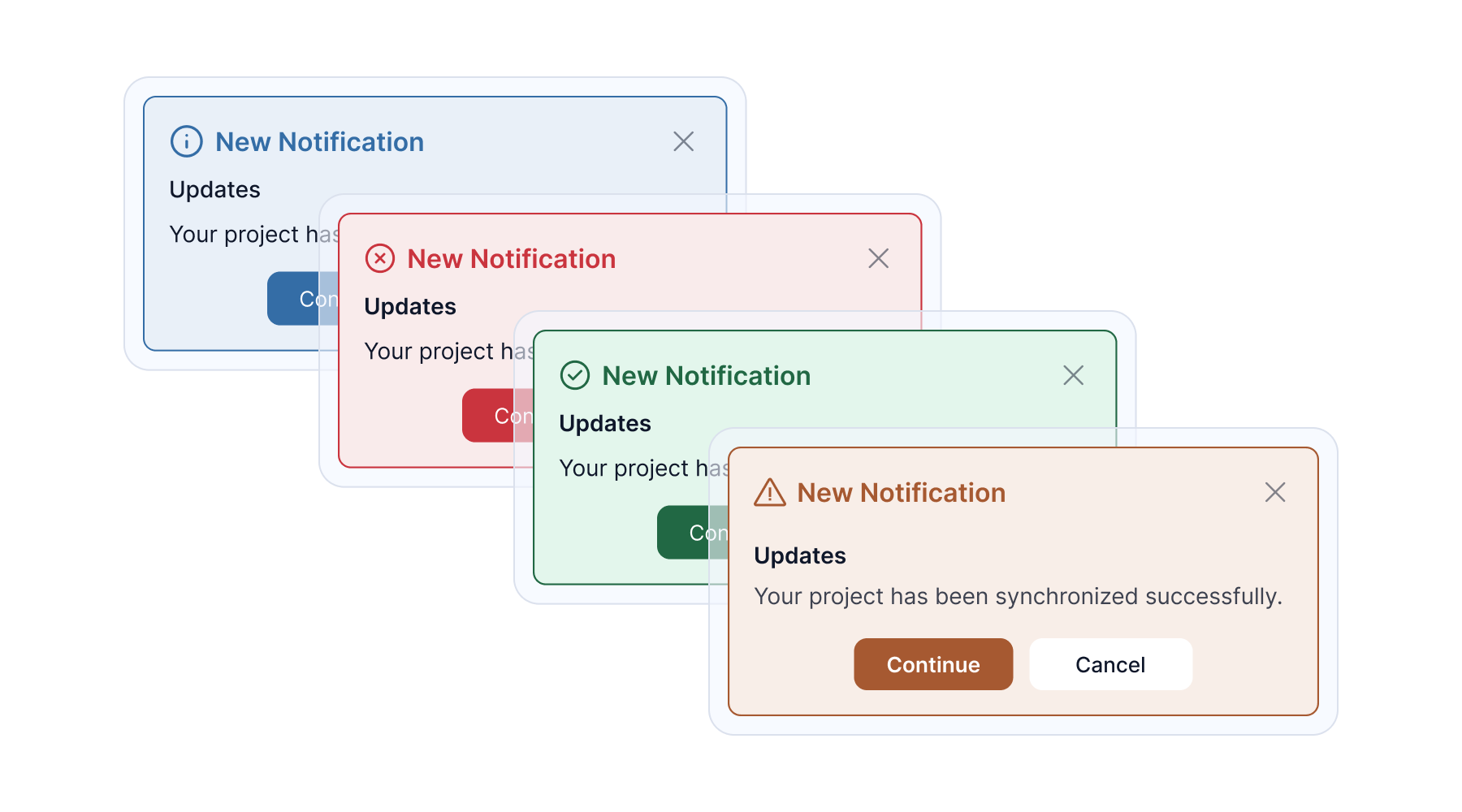
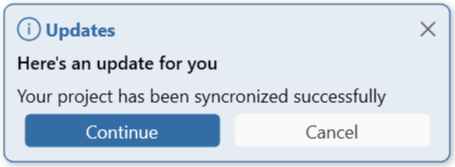
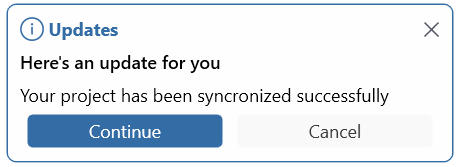
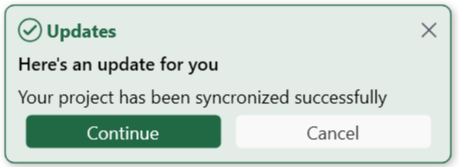
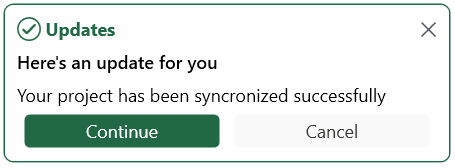
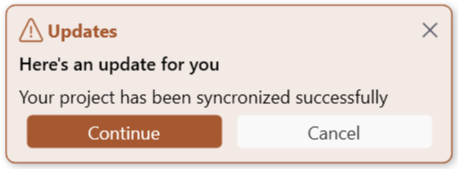
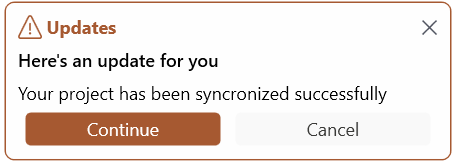
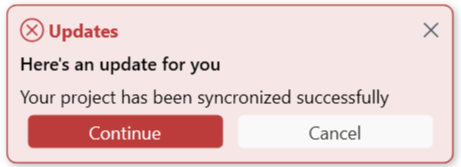
Toast notifications support multiple severity levels with built-in visual styling and provide three visual variants to suit different design preferences.
SfToastNotification.Show(this, new ToastOptions
{
    Title = "Updates",
    Message = "Your project has been synchronized successfully",
    Mode = ToastMode.Screen,
    Severity = ToastSeverity.Success,
    Variant = ToastVariant.Filled
});
Variant Behavior with Severity
| Severity ↓ / Variant → | Text | Fill | Outlined |
|---|---|---|---|
| Info | 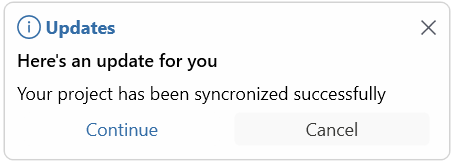 |
 |
 |
| Success | 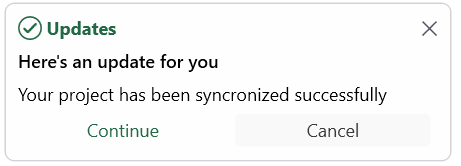 |
 |
 |
| Warning | 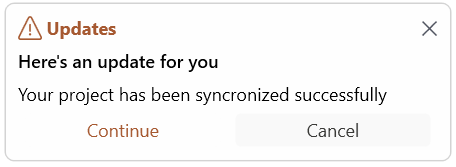 |
 |
 |
| Error | 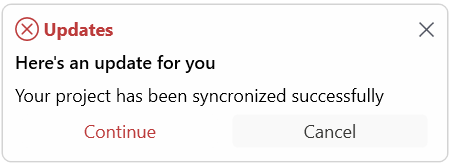 |
 |
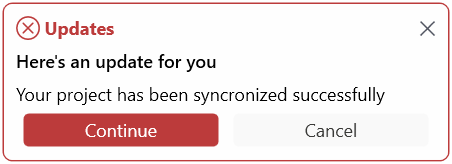 |
Accent Brush
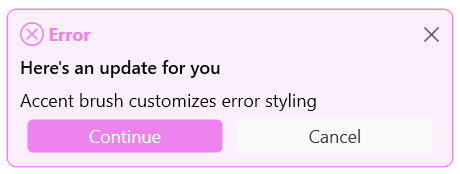
You can use the AccentBrush property to further customize the appearance of a toast notification after severity and variant are applied. This property allows you to adjust the color accents and overall visual styling of the toast.
SfToastNotification.Show(this, new ToastOptions
{
    Title = "Error",
    Message = "Accent brush customizes error styling",
    Mode = ToastMode.Screen,
    Severity = ToastSeverity.Error,
    AccentBrush = new SolidColorBrush(Colors.Violet)
});
Placement
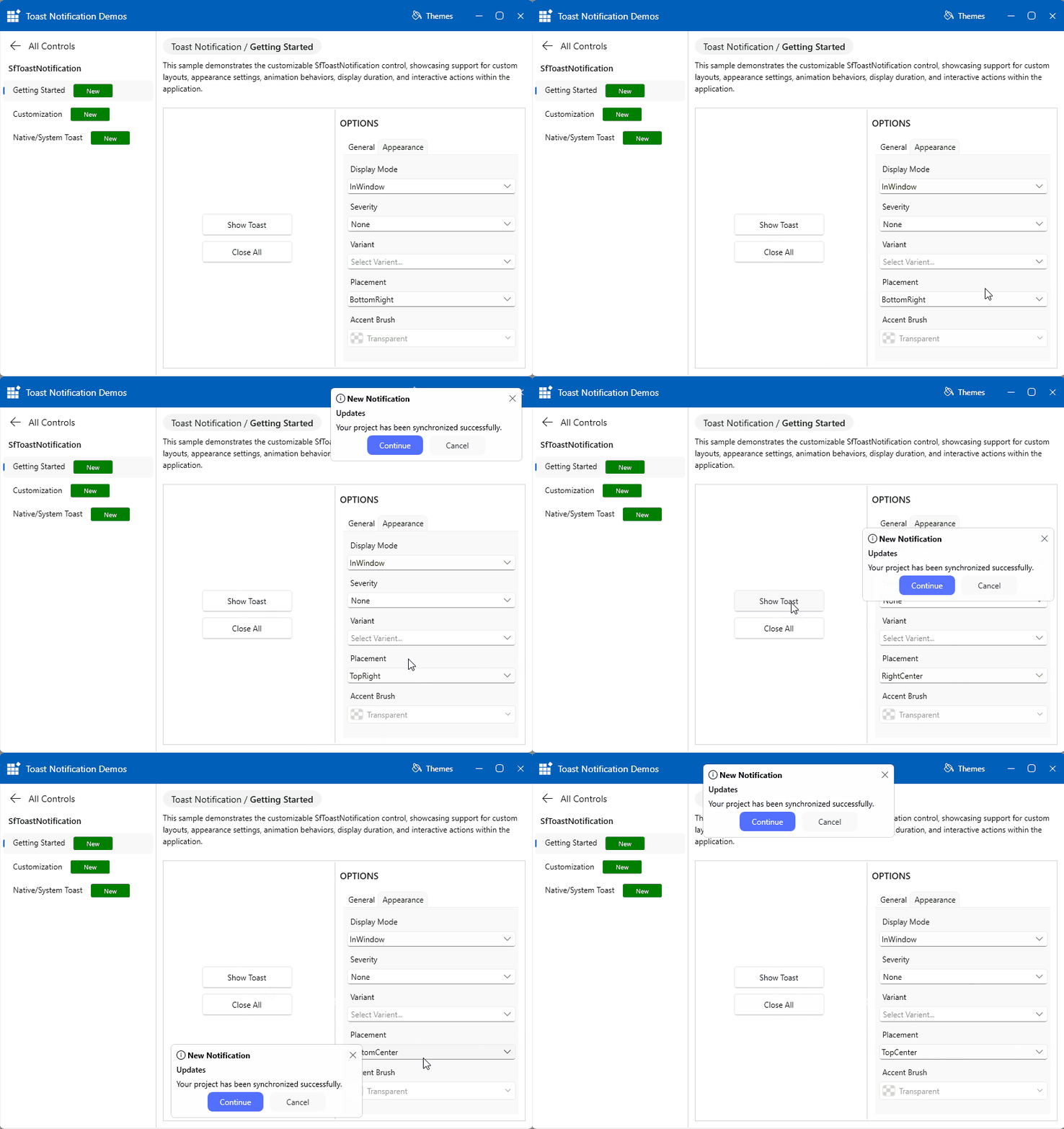
Toast notifications support multiple placement options, allowing notifications to appear at different positions within the application window or screen.
The supported placement options are: TopLeft, TopCenter, TopRight, LeftCenter, RightCenter, BottomLeft, BottomCenter, and BottomRight.
SfToastNotification.Show(this, new ToastOptions
{
    Message = "Top-Left Position",
    Placement = ToastPlacement.TopLeft,
    Mode = ToastMode.Screen
});
Animations
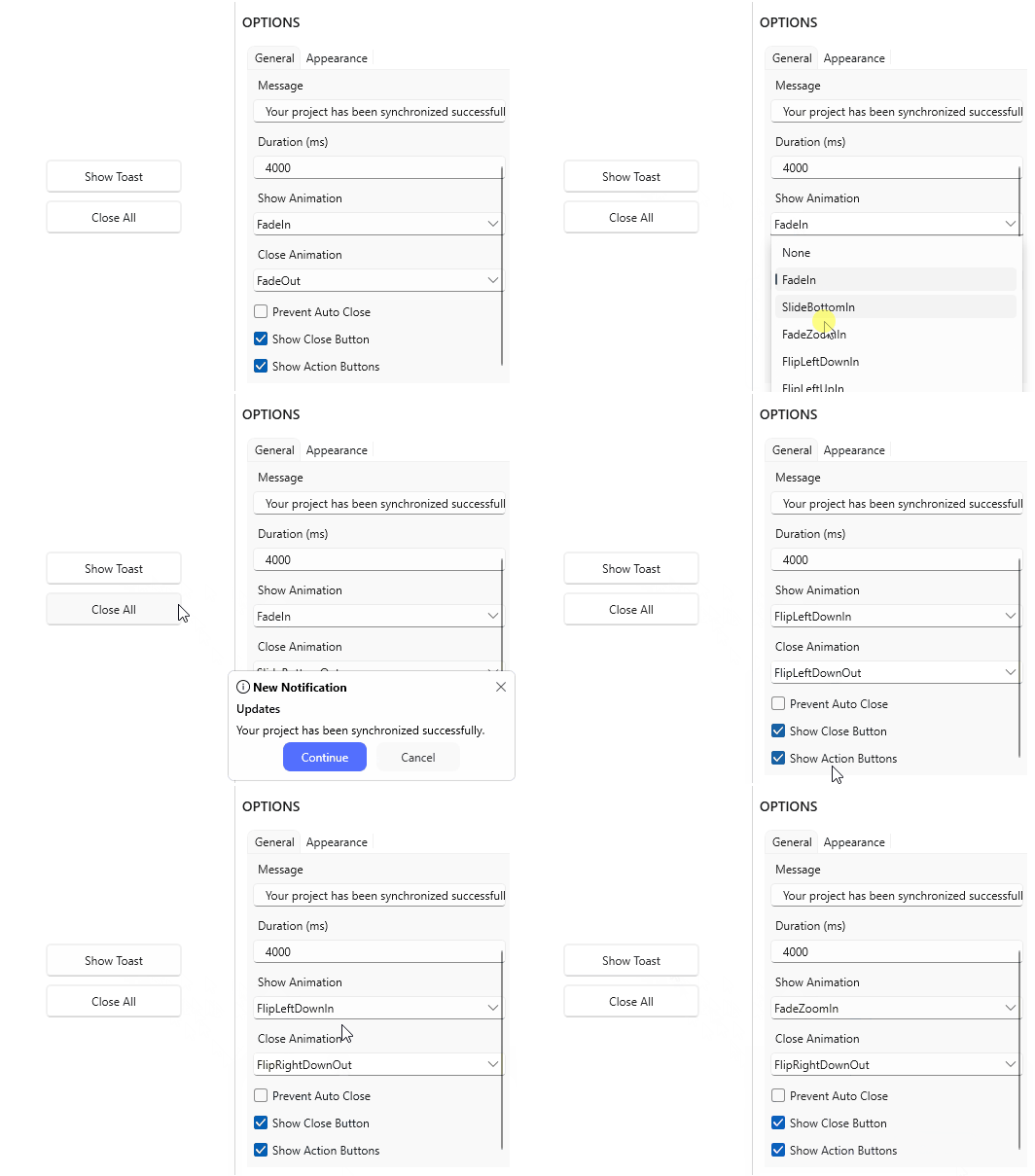
Toast notifications support built-in animation types that control how notifications appear and disappear on the screen. You can configure the show and hide animations independently to customize the visual behavior of the toast.
SfToastNotification.Show(this, new ToastOptions
{
    Message = "Fade effect",
    Mode = ToastMode.Screen,
    ShowAnimationType = ToastAnimation.FadeIn,
    CloseAnimationType = ToastAnimation.FadeOut
});
Available Animations
| Animation | In | Out |
|---|---|---|
| Fade | FadeIn |
FadeOut |
| Zoom | FadeZoomIn |
FadeZoomOut |
| Slide | SlideBottomIn |
SlideBottomOut |
| Flip Left Down | FlipLeftDownIn |
FlipLeftDownOut |
| Flip Left Up | FlipLeftUpIn |
FlipLeftUpOut |
| Flip Right Down | FlipRightDownIn |
FlipRightDownOut |
| None | None |
None |
NOTE
Appearance customization features such as Severity, Variant, and AccentBrush, as well as behavior-related options like Placement, ShowAnimationType, CloseAnimationType, and Duration, are supported only for custom toast notifications displayed in Window or Screen mode. These are not supported in Default mode, as OS-level toast appearance, placement, animation, and timing are controlled by the operating system. Additionally, Variant and AccentBrush are applicable only when Severity is set to Info, Success, Warning, or Error, and not when it is set to None.