How can I help you?
Context Menu in WPF Pivot Grid
27 Feb 20251 minute to read
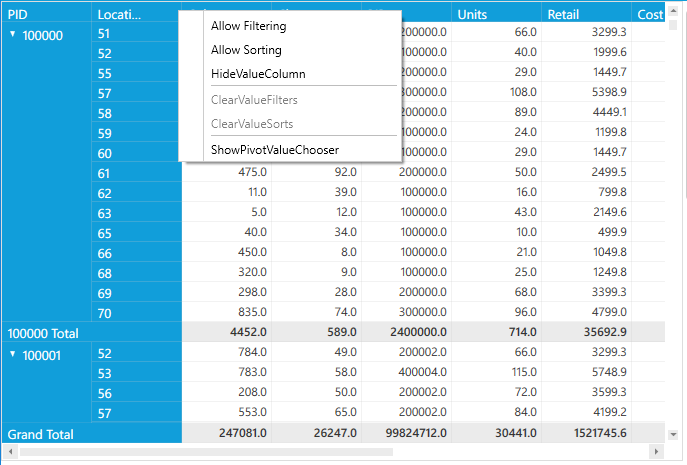
The WPF Pivot Grid supports the context menu option in RowPivotsOnly mode. Following are the available options.
- Allow Filtering: Enables or disables filtering in the selected pivot computation column.
- Allow Sorting: Enables or disables sorting in the selected pivot computation column.
- HideValueColumn: Hides the selected pivot computation column.
- ClearValueFilters: Clears the filtered changes in all pivot computation columns.
- ClearValueSorts: Clears the sorted values in all pivot computation columns.
- ShowPivotValueChooser: Launches the pivot value chooser window to add or remove the items in pivot grid.
The EnableContextMenu property is used to display the context menu by right-clicking each column.
To do so, after defining the pivot grid control in RowPivotsOnly mode, raise the loaded event of pivot grid. Inside the PivotGrid_Loaded() event, set the EnableContextMenu property.
public partial class MainWindow: Window {
    public MainWindow() {
        InitializeComponent();
        pivotGrid.Loaded += pivotGrid_Loaded;
    }

    void pivotGrid_Loaded(object sender, RoutedEventArgs e) {
        pivotGrid.RowHeaderCellStyle.EnableContextMenu = true;
        pivotGrid.ColumnHeaderCellStyle.EnableContextMenu = true;
    }
}
NOTE
You can also explore our WPF Pivot Grid example to knows how to organizes and summarizes business data and displays the result in a cross-table format.