Workflows in WPF Kanban Board
18 Nov 20186 minutes to read
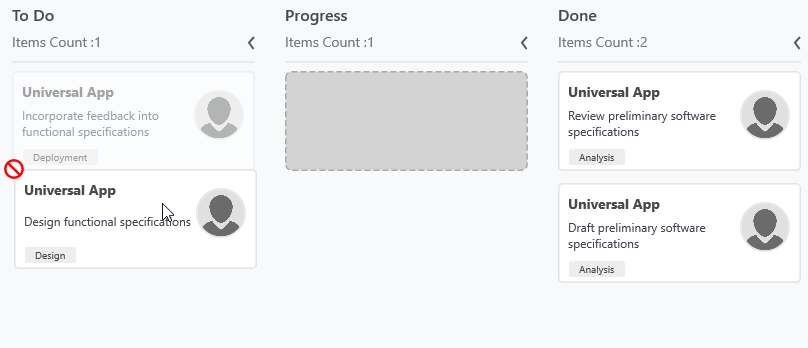
A Kanban Workflows is a set of categories and allowed transitions that an item moves through during its life cycle, typically representing processes within your organization.
-
Category- It represents the state of an item at a particular point in a specific workflow. -
AllowedTransitions- It is a list of categories to which the card can be moved from the current category.
The snippets in this document use the
kanban:prefix for the Syncfusion namespace. Make sure the following namespace mapping is declared on the root element:xmlns:kanban="clr-namespace:Syncfusion.UI.Xaml.Kanban;assembly=Syncfusion.SfKanban.WPF".
<kanban:SfKanban x:Name="kanban"
                 ItemsSource="{Binding Tasks}"
                 AutoGenerateColumns="False"
                 ColumnMappingPath="Category">
    <kanban:SfKanban.Workflows>
        <kanban:KanbanWorkflow Category="Open">
            <kanban:KanbanWorkflow.AllowedTransitions>
                <x:String>In Progress</x:String>
            </kanban:KanbanWorkflow.AllowedTransitions>
        </kanban:KanbanWorkflow>
        <kanban:KanbanWorkflow Category="In Progress">
            <kanban:KanbanWorkflow.AllowedTransitions>
                <x:String>Review</x:String>
                <x:String>Done</x:String>
            </kanban:KanbanWorkflow.AllowedTransitions>
        </kanban:KanbanWorkflow>
    </kanban:SfKanban.Workflows>
    <kanban:KanbanColumn Title="Open" Categories="Open" />
    <kanban:KanbanColumn Title="In Progress" Categories="In Progress" />
    <kanban:KanbanColumn Title="Review" Categories="Review" />
    <kanban:KanbanColumn Title="Done" Categories="Done" />
</kanban:SfKanban>
using System.Collections.Generic;
using Syncfusion.UI.Xaml.Kanban;
SfKanban kanban = new SfKanban();
WorkflowCollection workflows = new WorkflowCollection();
workflows.Add(new KanbanWorkflow()
{
Category = "Open",
AllowedTransitions = new List<object>() { "In Progress" }
});
workflows.Add(new KanbanWorkflow()
{
Category = "In Progress",
AllowedTransitions = new List<object>() { "Review", "Done" }
});
kanban.Workflows = workflows;In the XAML snippet, add
xmlns:x="http://schemas.microsoft.com/winfx/2006/xaml"to the root element so thex:Stringreference resolves.
Work In-Progress (WIP) Limit
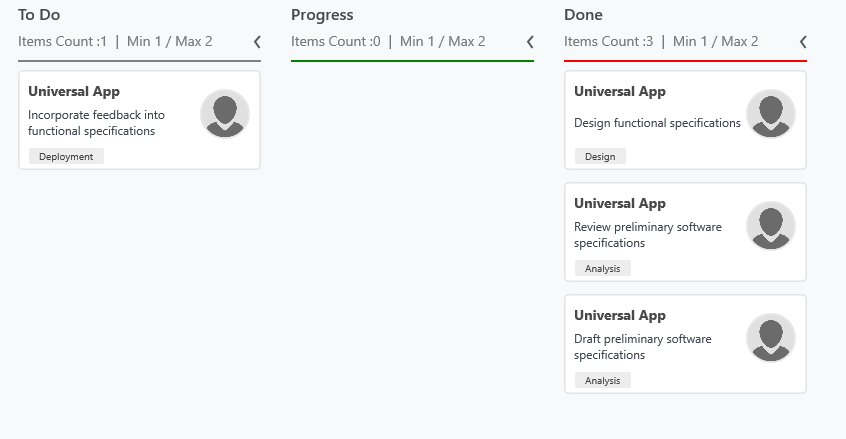
The MinimumLimit and MaximumLimit properties are used to limit the minimum and maximum number of items in a Kanban column. This does not restrict moving the items from one column to another column. However, a violation of the limit is indicated by changing the color of the error bar.
The following properties of ErrorBarSettings are used to customize the error bar:
-
Color- Used to set the default color of the error bar. -
MinValidationColor- Used to set the color of the error bar when the item count is less thanMinimumLimit. -
MaxValidationColor- Used to set the color of the error bar when the item count is greater thanMaximumLimit. -
Height- Used to set the height of the error bar.
<kanban:SfKanban x:Name="kanban"
                 ItemsSource="{Binding Tasks}"
                 AutoGenerateColumns="False"
                 ColumnMappingPath="Category">
    <kanban:KanbanColumn Title="Done"
                         Categories="Review,Done"
                         MinimumLimit="1"
                         MaximumLimit="2">
        <kanban:KanbanColumn.ErrorBarSettings>
            <kanban:ErrorBarSettings Color="Gray"
                                     MaxValidationColor="Red"
                                     MinValidationColor="Green" />
        </kanban:KanbanColumn.ErrorBarSettings>
    </kanban:KanbanColumn>
    <kanban:KanbanColumn Title="Open" Categories="Open" />
    <kanban:KanbanColumn Title="In Progress" Categories="In Progress" />
</kanban:SfKanban>
using Syncfusion.UI.Xaml.Kanban;
using System.Windows.Media;
KanbanColumn doneColumn = new KanbanColumn()
{
Title = "Done",
Categories = "Review,Done",
MinimumLimit = 1,
MaximumLimit = 2,
ErrorBarSettings = new ErrorBarSettings()
{
Color = new SolidColorBrush(Colors.Gray),
MinValidationColor = new SolidColorBrush(Colors.Green),
MaxValidationColor = new SolidColorBrush(Colors.Red)
}
};
kanban.Columns.Add(doneColumn);The
Color,MinValidationColor, andMaxValidationColorproperties ofErrorBarSettingsaccept aBrushin C# (useSolidColorBrush) but a string color name (e.g.,"Gray") in XAML, which WPF automatically converts to aSolidColorBrush.