Getting Started with WPF Markdown Viewer
18 Nov 20185 minutes to read
This section provides a step-by-step guide to integrate and use the SfMarkdownViewer control in your WPF applications.
Create a New WPF Project
- Go to File > New > Project and choose the WPF App template.
- Name the project, choose a location, and then click Next.
- Select a target framework from the supported list above and click Create.
Install the Syncfusion® WPF MarkdownViewer NuGet Package
- In Solution Explorer, right-click the project and choose Manage NuGet Packages.
- Search for
Syncfusion.SfMarkdownViewer.WPFNuGet and install the latest version. The NuGet ID is case-insensitive, but the canonical name isSyncfusion.SfMarkdownViewer.WPF. - Ensure the required dependencies are installed correctly and that the project has been restored successfully.
The NuGet package installs
Syncfusion.SfMarkdownViewer.WPFtogether with its required dependencies, includingSyncfusion.MarkdownandSyncfusion.Shared.WPF. You do not need to add them separately.
Assembly Deployment
The Markdown Viewer control depends on the following assemblies, which are added automatically when the NuGet package is installed:
Syncfusion.SfMarkdownViewer.WPFSyncfusion.MarkdownSyncfusion.Shared.WPF
For more information, see the Control Dependencies page. For details about installing NuGet packages in a WPF application, see Installing NuGet packages.
Adding WPF Markdown Viewer via the Designer
This section assumes that you have already created a WPF project and installed the Syncfusion.SfMarkdownViewer.WPF NuGet package, as described in the earlier sections. To add the SfMarkdownViewer control through the Visual Studio Designer, follow these steps:
- Make sure the
SfMarkdownViewercontrol is listed in the Toolbox. If it is not, rebuild the project, or add the assembly manually by choosing Tools > Choose Toolbox Items > WPF Components and browsing toSyncfusion.SfMarkdownViewer.WPF.dll. - Drag the
SfMarkdownViewerentry from the Toolbox and drop it onto the designer surface. - Resize the control on the design surface. A minimum size of 400 by 300 is recommended so that the rendered Markdown has room to display.
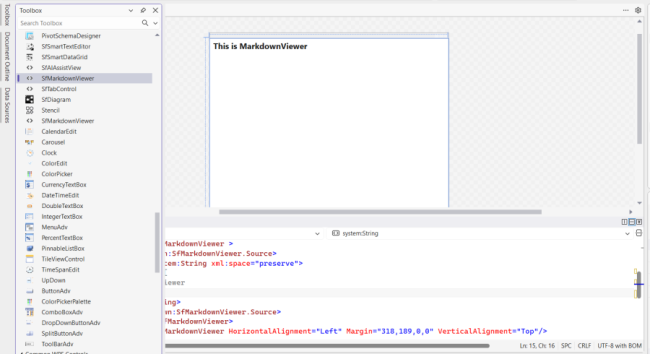
Adding WPF Markdown Viewer via XAML
This section assumes that you have already created a WPF project and installed the Syncfusion.SfMarkdownViewer.WPF NuGet package, as described in the earlier sections. To add the SfMarkdownViewer control in XAML, declare the control inside a layout container and set sizing properties so that it has room to render at run time.
Import the control namespace Syncfusion.UI.Xaml.Markdown in XAML, and declare the SfMarkdownViewer in XAML page.
<Window
    x:Class="GettingStarted.MainWindow"
    xmlns="http://schemas.microsoft.com/winfx/2006/xaml/presentation"
    xmlns:x="http://schemas.microsoft.com/winfx/2006/xaml"
    xmlns:d="http://schemas.microsoft.com/expression/blend/2008"
    xmlns:mc="http://schemas.openxmlformats.org/markup-compatibility/2006"
    xmlns:markdown="clr-namespace:Syncfusion.UI.Xaml.Markdown;assembly=Syncfusion.SfMarkdownViewer.WPF"
    xmlns:system="clr-namespace:System;assembly=mscorlib">
    <Grid>
        <markdown:SfMarkdownViewer />
    </Grid>
</Window>
Adding WPF Markdown Viewer via C#
This section assumes that you have already created a WPF project and installed the Syncfusion.SfMarkdownViewer.WPF NuGet package, as described in the earlier sections. To add the SfMarkdownViewer control in code-behind, instantiate the control and assign it to the Content of a window or a child element.
Import the control namespace Syncfusion.UI.Xaml.Markdown in C#, and add the SfMarkdownViewer control in C# page.
using Syncfusion.UI.Xaml.Markdown;

namespace MarkdownViewerGettingStarted
{
    public partial class MainWindow : Window
    {
        public MainWindow()
        {
            InitializeComponent();
            // Creating an instance of the SfMarkdownViewer control
            SfMarkdownViewer markdownViewer = new SfMarkdownViewer();
            this.Content = markdownViewer;
        }
    }
}
Setting the Source Property
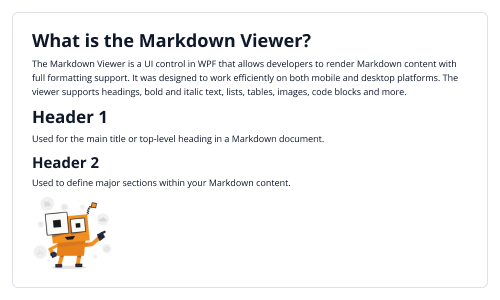
The Source property supplies Markdown content to the control. It accepts a raw Markdown string, a file path, or an HTTP/HTTPS URL, and is set after the control has been added to the visual tree.
<markdown:SfMarkdownViewer>
<markdown:SfMarkdownViewer.Source>
<system:String xml:space="preserve">
<
]]>
</system:String>
</markdown:SfMarkdownViewer.Source>
</markdown:SfMarkdownViewer>public partial class MainWindow : Window
{
private const string markdownContent = @"
# What is the Markdown Viewer?
The MarkdownViewer control is used to render and preview Markdown files. It converts markdown syntax into a clean, readable format and supports elements such as headings, lists, code blocks, tables, and other common markdown structures.
# Header 1
Used for the main title or top-level heading in a Markdown document.
## Header 2
Used to define major sections within your Markdown content.
";
public MainWindow()
{
InitializeComponent();
SfMarkdownViewer markdownViewer = new SfMarkdownViewer();
markdownViewer.Source = markdownContent;
this.Content = markdownViewer;
}
}