How to upgrade Syncfusion® Windows Forms components
15 Aug 20261 minute to read
Syncfusion publishes the Visual Studio extension in the Visual Studio marketplace for every Syncfusion Volume release, with exciting new features, and a Service Pack release with major bug fixes in the volume release.
You can upgrade to our latest version from any installed Syncfusion version.
Upgrading to the latest version
Before starting the upgrade, close all Visual Studio instances and stop any running debugging sessions. Updating the extension while Visual Studio is running requires closing Visual Studio during the install step.
-
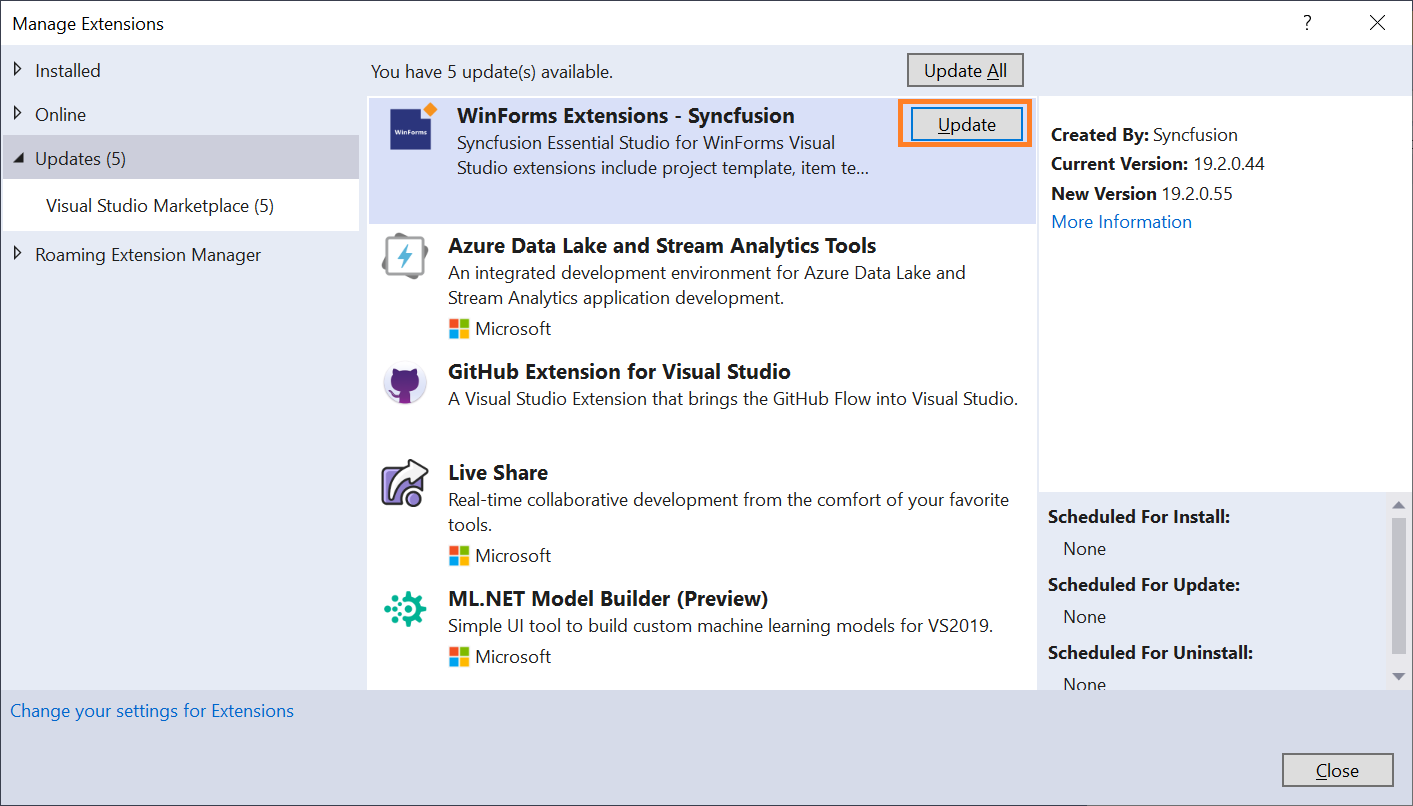
In Visual Studio go to Extensions -> Manage Extensions -> Updates and find the Syncfusion WinForms extension.
NOTE
In Visual Studio 2017 or earlier, go to Tools -> Extensions and Updates.
-
Then, click on the Update button to update the extension.
-
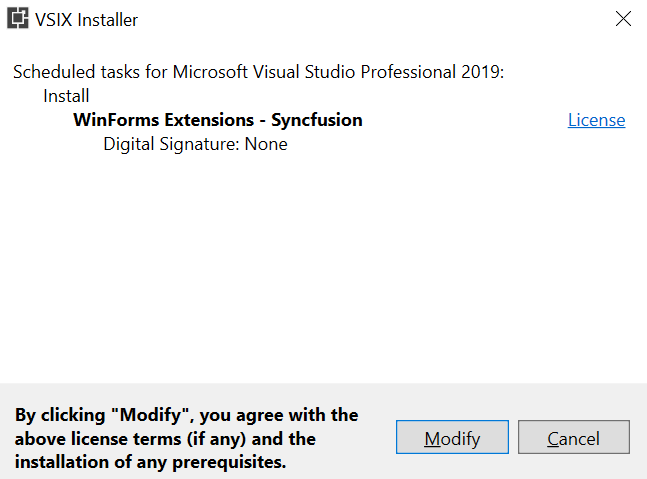
Close Visual Studio and click Modify in the VSIX installer dialog.
-
After the VSIX installer finishes, restart Visual Studio. Open Extensions -> Manage Extensions -> Installed and verify the Syncfusion WinForms extension shows the new version.
Toolbox recovery
If the Syncfusion toolbox controls disappear after the extension update, run the Syncfusion installer (or re-run the extension installer) with the Configure Syncfusion controls in Visual Studio option enabled. This re-registers the toolbox items for the current Visual Studio version.