Syncfusion® Windows Forms UI Builder Skill for AI Assistants
30 Jul 20269 minutes to read
Syncfusion® Windows Forms UI Builder is an AI-powered skill and companion agent that accelerates Windows Forms application development by transforming natural-language UI requirements into production-ready controls using Syncfusion® Windows Forms libraries.
Integrated with your AI-powered IDE, it leverages deep knowledge of Syncfusion® controls to deliver accurate and ready-to-use code.
By combining intelligent code generation with best practices, accessibility standards, and design-system consistency, Windows Forms UI Builder helps you rapidly build scalable dashboards and user interfaces without leaving your development workflow.
Prerequisites
Before installing Windows Forms UI Builder, ensure the following:
- Install APM (Agent Package Manager)
- Required .NET SDK version ≥ 6
- Windows Forms application (existing or new); see Overview
- A supported AI agent or IDE that integrates with the Skills (VS Code, Cursor, Syncfusion® Code Studio, etc.)
- Active Syncfusion® license(any of the following):
Key Benefits
AI-Driven UI Generation
- Converts prompts into complete Windows Forms components—not just snippets
- Automatically selects appropriate Syncfusion® controls and features
- Produces structured, maintainable C# code
Control Usage & API Accuracy
- Uses correct Syncfusion® control APIs and properties
- Injects required feature controls and behaviors (paging, sorting, filtering, etc.)
- Ensures proper assembly references and control initialization
- Avoids unsupported or deprecated patterns for Windows Forms
Patterns & Best Practices
- Recommended control composition and data-binding patterns
- Event handling aligned with Windows Forms standards and designer integration
- Secure and scalable coding patterns with proper resource management
- Designer-friendly code that works in both code-behind and UI designer
Accessibility & Design System
- Follows Windows accessibility guidelines
- Supports keyboard navigation and accessibility standards
- Theme consistency across desktop applications
Design-System Integration
- Supports Syncfusion® Windows Forms themes via SkinManager (Office2007, Office2010, Office2013, Office2016, Office2019, Metro, HighContrast)
- SkinManager integration for consistent theming
- Theme Studio support for customizing Office2019Colorful and HighContrastBlack themes
- Ensures consistent Syncfusion® styling across controls
Installation
Before installing WinForms UI Builder, ensure that APM (Agent Package Manager) is installed and available in your environment.
Verify APM Installation
Run the following command to confirm APM is installed:
apm --versionInstall the Syncfusion® Windows Forms UI Builder package using APM
Use the APM CLI to install the WinForms UI Builder skill for your preferred environment:
apm install syncfusion/winforms-ui-builder -t copilotapm install syncfusion/winforms-ui-builder -t cursorapm install syncfusion/winforms-ui-builder -t codexapm install syncfusion/winforms-ui-builder -t claudeAfter installation, the following artifacts are added to your project for the GitHub Copilot target:
-
.agent/skills/– contains the skill files -
.github/agents/– contains the agent configuration
Refer to the documentation for details about supported deployment targets.
For Syncfusion® Code Studio, use the Copilot command above to install the WinForms UI Builder.
How the Syncfusion® Windows Forms UI Builder Skill Works
- Intent Analysis — Parse the user’s prompt to identify control types and high-level form layout intent.
- Project Detection — Automatically detects .NET framework (Framework, Core, or .NET 5+) and existing Syncfusion® configurations.
- Control Mapping — Map intent to Syncfusion® Windows Forms controls and required feature controls.
-
Theming & Design System
Load required theming guidelines and confirm key design choices:- Syncfusion® Windows Forms theme (Office2007, Office2010, Office2013, Office2016, Office2019, Metro, HighContrast)
- Core design basics (colors, fonts, control appearance, DPI awareness)
- Light and dark theme variants per theme family
- Code Generation — Produce C# Windows Forms controls, data bindings, event handlers, and styling.
- Dependency Management — Recommend or install required Syncfusion® NuGet packages and .NET dependencies.
- Validation — Run code compatibility and basic security checks, request confirmation for changes.
- Code Insertion — Create Form classes, user controls, or patch existing files following Windows Forms conventions.
Key enforcement points:
- Adds correct SkinManager configuration and theme settings for chosen Syncfusion® themes (loads required theme assemblies)
- Injects only the feature controls and behaviors required by generated controls
- Follows Windows Forms conventions for control naming, initialization, and event handling
- Generates designer-compatible code with proper control hierarchy and parent-child relationships
- Ensures all required Syncfusion® assemblies and theme NuGet packages are referenced and configured
- Avoids unsupported or deprecated API usages for Syncfusion® Windows Forms controls
The assistant handles most stages automatically and may request confirmation where required.
Using the AI Assistant
After installing Windows Forms UI Builder with APM, the relevant agent and skill files are added to your project under:
-
.agents/skills/(skill files) -
.github/agents/(Windows Forms UI builder agent configuration, based on the selected target)
To start using the skill:
- Open your supported IDE.
- In the chat panel, select the
syncfusion-winforms-ui-builderagent from the Agent dropdown.
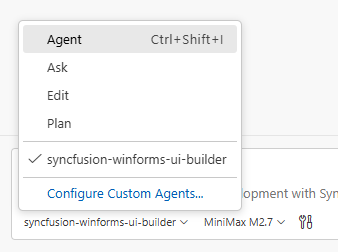
- Start prompting the agent with a clear description of your UI requirements.
Examples Prompts:
Create a login form using the Office2019Colorful theme with a centered TableLayoutPanel containing email and password TextBox controls with validation. Include a “Remember Me” CheckBox, a forgot password LinkLabel, and a primary login Button. Add a secondary “Create Account” button below. Ensure the form is well-organized and follows Windows Forms best practices with proper SkinManager configuration.
Create a CMS Admin Dashboard UI featuring a collapsible TreeView in a left panel (docked) with navigation items for Dashboard, Content, Users, Analytics, and Settings; a top StatusBar showing the title “CMS Admin Dashboard” and user name; and a main content area with a SplitContainer containing three compact summary panels in a FlowLayoutPanel displaying Total Content, Total Users, and Active Sessions (each showing a label, count value, and percentage change), followed by a “Content Management” section with a DataGrid containing columns for Title, Author, Status, Date, and Actions, and finally two charts displayed side by side—a column chart titled “Content Over Time” and a pie chart titled “Content by Category”—using realistic sample data.
Generated code follows Windows Forms best practices with proper control layout, event handling, data bindings, strong C# typing, and built-in security measures such as input validation and avoidance of hard-coded secrets. The code is fully compatible with Visual Studio designer and Windows Forms conventions.
Best Practices
Follow these guidelines to get the most out of UI Builder and ensure high-quality production-ready results:
- Stay consistent — Maintain consistent file organization, naming conventions (PascalCase for classes, camelCase for variables), and Windows Forms coding standards throughout your project.
- Use advanced AI models — For best results, use Claude Sonnet 4.6 or higher capability models to produce better code quality and more accurate implementations.
- Review all content before production — Validate the logic, security, and compatibility with your existing code and target .NET framework before deployment. Test control functionality within Visual Studio designer and at runtime.
- Verify Syncfusion® licenses — Ensure all required Syncfusion® controls have valid licenses before deploying to production.
- Test across platforms — Verify DPI awareness, high-resolution display support, and Windows accessibility features.
Troubleshooting
-
APM installation failure: Refer to this documentation.
-
Skills not loading: Ensure the .agent/ and .github/agents/ folders exist in your project and that the skill was installed successfully using APM. Verify that the correct agent is selected from the Agent dropdown in your IDE.
-
Control not rendering: Retry generation using the specific control skill to resolve the issue, and ensure required Syncfusion® packages and themes are properly configured.
-
Syncfusion license banner appears: Use the licensing skill to correctly register and validate your Syncfusion® license key in the application.
FAQ
Which agents/IDEs are supported?
Any Skills-compatible agent that reads local skill files (Code Studio, VS Code, Cursor, etc.).
Are skills loaded automatically?
Yes. Supported agents automatically load relevant skills based on your query.
Can I customize the generated styles?
Yes — the generated Windows Forms controls include clear integration points for style adjustments.
Does it modify files automatically?
The skill proposes changes and requires confirmation for insertion. Automatic dependency installation may be offered depending on agent permissions