Drag and Drop in Windows Forms Data Grid
18 Nov 201824 minutes to read
Column Drag and Drop
WinForms DataGrid (SfDataGrid) allow end-users to rearrange the columns by drag and drop the column headers by setting SfDataGrid.AllowDraggingColumns to true.
sfDataGrid.AllowDraggingColumns = true;sfDataGrid.AllowDraggingColumns = True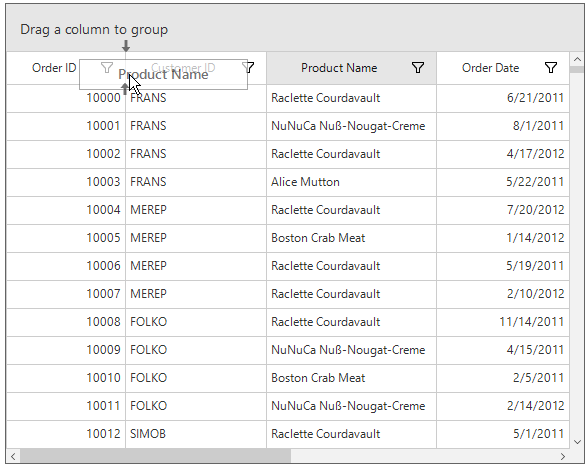
The drag and drop operation for particular column can be enabled or disabled using the AllowDragging property.
sfDataGrid.Columns[0].AllowDragging = false;sfDataGrid.Columns(0).AllowDragging = FalseDisable Column Reordering
The ColumnDragging event occurs when start dragging the column header. The dragging operation of the particular column can canceled by handling the ColumnDragging event. ColumnDraggingEventArgs of ColumnDragging event provides information about the column triggered this event.
Cancel Dragging Operation
SfDataGrid allow to cancel dragging operation for particular column by handling the ColumnDragging event when the e.Reason is ColumnDraggingAction.DragStarting.
sfDataGrid.ColumnDragging += sfDataGrid_ColumnDragging;

void sfDataGrid_ColumnDragging(object sender, Syncfusion.WinForms.DataGrid.Events.ColumnDraggingEventArgs e)
{
    var column = sfDataGrid.Columns[e.From];
    if (column.MappingName == "OrderID" && e.Reason == ColumnDraggingAction.DragStarting)
    {
        e.Cancel = true;
    }
}
AddHandler sfDataGrid.ColumnDragging, AddressOf sfDataGrid_ColumnDragging
Private Sub sfDataGrid_ColumnDragging(ByVal sender As Object, ByVal e As Syncfusion.WinForms.DataGrid.Events.ColumnDraggingEventArgs)
Dim column = sfDataGrid.Columns(e.From)
If column.MappingName = "OrderID" AndAlso e.Reason = ColumnDraggingAction.DragStarting Then
e.Cancel = True
End If
End SubCancel Column Reordering
SfDataGrid allow to cancel dropping a column at particular column by handling the ColumnDragging event with e.Reason is ColumnDraggingAction.Dropping.
sfDataGrid.ColumnDragging += sfDataGrid_ColumnDragging;

void sfDataGrid_ColumnDragging(object sender, Syncfusion.WinForms.DataGrid.Events.ColumnDraggingEventArgs e)
{
    if (e.Reason == ColumnDraggingAction.Dropping)
    {
        var column = sfDataGrid.Columns[e.To];
        if (column.MappingName == "ProductName")
        {
            e.Cancel = true;
        }
    }
}
AddHandler sfDataGrid.ColumnDragging, AddressOf sfDataGrid_ColumnDragging
Private Sub sfDataGrid_ColumnDragging(ByVal sender As Object, ByVal e As Syncfusion.WinForms.DataGrid.Events.ColumnDraggingEventArgs)
If e.Reason = ColumnDraggingAction.Dropping Then
Dim column = sfDataGrid.Columns(e.To)
If column.MappingName = "ProductName" Then
e.Cancel = True
End If
End If
End SubDrag and Drop Customization
The drag-and-drop operations can be changed by overriding the virtual methods of ColumnDragDropController class and assigning it to SfDataGrid.ColumnDragDropController.
sfDataGrid.ColumnDragDropController = new CustomDragAndDropController(sfDataGrid.TableControl, sfDataGrid.GroupPanel);

public class CustomDragAndDropController : ColumnDragDropController
{
    public CustomDragAndDropController(TableControl tableControl, GroupPanel groupPanel)
        : base(tableControl, groupPanel)
    {
    }

    protected override bool CanShowPopup(GridColumn column)
    {
        if (column.MappingName == "UnitPrice")
            return false;
        return base.CanShowPopup(column);
    }

    protected override void PopupDroppedOnHeaderRow(int oldIndex, int newIndex)
    {
        if (newIndex == 0)
            return;
        base.PopupDroppedOnHeaderRow(oldIndex, newIndex);
    }

    protected override void PopupDroppedOnGroupDropArea(GridColumn draggingColumn, MouseEventArgs e)
    {
        if (draggingColumn.MappingName == "OrderID")
            return;
        base.PopupDroppedOnGroupDropArea(draggingColumn, e);
    }
}sfDataGrid.ColumnDragDropController = New CustomDragAndDropController(sfDataGrid.TableControl, sfDataGrid.GroupPanel)
public class CustomDragAndDropController : ColumnDragDropController
public CustomDragAndDropController(TableControl tableControl, GroupPanel groupPanel)
MyBase.New(tableControl, groupPanel)
protected override Boolean CanShowPopup(GridColumn column)
If column.MappingName = "UnitPrice" Then
Return False
End If
Return MyBase.CanShowPopup(column)
protected override void PopupDroppedOnHeaderRow(Integer oldIndex, Integer newIndex)
If newIndex = 0 Then
Return
End If
MyBase.PopupDroppedOnHeaderRow(oldIndex, newIndex)
protected override void PopupDroppedOnGroupDropArea(GridColumn draggingColumn, MouseEventArgs e)
If draggingColumn.MappingName = "OrderID" Then
Return
End If
MyBase.PopupDroppedOnGroupDropArea(draggingColumn, e)Disabling Drag and Drop between Frozen and Non-frozen Columns
By default, the columns re-ordering performed between any column regions of columns. The dropping action can cancel between the frozen and non-frozen columns by handling SfDataGrid.ColumnDragging event.
sfDataGrid.ColumnDragging += sfDataGrid_ColumnDragging;

void sfDataGrid_ColumnDragging(object sender, Syncfusion.WinForms.DataGrid.Events.ColumnDraggingEventArgs e)
{
    if (e.Reason == ColumnDraggingAction.Dropping)
    {
        var frozenColIndex = this.sfDataGrid.FrozenColumnCount + this.sfDataGrid.TableControl.ResolveToStartColumnIndex();
        if (e.From < frozenColIndex && e.To > frozenColIndex - 1)
            e.Cancel = true;
        if (e.From > frozenColIndex && e.To < frozenColIndex || (e.From == frozenColIndex && e.To < frozenColIndex))
            e.Cancel = true;
    }
}
AddHandler sfDataGrid.ColumnDragging, AddressOf sfDataGrid_ColumnDragging
Private Sub sfDataGrid_ColumnDragging(ByVal sender As Object, ByVal e As Syncfusion.WinForms.DataGrid.Events.ColumnDraggingEventArgs)
If e.Reason = ColumnDraggingAction.Dropping Then
Dim frozenColIndex = Me.sfDataGrid.FrozenColumnCount + Me.sfDataGrid.TableControl.ResolveToStartColumnIndex()
If e.From < frozenColIndex AndAlso e.To > frozenColIndex - 1 Then
e.Cancel = True
End If
If e.From > frozenColIndex AndAlso e.To < frozenColIndex OrElse (e.From Is frozenColIndex AndAlso e.To < frozenColIndex) Then
e.Cancel = True
End If
End If
End Sub
FrozenColumnCountandFooterColumnCountshould be lesser than the number of columns that can be displayed in view.
Row Drag and Drop
WinForms DataGrid allows drag and drop rows both within the same grid and between different controls. To enable this functionality, set the AllowDraggingRows and AllowDrop properties to true.Rows can also be dragged from the DataGrid and dropped into other controls, such as a ListView. Rows can be dragged when AllowDraggingRows is set to true, and dropped when AllowDrop is enabled.
this.sfDataGrid.AllowDraggingRows = true;
this.sfDataGrid.AllowDrop = true;Me.sfDataGrid.AllowDraggingRows = True
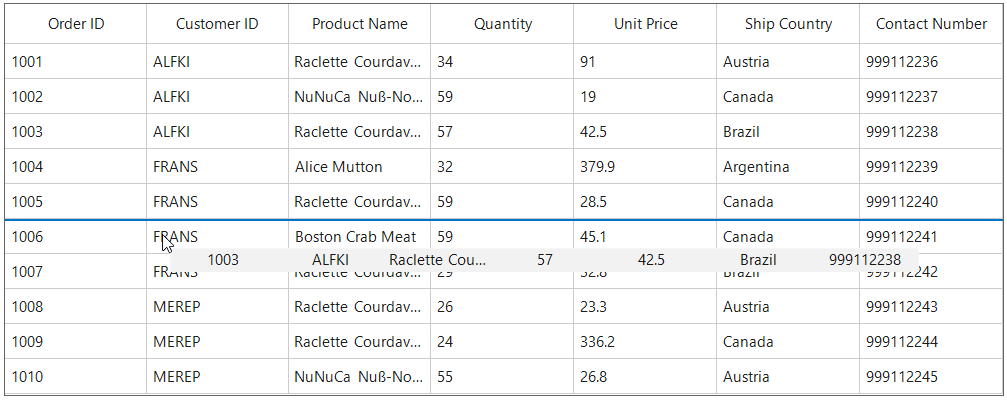
Me.sfDataGrid.AllowDrop = TrueWhile dropping, the dragged records can be added above or below to the target record based on its drop indicator.
For example, if you dropped record at the bottom of the targeted record, it will be added below the targeted record.
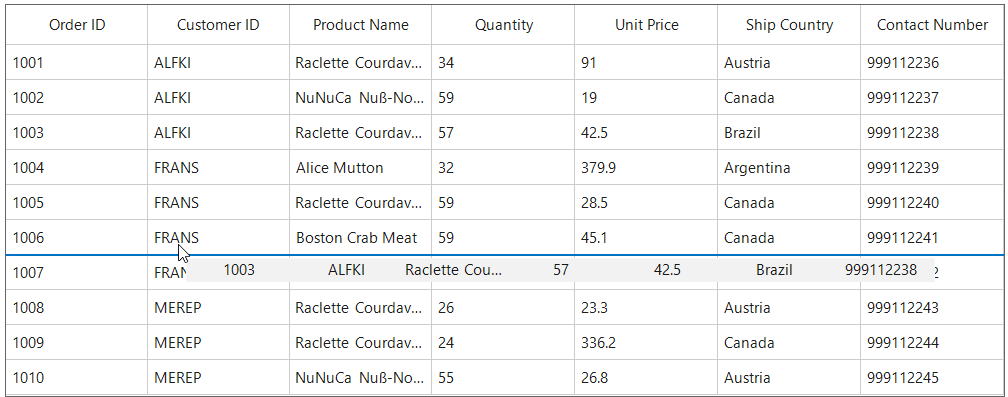
If you drop at the top of the targeted record, it will be added above the targeted record.
Dragging multiple rows
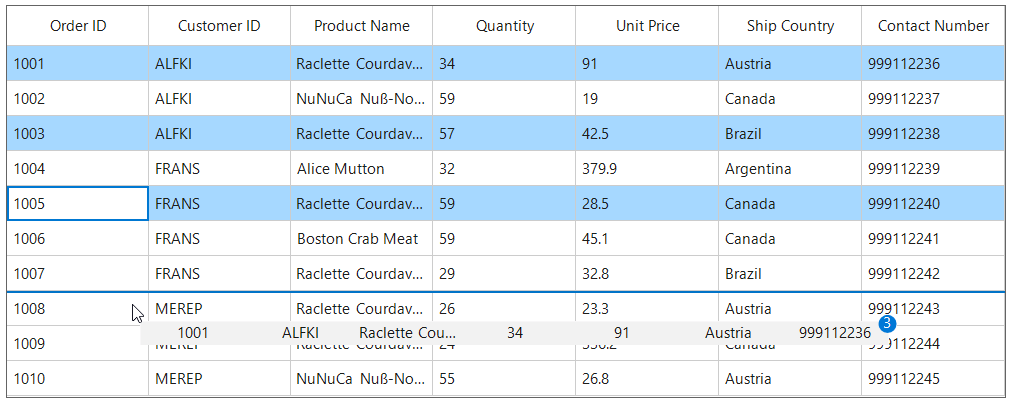
WinForms DataGrid (SfDataGrid) allows to drag multiple selected rows. To enable multiple selection, set the SfDataGrid.SelectionMode as Multiple or Extended.
The drag selection cannot be performed while the AllowDraggingRows enabled as
truein the SfDataGrid.
Drag and drop events
SfDataGrid triggers the following events when drag and drop:
Drag start event
DragStart event occurs when you start to drag the records in datagrid. The GridRowDragStartEventArgs has the following member, which provides information for the DragStart event.
- DraggingRecords: Gets the Records which contains the data associated while dragging the rows.
this.sfDataGrid.RowDragDropController.DragStart += RowDragDropController_DragStart;

private void RowDragDropController_DragStart(object sender, GridRowDragStartEventArgs e)
{
}
Drag over event
DragOver event occurs continuously while record is dragged within the target SfDataGrid. The GridRowDragOverEventArgs has the following members, which provide information for the DragOver event.
- Data: Gets a data object that contains the data associated while dragging the rows.
- DropPosition: Gets a value indicating the drop position which is based on dropped location
- IsFromOutSideSource: Gets a value indicating whether the dragging item is from same DataGrid or not.
- ShowDragUI: Gets or sets a value indicating the default Dragging UI.
- TargetRecord: Gets a value indicating the target record which is going to drop.
this.sfDataGrid.RowDragDropController.DragOver += RowDragDropController_DragOver;

private void RowDragDropController_DragOver(object sender, GridRowDragOverEventArgs e)
{
}
Drag leave event
DragLeave event occurs when leave a drag-and-drop operation.The GridRowDragLeaveEventArgs has the following members, which provide information for the DragLeave event.
- Data: Gets a data object that contains the data associated while dragging the rows.
- DropPosition: Gets a value indicating the drop position which is based on dropped location
- IsFromOutSideSource: Gets a value indicating whether the dragging item is from same DataGrid or not.
- TargetRecord: Gets a value indicating the target record which is going to drop.
this.sfDataGrid.RowDragDropController.DragLeave += RowDragDropController_DragLeave;

private void RowDragDropController_DragLeave(object sender, GridRowDragLeaveEventArgs e)
{
}
Drop event
Drop event occurs when a record is dropping within the target SfDataGrid.The GridRowDropEventArgs has the following members, which provide information for the Drop event.
- Data: Gets a data object that contains the data associated while dragging the rows.
- DraggingRecords: Gets the Records which contains the data associated while dragging the rows.
- DropPosition: Gets a value indicating the drop position which is based on dropped location
- IsFromOutSideSource: Gets a value indicating whether the dragging item is from same DataGrid or not.
- TargetRecord: Gets a value indicating the target record which is going to drop.
this.sfDataGrid.RowDragDropController.Drop += RowDragDropController_Drop;

private void RowDragDropController_Drop(object sender, GridRowDropEventArgs e)
{
}
Dropped event
Dropped event occurs when a record is dropping within the target SfDataGrid. The GridRowDroppedEventArgs has the following members, which provide information for the Drop event.
- Data: Gets a data object that contains the data associated while dragging the rows.
- DropPosition: Gets a value indicating the drop position which is based on dropped location
- IsFromOutSideSource: Gets a value indicating whether the dragging item is from same DataGrid or not.
- TargetRecord: Gets a value indicating the target record which is going to drop.
this.sfDataGrid.RowDragDropController.Dropped += RowDragDropController_Dropped;

private void RowDragDropController_Dropped(object sender, GridRowDroppedEventArgs e)
{
}
Customizing row drag and drop operation
Disable dragging of certain rows in WinForms DataGrid
You can restrict the dragging of certain rows in SfDataGrid by using the GridRowDragDropController.DragStart event.
this.sfDataGrid.RowDragDropController.DragStart += RowDragDropController_DragStart;

private void RowDragDropController_DragStart(object sender, GridRowDragStartEventArgs e)
{
    var records = e.DraggingRecords;
    var order= records[0] as OrderInfo;
    // You can restrict the dragging for certain rows based on the record value also.
    var rowIndex = this.sfDataGrid.TableControl.ResolveToRowIndex(orders);
    var recordIndex = this.sfDataGrid.TableControl.ResolveToRecordIndex(rowIndex);
    if (recordIndex > 5)
        e.Handled = true;
}
Disable dropping over certain rows in WinForms DataGrid
You can restrict the dropping the records in certain rows in SfDataGrid by using the GridRowDragDropController.Drop event.
this.sfDataGrid.RowDragDropController.Drop += RowDragDropController_Drop;

private void RowDragDropController_Drop(object sender, GridRowDropEventArgs e)
{
    var record = e.TargetRecord;
    //You can restrict the dropping for certain rows based on the target record index.
    var rowIndex = this.sfDataGrid.TableControl.ResolveToRowIndex(record);
    var recordIndex = this.sfDataGrid.TableControl.ResolveToRecordIndex(rowIndex);
    if (recordIndex > 5)
      e.Handled = true;
}
Disable the default drag UI
You can disable the draggable popup by setting the ShowDragUI as false in the DragOver event of GridRowDragDropController.DragOver event.
this.sfDataGrid.RowDragDropController.DragOver += RowDragDropController_DragOver;

private void RowDragDropController_DragOver(object sender, GridRowDragOverEventArgs e)
{
    e.ShowDragUI = false;
}
Customizing the Drag Preview Row
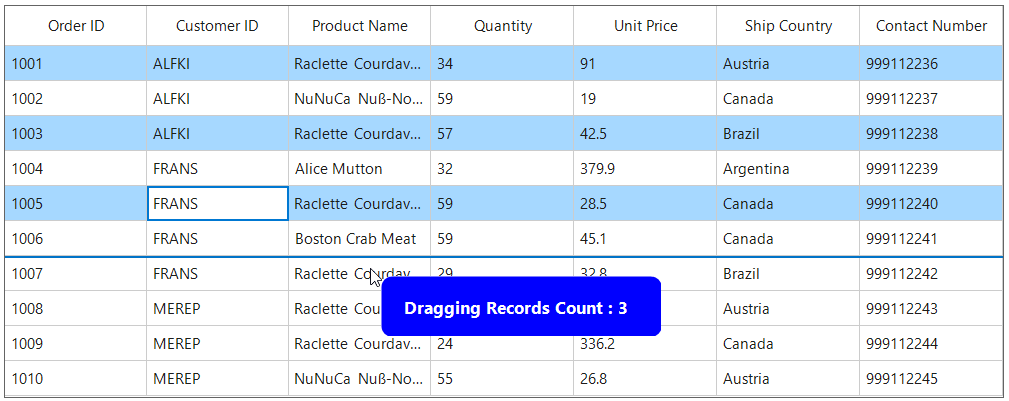
You can customize the appearance of the drag preview row by overriding the DrawDragPreviewRow method.
this.sfDataGrid.RowDragDropController = new CustomizedRowDragDropController(sfDataGrid.TableControl);

public class CustomizedRowDragDropController : RowDragDropController
{
    public CustomizedRowDragDropController(TableControl tableControl) : base(tableControl) { }
    protected override Bitmap DrawDragPreviewRow(TableControl tableControl, List<int> rowIndexes)
    {
        int width = 240;
        int height = 60;
        var bmp = new Bitmap(width, height, System.Drawing.Imaging.PixelFormat.Format32bppPArgb);

        using (Graphics g = Graphics.FromImage(bmp))
        {
            g.SmoothingMode = System.Drawing.Drawing2D.SmoothingMode.AntiAlias;

            using (var bgBrush = new SolidBrush(Color.Blue))
            using (var path = new System.Drawing.Drawing2D.GraphicsPath())
            {
                path.AddArc(0, 0, 20, 20, 180, 90);
                path.AddArc(width - 20, 0, 20, 20, 270, 90);
                path.AddArc(width - 20, height - 20, 20, 20, 0, 90);
                path.AddArc(0, height - 20, 20, 20, 90, 90);
                path.CloseFigure();
                g.FillPath(bgBrush, path);
            }

            using (var font = new Font("Segoe UI", 10, FontStyle.Bold))
            using (var textBrush = new SolidBrush(Color.White))
            {
                g.DrawString("Dragging Records Count : "+ rowIndexes.Count, font, textBrush, new PointF(20, 20));
            }
        }

        return bmp;
    }
}
Row drag and drop between two DataGrids
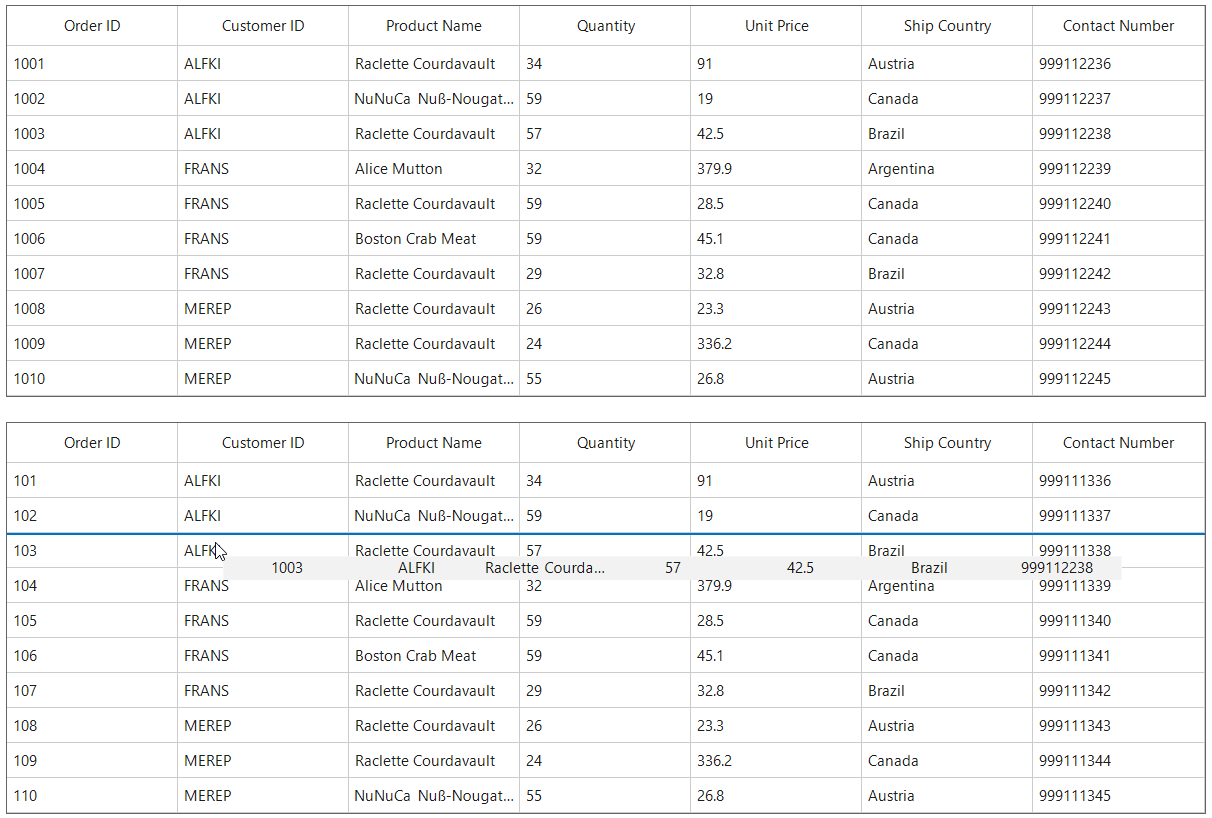
You can perform row drag-and-drop between two SfDataGrid controls and control the behavior when dropping into another grid using the CrossGridDropAction property:
- CrossGridDropAction.Move : The dragged records are removed from the source grid and inserted into the target grid.
- CrossGridDropAction.Copy : The dragged records are copied to the target grid without removing them from the source grid.
The
CrossGridDropActionproperty applies only when rows are dragged between twoSfDataGridcontrols. Dragging from other controls (such asListView) into an SfDataGrid does not support these actions.
You can download the sample here.
Row drag and drop between DataGrid and ListView
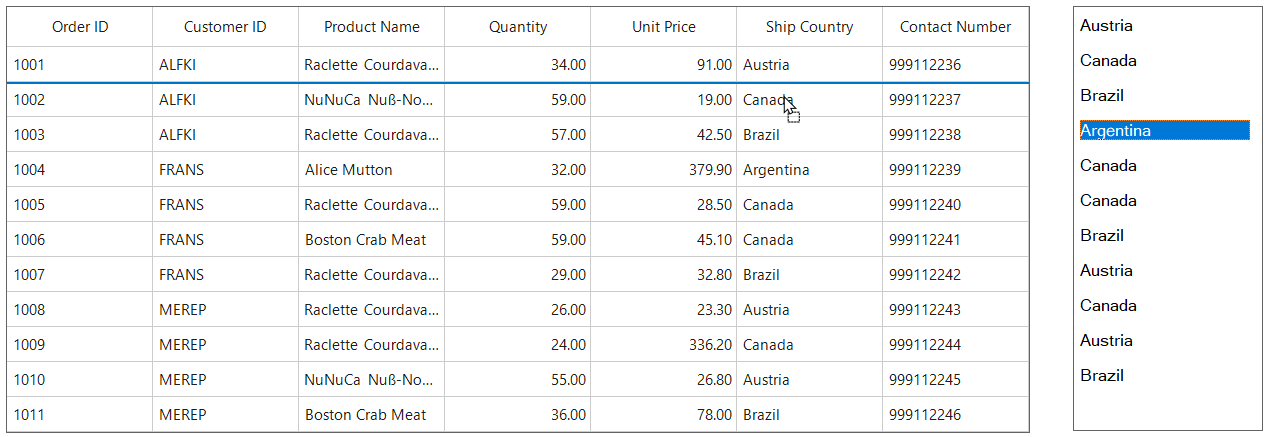
To perform dragging between the ListView and SfDataGrid, by using the GridRowDragDropController.Drop event and you must set the AllowDrop property as true in the ListView while doing the drag and drop operation from SfDataGrid with ListView control.
this.listView.ItemDrag += ListView_ItemDrag;
this.listView.DragEnter += ListView_DragEnter;
this.listView.DragDrop += listView_DragDrop;
this.sfDataGrid.RowDragDropController.Drop += RowDragDropController_Drop;

private void ListView_DragEnter(object sender, DragEventArgs e)
{
    e.Effect = DragDropEffects.Move;
}

private void ListView_ItemDrag(object sender, ItemDragEventArgs e)
{
    var item = (ListViewItem)e.Item;
    listView.DoDragDrop(item, DragDropEffects.Move | DragDropEffects.Copy);
}

private void listView_DragDrop(object sender, DragEventArgs e)
{
    var droppedRecords = new List<OrderInfo>();
    var draggedListViewItem = (ListViewItem)e.Data.GetData(typeof(ListViewItem));

    // Track whether the source is SfDataGrid
    bool isFromDataGrid = false;
    if (e.Data.GetDataPresent("Records"))
    {
        isFromDataGrid = true;
        var data = e.Data.GetData("Records");
        if (data is OrderInfo order)
        {
            droppedRecords.Add(order);
        }
        else if (data is System.Collections.IEnumerable sequence)
        {
            foreach (var item in sequence)
            if (item is OrderInfo orderInSequence)
                droppedRecords.Add(orderInSequence);
        }
    }

    // If dragged from ListView, remove the original item
    if (draggedListViewItem != null)
    {
        if (draggedListViewItem.Tag is OrderInfo orderFromTag)
            droppedRecords.Add(orderFromTag);
        listView.Items.Remove(draggedListViewItem);
    }

    // Insert into ListView
    foreach (var order in droppedRecords)
    {
        listView.Items.Add(new ListViewItem(order.ShipCountry ?? string.Empty) { Tag = order });
    }

    // If the records came from SfDataGrid, remove them from the grid's source
    if (isFromDataGrid)
    {
        var source = sfDataGrid.View?.SourceCollection as System.Collections.IList;
        if (source != null)
        {
            foreach (var order in droppedRecords)
            {
                if (source.Contains(order))
                    source.Remove(order);
            }
        }
    }
}

private void RowDragDropController_Drop(object sender, GridRowDropEventArgs e)
{
    if (e.IsFromOutsideSource)
    {
        var draggedOrders = new List<OrderInfo>();

        if (e.Data is IDataObject dataObject)
        {
            if (dataObject.GetDataPresent(typeof(ListViewItem)))
            {
                var listViewItems = dataObject.GetData(typeof(ListViewItem)) as ListViewItem;
                if (listViewItems?.Tag is OrderInfo orderFromTag)
                    draggedOrders.Add(orderFromTag);
            }
        }
        var collection = sfDataGrid1.View?.SourceCollection as IList;

        int targetRowIndex = sfDataGrid1.TableControl.ResolveToRowIndex(e.TargetRecord as OrderInfo);

        int recordIndex = sfDataGrid1.TableControl.ResolveToRecordIndex(targetRowIndex);

        int insertIndex = (e.DropPosition == DropPosition.DropAbove)? recordIndex + 1 : recordIndex;

        foreach (var order in draggedOrders)
        {
            collection.Insert(insertIndex, order);
            insertIndex++;
        }

        foreach (var order in draggedOrders)
        {
            var toRemove = listView1.Items.Cast<ListViewItem>().FirstOrDefault(i => ReferenceEquals(i.Tag, order));
            if (toRemove != null)
                listView1.Items.Remove(toRemove);
        }
    }
}
You can download the sample here.
Limitations
- When grouping is applied, records cannot be dropped into a different group.
- When grouping is applied, dragging multiple rows is allowed only when all selected rows are within the same group.
- In Master-Details view, row drag-and-drop is supported only within the same DetailsViewDataGrid.
- Cross-hierarchical drag-and-drop (between master and detail views) is not allowed.
- Cross-Grid Drop is not supported when grouping is applied in either of the grids.
- DataGrid styles are not applied to the drag preview row.