Appearance and Structure in Windows Forms Clock
18 Nov 20184 minutes to read
Color setting
The Clock control allows you to customize its gradient back color, hands color, minute line color, and border color.
Customizing color to the Clock
The Clock control has individual properties to set colors for gradient back color, hour hands color, minutes color, and border color.
using Syncfusion.Windows.Forms.Tools;

this.clock1.BorderColor = Color.Violet;

this.clock1.EndGradientBackColor = Color.RoyalBlue;

this.clock1.HourHandColor = Color.SkyBlue;

this.clock1.MinuteColor = Color.LightPink;

this.clock1.MinuteHandColor = Color.LightSeaGreen;

this.clock1.SecondHandColor = Color.LightSteelBlue;

this.clock1.StartGradientBackColor = Color.Black;
Imports Syncfusion.Windows.Forms.Tools
Me.clock1.BorderColor = Color.Violet
Me.clock1.EndGradientBackColor = Color.RoyalBlue
Me.clock1.HourHandColor = Color.SkyBlue
Me.clock1.MinuteColor = Color.LightPink
Me.clock1.MinuteHandColor = Color.LightSeaGreen
Me.clock1.SecondHandColor = Color.LightSteelBlue
Me.clock1.StartGradientBackColor = Color.Black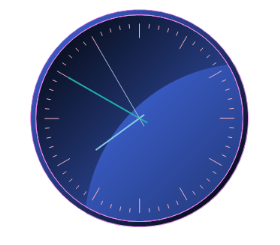
Appearance setting
The Clock control allows you to customize the thickness of the hands and minute line. It also allows you to enable or disable the AM/PM, borders, minute, and second hand. The Clock control supports a transparent appearance.
Customization of hands thickness
Clock control allows you to adjust the thickness of hands and minute line.
using Syncfusion.Windows.Forms.Tools;

this.clock1.HourHandThickness = 7;

this.clock1.MinuteHandThickness = 5;

this.clock1.SecondHandThickness = 2;

this.clock1.MinuteThickness = 4;
Imports Syncfusion.Windows.Forms.Tools
Me.clock1.HourHandThickness = 7
Me.clock1.MinuteHandThickness = 5
Me.clock1.SecondHandThickness = 2
Me.clock1.MinuteThickness = 4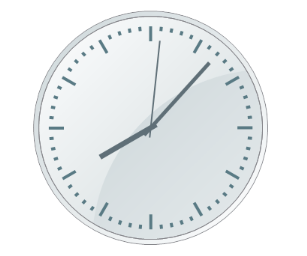
Enable and disable properties
The Clock control allows you to enable or disable AM/PM, second hand, minute line, and border.
using Syncfusion.Windows.Forms.Tools;

this.clock1.ShowAMorPM = true;

this.clock1.ShowBorder = false;

this.clock1.ShowMinute = false;

this.clock1.ShowSecondHand = false;
Imports Syncfusion.Windows.Forms.Tools
Me.clock1.ShowAMorPM = True
Me.clock1.ShowBorder = False
Me.clock1.ShowMinute = False
Me.clock1.ShowSecondHand = False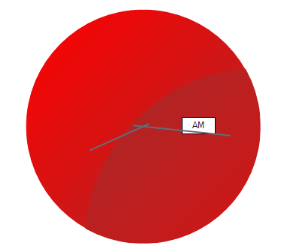
Transparent support
Clock control supports a transparent background.
using Syncfusion.Windows.Forms.Tools;

this.clock1.IsTransparent = true;
Imports Syncfusion.Windows.Forms.Tools
Me.clock1.IsTransparent = True
How to show a fixed time in the Clock control
The Clock control usually displays the current time on the machine where it is hosted. To freeze the clock to display a fixed time, the Boolean property StopTimer can be used. Then, using the Clock control’s Now property, the desired time can be displayed; otherwise, the default time will be shown.
using Syncfusion.Windows.Forms.Tools;

//Gets or sets the value to freeze or unfreeze time in the clock.

this.clock1.StopTimer = true;
Imports Syncfusion.Windows.Forms.Tools
'Gets or sets the value to freeze or unfreeze time in the clock.
Me.clock1.StopTimer = True