Advanced Features in Windows Forms MultiSelectionComboBox
18 Nov 20181 minute to read
Auto suggestion
Begin
Enables to list out the most appropriate match for the current content of the MultiSelectionComboBox based on the initial letter.
The following code sample illustrates you on how to set AutoSuggestMode as Begin.
this.MultiSelectionComboBox1.AutoSuggestMode = AutoSuggestMode.Begin;Me.MultiSelectionComboBox1.AutoSuggestMode = AutoSuggestMode.BeginMatch
Enables to list out all the possible matches for the current content of the MultiSelectionComboBox.
The following code sample illustrates you on how to set AutoSuggestMode as Match.
this.MultiSelectionComboBox1.AutoSuggestMode = AutoSuggestMode.Match;Me.MultiSelectionComboBox1.AutoSuggestMode = AutoSuggestMode.MatchDisabled
Disable the AutoComplete functionality of MultiSelectionComboBox by setting AutoSuggestMode as disabled.
The following code sample illustrates you on how to set AutoSuggestMode as Disabled.
this.MultiSelectionComboBox1.AutoCompleteMatchMode = AutoCompleteMatchMode.Disabled;Me.MultiSelectionComboBox1.AutoCompleteMatchMode = AutoCompleteMatchMode.DisabledGrouping
MultiSelectionComboBox contains support to group its drop down items based on initial character. You can enable or disable this support using its ShowGroups property.
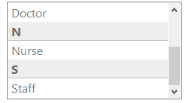
The following code sample illustrates you on how to enable Grouping in MultiSelectionComboBox Dropdown.
this.MultiSelectionComboBox1.ShowGroups = true;Me.MultiSelectionComboBox1.ShowGroups = True