Stop Responding in Windows Forms AI AssistView
18 Nov 20185 minutes to read
The SfAIAssistView control includes a Stop Responding feature that allows users to cancel an ongoing AI response by clicking the Stop Responding button. This feature ensures that users can interrupt the response if it is no longer needed.
Prerequisites
-
SfAIAssistViewhas been created and added to your form. See Getting Started for setup details. - A
ViewModelis bound to the control via theMessagesproperty. See OpenAI Integration for a working example of an in-flight bot response that can be canceled. - The following
usingdirectives are included in your file:
using System;
using System.Threading;
using System.Threading.Tasks;
using Syncfusion.WinForms.AIAssistView;
Enabling the Stop Responding Button
By default, the Stop Responding button is not displayed. To enable it, set the EnableStopResponding property to true.
SfAIAssistView sfAIAssistView1 = new SfAIAssistView();
sfAIAssistView1.EnableStopResponding = true;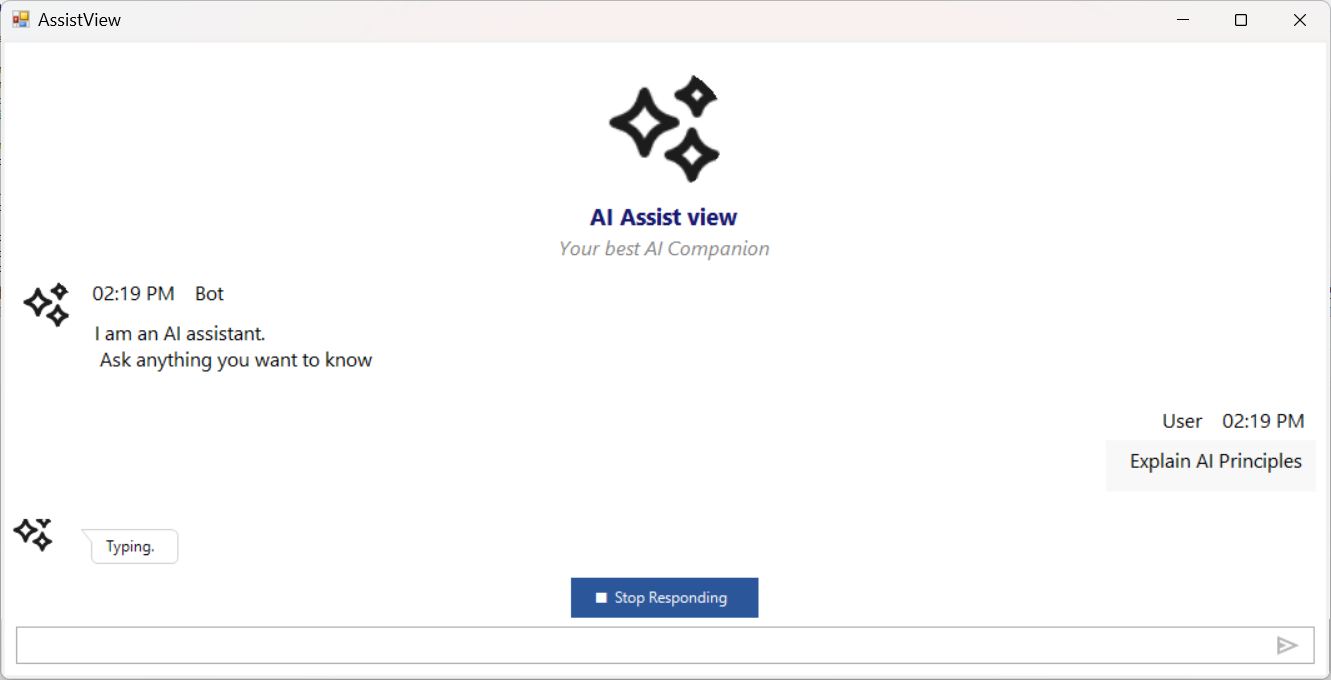
The button is displayed when EnableStopResponding is set to true.
Stop Responding Event
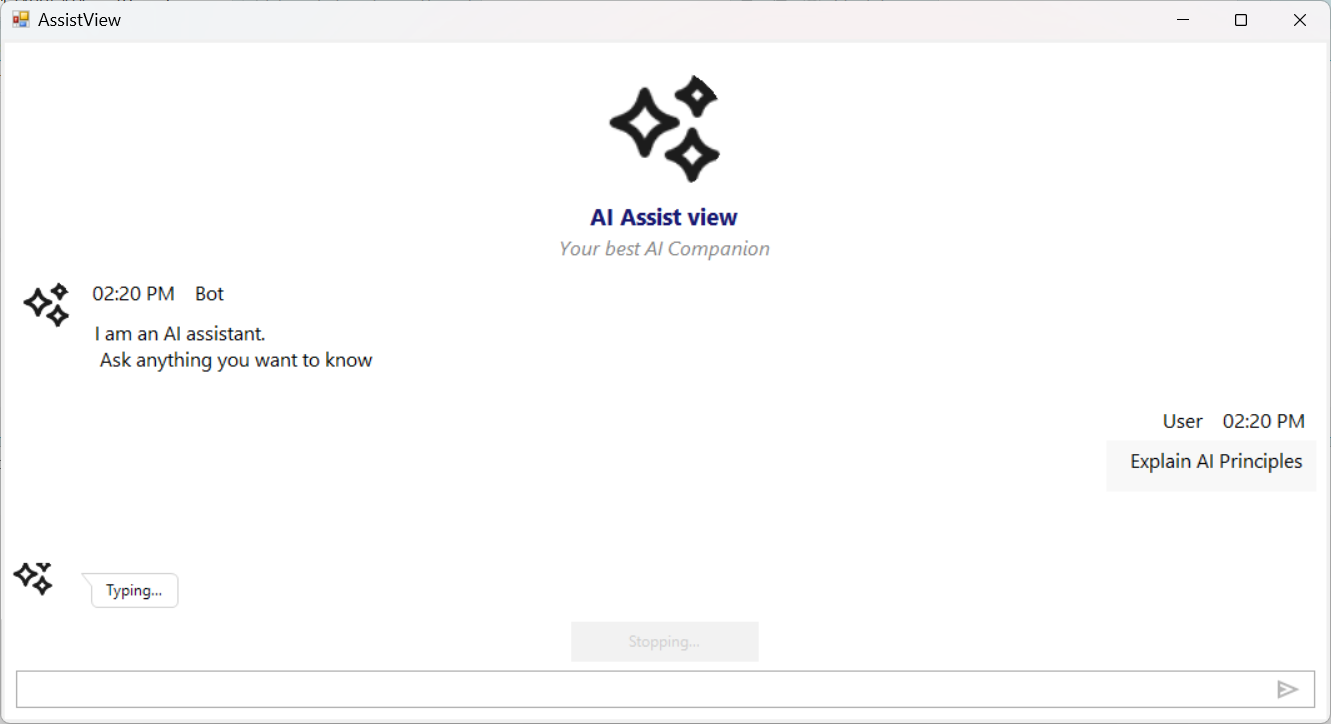
The control provides the StopRespondingButtonClicked event. This is triggered when the Stop Responding button is clicked. Use it to cancel any in-flight AI request:
sfAIAssistView1.StopRespondingButtonClicked += SfaiAssistView1_StopResponding;

private void SfaiAssistView1_StopResponding(object sender, EventArgs e)
{
    CancelAIRequest();
}

private CancellationTokenSource cts;

private void CancelAIRequest()
{
    if (cts != null && !cts.IsCancellationRequested)
    {
        cts.Cancel();
        cts.Dispose();
        cts = null;
    }
}
CancellationTokenSource is created and assigned to cs when an AI request is started, and the resulting token is passed into the AI service call. The event handler cancels that token when the user clicks Stop.
Wiring Cancellation into an AI Request
private async void Chats_CollectionChanged(object sender, NotifyCollectionChangedEventArgs e)
{
    if (e.NewItems == null || e.NewItems.Count == 0) return;
    var item = e.NewItems[0] as TextMessage;
    if (item == null) return;
    if (item.Author?.Name != viewModel.CurrentUser?.Name) return;

    viewModel.ShowTypingIndicator = true;
    cts = new CancellationTokenSource();

    try
    {
        string response = await aiService.NonStreamingChatAsync(item.Text, cts.Token);
        viewModel.Chats.Add(new TextMessage
        {
            Author = new Author { Name = "Bot" },
            Text = response
        });
    }
    catch (OperationCanceledException)
    {
        // User clicked Stop Responding; no response is added.
    }
    finally
    {
        viewModel.ShowTypingIndicator = false;
    }
}
Customization
The button text and the hold duration can be customized using the properties below. The Stop Responding button remains disabled for the configured hold time after it is clicked, preventing repeated cancellation requests.
| Property | Description | Default |
|---|---|---|
StopRespondingButtonText |
Text shown on the button before cancellation. | "Stop" |
StopRespondingButtonCancelingText |
Text shown on the button while cancellation is in progress. | "Canceling..." |
StopRespondingHoldSeconds |
Number of seconds the button stays disabled after being clicked. | 0 |
// Set button text
sfAIAssistView1.StopRespondingButtonText = "\u23F9 Stop";

// Set canceling text (shown while canceling)
sfAIAssistView1.StopRespondingButtonCancelingText = "Stopping...";

// Set hold time (seconds the button stays disabled after click)
sfAIAssistView1.StopRespondingHoldSeconds = 2;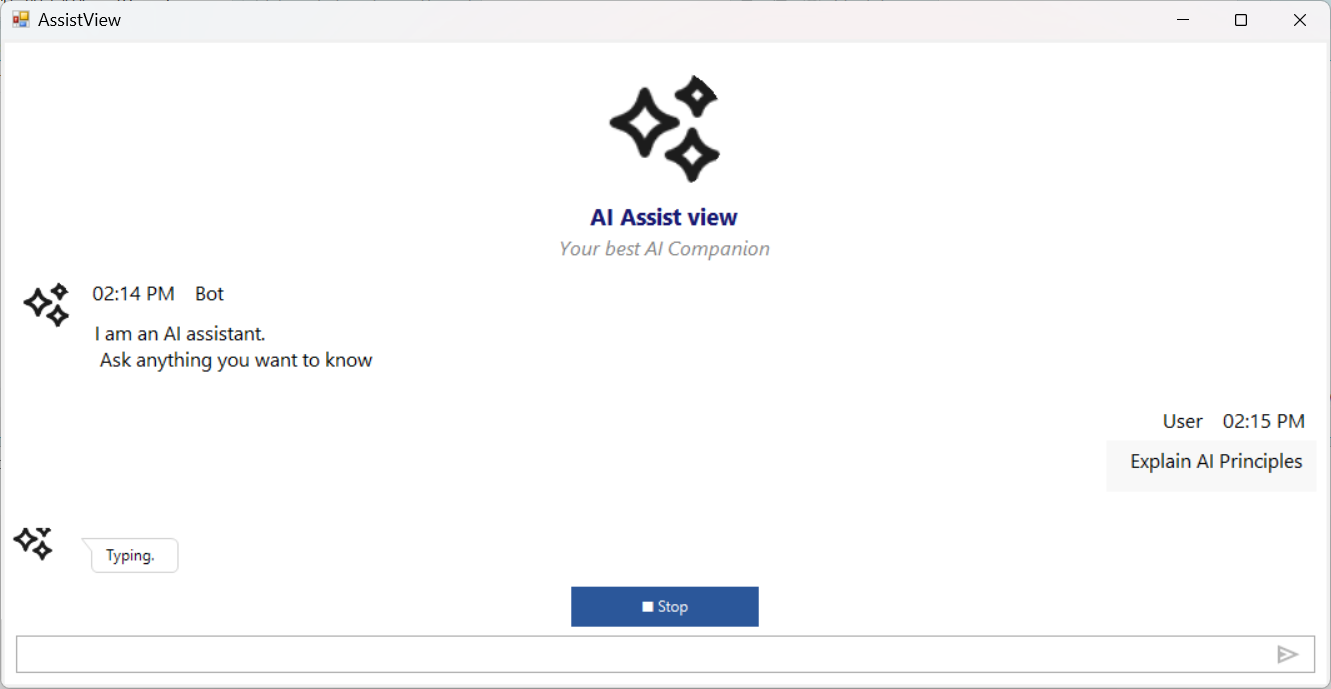
Troubleshooting
| Issue | Possible Cause | Resolution |
|---|---|---|
| Clicking Stop does not cancel the request | The AI service call does not accept a CancellationToken. |
Update the AI service to accept and observe a CancellationToken from CancellationTokenSource. |
NullReferenceException when clicking Stop |
cs was never assigned because the request was never started. |
Guard the cancel call with a null check on cs, as shown in the example. |
| The button never appears |
EnableStopResponding is false (default). |
Set sfAIAssistView1.EnableStopResponding = true; before showing the form. |