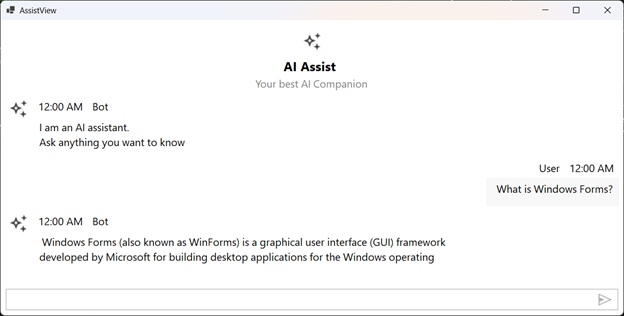
Getting Started with Windows Forms AI AssistView
18 Nov 20187 minutes to read
This section explains the steps required to add the Windows Forms SfAIAssistView control with its basic features.
Assembly Deployment
Refer to the control dependencies section to get the list of assemblies or NuGet package that needs to be added as a reference to use the SfAIAssistView control in any application.
Supported target frameworks: .NET Framework 4.5.2 and above, or .NET 6.0/7.0/8.0.
Creating Application with Windows Forms AI AssistView
In this walkthrough, users will create a WinForms application that contains the AI AssistView control.
Creating the Project
Create a new Windows Forms Project in Visual Studio to display AI AssistView.
Adding Control via Designer
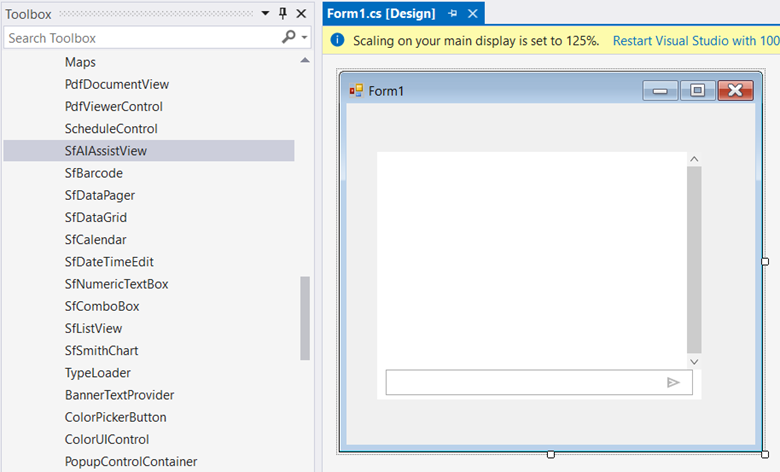
Windows Forms AI AssistView (SfAIAssistView) control can be added to the application by dragging it from Toolbox and dropping it in Designer. The required assembly references will be added automatically.
Adding Control in Code
In order to add the control manually, do the following steps,
-
Add the required assembly references to the project.
-
Create the AI AssistView control instance and add it to the Form.
using Syncfusion.WinForms.AIAssistView;

namespace WindowsFormsApplication1
{
    public partial class Form1 : Form
    {
        public Form1()
        {
            InitializeComponent();
            //Creating an instance of the AIAssistView control
            SfAIAssistView sfAIAssistView1 = new SfAIAssistView();
            sfAIAssistView1.Location = new System.Drawing.Point(41, 40);
            sfAIAssistView1.Size = new System.Drawing.Size(818,457);
            sfAIAssistView1.Dock= DockStyle.Fill;
            this.Controls.Add(sfAIAssistView1);
        }
    }
}
Creating ViewModel for AI AssistView
Create a simple chat collection as shown in the following code example in a new class file. Save it as ViewModel.cs file.
using System;
using System.Collections.ObjectModel;
using System.ComponentModel;
using System.Threading.Tasks;
using Syncfusion.WinForms.AIAssistView;

public class ViewModel : INotifyPropertyChanged
{
     private ObservableCollection<object> chats;
     private Author currentUser;
     public ViewModel()
     {
         this.Chats = new ObservableCollection<object>();
         this.CurrentUser = new Author { Name="John"};
         this.GenerateMessages();
     }

     private async void GenerateMessages()
     {
         this.Chats.Add( new TextMessage { Author = CurrentUser, Text = "What is Windows Forms?" });
         await Task.Delay(1000);
         this.Chats.Add( new TextMessage { Author = new Author { Name = "Bot" }, Text = "Windows Forms (also known as WinForms) is a graphical user interface (GUI) framework developed by Microsoft for building desktop applications for the Windows operating system." });
     }

     public ObservableCollection<object> Chats
     {
         get
         {
             return this.chats;
         }
         set
         {
             this.chats = value;
             RaisePropertyChanged("Chats");
         }
     }

     public Author CurrentUser
     {
         get
         {
             return this.currentUser;
         }
         set
         {
             this.currentUser = value;
             RaisePropertyChanged("CurrentUser");
         }
     }


     public void RaisePropertyChanged(string propName)
     {
         if (PropertyChanged != null)
         {
             PropertyChanged(this, new PropertyChangedEventArgs(propName));
         }
     }

     public event PropertyChangedEventHandler PropertyChanged;
}
Bind Messages
Create a ViewModel instance in the form. Bind the control’s Messages property to the view-model property.
public partial class Form1 : Form
{
    ViewModel viewModel;
    public Form1()
    {
        InitializeComponent();
        viewModel = new ViewModel();

        SfAIAssistView sfAIAssistView1 = new SfAIAssistView();
        sfAIAssistView1.Location = new System.Drawing.Point(41, 40);
        sfAIAssistView1.Size = new System.Drawing.Size(818, 457);
        sfAIAssistView1.Dock = DockStyle.Fill;
        this.Controls.Add(sfAIAssistView1);

        sfAIAssistView1.DataBindings.Add("Messages", viewModel, "Chats", true, DataSourceUpdateMode.OnPropertyChanged);
    }
}