Response Toolbar in Windows Forms AI AssistView
18 Nov 20188 minutes to read
The SfAIAssistView control includes a Response Toolbar feature that allows users to perform actions on bot responses by clicking action buttons. This feature provides an interactive way for users to engage with AI responses through copy, regenerate, like, and other custom actions.
Prerequisites
-
SfAIAssistViewhas been created and added to your form. See Getting Started for setup details. - A
ViewModelwith aChatscollection bound to the control’sMessagesproperty. See Getting Started. - A
TextMessage-based message exists in the bound collection so that toolbar items can be retrieved or hidden. - The following
usingdirectives are included in your file:
using System.Collections;
using System.Collections.ObjectModel;
using System.Linq;
using System.Windows.Forms;
using Syncfusion.WinForms.AIAssistView;
Enabling the Response Toolbar
By default, the Response Toolbar is not displayed. To enable it, set the IsResponseToolBarVisible property to true.
SfAIAssistView sfAIAssistView1 = new SfAIAssistView();
sfAIAssistView1.IsResponseToolBarVisible = true;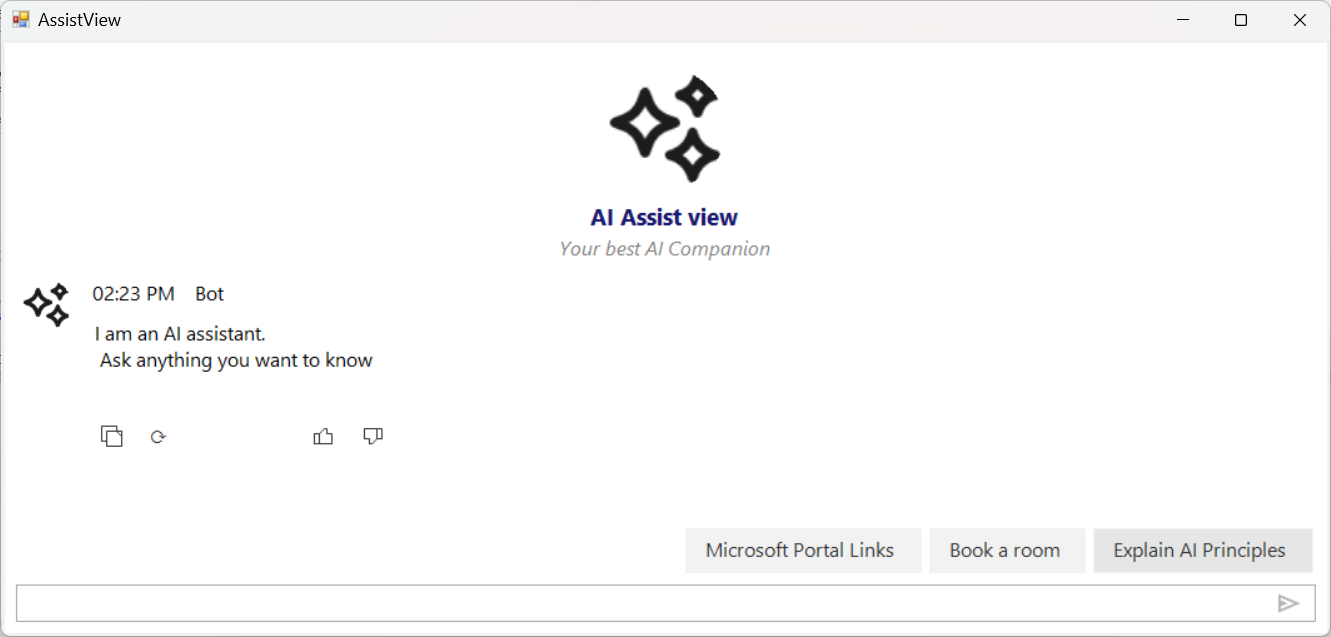
Response Toolbar Items
The Response Toolbar supports the following action buttons:
| Item Type | Default Behavior |
|---|---|
Copy |
Copies the bot response text to the clipboard. |
Regenerate |
Regenerates the response for the same prompt. |
Like |
Marks the response as helpful/liked. |
Dislike |
Marks the response as not helpful. |
Custom |
User-defined custom actions. |
Response Toolbar Item Click Event
The control provides the ResponseToolBarItemClicked event. This is triggered when a user clicks any toolbar action button. You can handle these actions to perform specific operations based on the toolbar item clicked.
Event Args
ResponseToolBarItemClickedEventArgs exposes:
-
ChatItem— theTextMessage(or otherIChatItem) being acted upon. -
ToolBarItem— the clickedResponseToolBarItemwithItemType,Name, etc.
Event Handler Code Example
sfAIAssistView1.ResponseToolBarItemClicked += sfAIAssistView1_ResponseToolBarItemClicked;

private void sfAIAssistView1_ResponseToolBarItemClicked(
    object sender,
    ResponseToolBarItemClickedEventArgs e)
{
    if (e.ToolBarItem?.ItemType == ResponseToolBarItemType.Copy)
    {
        Clipboard.SetText(e.ChatItem?.Text);
        MessageBox.Show("Message copied to clipboard.");
    }
    else if (e.ToolBarItem?.ItemType == ResponseToolBarItemType.Regenerate)
    {
        MessageBox.Show("Regenerating response.");
        // Handle regeneration logic
    }
    else if (e.ToolBarItem?.ItemType == ResponseToolBarItemType.Like)
    {
        MessageBox.Show("Response marked as helpful.");
    }
}
Customization
The following sections describe how to customize toolbar visibility, retrieve toolbar items, configure the default set, and selectively hide buttons on older messages.
Controlling Toolbar Visibility
You can control the visibility of the entire toolbar or individual toolbar items on a per-message basis:
var messagesList = sfAIAssistView1.Messages as IList;
if (messagesList != null && messagesList.Count > 0)
{
    // The Response Toolbar is typically rendered on bot messages;
    // adjust the index to target the specific message you need.
    var message = messagesList[1] as TextMessage;
    // Hide the entire toolbar for a specific message
    sfAIAssistView1.SetToolBarVisibility(message, false);

    // Show the toolbar for a specific message
    sfAIAssistView1.SetToolBarVisibility(message, true);

    // Hide a specific toolbar item for a message (by enum)
    sfAIAssistView1.SetToolBarItemVisibility(
        message,
        ResponseToolBarItemType.Regenerate.ToString(),
        false);

    // Hide toolbar item by name
    sfAIAssistView1.SetToolBarItemVisibility(message, "Copy", false);
}
Getting Toolbar Items
Retrieve toolbar items from a specific message:
ResponseToolBarItem copyButton = sfAIAssistView1.GetToolBarItem(
    message,
    ResponseToolBarItemType.Copy.ToString());

if (copyButton != null)
{
    string itemName = copyButton.Name;
    // Use other properties on copyButton as needed
}
GetToolBarItem returns null when no matching item exists for the given message.
Configuring Toolbar Items
Set custom toolbar items on the control. This replaces the default toolbar items with the specified collection.
sfAIAssistView1.ResponseToolBarItems = new ObservableCollection<ResponseToolBarItem>
{
    new ResponseToolBarItem { ItemType = ResponseToolBarItemType.Copy,      Name = "Copy" },
    new ResponseToolBarItem { ItemType = ResponseToolBarItemType.Regenerate, Name = "Regenerate" },
    new ResponseToolBarItem { ItemType = ResponseToolBarItemType.Like,       Name = "Like" }
};
How to Hide the Regenerate Button for Old Messages
The following example hides the Regenerate toolbar item on every bot message except the most recent one:
private void UpdateToolbarForLatestMessage()
{
    var messages = (sfAIAssistView1.Messages as IList)?
        .Cast<TextMessage>().ToList();

    if (messages == null) return;

    var botMessages = messages
        .Where(m => m.Author?.Name == "Bot")
        .ToList();

    var latestMessage = botMessages.LastOrDefault();
    if (latestMessage == null) return;

    // Hide Regenerate on all old bot messages
    foreach (var oldMessage in botMessages.Where(m => m != latestMessage))
    {
        sfAIAssistView1.SetToolBarItemVisibility(
            oldMessage,
            ResponseToolBarItemType.Regenerate.ToString(),
            false);
    }
}
Call UpdateToolbarForLatestMessage whenever a new bot response is added (for example, in the Chats_CollectionChanged handler used in the OpenAI integration).
Troubleshooting
| Issue | Possible Cause | Resolution |
|---|---|---|
e.ToolBarItem is null
|
The clicked item is not a known toolbar item, or the default items have been replaced. | Null-check e.ToolBarItem and ensure the item is registered in ResponseToolBarItems. |
GetToolBarItem returns null
|
The message has no toolbar (e.g., user message) or the item name does not match. | Ensure the message is a bot response with the toolbar visible, and verify the item name. |
messagesList[1] throws ArgumentOutOfRangeException
|
The Messages collection has fewer than 2 items. |
Guard the index with a length check, as shown in the example. |