Customization in Windows Forms AI AssistView
18 Nov 201824 minutes to read
This section explains how to customize the BannerView, and how to create a custom BotView and UserView for the Windows Forms SfAIAssistView control.
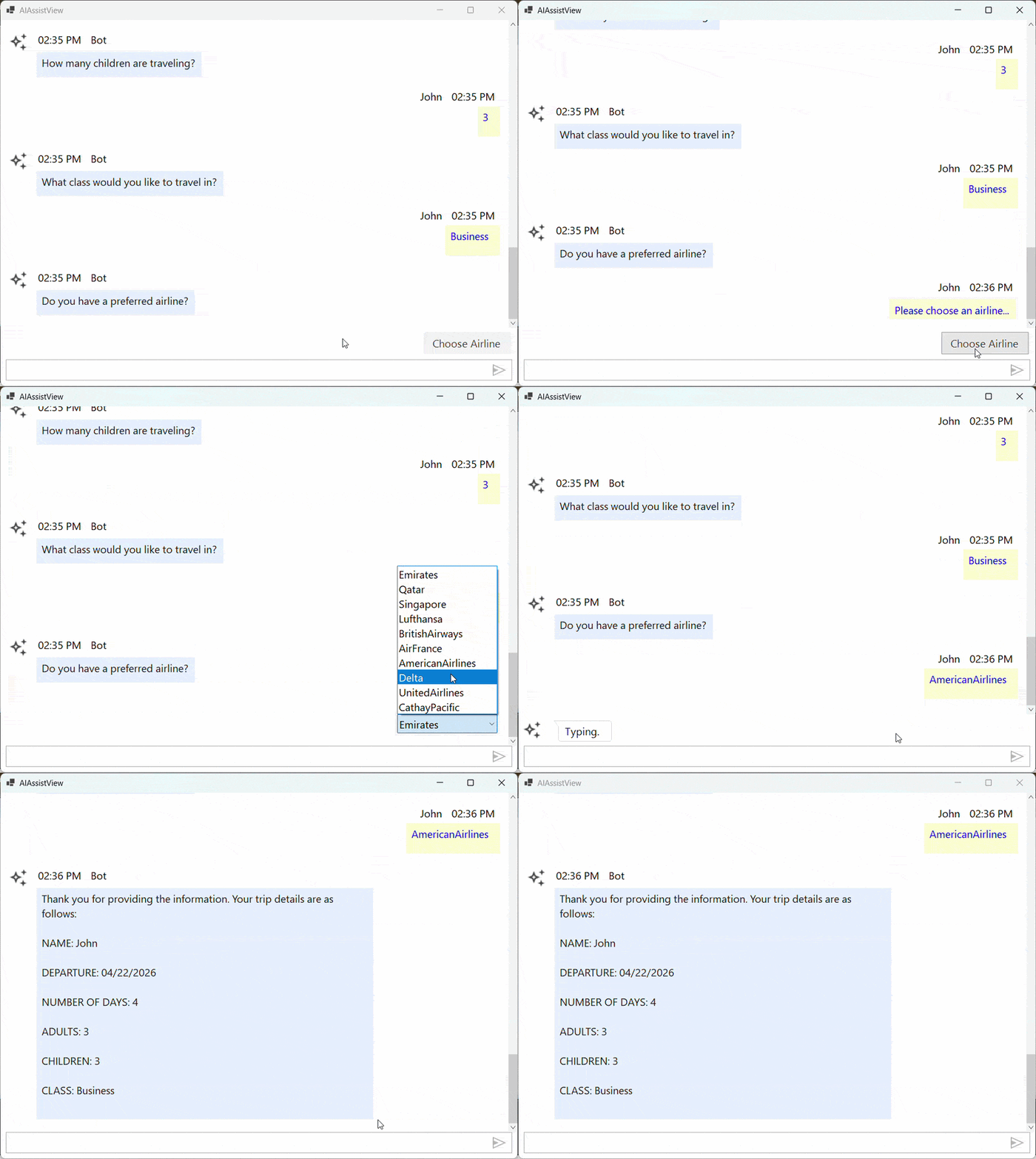
You can also explore our sample on GitHub, which demonstrates complete customization of the BannerView, the creation of a custom BotView, and a custom UserView within an AssistView.
Prerequisites
Before proceeding, ensure the following are in place:
- A
ViewModelclass with aChatscollection,ShowTypingIndicator,Suggestion, andCurrentUserproperties exists. Refer to the Getting Started page for setup details. - A banner image is added to the project at the path referenced in code (for example,
Asset\AI_Assist.png). - The following
usingdirectives are included in your file:
using System;
using System.Collections.Specialized;
using System.ComponentModel;
using System.Drawing;
using System.Windows.Forms;
using Syncfusion.WinForms.Forms;
using Syncfusion.WinForms.AIAssistView;
Customizing BannerView
You can customize the BannerView and apply it to the AssistView by using the SetBannerView method.
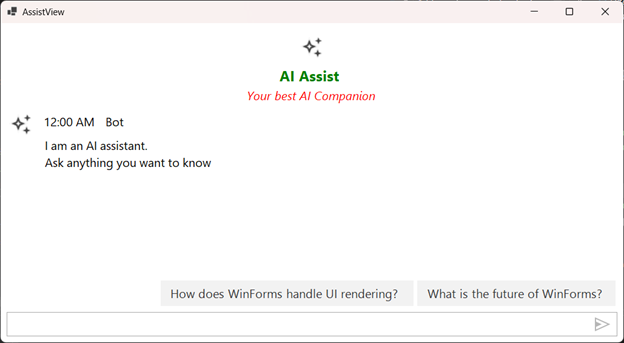
The following example demonstrates how to customize the Title string, TitleFont, Subtitle string, SubtitleFont, ImageSize, SubtitleColor, and TitleColor of an AssistView banner.
public partial class Form1 : Form
{
    ViewModel viewModel;
    private SfAIAssistView sfAIAssistView1;
    public Form1()
    {
        InitializeComponent();
        viewModel = new ViewModel();

        sfAIAssistView1 = new SfAIAssistView();
        sfAIAssistView1.Location = new System.Drawing.Point(41, 40);
        sfAIAssistView1.Size = new System.Drawing.Size(818, 457);
        sfAIAssistView1.Dock = DockStyle.Fill;
        this.Controls.Add(sfAIAssistView1);

        sfAIAssistView1.DataBindings.Add("Messages", viewModel, "Chats", true, DataSourceUpdateMode.OnPropertyChanged);
        sfAIAssistView1.DataBindings.Add("ShowTypingIndicator", viewModel, "ShowTypingIndicator", true, DataSourceUpdateMode.OnPropertyChanged);
        sfAIAssistView1.DataBindings.Add("Suggestions", viewModel, "Suggestion", true, DataSourceUpdateMode.OnPropertyChanged);
        viewModel.CurrentUser = sfAIAssistView1.User;

        BannerTemplate();

        sfAIAssistView1.TypingIndicator.Author = new Author() { Name = "Bot", AvatarImage = Image.FromFile(@"Asset\AI_Assist.png") };
        sfAIAssistView1.TypingIndicator.DisplayText = "Typing";
    }

    private void BannerTemplate()
    {

        BannerStyle customStyle = new BannerStyle
        {
            TitleFont = new Font("Segoe UI", 14F, System.Drawing.FontStyle.Bold),
            SubTitleFont = new Font("Segoe UI", 12F, System.Drawing.FontStyle.Italic),
            ImageSize = AvatarSize.Medium,
            SubTitleColor = Color.Red,
            TitleColor = Color.Green,
        };

        string title = "AI Assist ";
        string subTitle = "Your best AI Companion";
        sfAIAssistView1.SetBannerView(title, subTitle, Image.FromFile(@"Asset\AI_Assist.png"), customStyle);
    }
}
Creating a Custom BotView
You can create and set a custom BotView and apply it to the AssistView by using the SetBotView method.
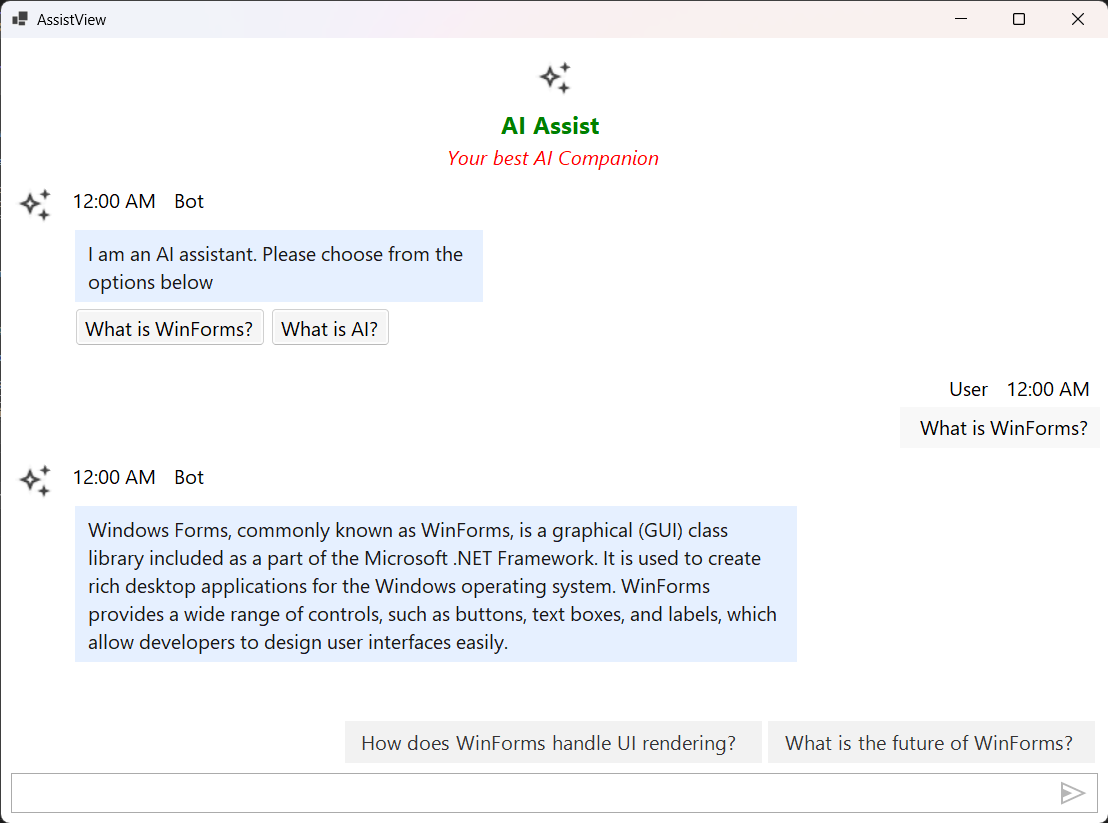
The following example demonstrates how to create and set a custom BotView in the AssistView.
public partial class Form1 : Form
{
    public Form1()
    {
        viewModel.Chats.CollectionChanged += Chats_CollectionChanged;

        // To Apply custom views to any existing default messages
        foreach (var item in viewModel.Chats)
        {
            if (item is TextMessage tm)
            {
                sfAIAssistView1.SetBotView(tm, CreateBotView(tm));
            }
        }
    }


    private void Chats_CollectionChanged(object sender, NotifyCollectionChangedEventArgs e)
    {
        if (e.Action != NotifyCollectionChangedAction.Add) return;

        foreach (var newItem in e.NewItems ?? new object[0])
        {
            if (newItem is TextMessage message)
            {
                    sfAIAssistView1.SetBotView(message, CreateBotView(message));
            }
        }
    }

    private Control CreateBotView(TextMessage message)
    {
        string text = string.IsNullOrEmpty(message?.Text) ? "Hello from the bot." : message.Text;

        var container = new FlowLayoutPanel
        {
            AutoSize = true,

            WrapContents = true,
            Padding = new Padding(6),
            BackColor = Color.Transparent
        };

        var lbl = new Label
        {
            Text = text,
            AutoSize = true,
            BackColor = Color.FromArgb(230, 240, 255),
            ForeColor = Color.FromArgb(24, 24, 24),
            Padding = new Padding(8),
            Margin = new Padding(0, 0, 0, 6)
        };

        container.Controls.Add(lbl);

        // Only show buttons for the initial prompt message
        const string prompt = "I am an AI assistant. Please choose from the options below";
        if (string.Equals(text?.Trim(), prompt, StringComparison.OrdinalIgnoreCase))
        {
            var btnRow = new FlowLayoutPanel
            {
                AutoSize = true,
                WrapContents = true,
                Margin = new Padding(0)
            };

            string[] choices = new[] { "What is WinForms?", "What is AI?" };
            foreach (var c in choices)
            {
                var btn = new Button
                {
                    Text = c,
                    AutoSize = true,
                    Tag = c,
                    BackColor = Color.WhiteSmoke,
                    Margin = new Padding(0, 0, 6, 0)
                };

                btn.Click += (s, e) =>
                {
                    try
                    {
                        var choice = (string)((Button)s).Tag;
                        viewModel?.Chats.Add(new TextMessage
                        {
                            Author = viewModel.CurrentUser,
                            Text = choice
                        });
                    }
                    catch { }
                };

                btnRow.Controls.Add(btn);
            }

            container.Controls.Add(btnRow);
        }

        return container;
    }
}
Creating a Custom UserView
You can create and set a custom UserView and apply it to the AssistView by calling the SetUserView method.
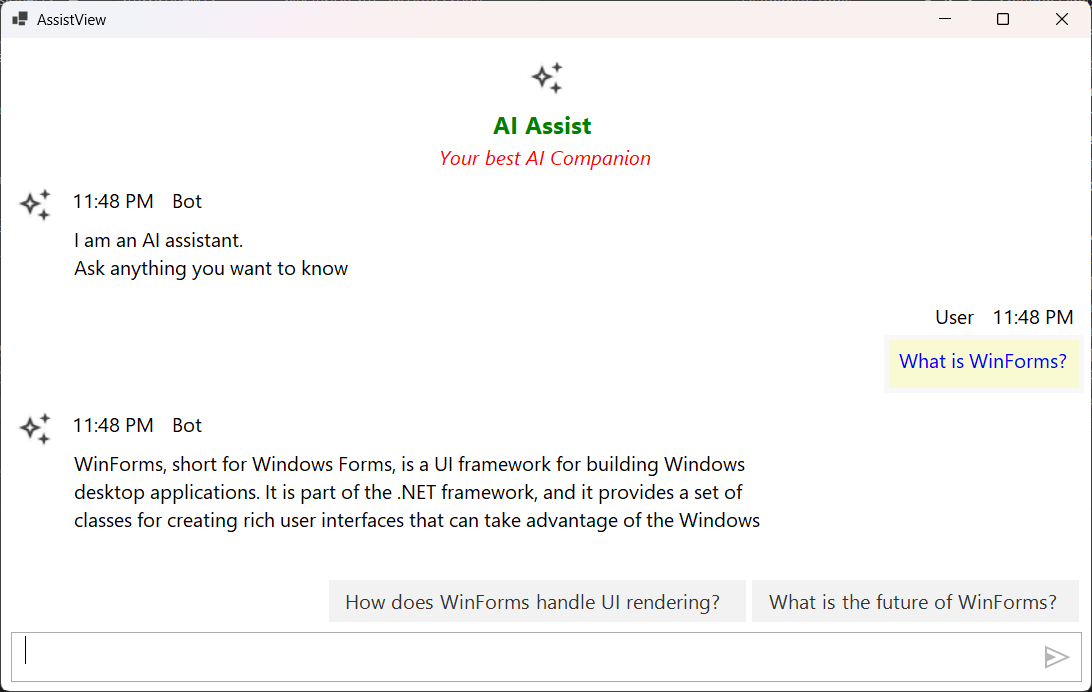
The following example demonstrates how to create and set a custom UserView in the AssistView.
public partial class Form1 : Form
{
    public Form1()
    {
        InitializeComponent();

        viewModel.Chats.CollectionChanged += Chats_CollectionChanged;

    }

    private void Chats_CollectionChanged(object sender, NotifyCollectionChangedEventArgs e)
    {
        if (e.Action != NotifyCollectionChangedAction.Add) return;

        foreach (var newItem in e.NewItems ?? new object[0])
        {
            if (newItem is TextMessage message)
            {
                sfAIAssistView1.SetUserView(message, CreateUserView(message));
            }
        }
    }
    private Control CreateUserView(TextMessage message)
    {
        string content = message?.Text ?? string.Empty;

        var lbl = new Label
        {
            Text = content,
            AutoSize = true,
            MaximumSize = new System.Drawing.Size(520, 0),
            BackColor = Color.LightGoldenrodYellow,
            ForeColor = Color.Blue,
            Padding = new Padding(5),
            Margin = new Padding(0, 0, 0, 6)
        };

        return lbl;
    }
}
AvatarStyle Customization in Windows Forms AI AssistView
The SfAIAssistView control uses avatars to visually represent participants in a conversation — the bot authored by the application, the user sending prompts, and the assistant speaking through the banner. The AvatarStyle class centralizes every visual aspect of these avatars so you can mix images, initials, themed character glyphs, and custom shapes without changing layout code. Combined with the AvatarSize, AvatarShape, and AvatarCharacterType enums, the same API covers the hero banner at the top of the chat, the first bot greeting, and every message exchanged during the conversation.
Customization Using AvatarStyle
The AvatarStyle class is a strongly typed container for every avatar appearance setting. Apply a single instance to the banner, an Author belonging to a chat message, or the TypingIndicator — the rest of the control observes the same property contract.
| Property | Type | Description |
|---|---|---|
| AvatarContent | AvatarContentType |
Selects the rendering source — custom image, theme-driven default, initials, or a themed character glyph. |
| AvatarImage | Image |
The image rendered when AvatarContent is AvatarContentType.CustomImage. |
| AvatarName | string |
Display name used to derive initials when AvatarContent is AvatarContentType.Initials. |
| AvatarCharacterType | AvatarCharacterType |
Themed character glyph rendered when AvatarContent is AvatarContentType.AvatarCharacter. |
| AvatarInitialsType | AvatarInitialsType |
Controls whether the avatar shows one or two characters when AvatarContent is AvatarContentType.Initials. |
| AvatarBackColor | Color |
Background fill used when rendering initials or themed character glyphs. |
| AvatarForeColor | Color |
Color used to draw the initials or themed character glyph on top of the background. |
| AvatarShape | AvatarShape |
The geometric shape of the avatar (Circle, Square, or Custom with a configurable corner radius). |
| CornerRadius | int |
Corner radius in pixels applied when AvatarShape is AvatarShape.Custom. Ignored for the preset shapes. |
| AvatarSize | AvatarSize |
The relative size bucket of the avatar (ExtraSmall, Small, Medium, Large, ExtraLarge). |
AvatarContentType Enum
| Member | Description |
|---|---|
| Default | Resolves the rendering source based on what is supplied — falls back to the themed character glyph when no image or name is set. |
| CustomImage | Renders AvatarImage inside the avatar shape. |
| Initials | Renders characters derived from AvatarName using AvatarInitialsType. |
| AvatarCharacter | Renders a theme-driven character glyph defined by AvatarCharacterType. |
AvatarCharacterType Enum
AvatarCharacterType is an enumeration that defines themed character glyphs, available in a sequential range from Avatar1 through Avatar25. Each member represents a distinct avatar style, with Avatar1 serving as the default option and subsequent values (Avatar2 … Avatar25) providing alternative glyph variations.
AvatarInitialsType Enum
| Member | Description |
|---|---|
| SingleCharacter | Renders the first letter of AvatarName (default — useful for short names like “Bot”). |
| TwoCharacter | Renders the first two letters (useful for full names such as “Finley James” → “FJ”). |
AvatarShape Enum
| Member | Description |
|---|---|
| Circle | Circular avatar (default). |
| Square | Square avatar (sharp corners). |
| Custom | Use this shape together with CornerRadius to control the corner radius in pixels. |
AvatarSize Enum
| Member | Description |
|---|---|
| ExtraSmall | Tiniest size bucket (18 px), typically for inline/compact rows. |
| Small | Compact avatar (24 px). |
| Medium | Standard message avatar (32 px). |
| Large | Used in prominent headers. |
| ExtraLarge | Hero-size avatar reserved for the banner. |
Customizing the Banner Avatar
The banner at the top of the chat is the very first visual cue your users receive. Configure it with BannerStyle (which carries an embedded ImageSize and inset for the avatar) and SetBannerView.
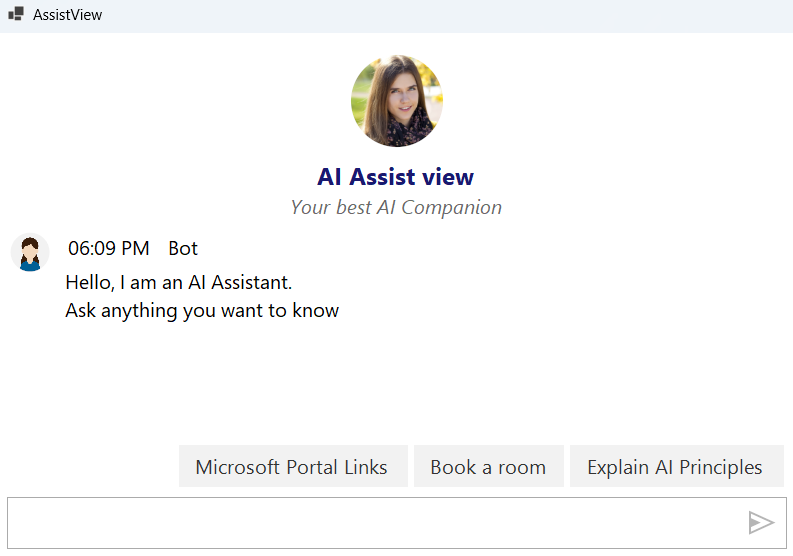
The banner can render either an actual Image (passed as the third argument to SetBannerView) or an AvatarStyle driven placeholder configured on BannerStyle.AvatarStyle. Pair ImageSize with the corresponding AvatarSize to keep the hero aligned with the chat avatars.
The BannerStyle.AvatarStyle property accepts a fully configured AvatarStyle instance so you can drive the banner avatar together with title/subtitle colors and fonts from one place. The control forwards the same AvatarShape, AvatarSize, CornerRadius, AvatarContent, and AvatarBackColor / AvatarForeColor settings used on chat avatars so the hero stays visually consistent.
public partial class Form1 : Form
{
    ViewModel viewModel;

    public Form1()
    {
        private string bannerTitle = "AI Assist view";
        private string bannerSubTitle = "Your best AI Companion";
        InitializeComponent();
        SetupBanner();
    }

    private void SetupBanner()
    {
        BannerStyle bannerStyle = new BannerStyle
        {
            TitleFont = new Font("Segoe UI", 14F, FontStyle.Bold),
            SubTitleFont = new Font("Segoe UI", 12F, FontStyle.Italic),
            TitleColor = Color.MidnightBlue,
            SubTitleColor = Color.DimGray,
            ImageSize = AvatarSize.ExtraLarge,

            // Drive the banner avatar from an AvatarStyle instance.
            AvatarStyle = new AvatarStyle
            {
                AvatarContent = AvatarContentType.CustomImage,
                AvatarImage = Image.FromFile(@"Ai Assistance\Ai [email protected]"),
                AvatarShape = AvatarShape.Circle,
            },

            Title = bannerTitle,
            SubTitle = bannerSubTitle
        };

        sfaiAssistView1.SetBannerView(bannerStyle);

        // You can also set the banner view by passing title, subtitle, icon, and optional style.
        //sfaiAssistView1.SetBannerView("AI Assist view", "Your best AI Companion", null, bannerStyle);
    }
}
Banner Avatar with Initials Instead of Image
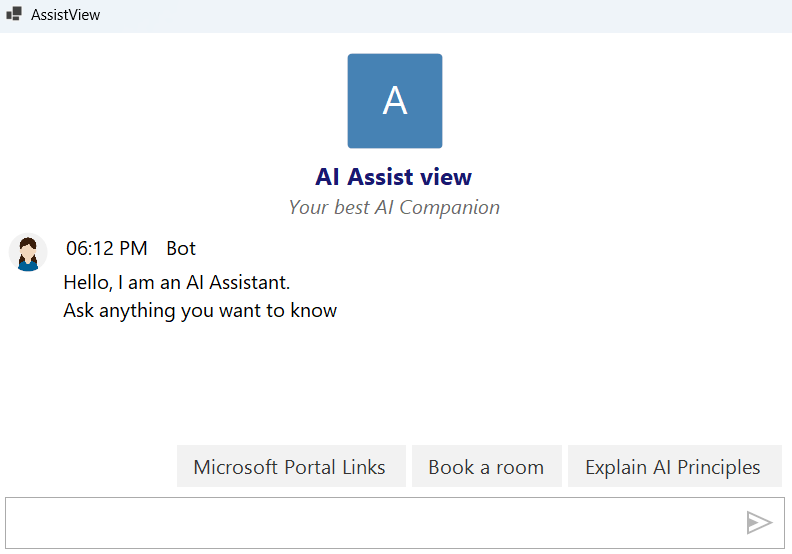
If you prefer a flat, modern look, drop the image and let BannerStyle.AvatarStyle render initials. Configure AvatarContent = AvatarContentType.Initials, a name like "AI", and AvatarInitialsType.SingleCharacter. When neither an image nor initials are configured, the banner falls back to AvatarContentType.Default, which resolves to the themed character glyph defined by AvatarCharacterType.
private void SetupBannerWithInitials()
{
    BannerStyle bannerStyle = new BannerStyle
    {
        TitleFont = new Font("Segoe UI", 14F, FontStyle.Bold),
        SubTitleFont = new Font("Segoe UI", 12F, FontStyle.Italic),
        TitleColor = Color.MidnightBlue,
        SubTitleColor = Color.DimGray,
        ImageSize = AvatarSize.ExtraLarge,

        // Initials-driven banner avatar driven entirely by AvatarStyle.
        AvatarStyle = new AvatarStyle
        {
            AvatarContent = AvatarContentType.Initials,
            AvatarName = "AI",
            AvatarInitialsType = AvatarInitialsType.SingleCharacter,   // renders "A"
            AvatarShape = AvatarShape.Square,
            AvatarBackColor = Color.SteelBlue,
            AvatarForeColor = Color.White,
        },
    };

    // Pass null for the image so the BannerStyle.AvatarStyle is the single source of truth.
    sfaiAssistView1.SetBannerView("AI Assist view", "Your best AI Companion", null, bannerStyle);
}
Customizing the Initial Bot Message Avatar
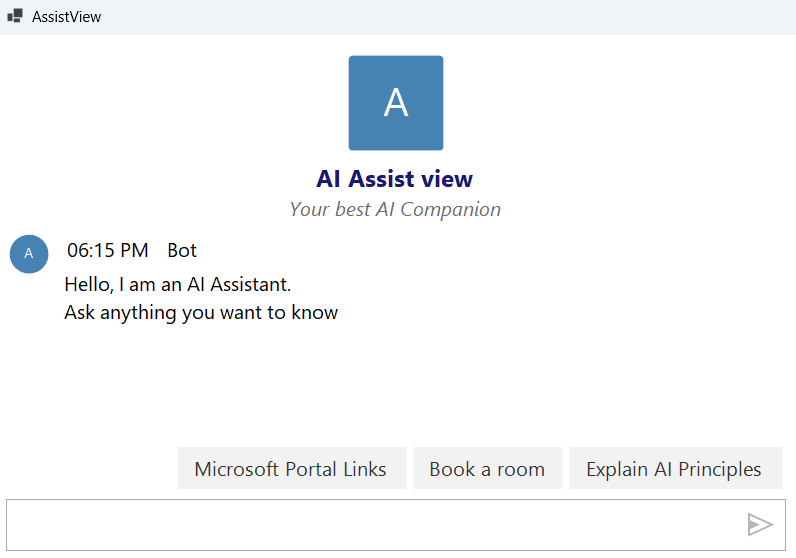
The greeting your assistant shows on first launch is bound to the first TextMessage in the Chats collection. Set its Author with an AvatarStyle to control how the bot appears before any user interaction.
private void AddInitialBotMessage()
{
    string initialMessage = "Hello, I am an AI Assistant. \nAsk anything you want to know";

    var initialBotMessage = new TextMessage
    {
        Author = new Author
        {
            Name = "Bot",
            AvatarStyle = new AvatarStyle
            {
                AvatarContent = AvatarContentType.Initials,
                AvatarName = "AI",
                AvatarInitialsType = AvatarInitialsType.SingleCharacter,
                AvatarBackColor = Color.SteelBlue,
                AvatarForeColor = Color.White,
                AvatarShape = AvatarShape.Circle,
            }
        },
        DateTime = DateTime.Now,
        Text = initialMessage,
    };

    viewModel.Chats.Add(initialBotMessage);
}
Customizing the Chat Collection Avatars
Every message added to the Chats collection is paired with an Author that owns its own AvatarStyle. Configuring avatars on the author means the same identity keeps the same appearance across user prompts, bot replies, and typing indicators.
The snippet below shows a typical chat-row avatar configuration built entirely from AvatarStyle — image content for the bot, a custom CornerRadius shape, and consistent colors/fonts so every message lines up with the banner. Reuse the same AvatarStyle instance for both the typing indicator and the bot replies.
private void SetupChatCollectionAvatars()
{
    // Bot identity — image avatar driven by AvatarStyle.CustomImage.
    AvatarStyle botAvatarStyle = new AvatarStyle
    {
        AvatarContent = AvatarContentType.CustomImage,
        AvatarImage = Image.FromFile("Finley.png"),
        AvatarShape = AvatarShape.Circle,
    };

    Author botAuthor = new Author
    {
        Name = "Bot",
        AvatarStyle = botAvatarStyle,
    };

    // Reuse the same bot avatar for the typing indicator.
    sfaiAssistView1.TypingIndicator.Author = botAuthor;
    sfaiAssistView1.TypingIndicator.DisplayText = "Typing";

    // Wire two canned messages to verify the avatar pipeline end-to-end.
    viewModel.Chats.Add(new TextMessage
    {
        Author = botAuthor,
        DateTime = DateTime.Now,
        Text = "Hello, I am an AI Assistant. \nAsk anything you want to know",
        Type = MessageType.Bot,
    });
}
Avatar Shape and Corner Radius
AvatarShape exposes two preset shapes — Circle and Square — plus the Custom shape. Use Custom together with CornerRadius to control the rounding in pixels. The shape and border follow the same code path in every chat row, so setting them once on the AvatarStyle propagates to every message from the author.
wo preset shapes — Circle and `
AvatarStyle style = new AvatarStyle
{
    AvatarName = "Finley James",
    AvatarInitialsType = AvatarInitialsType.TwoCharacter,   // renders "FJ"
    AvatarBackColor = Color.Teal,
    AvatarForeColor = Color.White,
    AvatarShape = AvatarShape.Custom,
    CornerRadius = 10,                                     // pixels
};

Author bot = new Author { Name = "Finley James", AvatarStyle = style };
Combining Avatars with the Typing Indicator
The typing indicator shows while a reply is in flight — reuse the bot’s AvatarStyle so the dots appear under the same avatar your replies use later. The control exposes a TypingIndicator object whose Author accepts a fully styled avatar.
sfaiAssistView1.TypingIndicator.Author = new Author()
{
    Name = "Bot",
    AvatarStyle = new AvatarStyle
    {
        AvatarContent = AvatarContentType.CustomImage,
        AvatarImage = Image.FromFile("Finley.png"),
        AvatarShape = AvatarShape.Circle,
    }
};
sfaiAssistView1.TypingIndicator.DisplayText = "Typing";
Avatar Style Customization Example
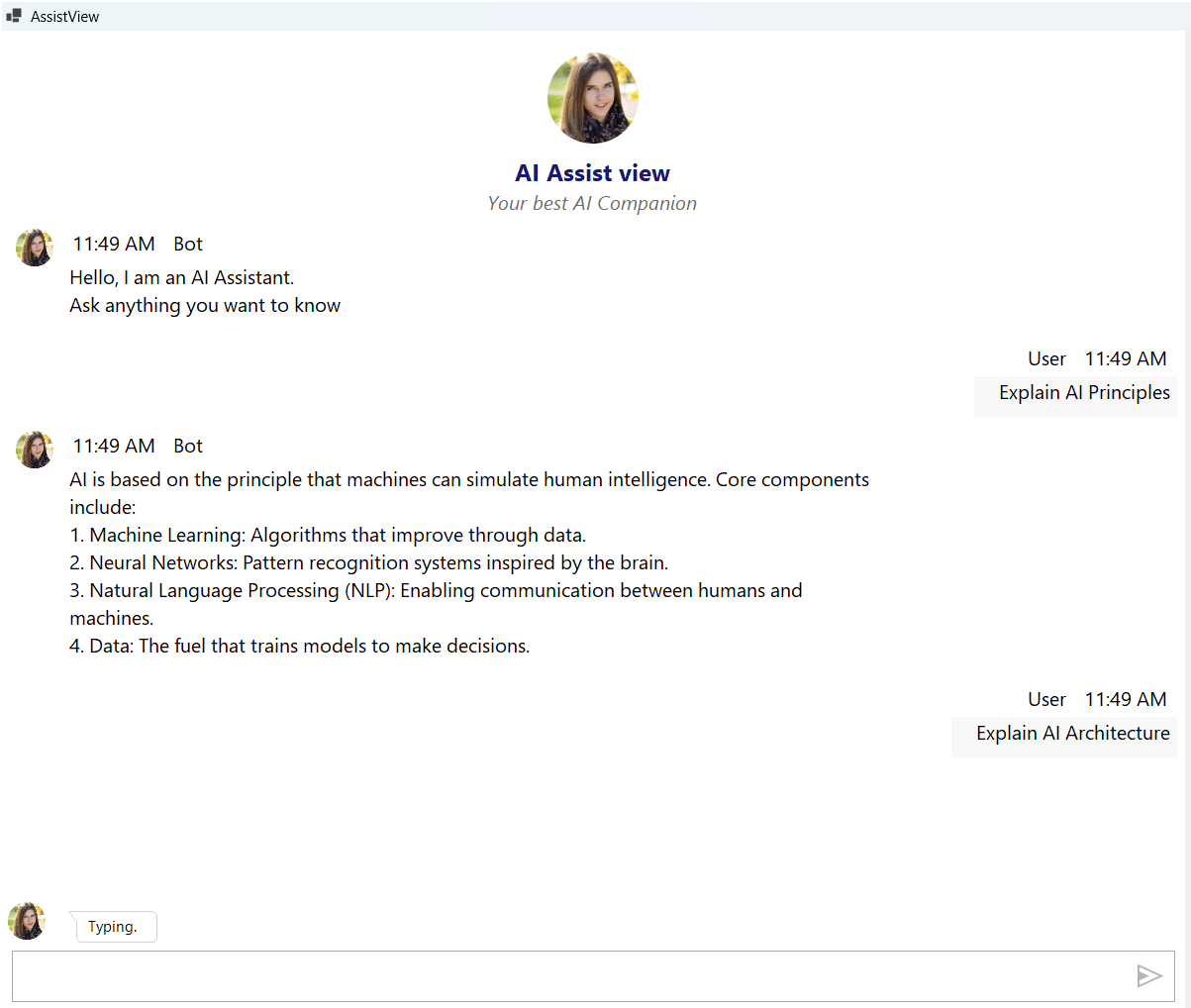
The following sample wires up all three surfaces — the banner avatar, the initial bot message avatar, and every chat message’s avatar — using the same AvatarStyle instances so the assistant stays visually consistent from first launch to the last message of the day.
using Syncfusion.WinForms.AIAssistView;
using System.Collections.ObjectModel;
using System.Drawing;
using System.Windows.Forms;

namespace AIAssistView_Sample_WF
{
    public partial class Form1 : Form
    {
        private readonly ViewModel viewModel = new ViewModel();
        private readonly Author botAuthor;

        public Form1()
        {
            InitializeComponent();
            botAuthor = CreateBotAuthor();

            sfaiAssistView1.TypingIndicator.Author = botAuthor;

            // Bind the chat collection
            sfaiAssistView1.DataBindings.Add("Messages", viewModel, "Chats",
                true, DataSourceUpdateMode.OnPropertyChanged);

            // Apply the helper intents that target AvatarStyle usage
            BannerTemplate();
            ConfigureInitialBotMessage();
        }

        private static Author CreateBotAuthor()
        {
            return new Author
            {
                Name = "Bot",
                AvatarStyle = new AvatarStyle
                {
                    AvatarContent = AvatarContentType.Initials,
                    AvatarName = "Bot",
                    AvatarInitialsType = AvatarInitialsType.SingleCharacter,
                    AvatarBackColor = Color.SteelBlue,
                    AvatarForeColor = Color.White,
                    AvatarShape = AvatarShape.Circle,
                }
            };
        }

        private void BannerTemplate()
        {
            BannerStyle bannerStyle = new BannerStyle
            {
                TitleFont = new Font("Segoe UI", 14F, FontStyle.Bold),
                SubTitleFont = new Font("Segoe UI", 12F, FontStyle.Italic),
                TitleColor = Color.MidnightBlue,
                SubTitleColor = Color.DimGray,
                ImageSize = AvatarSize.ExtraLarge,

                // Drive the banner avatar from an AvatarStyle instance.
                AvatarStyle = new AvatarStyle
                {
                    AvatarContent = AvatarContentType.CustomImage,
                    AvatarImage = Image.FromFile(@"Ai Assistance\Ai [email protected]"),
                    AvatarShape = AvatarShape.Circle,
                }
            };

            sfaiAssistView1.SetBannerView("AI Assist view", "Your best AI Companion", null, bannerStyle);
        }

        private void ConfigureInitialBotMessage()
        {
            // Use the banner avatar / themed glyph for the very first message.
            // For consistency with the chat row avatars, set AvatarStyle explicitly here:
            var initialBotMessage = new TextMessage
            {
                Author = botAuthor,
                DateTime = DateTime.Now,
                Text = "Hello, I am an AI Assistant. \nAsk anything you want to know",
            };

            if (viewModel.Chats.Count == 0)
            {
                viewModel.Chats.Add(initialBotMessage);
            }
        }
    }
}
When
AvatarContentis set toAvatarContentType.CustomImageandAvatarImageisnull, the control falls back toAvatarContentType.Default, which renders the themed character glyph supplied byAvatarCharacterTypeand the active skin.
Use the same
AvatarStyleinstance on everyAuthorwho should share the same look. Creating a new instance for each message forces property change notifications that can refresh the layout unnecessarily.
CornerRadiusonly takes effect whenAvatarShape = AvatarShape.Custom. TheCircleandSquarepreset shapes ignore it.