Getting started in React Modern Rich Text Editor
The React Modern Rich Text Editor is a WYSIWYG editor that provides a modern editing experience for creating, editing, and formatting rich text content. This section explains how to create a simple Modern Rich Text Editor using a Vite-based React project.
Ready to streamline your Syncfusion® React development? Discover the full potential of Syncfusion® React components with Syncfusion® AI Coding Assistant. Effortlessly integrate, configure, and enhance your projects with intelligent, context-aware code suggestions, streamlined setups, and real-time insights—all seamlessly integrated into your preferred AI-powered IDEs like VS Code, Cursor, Syncfusion® CodeStudio and more. Explore Syncfusion® AI Coding Assistant
Prerequisites
- Node.js 24+ (LTS recommended).
- Syncfusion CLI.
Install the Syncfusion CLI
Install the Syncfusion CLI globally using the following command:
npm install -g @syncfusion/syncfusion-cliSet up the Vite project using Syncfusion CLI
You can create a React Vite application using the Syncfusion CLI. The CLI provides two ways to create a project:
Non-interactive mode
Non-interactive mode allows you to create a project directly using a single command with the required command-line arguments.
sf new my-app --framework react --type ts --template rich-text-editor-ui --theme tailwind3In this mode, the project configuration is passed directly in the command. The above command creates a React Vite application configured with the Syncfusion® ` Modern Rich Text Editor` component.
Interactive mode
Interactive mode guides you through the project creation process with step-by-step prompts.
sfWhen you run the sf command, the CLI prompts you to select the required project configuration. To create a React Vite application with the Syncfusion® Modern Rich Text Editor component, select the following options:
√ Project name? ... my-app
√ Choose Framework: » React
√ Choose Build Tool: » Vite
√ Choose Language: » Typescript
√ Choose Template: » Rich Text Editor UI
√ Choose Theme: » Tailwind3
√ Choose Style Format: » CSS
√ Would you like to integrate the Syncfusion MCP Server (AI Assistant) into this project? ... no
√ Would you like to install Syncfusion Component Skills for AI-powered development? ... no
√ Install dependencies and start app now? ... no
The above selections generate a React Vite application configured with the Syncfusion® Modern Rich Text Editor component. You can choose different values for language, theme, style format, MCP setup, and skills installation based on your project requirements.
The Syncfusion® CLI creates the project with a predefined template. After the project is generated, you can customize or replace the component code based on your application requirements.
Run the project
Once the project is created, navigate to the project directory and run the following commands in your terminal.
cd my-app
npm install
npm run dev
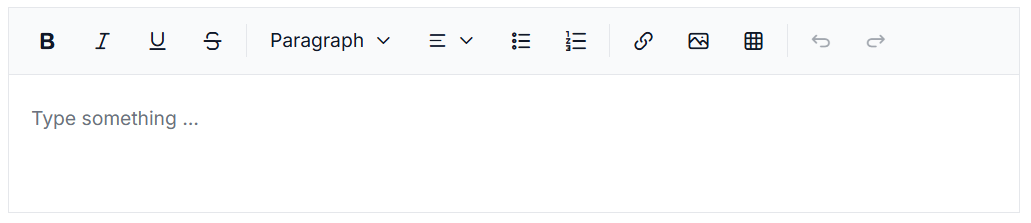
The output will appear as follows:
Prerequisites
This guide uses Vite as the bundler and development environment. Install Node.js 24.13.0 or higher before proceeding. For detailed information about Vite’s capabilities and configuration options, refer to the Vite documentation.
For information about supported React versions and Syncfusion package compatibility, refer to the Version Compatibility documentation.
Create a React Application
Run the following commands to set up a React application:
npm create vite@latest my-app -- --template react-ts
This command prompts you to configure the React application. When prompted to choose a linter, select either Oxlint or ESLint based on your preference.
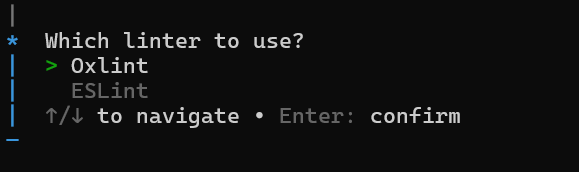
Continue with the project setup and select the options as shown below.
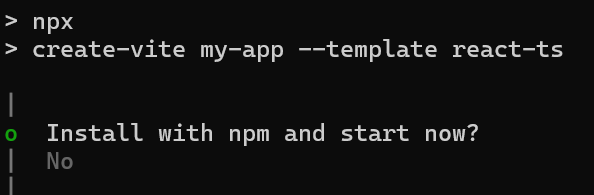
As Syncfusion packages are not installed yet, currently, the No option will be selected. Then, navigate to the project directory and install the dependencies using the following commands:
cd my-app
npm install
To set up a React application with Nextjs or Remix, refer to this documentation for more details.
Adding Syncfusion® Modern Rich Text Editor package
All the available Essential® JS 2 packages are published in the npmjs.com public registry.
To install Modern Rich Text Editor component, use the following command
npm install @syncfusion/ej2-react-richtexteditor-ui
Adding CSS reference
Syncfusion provides multiple themes for the Modern Rich Text Editor component. For a complete list of available themes, refer to the themes packages.
To apply the Tailwind 3 theme, install the corresponding theme package by using the following command:
npm install @syncfusion/ej2-tailwind3-theme
The installed theme package includes an index.css file that automatically imports all the required dependency styles. Import the following stylesheet into src/App.css:
@import '../node_modules/@syncfusion/ej2-tailwind3-theme/styles/rich-text-editor-ui/index.css';
To apply the application-specific styles correctly, import App.css into src/App.tsx and remove all the default styles from src/index.css.
Adding Modern Rich Text Editor component
Now, you can start adding the React Modern Rich Text Editor component in the application. For getting started, replace the default Vite template content in src/App.tsx with the following sample.
import * as React from 'react';
import { RichTextEditorUIComponent } from '@syncfusion/ej2-react-richtexteditor-ui';
import './App.css';

function App() {
    return (
        <RichTextEditorUIComponent placeholder='Type something.' />
    );
}

export default App;
import * as React from 'react';
import { RichTextEditorUIComponent } from '@syncfusion/ej2-react-richtexteditor-ui';
import { EDITOR_CONTENT } from './basic-editing-content';
import './App.css';
function App() {
return (
<RichTextEditorUIComponent placeholder='Type something.'/>
);
}
export default App;@import '../node_modules/@syncfusion/ej2-tailwind3-theme/styles/rich-text-editor-ui/index.css';Run the Application
Now run the npm run dev command in the console to start the development server. This command compiles your code and serves the application locally, opening it in the browser.
npm run dev
The Syncfusion® React Modern Rich Text Editor is displayed in the browser as shown below.