Emoji Picker in JavaScript Rich Text Editor
An emoji picker is a tool designed for adding emojis or emoticons to text with ease. It usually appears as a small window or panel showcasing a variety of emojis categorized into sections such as smileys, animals, food, and more. The desired emoji can be selected by clicking on it or typing its name into a search bar.
Configuring the emoji picker tool in the toolbar
Add the EmojiPicker tool to the Rich Text Editor toolbar using the toolbarSettings items property.
By default, a predefined set of emojis is configured. However, these emojis can be customized according to specific needs by using the emojiPickerSettings property.
/**
 * Rich Text Editor - Emoji picker sample
 */
var editor = new ej.richtexteditor.RichTextEditor({
    toolbarSettings: {
        items: ['EmojiPicker']
    },
emojiPickerSettings: {
    iconsSet: [{name: 'Smilies & People', code: '1F600', iconCss: 'e-emoji',
    icons: [{ code: '1F600', desc: 'Grinning face' },
    { code: '1F603', desc: 'Grinning face with big eyes' },
    { code: '1F604', desc: 'Grinning face with smiling eyes' },
    { code: '1F606', desc: 'Grinning squinting face' },
    { code: '1F605', desc: 'Grinning face with sweat' },
    { code: '1F602', desc: 'Face with tears of joy' },
    { code: '1F923', desc: 'Rolling on the floor laughing' },
    { code: '1F60A', desc: 'Smiling face with smiling eyes' }]
    }, {
    name: 'Animals & Nature', code: '1F435', iconCss: 'e-animals',
    icons: [{ code: '1F436', desc: 'Dog face' },
    { code: '1F431', desc: 'Cat face' },
    { code: '1F42D', desc: 'Mouse face' },
    { code: '1F439', desc: 'Hamster face' },
    { code: '1F430', desc: 'Rabbit face' },
    { code: '1F98A', desc: 'Fox face' }]
    }, {
    name: 'Food & Drink', code: '1F347', iconCss: 'e-food-and-drinks',
        icons: [{ code: '1F34E', desc: 'Red apple' },
    { code: '1F34C', desc: 'Banana' },
    { code: '1F347', desc: 'Grapes' },
    { code: '1F353', desc: 'Strawberry' },
    { code: '1F35E', desc: 'Bread' },
    { code: '1F950', desc: 'Croissant' },
    { code: '1F955', desc: 'Carrot' },
    { code: '1F354', desc: 'Hamburger' }]
    }, {
    name: 'Activities', code: '1F383', iconCss: 'e-activities',
    icons: [{ code: '26BD', desc: 'Soccer ball' },
    { code: '1F3C0', desc: 'Basketball' },
    { code: '1F3C8', desc: 'American football' },
    { code: '26BE', desc: 'Baseball' },
    { code: '1F3BE', desc: 'Tennis' },
    { code: '1F3D0', desc: 'Volleyball' },
    { code: '1F3C9', desc: 'Rugby football' }]
    }, {
    name: 'Travel & Places', code: '1F30D', iconCss: 'e-travel-and-places',
    icons: [{ code: '2708', desc: 'Airplane' },
    { code: '1F697', desc: 'Automobile' },
    { code: '1F695', desc: 'Taxi' },
    { code: '1F6B2', desc: 'Bicycle' },
    { code: '1F68C', desc: 'Bus' }]
    }, {
    name: 'Objects', code: '1F507', iconCss: 'e-objects', icons: [{ code: '1F4A1', desc: 'Light bulb' },
    { code: '1F526', desc: 'Flashlight' },
    { code: '1F4BB', desc: 'Laptop computer' },
    { code: '1F5A5', desc: 'Desktop computer' },
    { code: '1F5A8', desc: 'Printer' },
    { code: '1F4F7', desc: 'Camera' },
    { code: '1F4F8', desc: 'Camera with flash' },
    { code: '1F4FD', desc: 'Film projector' }]
    }, {
    name: 'Symbols', code: '1F3E7', iconCss: 'e-symbols', icons: [{ code: '274C', desc: 'Cross mark' },
    { code: '2714', desc: 'Check mark' },
    { code: '26A0', desc: 'Warning sign' },
    { code: '1F6AB', desc: 'Prohibited' },
    { code: '2139', desc: 'Information' },
    { code: '267B', desc: 'Recycling symbol' },
    { code: '1F6AD', desc: 'No smoking' }]
    }]
}
});
editor.appendTo('#emojiPickerRTE');
<!DOCTYPE html><html lang="en"><head>
<title>Essential JS 2 Rich Text Editor</title>
<meta charset="utf-8">
<meta name="viewport" content="width=device-width, initial-scale=1.0">
<meta name="description" content="Typescript UI Controls">
<meta name="author" content="Syncfusion">
<link href="index.css" rel="stylesheet">
<link href="https://cdn.syncfusion.com/ej2/35.1.37/tailwind3.css" rel="stylesheet" />
<script src="https://cdn.syncfusion.com/ej2/35.1.37/dist/ej2.min.js" type="text/javascript"></script>
</head>
<body>
<div id="container">
<div id='emojiPickerRTE'></div>
</div>
<script>
var ele = document.getElementById('container');
if(ele) {
ele.style.visibility = "visible";
}
</script>
<script src="index.js" type="text/javascript"></script>
</body></html>You can also customize the icons of the emoji categories using the iconCss and code properties.
When both iconCss and code properties are provided, the iconCss property takes precedence in determining the appearance of the category icon.
You can also enable a filtering feature to efficiently manage a large dataset of emojis. By setting the showSearchBox property to true (the default value), users can use a search box to filter the displayed emojis.
The following code example shows how to add the emoji picker tool in the Rich Text Editor with a customized set of emojis.
/**
 * Rich Text Editor - Emoji picker sample
 */
var editor = new ej.richtexteditor.RichTextEditor({
    toolbarSettings: {
        items: ['Bold', 'Italic', 'Underline', '|', 'Formats', 'Alignments', 'OrderedList',
        'UnorderedList', '|', 'CreateLink', 'Image', '|', 'SourceCode', 'EmojiPicker',
        '|', 'Undo', 'Redo']
    },
    value: `<p>An emoji picker in a Rich Text Editor is a tool that allows users to easily add emojis or emoticons to their text.</p>
            <p>Typically, it is a small window or panel that displays a variety of emojis, arranged in different categories, such as smileys, animals, food, and so on. Users can select the desired emoji by clicking on it or by typing its name in a search bar.</p>`
});
editor.appendTo('#emojiPickerRTE');
<!DOCTYPE html><html lang="en"><head>
<title>Essential JS 2 Rich Text Editor</title>
<meta charset="utf-8">
<meta name="viewport" content="width=device-width, initial-scale=1.0">
<meta name="description" content="Typescript UI Controls">
<meta name="author" content="Syncfusion">
<link href="index.css" rel="stylesheet">
<link href="https://cdn.syncfusion.com/ej2/35.1.37/tailwind3.css" rel="stylesheet" />
<script src="https://cdn.syncfusion.com/ej2/35.1.37/dist/ej2.min.js" type="text/javascript"></script>
</head>
<body>
<div id="container">
<div id='emojiPickerRTE'></div>
</div>
<script>
var ele = document.getElementById('container');
if(ele) {
ele.style.visibility = "visible";
}
</script>
<script src="index.js" type="text/javascript"></script>
</body></html>Using shortcut keys to open the emoji picker
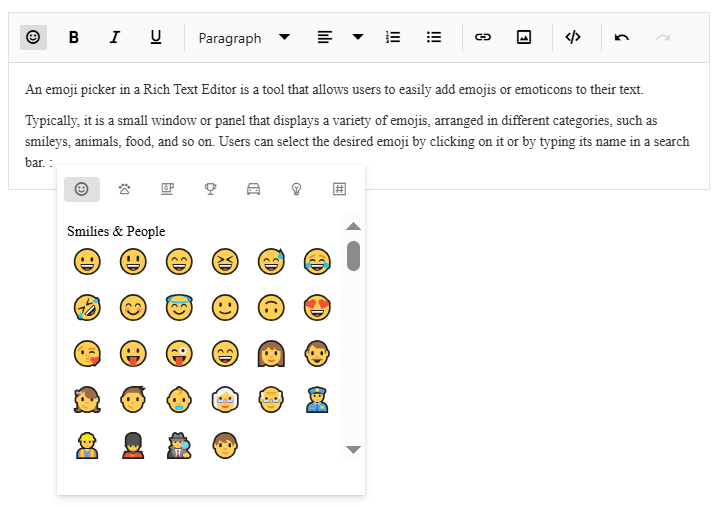
Quickly access the emoji picker by pressing the colon (:) key while typing a word prefix in an editor, allowing instant emoji selection and display. Moreover, continue typing in the editor after the colon (:) to filter and refine your search for the desired emojis.
Navigating and selecting emojis using the keyboard
The emoji picker popup offers keyboard navigation options, allowing you to move the emoji focus from one emoji to another. The following keys are used for navigation:
- Arrow keys: Use the arrow keys (up, down, left, right) to move the emoji focus in the corresponding direction.
- Enter: Press the Enter key to select the currently focused emoji.
- Escape: Press Escape to close the emoji picker popup without selecting an emoji.