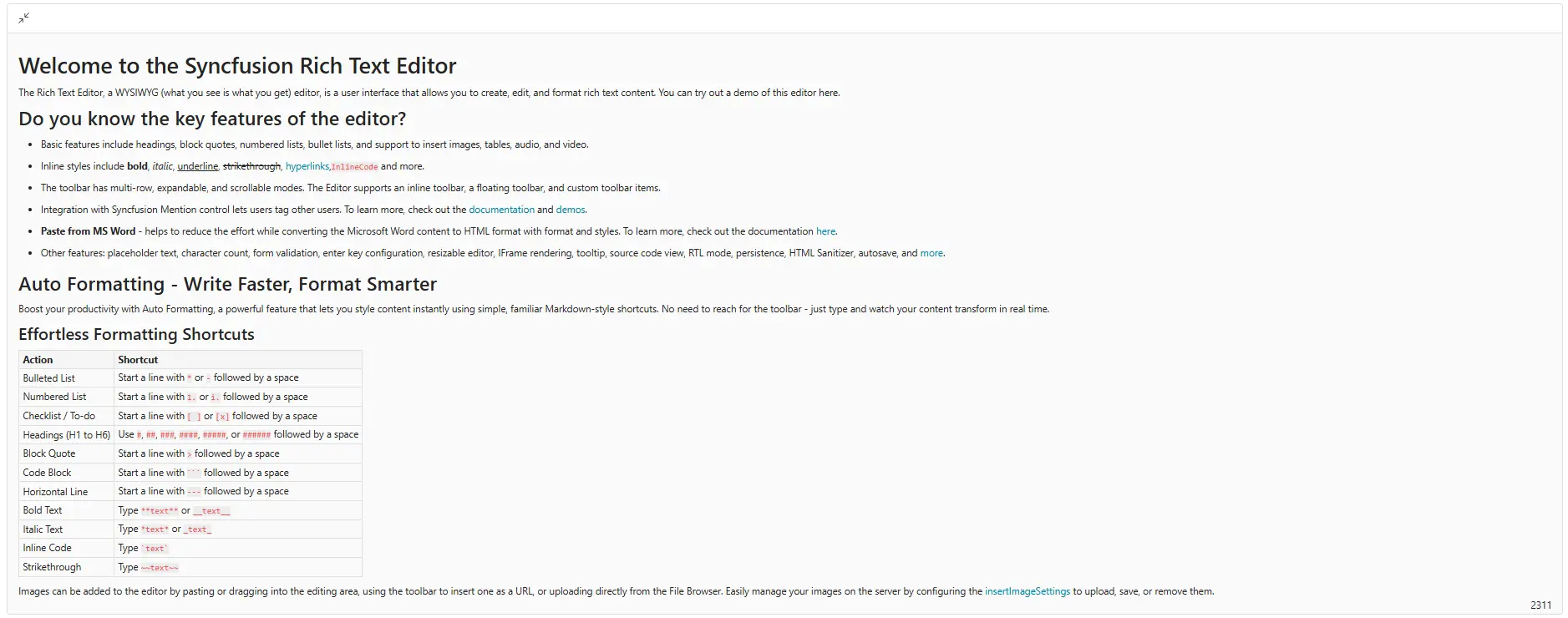
Fullscreen Mode in Blazor Rich Text Editor
The Fullscreen mode allows the Blazor Rich Text Editor to expand and occupy the entire browser viewport. This provides a distraction-free editing experience and more space to work with content and toolbar features.
You can enable Fullscreen mode using the Fullscreen toolbar button. Once activated, the editor transitions into Fullscreen view, hiding other page elements and maximizing the editing area.
How it works
Click the Fullscreen icon in the toolbar to toggle Fullscreen mode. When enabled, the editor:
- Expands to fill the entire browser window.
- Repositions the toolbar at the top of the viewport for unobstructed access to all tools.
- Can be exited by clicking the
Minimizeicon (which replaces the Fullscreen icon while active) or by pressing theEsckey.
@using Syncfusion.Blazor.RichTextEditor

<SfRichTextEditor>
    <RichTextEditorToolbarSettings Items="@Items" />
    <h5>Full Screen Mode in Rich Text Editor</h5>
    <ul>
        <li>Expands the Rich Text Editor to utilize the full browser viewport for enhanced visibility.</li>
        <li>Provides a focused, distraction-free environment for creating and editing content.</li>
        <li>Offers additional workspace to access toolbar options and manage complex content easily.</li>
        <li>Can be toggled using the Full Screen option in the toolbar for quick access.</li>
        <li>Restores the editor to its original layout when exited from full screen mode.</li>
    </ul>
</SfRichTextEditor>

@code {
    private List<ToolbarItemModel> Items = new List<ToolbarItemModel>()
    {
        new ToolbarItemModel() { Command = ToolbarCommand.FullScreen }
    };
}