Getting Started with .NET MAUI Tree Grid
18 Nov 201820 minutes to read
This section provides a quick overview of working with the SfTreeGrid for .NET MAUI. Follow the steps below to add a basic TreeGrid to your project.
Prerequisites
Before proceeding, ensure the following are set up:
- Install .NET 9 SDK or later.
- Set up a .NET MAUI environment with Visual Studio 2022 v17.12 or later.
Step 1: Create a new .NET MAUI project
- Go to File > New > Project and choose the .NET MAUI App template.
- Name the project and choose a location. Then, click Next.
- Select the .NET framework version and click Create.
Step 2: Install the Syncfusion® MAUI Tree Grid NuGet package
- In Solution Explorer, right-click the project and choose Manage NuGet Packages.
- Search for Syncfusion.Maui.TreeGrid and install the latest version.
- Ensure the necessary dependencies are installed correctly, and the project is restored.
Prerequisites
Before proceeding, ensure the following are set up:
- Install .NET 9 SDK or later.
- Set up a .NET MAUI environment with Visual Studio Code.
- Ensure that the .NET MAUI workloads are installed and configured as described here.
Step 1: Create a new .NET MAUI project
- Open the command palette by pressing
Ctrl+Shift+Pand type .NET:New Project and enter. - Choose the .NET MAUI App template.
- Select the project location, type the project name and press Enter.
- Then choose Create project.
Step 2: Install the Syncfusion® MAUI Tree Grid NuGet package
- Press Ctrl + ` (backtick) to open the integrated terminal in Visual Studio Code.
- Ensure that you are in the project root directory where your .csproj file is located.
- Run the command
dotnet add package Syncfusion.Maui.TreeGridto install the Syncfusion® .NET MAUI Tree Grid package. - To ensure all dependencies are installed, run
dotnet restore.
Prerequisites
Before proceeding, ensure the following are set up:
- Install .NET 9 SDK or later.
- Set up a .NET MAUI environment with JetBrains Rider 2024.3 or later.
- Make sure the MAUI workloads are installed and configured as described here.
Step 1: Create a new .NET MAUI project
- Go to File > New Solution, select .NET (C#), and choose the .NET MAUI App template.
- Enter the Project Name, Solution Name, and Location.
- Select the .NET framework version and click Create.
Step 2: Install the Syncfusion® MAUI Tree Grid NuGet package
- In Solution Explorer, right-click the project and choose Manage NuGet Packages.
- Search for Syncfusion.Maui.TreeGrid and install the latest version.
- Ensure the necessary dependencies are installed correctly, and the project is restored. If not, open the Terminal in Rider and manually run
dotnet restore.
Step 3: Register Syncfusion handler
To use Syncfusion controls, register the Syncfusion core handler in your application’s startup configuration.
In the MauiProgram.cs file (located at the root of your project), add the following namespace:
using Syncfusion.Maui.Core.Hosting;Then, register the Syncfusion core handler in the CreateMauiApp method:
builder.ConfigureSyncfusionCore();Step 4: Define Model and View Model
Create a simple data model as shown in the following code example, and save it as the EmployeeInfo.cs file:
public class EmployeeInfo
{
    private string? _firstName;
    private string? _lastName;
    private int? _empId;
    private double? _salary;
    private string? _title;
    internal double _hike = 5;
    private ObservableCollection<EmployeeInfo> _children = new ObservableCollection<EmployeeInfo>();

    /// <summary>
    /// Gets or sets the first name.
    /// </summary>
    public string? FirstName
    {
        get { return _firstName; }
        set { _firstName = value; }
    }

    /// <summary>
    /// Gets or sets the last name.
    /// </summary>
    public string? LastName
    {
        get { return _lastName; }
        set { _lastName = value; }
    }

    /// <summary>
    /// Gets or sets the emp ID.
    /// </summary>
    public int? EmpId
    {
        get { return _empId; }
        set { _empId = value; }
    }

    /// <summary>
    /// Gets or sets the salary.
    /// </summary>
    public double? Salary
    {
        get { return _salary; }
        set { _salary = value; }
    }

    /// <summary>
    /// Gets or sets the title.
    /// </summary>
    public string? Title
    {
        get { return _title; }
        set { _title = value; }
    }

    /// <summary>
    /// Gets or sets the hike.
    /// </summary>
    public double Hike
    {
        get { return _hike; }
        set { _hike = value; }
    }

    /// <summary>
    /// Gets or sets the children.
    /// </summary>
    public ObservableCollection<EmployeeInfo> Children
    {
        get { return _children; }
        set { _children = value; }
    }
}
Note: If you want your data model to respond to property changes, implement the
INotifyPropertyChangedinterface in your model class. This enables the TreeGrid to refresh automatically when data properties are updated.
Next, create a data repository class that manages a collection of EmployeeInfo objects. This repository serves as a simple data source for the TreeGrid. Create a new class file and save it as EmployeeInfoViewModel.cs in the same Models folder or in the project root:
public class EmployeeInfoViewModel
{
    /// <summary>
    /// Initializes a new instance of the <see cref="EmployeeInfoViewModel"/> class.
    /// </summary>

    #region Constructor

    public EmployeeInfoViewModel()
    {
        this.PersonDetails = this.CreateEmployeeData();
    }

    #endregion


    #region Properties

    private ObservableCollection<EmployeeInfo> _personDetails = new ObservableCollection<EmployeeInfo>();

    /// <summary>
    /// Gets or sets the person details.
    /// </summary>
    /// <value>The person details.</value>
    public ObservableCollection<EmployeeInfo> PersonDetails
    {
        get { return _personDetails; }
        set { _personDetails = value; }
    }

    #endregion

    private ObservableCollection<EmployeeInfo> CreateEmployeeData()
    {
        //Management
        var childCollection1 = new ObservableCollection<EmployeeInfo>();
        childCollection1.Add(new EmployeeInfo() { FirstName = "Robert", LastName = "Fuller", EmpId = 1008, Salary = 120000, Title = "Design Engineer", Hike = 13 });
        childCollection1.Add(new EmployeeInfo() { FirstName = "Janet", LastName = "Leverling", EmpId = 1009, Salary = 100000, Title = "Engineering Manager", Hike = 10 });
        childCollection1.Add(new EmployeeInfo() { FirstName = "Steven", LastName = "Buchanan", EmpId = 1010, Salary = 35000, Title = "Business Manager", Hike = 7 });

        // Accounts
        var childCollection2 = new ObservableCollection<EmployeeInfo>();
        childCollection2.Add(new EmployeeInfo() { FirstName = "Nancy", LastName = "Davolio", EmpId = 1011, Salary = 85000, Title = "Accounts Supervisor", Hike = 12 });
        childCollection2.Add(new EmployeeInfo() { FirstName = "Margaret", LastName = "Peacock", EmpId = 1012, Salary = 32000, Title = "Accounts Representative", Hike = 5 });
        childCollection2.Add(new EmployeeInfo() { FirstName = "Michael", LastName = "Suyama", EmpId = 1013, Salary = 70000, Title = "Accounts Coordinator", Hike = 11 });
        childCollection2.Add(new EmployeeInfo() { FirstName = "Andrew", LastName = "King", EmpId = 1014, Salary = 45000, Title = "Accountant", Hike = 8 });

        // Sales
        var childCollection3 = new ObservableCollection<EmployeeInfo>();
        childCollection3.Add(new EmployeeInfo() { FirstName = "Simob", LastName = "Callahan", EmpId = 1015, Salary = 90000, Title = "Sales Representative", Hike = 14 });
        childCollection3.Add(new EmployeeInfo() { FirstName = "Anne", LastName = "Dodsworth", EmpId = 1016, Salary = 80000, Title = "Sales Coordinator", Hike = 10 });
        childCollection3.Add(new EmployeeInfo() { FirstName = "Albert", LastName = "Hellstern", EmpId = 1017, Salary = 75000, Title = "Sales Representative", Hike = 12 });
        childCollection3.Add(new EmployeeInfo() { FirstName = "Seves", LastName = "Smith", EmpId = 1018, Salary = 40000, Title = "Inside Sales Coordinator", Hike = 7 });
        childCollection3.Add(new EmployeeInfo() { FirstName = "Justin", LastName = "Brid", EmpId = 1019, Salary = 70000, Title = "Sales Supervisor", Hike = 11 });

        // Marketing
        var childCollection4 = new ObservableCollection<EmployeeInfo>();
        childCollection4.Add(new EmployeeInfo() { FirstName = "Caroline", LastName = "Patterson", EmpId = 1020, Salary = 80000, Title = "Marketing Director", Hike = 13 });
        childCollection4.Add(new EmployeeInfo() { FirstName = "Hill", LastName = "Martin", EmpId = 1021, Salary = 38000, Title = "Marketing Associate", Hike = 6 });

        // HR
        var childCollection5 = new ObservableCollection<EmployeeInfo>();
        childCollection5.Add(new EmployeeInfo() { FirstName = "Albert", LastName = "Pereira", EmpId = 1022, Salary = 90000, Title = "HR Coordinator", Hike = 14 });
        childCollection5.Add(new EmployeeInfo() { FirstName = "Hawkin", LastName = "Abbas", EmpId = 1023, Salary = 42000, Title = "HR Assistant", Hike = 9 });
        childCollection5.Add(new EmployeeInfo() { FirstName = "Amy", LastName = "Alberts", EmpId = 1024, Salary = 65000, Title = "HR Assistant", Hike = 11 });

        //Purchasing
        var childCollection6 = new ObservableCollection<EmployeeInfo>();
        childCollection6.Add(new EmployeeInfo() { FirstName = "Simon", LastName = "Ansman-Wolfe", EmpId = 1025, Salary = 60000, Title = "Advertising Director", Hike = 10 });
        childCollection6.Add(new EmployeeInfo() { FirstName = "Michael", LastName = "Blythe", EmpId = 1026, Salary = 35000, Title = "Advertising Coordinator", Hike = 5 });
        childCollection6.Add(new EmployeeInfo() { FirstName = "Seves", LastName = "Campbell", EmpId = 1027, Salary = 45000, Title = "Advertising Specialist", Hike = 8 });

        //Production
        var childCollection7 = new ObservableCollection<EmployeeInfo>();
        childCollection7.Add(new EmployeeInfo() { FirstName = "Janet", LastName = "Carson", EmpId = 1028, Salary = 60000, Title = "Production Supervisor", Hike = 12 });
        childCollection7.Add(new EmployeeInfo() { FirstName = "Caroline", LastName = "Ito", EmpId = 1029, Salary = 38000, Title = "Production Technician", Hike = 6 });
        childCollection7.Add(new EmployeeInfo() { FirstName = "Steven", LastName = "Jiang", EmpId = 1030, Salary = 45000, Title = "Production Control Manager", Hike = 9 });

        //Manager
        var employeeList = new ObservableCollection<EmployeeInfo>();
        employeeList.Add(new EmployeeInfo() { FirstName = "Sean", LastName = "Jacobson", EmpId = 1001, Salary = 200000, Title = "General Manager", Hike = 15, Children = childCollection1 });
        employeeList.Add(new EmployeeInfo() { FirstName = "Phyllis", LastName = "Allen", EmpId = 1002, Salary = 45000, Title = "Accounts Manager", Hike = 8, Children = childCollection2 });
        employeeList.Add(new EmployeeInfo() { FirstName = "Oscar", LastName = "Alpuerto", EmpId = 1003, Salary = 150000, Title = "Sales Manager", Hike = 12, Children = childCollection3 });
        employeeList.Add(new EmployeeInfo() { FirstName = "Maxwell", LastName = "Amland", EmpId = 1004, Salary = 40000, Title = "Marketing Manager", Hike = 6, Children = childCollection4 });
        employeeList.Add(new EmployeeInfo() { FirstName = "Emiliya", LastName = "Alvaro", EmpId = 1005, Salary = 135000, Title = "Human Resources Manager", Hike = 11, Children = childCollection5 });
        employeeList.Add(new EmployeeInfo() { FirstName = "Carla", LastName = "Adams", EmpId = 1006, Salary = 125000, Title = "Advertising Manager", Hike = 14, Children = childCollection6 });
        employeeList.Add(new EmployeeInfo() { FirstName = "John", LastName = "Ault", EmpId = 1007, Salary = 55000, Title = "Production Manager", Hike = 9, Children = childCollection7 });

        return employeeList;
    }
}
Step 5: Import the TreeGrid namespace
Add the following namespace in your XAML or C#.
xmlns:syncfusion = "clr-namespace:Syncfusion.Maui.TreeGrid;assembly=Syncfusion.Maui.TreeGrid"using Syncfusion.Maui.TreeGrid;Step 6: Add the TreeGrid component
Create a ViewModel instance and set it as the TreeGrid’s BindingContext. This enables property binding from ViewModel class.
To populate the SfTreeGrid, bind the item collection from its BindingContext to SfTreeGrid.ItemsSource property.
The following code example binds the collection created in the previous step to the SfTreeGrid.ItemsSource property:
<syncfusion:SfTreeGrid x:Name = "treeGrid"
                       ItemsSource = "{Binding PersonDetails}"
                       ChildPropertyName = "Children">
    <syncfusion:SfTreeGrid.BindingContext>
        <local:EmployeeInfoViewModel />
    </syncfusion:SfTreeGrid.BindingContext>
</syncfusion:SfTreeGrid>
EmployeeInfoViewModel viewModel = new EmployeeInfoViewModel();
SfTreeGrid treeGrid = new SfTreeGrid();
treeGrid.ItemsSource = viewModel.PersonDetails;
treeGrid.ChildPropertyName = "Children";The following screenshot shows the TreeGrid populated with sample data:
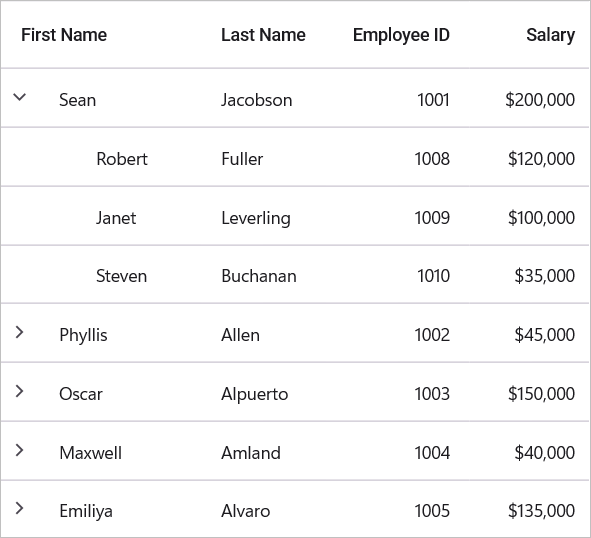
You can download the TreeGrid Getting Started sample from GitHub.
Note: You can refer to our .NET MAUI TreeGrid feature tour page for its groundbreaking feature representations.