Customization in .NET MAUI Smart Text Editor
18 Nov 20184 minutes to read
This section explains how to change the AI-Powered Text Editor’s appearance and suggestion behavior. You can set text styles, placeholder options, and customize how suggestions are shown.
Text customization
Set or bind the Smart Text Editor’s text using the Text property. You can use this to preloaded content or bind it to a field in your view model for data binding.
<smarttexteditor:SfSmartTextEditor
    Text="Thank you for contacting us." />
var smarttexteditor = new SfSmartTextEditor
{
Text = "Thank you for contacting us."
};Text style customization
You can change the text style and font using the TextStyle property to make the editor look the way you want.
<ContentPage
    xmlns="http://schemas.microsoft.com/dotnet/2021/maui"
    xmlns:x="http://schemas.microsoft.com/winfx/2009/xaml"
    xmlns:smarttexteditor="clr-namespace:Syncfusion.Maui.SmartComponents;assembly=Syncfusion.Maui.SmartComponents">

    <smarttexteditor:SfSmartTextEditor>
        <smarttexteditor:SfSmartTextEditor.TextStyle>
            <smarttexteditor:SmartTextEditorStyle
                FontSize="16"
                TextColor="Blue" />
        </smarttexteditor:SfSmartTextEditor.TextStyle>
    </smarttexteditor:SfSmartTextEditor>
</ContentPage>
using Syncfusion.Maui.SmartComponents;
var smarttexteditor = new SfSmartTextEditor
{
TextStyle = new SmartTextEditorStyle
{
FontSize = 16,
TextColor = Colors.Blue,
}
};
Placeholder text and color customization
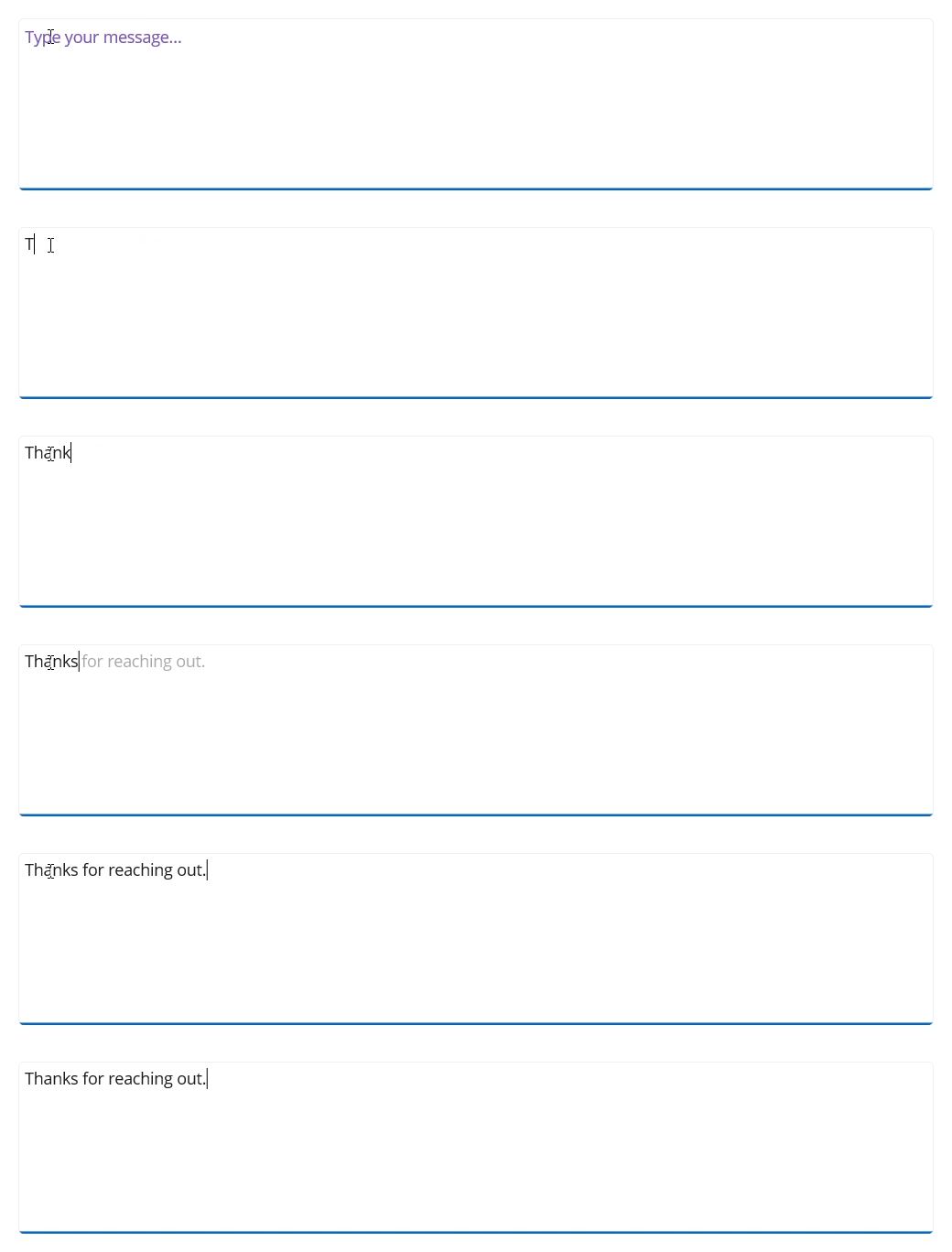
Add a helpful placeholder to guide users and use PlaceholderColor to make sure the text is easy to read.
<smarttexteditor:SfSmartTextEditor
    Placeholder="Type your message..."
    PlaceholderColor="#7E57C2" />
var editor = new SfSmartTextEditor
{
Placeholder = "Type your message...",
PlaceholderColor = Color.FromArgb("#7E57C2")
};
Suggestion text color
Customize the color of the suggestion text using the SuggestionTextColor property to match your theme and improves readability.
<smarttexteditor:SfSmartTextEditor
    SuggestionTextColor="Skyblue" />
var smarttexteditor = new SfSmartTextEditor
{
SuggestionTextColor = Colors.Skyblue
};
Suggestion popup background
Change the background color of the suggestion popup using the SuggestionPopupBackground property in Popup mode to align with your app’s design.
<smarttexteditor:SfSmartTextEditor
    SuggestionDisplayMode="Popup"
    SuggestionPopupBackground="#0078D4" />
var smarttexteditor = new SfSmartTextEditor
{
SuggestionDisplayMode = SuggestionDisplayMode.Popup,
SuggestionPopupBackground = Color.FromArgb("#0078D4"),
};
Maximum input length
Set a limit on the number of characters the user can enter in the Smart Text Editor using the MaxLength property.
<smarttexteditor:SfSmartTextEditor
    MaxLength="500" />
var smarttexteditor = new SfSmartTextEditor
{
MaxLength = 500
};