Splitter Panes in .NET MAUI Grid Splitter
18 Nov 201813 minutes to read
The .NET MAUI Grid Splitter control organizes content into multiple resizable regions known as panes. These panes are represented by the SplitterPane class and are maintained through the SplitterPanes collection.
Each pane can host any .NET MAUI view such as layouts, text controls, images, charts, data grids, or custom controls. Users can resize adjacent panes at runtime by dragging the separator displayed between them.
Add panes
The SplitterPanes collection allows you to define multiple panes within the Grid Splitter. A minimum of two panes is required to display a splitter separator.
The following example creates a Grid Splitter with three panes.
<gridSplitter:SfGridSplitter>
    <gridSplitter:SfGridSplitter.SplitterPanes>
        <gridSplitter:SplitterPane>
            <Label Text="Pane 1"
                   VerticalTextAlignment="Center"
                   HorizontalTextAlignment="Center"/>
        </gridSplitter:SplitterPane>

        <gridSplitter:SplitterPane>
            <Label Text="Pane 2"
                   VerticalTextAlignment="Center"
                   HorizontalTextAlignment="Center"/>
        </gridSplitter:SplitterPane>

        <gridSplitter:SplitterPane>
            <Label Text="Pane 3"
                   VerticalTextAlignment="Center"
                   HorizontalTextAlignment="Center"/>
        </gridSplitter:SplitterPane>
    </gridSplitter:SfGridSplitter.SplitterPanes>
</gridSplitter:SfGridSplitter>
SfGridSplitter gridSplitter = new SfGridSplitter
{
SplitterPanes =
{
new SplitterPane
{
Content = new Label
{
Text = "Pane 1",
HorizontalTextAlignment = TextAlignment.Center,
VerticalTextAlignment = TextAlignment.Center
}
},
new SplitterPane
{
Content = new Label
{
Text = "Pane 2",
HorizontalTextAlignment = TextAlignment.Center,
VerticalTextAlignment = TextAlignment.Center
}
},
new SplitterPane
{
Content = new Label
{
Text = "Pane 3",
HorizontalTextAlignment = TextAlignment.Center,
VerticalTextAlignment = TextAlignment.Center
}
}
}
};
Content = gridSplitter;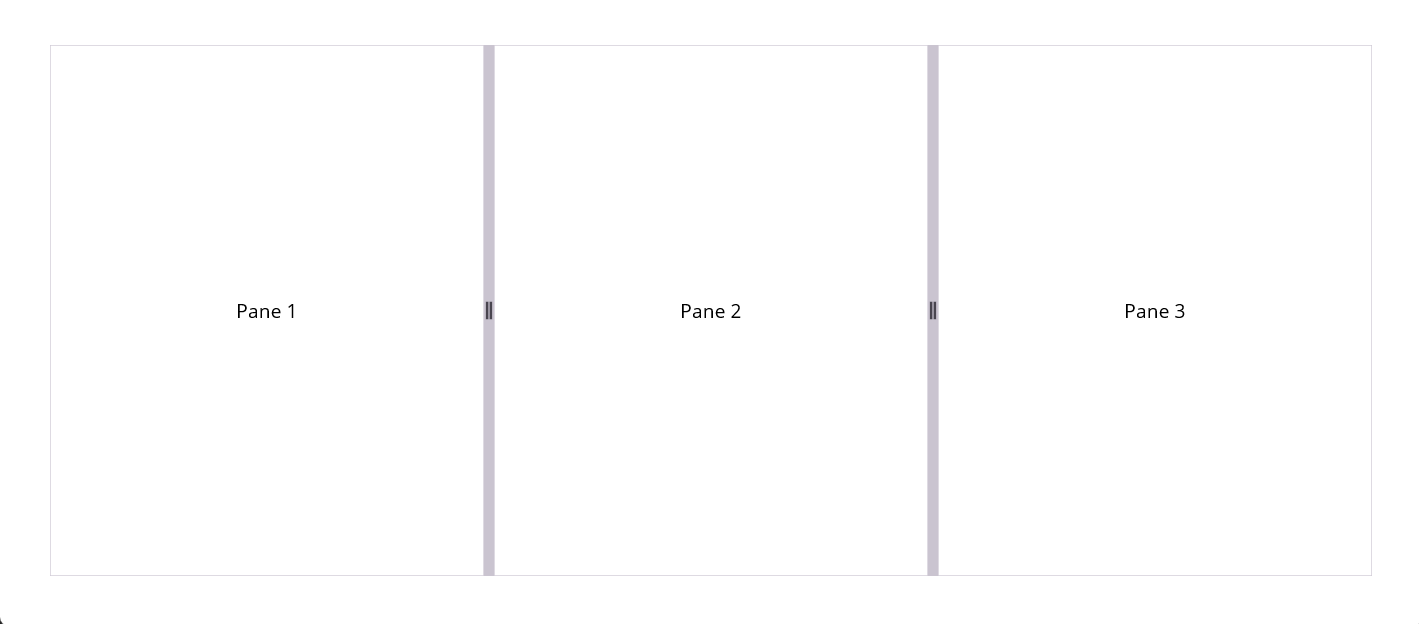
Add panes dynamically
You can add panes at runtime using the AddPane method. The pane is inserted at the specified index.
SfGridSplitter gridSplitter = new SfGridSplitter();

SplitterPane pane1 = new SplitterPane()
{
    Content = new Label
    {
        Text = "New Pane1",
        VerticalTextAlignment = TextAlignment.Center,
        HorizontalTextAlignment = TextAlignment.Center,
    }
};
SplitterPane pane2 = new SplitterPane()
{
    Content = new Label
    {
        Text = "New Pane2",
        VerticalTextAlignment = TextAlignment.Center,
        HorizontalTextAlignment = TextAlignment.Center,
    }
};

gridSplitter.AddPane(pane1);
gridSplitter.AddPane(pane2);
Content = gridSplitter;
In this example, the pane is inserted at index 1, and the Grid Splitter automatically rebuilds its layout and separators.
Remove panes dynamically
You can remove an existing pane using the RemovePane method.
SfGridSplitter gridSplitter = new SfGridSplitter();

SplitterPane pane1 = new SplitterPane()
{
    Content = new Label
    {
        Text = "New Pane1",
        VerticalTextAlignment = TextAlignment.Center,
        HorizontalTextAlignment = TextAlignment.Center,
    }
};
SplitterPane pane2 = new SplitterPane()
{
    Content = new Label
    {
        Text = "New Pane2",
        VerticalTextAlignment = TextAlignment.Center,
        HorizontalTextAlignment = TextAlignment.Center,
    }
};
SplitterPane pane2 = new SplitterPane()
{
    Content = new Label
    {
        Text = "New Pane3",
        VerticalTextAlignment = TextAlignment.Center,
        HorizontalTextAlignment = TextAlignment.Center,
    }
};

gridSplitter.AddPane(pane1);
gridSplitter.AddPane(pane2);
gridSplitter.AddPane(pane3);
Content = gridSplitter;

// Remove pane
gridSplitter.RemovePane(1);
After the pane is removed, the control automatically updates its layout and separator arrangement.
Nested panes
A Grid Splitter can be placed inside another SplitterPane to create advanced, multi-level layouts. This approach is useful for building IDE-style interfaces, dashboards, reporting applications, and workspace layouts where different sections need independent resizing behavior.
The following example creates a nested Grid Splitter inside the second pane.
<gridSplitter:SfGridSplitter>

    <gridSplitter:SplitterPane>
        <Label Text="Navigation Pane"
               VerticalTextAlignment="Center"
               HorizontalTextAlignment="Center" />
    </gridSplitter:SplitterPane>

    <gridSplitter:SplitterPane>

        <gridSplitter:SfGridSplitter Orientation="Vertical">

            <gridSplitter:SplitterPane>
                <Label Text="Top Content"
                       VerticalTextAlignment="Center"
                       HorizontalTextAlignment="Center" />
            </gridSplitter:SplitterPane>

            <gridSplitter:SplitterPane>
                <Label Text="Bottom Content"
                       VerticalTextAlignment="Center"
                       HorizontalTextAlignment="Center" />
            </gridSplitter:SplitterPane>
        </gridSplitter:SfGridSplitter>

    </gridSplitter:SplitterPane>

</gridSplitter:SfGridSplitter>
SfGridSplitter verticalSplitter = new SfGridSplitter
{
Orientation = GridSplitterOrientation.Vertical
};
SplitterPane topPane = new SplitterPane
{
Content = new Label
{
Text = "Top Content",
HorizontalTextAlignment = TextAlignment.Center,
VerticalTextAlignment = TextAlignment.Center
}
};
SplitterPane bottomPane = new SplitterPane
{
Content = new Label
{
Text = "Bottom Content",
HorizontalTextAlignment = TextAlignment.Center,
VerticalTextAlignment = TextAlignment.Center
}
};
verticalSplitter.AddPane(topPane);
verticalSplitter.AddPane(bottomPane);
SfGridSplitter horizontalSplitter = new SfGridSplitter();
SplitterPane navigationPane = new SplitterPane
{
Content = new Label
{
Text = "Navigation Pane",
HorizontalTextAlignment = TextAlignment.Center,
VerticalTextAlignment = TextAlignment.Center
}
};
SplitterPane contentPane = new SplitterPane
{
Content = verticalSplitter
};
horizontalSplitter.AddPane(navigationPane);
horizontalSplitter.AddPane(contentPane);
Content = horizontalSplitter;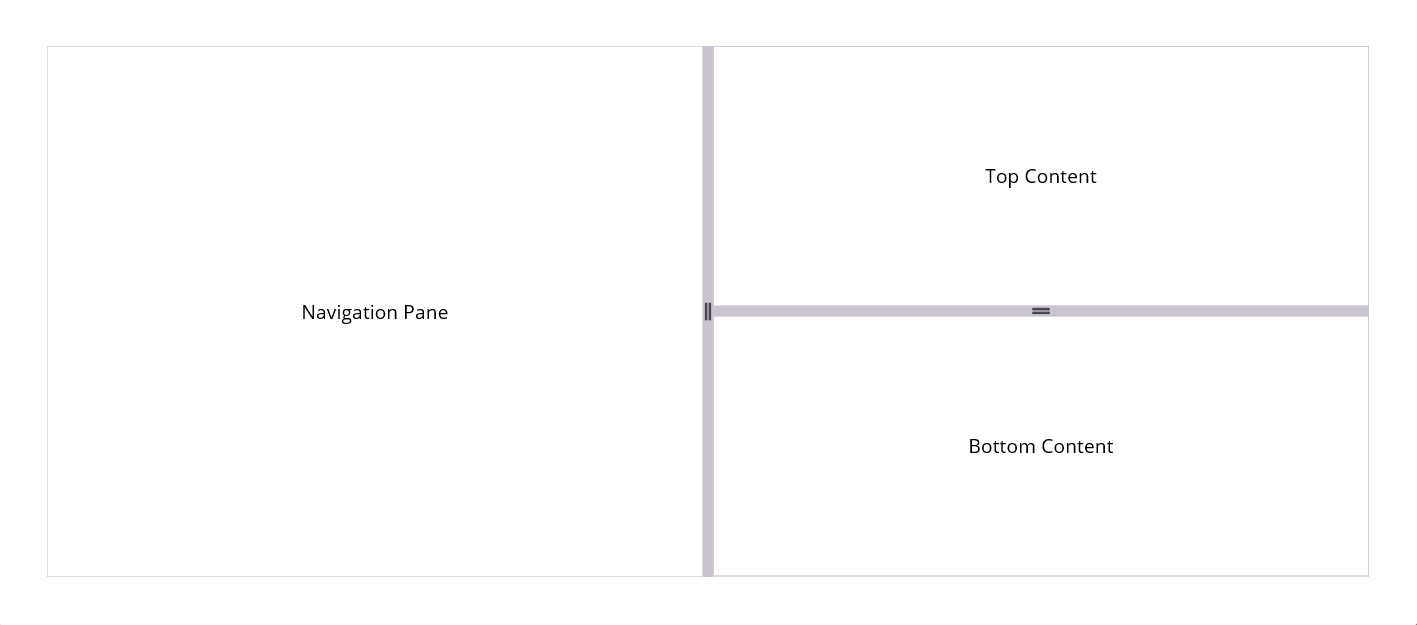
In this layout:
- The outer Grid Splitter divides the screen into left and right sections.
- The right pane hosts another Grid Splitter.
- The nested Grid Splitter divides its content into top and bottom sections.
- Users can independently resize both splitter levels.
Complex nested layout
The Grid Splitter supports multiple levels of nesting, enabling the creation of sophisticated workspace layouts.
Examples include:
- Code editor layouts with Solution Explorer, Editor, and Output panels.
- Analytics dashboards with resizable charts and summary sections.
- Reporting applications with filter panes and report viewers.
- Content management systems with navigation, editing, and preview regions.
The following illustration shows a typical nested layout:
+--------------------------------------------------+
| Navigation |           Workspace                 |
|            +-------------------------------+     |
|            |           Editor              |     |
|            +-------------------------------+     |
|            |           Output              |     |
+--------------------------------------------------+
Content property support
The SfGridSplitter and SplitterPane classes support content properties, allowing panes to be declared directly without explicitly specifying the collection elements.
The following simplified syntax produces the same result as the previous examples.
<gridSplitter:SfGridSplitter>

    <gridSplitter:SplitterPane>
        <Label Text="Pane 1"
               VerticalTextAlignment="Center"
               HorizontalTextAlignment="Center"/>
    </gridSplitter:SplitterPane>

    <gridSplitter:SplitterPane>
        <Label Text="Pane 2"
               VerticalTextAlignment="Center"
               HorizontalTextAlignment="Center"/>
    </gridSplitter:SplitterPane>

</gridSplitter:SfGridSplitter>
This concise syntax is useful when defining a small number of panes directly in XAML.