Getting Started with .NET MAUI Grid Splitter
18 Nov 20189 minutes to read
This section guides you through setting up and configuring a Grid Splitter in your .NET MAUI application. Follow the steps below to add a basic Grid Splitter and create resizable panes within your application.
Prerequisites
Before proceeding, ensure the following are set up:
- Install .NET 9 SDK or later.
- Set up a .NET MAUI environment with Visual Studio 2022 v17.12 or later.
Step 1: Create a new .NET MAUI project
- Go to File > New > Project and choose the .NET MAUI App template.
- Name the project and choose a location. Then click Next.
- Select the .NET framework version and click Create.
Step 2: Install the Syncfusion® .NET MAUI GridSplitter NuGet package
- In Solution Explorer, right-click the project and choose Manage NuGet Packages.
- Search for Syncfusion.Maui.GridSplitter and install the latest version.
- Ensure the necessary dependencies are installed correctly, and the project is restored.
Prerequisites
Before proceeding, ensure the following are set up:
- Install .NET 9 SDK or later.
- Set up a .NET MAUI environment with Visual Studio Code.
- Ensure that the .NET MAUI workloads are installed and configured.
Step 1: Create a new .NET MAUI project
- Open the command palette by pressing
Ctrl+Shift+Pand type .NET:New Project and press Enter. - Choose the .NET MAUI App template.
- Select the project location, type the project name, and press Enter.
- Choose Create Project.
Step 2: Install the Syncfusion® .NET MAUI GridSplitter NuGet package
- Press Ctrl + ` to open the integrated terminal.
- Ensure you’re in the project root directory where your
.csprojfile is located. - Run the following command:
dotnet add package Syncfusion.Maui.GridSplitter
- Restore NuGet packages using:
dotnet restore
Prerequisites
Before proceeding, ensure the following are set up:
- Install .NET 9 SDK or later.
- Set up a .NET MAUI environment with JetBrains Rider 2024.3 or later.
- Ensure that the MAUI workloads are installed and configured.
Step 1: Create a new .NET MAUI project
- Go to File > New Solution.
- Select .NET MAUI App.
- Enter the Project Name, Solution Name, and Location.
- Select the .NET framework version and click Create.
Step 2: Install the Syncfusion® .NET MAUI GridSplitter NuGet package
- In Solution Explorer, right-click the project and choose Manage NuGet Packages.
- Search for Syncfusion.Maui.GridSplitter and install the latest version.
- Ensure the required dependencies are installed and restored successfully.
Step 3: Register Syncfusion handler
Add the following namespace.
using Syncfusion.Maui.Core.Hosting;Register the Syncfusion Core handler inside the CreateMauiApp method in the MauiProgram.cs file.
builder.ConfigureSyncfusionCore();Step 4: Import GridSplitter namespace
Add the following namespace in your XAML or C# file.
xmlns:gridSplitter="clr-namespace:Syncfusion.Maui.GridSplitter;assembly=Syncfusion.Maui.GridSplitter"using Syncfusion.Maui.GridSplitter;Step 5: Add a Grid Splitter with resizable panes
The SfGridSplitter control manages multiple panes through the SplitterPanes collection. Each SplitterPane can host any .NET MAUI view and users can resize adjacent panes by dragging the separator.
The following example creates a horizontal Grid Splitter with three resizable panes.
<gridSplitter:SfGridSplitter>

    <gridSplitter:SplitterPane>
        <VerticalStackLayout Padding="16">
            <Label Text="PARIS"
                    FontSize="20"
                    FontAttributes="Bold" />
            <Label Text="Paris, the city of lights and love." />
        </VerticalStackLayout>
    </gridSplitter:SplitterPane>

    <gridSplitter:SplitterPane>
        <VerticalStackLayout Padding="16">
            <Label Text="CAMEMBERT"
                   FontSize="20"
                   FontAttributes="Bold" />
            <Label Text="A famous French cheese from Normandy." />
        </VerticalStackLayout>
    </gridSplitter:SplitterPane>

    <gridSplitter:SplitterPane>
        <VerticalStackLayout Padding="16">
            <Label Text="GRENOBLE"
                   FontSize="20"
                   FontAttributes="Bold" />
            <Label Text="Capital city of the French Alps." />
        </VerticalStackLayout>
    </gridSplitter:SplitterPane>

</gridSplitter:SfGridSplitter>
SfGridSplitter gridSplitter = new SfGridSplitter();
SplitterPane parisPane = new SplitterPane
{
Content = new VerticalStackLayout
{
Padding = 16,
Children =
{
new Label
{
Text = "PARIS",
FontSize = 20,
FontAttributes = FontAttributes.Bold
},
new Label
{
Text = "Paris, the city of lights and love."
}
}
}
};
SplitterPane camembertPane = new SplitterPane
{
Content = new VerticalStackLayout
{
Padding = 16,
Children =
{
new Label
{
Text = "CAMEMBERT",
FontSize = 20,
FontAttributes = FontAttributes.Bold
},
new Label
{
Text = "A famous French cheese from Normandy."
}
}
}
};
SplitterPane grenoblePane = new SplitterPane
{
Content = new VerticalStackLayout
{
Padding = 16,
Children =
{
new Label
{
Text = "GRENOBLE",
FontSize = 20,
FontAttributes = FontAttributes.Bold
},
new Label
{
Text = "Capital city of the French Alps."
}
}
}
};
gridSplitter.AddPane(parisPane);
gridSplitter.AddPane(camembertPane);
gridSplitter.AddPane(grenoblePane);
Content = gridSplitter;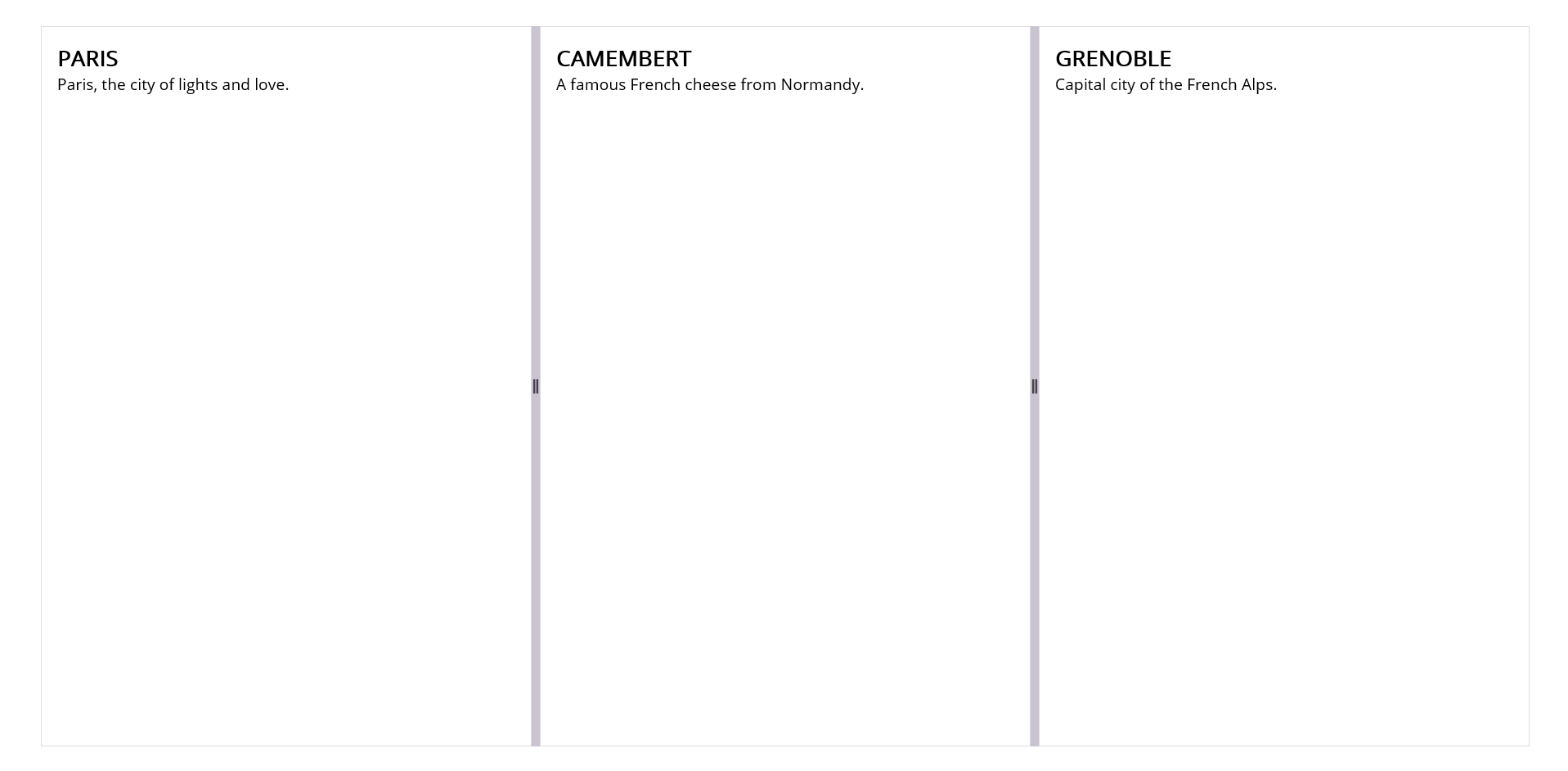
You can download the Grid Splitter Getting Started sample from GitHub link.