Paging Modes and Navigation
18 Nov 201810 minutes to read
The DataPager control supports different paging modes and provides methods for programmatic navigation to support various paging scenarios and use cases.
Paging modes
There are two different modes in paging:
-
NormalPaging: It loads the entire data collection to the
SfDataPager. -
OnDemandPaging: It loads data to the current page dynamically in
SfDataPager.
Normal paging
The DataPager performs data paging using the SfDataPager. To enable paging, follow these steps:
- Create a new instance of
SfDataPager, and bind the data collection to theSfDataPager.Sourceproperty. This will internally createSfDataPager.PagedSource. - Bind the
PagedSourceproperty to theItemsSourceof a data display control such as SfDataGrid. - Set the
SfDataPager.PageSizeproperty to determine the number of rows to be displayed on each page. - Set the
SfDataPager.NumericButtonCountproperty to specify the number of buttons that should be displayed in view.
Note: The SfDataPager.PageSize property should not be assigned with value 0. Setting PageSize to 0 will throw an
ArgumentException.
The following code example illustrates using SfDataPager with the data grid control:
<ContentPage.BindingContext>
    <local:OrderInfoViewModel x:Name="viewModel"/>
</ContentPage.BindingContext>

<Grid>
    <Grid.RowDefinitions>
        <RowDefinition Height="*" />
        <RowDefinition Height="Auto" />
    </Grid.RowDefinitions>
    <Border Grid.Row="1" Padding="5">
        <pager:SfDataPager x:Name="dataPager"
                            PageSize="15"
                            NumericButtonCount="10"
                            Source="{Binding Orders}">
        </pager:SfDataPager>
    </Border>
    <syncfusion:SfDataGrid x:Name="dataGrid"
                            Grid.Row="0"
                            ItemsSource="{Binding Source={x:Reference dataPager}, Path=PagedSource}">
    </syncfusion:SfDataGrid>
</Grid>
using Syncfusion.Maui.DataGrid;
using Syncfusion.Maui.DataPager;
public partial class MainPage : ContentPage
{
// Note: The XAML approach above is the recommended method. This C# example demonstrates
// programmatic creation for scenarios where declarative XAML markup is not available.
public NormalPage()
{
InitializeComponent();
SfDataPager dataPager = new SfDataPager();
OrderInfoViewModel viewModel = new OrderInfoViewModel();
dataPager.PageSize = 15;
dataPager.NumericButtonCount = 10;
dataPager.Source = viewModel.Orders;
SfDataGrid dataGrid = new SfDataGrid();
dataGrid.ItemsSource = dataPager.PagedSource;
Border border = new Border();
border.Padding = new Thickness(5);
border.Content = dataPager;
Grid grid = new Grid();
grid.RowDefinitions.Add(new RowDefinition() { Height = GridLength.Star });
grid.RowDefinitions.Add(new RowDefinition() { Height = GridLength.Auto });
grid.Children.Add(dataGrid);
grid.Children.Add(border);
grid.SetRow(dataGrid, 0);
grid.SetRow(border, 1);
this.Content = grid;
}
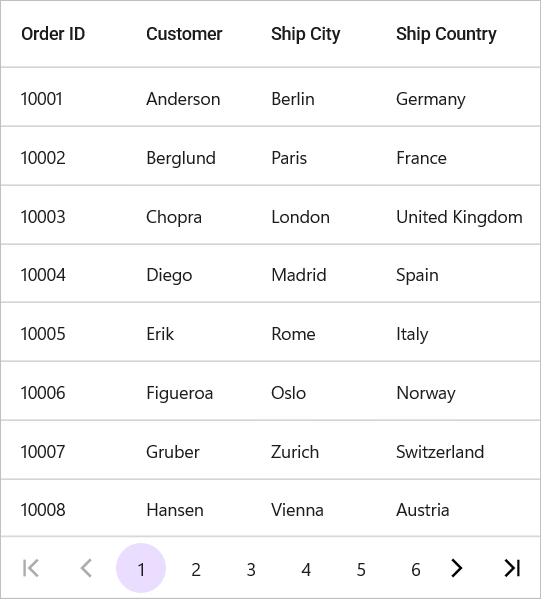
}The following screenshot shows the result of running the above code:
On-Demand Paging
In normal paging, the data collection is entirely loaded initially into the SfDataPager. However, the control also allows for dynamically loading the data for the current page by setting SfDataPager.UseOnDemandPaging to true.
To load the current page items dynamically, hook into the OnDemandLoading event. In the OnDemandLoading event, use the LoadDynamicItems method to load data for the corresponding page in the SfDataPager.
The OnDemandLoading event is triggered when the pager moves to the corresponding page. It contains the following event arguments:
-
StartIndex: Displays start index of the corresponding page. -
PageSize: Displays the number of items to be loaded for that page.
To load data for the DataPager control dynamically, follow the code example:
<ContentPage.BindingContext>
    <local:OrderInfoViewModel x:Name="viewModel"/>
</ContentPage.BindingContext>

<Grid>
    <Grid.RowDefinitions>
        <RowDefinition Height="*" />
        <RowDefinition Height="Auto" />
    </Grid.RowDefinitions>
    <Border Grid.Row="1" Padding="5">
        <pager:SfDataPager x:Name="dataPager"
                           PageSize="15"
                           NumericButtonCount="10"
                           Source="{Binding Orders}"
                           OnDemandLoading="dataPager_OnDemandLoading"
                           UseOnDemandPaging="True">
        </pager:SfDataPager>
    </Border>
    <syncfusion:SfDataGrid x:Name="dataGrid"
                           Grid.Row="0"
                           ItemsSource="{Binding Source={x:Reference dataPager}, Path=PagedSource}">
    </syncfusion:SfDataGrid>
</Grid>
SfDataPager dataPager = new SfDataPager();
OrderInfoViewModel viewModel = new OrderInfoViewModel();
dataPager.PageSize = 15;
dataPager.NumericButtonCount = 10;
dataPager.Source = viewModel.Orders;
dataPager.UseOnDemandPaging = true;
dataPager.OnDemandLoading += dataPager_OnDemandLoading;
SfDataGrid dataGrid = new SfDataGrid();
dataGrid.ItemsSource = dataPager.PagedSource;
Border border = new Border();
border.Padding = new Thickness(5);
border.Content = dataPager;
Grid grid = new Grid();
grid.RowDefinitions.Add(new RowDefinition() { Height = GridLength.Star });
grid.RowDefinitions.Add(new RowDefinition() { Height = GridLength.Auto });
grid.Children.Add(dataGrid);
grid.Children.Add(border);
grid.SetRow(dataGrid, 0);
grid.SetRow(border, 1);
this.Content = grid;private void dataPager_OnDemandLoading(object sender, OnDemandLoadingEventArgs e)
{
dataPager.LoadDynamicItems(e.StartIndex, viewModel.Orders.Skip(e.StartIndex).Take(e.PageSize));
}Note: In on-demand paging, you should not assign a value to the
Sourceproperty. Instead, set thePageCountproperty to the total number of pages needed to display all data. This generates the required numeric buttons in the view. For example, if you have 1000 items and a page size of 15, setPageCountto 67.
When using OnDemandPaging, SfDataPager.PagedSource loads only the current page data. Upon navigation to another page, OnDemandLoading event is fired which loads another set of data, but maintains the previous page data in cache. When you navigate to the previous page again, OnDemandLoading event is not fired, and the cached data is loaded directly.
For improved performance when working with very large datasets or limited memory, you can call Syncfusion.Data.PagedCollectionView.ResetCache() in the OnDemandLoading event to discard cached pages except the current one. This reduces memory consumption but will require reloading data when navigating back to previously-viewed pages.
To use ResetCache method, follow the code example:
private void dataPager_OnDemandLoading(object sender, OnDemandLoadingEventArgs e)
{
     dataPager.LoadDynamicItems(e.StartIndex, viewModel.Orders.Skip(e.StartIndex).Take(e.PageSize));
     (dataPager.PagedSource as PagedCollectionView).ResetCache();
}
Programmatically switch pages
Move to the first page
The MoveToFirstPage() method allows you to programmatically navigate to the first page.
Move to the last page
The MoveToLastPage() method allows you to programmatically navigate to the last page.
Move to the next page
The MoveToNextPage() method allows you to programmatically navigate to the next page.
Move to the previous page
The MoveToPreviousPage() method allows you to programmatically navigate to the previous page.
Move to page
The MoveToPage(Int32) method allows you to programmatically navigate to a specific page. You can also navigate to a page with animation using the MoveToPage(Int32, Int32, Boolean) method, where the second parameter specifies the duration in milliseconds and the Boolean parameter indicates whether to animate the transition.
Boundary Behavior: When calling MoveToNextPage() on the last page, the pager remains on the last page. Similarly, calling MoveToPreviousPage() on the first page keeps the pager on the first page. These methods handle boundary conditions gracefully without throwing exceptions.