Getting Started with TypeScript Gantt Chart
This section explains the steps to create a simple Gantt Chart and demonstrates the basic usage of the gantt component using the Essential® JS 2 quickstart seed repository. This seed repository is pre-configured with the Essential® JS 2 package.
This application is integrated with the webpack.config.js configuration and uses the latest version of the webpack-cli. It requires node v14.15.0 or higher. For more information about webpack and its features, refer to the webpack documentation.
Prerequisites
Ensure you have the following installed on your system before proceeding:
- Node.js v14.15.0 or higher
- npm (included with Node.js)
- Git for cloning the repository
You can verify your installations by running:
node --version
npm --version
git --version
Setup development environment
Open the command prompt from the required directory, and run the following command to clone the Syncfusion® TypeScript (Essential® JS 2) quickstart project from GitHub.
git clone https://github.com/SyncfusionExamples/ej2-quickstart-webpackAfter cloning the application in the ej2-quickstart folder, run the following command line to navigate to the ej2-quickstart folder.
cd ej2-quickstart-webpackAdd Syncfusion® TypeScript packages
Syncfusion® TypeScript (Essential® JS 2) packages are available on the npmjs.com public registry. You can install all Syncfusion® TypeScript (Essential® JS 2) controls in a single @syncfusion/ej2 package or individual packages for each control, such as @syncfusion/ej2-gantt for just the Gantt Chart.
The quickstart application is preconfigured with the dependent @syncfusion/ej2 package (version 21.x or higher) in the ~/package.json file. Use the following command to install the dependent npm packages from the command prompt.
npm installImport the Syncfusion® CSS styles
Syncfusion® TypeScript controls come with built-in themes, which are available in the installed packages. It’s easy to adapt the Syncfusion® TypeScript controls to match the style of your application by referring to one of the built-in themes.
The quickstart application is preconfigured to use the Fluent 2 theme. To use the Tailwind 3 theme instead, install the Tailwind 3 theme package using the following command:
npm install @syncfusion/ej2-tailwind3-theme --saveAfter installing the Tailwind 3 theme, update the ~/src/styles/styles.css file as shown below:
@import "../../node_modules/@syncfusion/ej2-tailwind3-theme/styles/gantt/index.css";You can check out the themes section to know more about built-in themes (material, bootstrap, fabric, etc.) and CSS reference for individual controls. To use a different theme, replace the theme name in the import statement with the desired theme name (e.g.,
material.css,bootstrap5.css).
The imported CSS is added to the global stylesheet and styles are automatically applied to all Syncfusion® components during application runtime. No additional configuration is required in the TypeScript (.ts) file.
Create sample task data
Define a simple task list with hierarchical relationships. The data includes two parent tasks (TaskID 1 and 5) with child tasks linked via ParentID. Each task must have a StartDate and either a Duration (in days) or EndDate to render properly.
let data: Object[] = [
    {TaskID: 1, TaskName: 'Project initiation', StartDate: new Date('2024-04-01'), EndDate: new Date('2024-04-15')},
    {TaskID: 2, TaskName: 'Identify site location', StartDate: new Date('2024-04-01'), Duration: 4, ParentID: 1},
    {TaskID: 3, TaskName: 'Perform site survey', StartDate: new Date('2024-04-01'), Duration: 4, ParentID: 1},
    {TaskID: 4, TaskName: 'Soil testing', StartDate: new Date('2024-04-01'), Duration: 3, ParentID: 1},
    {TaskID: 5, TaskName: 'Project estimation', StartDate: new Date('2024-04-15'), EndDate: new Date('2024-04-25')},
    {TaskID: 6, TaskName: 'Develop floor plan', StartDate: new Date('2024-04-15'), Duration: 5, ParentID: 5},
    {TaskID: 7, TaskName: 'Estimate project cost', StartDate: new Date('2024-04-15'), Duration: 5, ParentID: 5}
];
Configure task fields mapping
Map the data fields to Gantt Chart properties using taskFields:
let taskSettings = {
    id: 'TaskID',
    name: 'TaskName',
    startDate: 'StartDate',
    duration: 'Duration',
    parentID: 'ParentID'
};
Field mapping reference
| Property | Description | Required |
|---|---|---|
id |
Unique task identifier | Yes |
name |
Task display name | Yes |
startDate |
Task start date | Yes |
duration |
Task duration in days | Either Duration or EndDate |
endDate |
Task end date | Either Duration or EndDate |
parentID |
Parent task ID for hierarchy | No |
Render the Gantt Chart control
Put everything together by adding the following code in the app.ts and index.html file
Place the following code in the app.ts file to create and configure the Gantt Chart control.
import { Gantt } from '@syncfusion/ej2-gantt';

let gantt: Gantt = new Gantt({
    dataSource: [
        {TaskID: 1, TaskName: 'Project initiation', StartDate: new Date('2024-04-01'), EndDate: new Date('2024-04-15')},
        {TaskID: 2, TaskName: 'Identify site location', StartDate: new Date('2024-04-01'), Duration: 4, ParentID: 1},
        {TaskID: 3, TaskName: 'Perform site survey', StartDate: new Date('2024-04-01'), Duration: 4, ParentID: 1},
        {TaskID: 4, TaskName: 'Soil testing', StartDate: new Date('2024-04-01'), Duration: 3, ParentID: 1},
        {TaskID: 5, TaskName: 'Project estimation', StartDate: new Date('2024-04-15'), EndDate: new Date('2024-04-25')},
        {TaskID: 6, TaskName: 'Develop floor plan', StartDate: new Date('2024-04-15'), Duration: 5, ParentID: 5},
        {TaskID: 7, TaskName: 'Estimate project cost', StartDate: new Date('2024-04-15'), Duration: 5, ParentID: 5}
    ],
    taskFields: {
        id: 'TaskID',
        name: 'TaskName',
        startDate: 'StartDate',
        duration: 'Duration',
        parentID: 'ParentID'
    }
});

gantt.appendTo('#Gantt');
Add the following HTML element to the index.html file. This element acts as the container for rendering the Gantt Chart control. Ensure the <div id="Gantt"></div> element exists before calling appendTo() in your TypeScript code.
<!DOCTYPE html>
<html lang="en">

<head>
    <title>Essential JS 2</title>
    <meta charset="utf-8" />
    <meta name="viewport" content="width=device-width, initial-scale=1.0, user-scalable=no" />
    <meta name="description" content="Essential JS 2" />
    <meta name="author" content="Syncfusion" />
    <link rel="shortcut icon" href="resources/favicon.ico" />
    <link href="https://maxcdn.bootstrapcdn.com/bootstrap/3.3.7/css/bootstrap.min.css" rel="stylesheet" />
</head>

<body>
    <!--Element which will render as Gantt-->
    <div id="Gantt"></div>
</body>

</html>
Run the application
The quickstart project is configured to build and run the application in the browser. Use the following command to start the application.
npm startThe application will typically run on http://localhost:8080 or http://localhost:3000 depending on your webpack configuration. If you encounter errors:
-
Port already in use: Change the port in
webpack.config.jsor kill the process using that port -
Build errors: Run
npm installagain to ensure all dependencies are installed correctly -
Module not found: Verify that all imports reference the correct package names (e.g.,
@syncfusion/ej2-gantt)
Output
The Gantt Chart displays:
- Task hierarchy with parent-child relationships
- Timeline view showing task bars
- Automatically calculated dates based on duration
The chart displays two parent tasks (Project initiation, Project estimation) with subtasks shown in a tree structure. Task bars are rendered on the timeline, sized according to their duration and start dates.
You can preview the following sample by clicking the Preview Sample button.
import { Gantt } from '@syncfusion/ej2-gantt';

let taskData: Object[] = [
    {TaskID: 1, TaskName: 'Project initiation', StartDate: new Date('2024-04-01'), EndDate: new Date('2024-04-15')},
    {TaskID: 2, TaskName: 'Identify site location', StartDate: new Date('2024-04-01'), Duration: 4, ParentID: 1},
    {TaskID: 3, TaskName: 'Perform site survey', StartDate: new Date('2024-04-01'), Duration: 4, ParentID: 1},
    {TaskID: 4, TaskName: 'Soil testing', StartDate: new Date('2024-04-01'), Duration: 3, ParentID: 1},
    {TaskID: 5, TaskName: 'Project estimation', StartDate: new Date('2024-04-15'), EndDate: new Date('2024-04-25')},
    {TaskID: 6, TaskName: 'Develop floor plan', StartDate: new Date('2024-04-15'), Duration: 5, ParentID: 5},
    {TaskID: 7, TaskName: 'Estimate project cost', StartDate: new Date('2024-04-15'), Duration: 5, ParentID: 5}
];

let gantt: Gantt = new Gantt({
    dataSource: taskData,
    taskFields: {
        id: 'TaskID',
        name: 'TaskName',
        startDate: 'StartDate',
        duration: 'Duration',
        parentID: 'ParentID'
    },
});

gantt.appendTo('#Gantt');Error handling
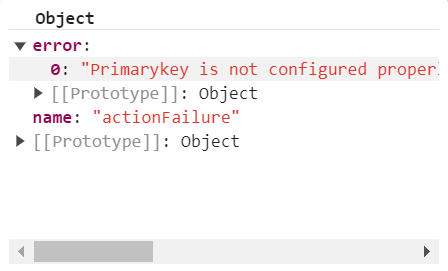
Proper error handling helps identify and resolve issues during development. The Gantt Chart control provides the actionFailure event to capture validation and runtime errors.
Common error scenarios
The actionFailure event is triggered when validation errors or configuration issues occur:
-
Invalid duration — The duration field accepts only numerical values with an optional decimal point. Non-numerical values trigger the
actionFailureevent. -
Invalid dependency — The dependency field accepts a number followed by a predecessor type (FS, FF, SS, SF). Invalid values, special characters, or incorrect predecessor types trigger the
actionFailureevent. -
Invalid offset — The offset accepts only numerical values or their word equivalents followed by a unit. Invalid values trigger the
actionFailureevent. -
Failure to map task fields — The data source fields must be mapped to the Gantt Chart control using the taskFields property. Missing mappings trigger the
actionFailureevent. -
Failure to map resource fields — To assign resources to a task, resource fields must be mapped using resourceFields. Missing mappings trigger the
actionFailureevent. -
Missing isPrimaryKey — The isPrimaryKey field is crucial for CRUD operations. Failure to map the id column or set
isPrimaryKeytriggers theactionFailureevent. -
Invalid date format — The format property in
topTierandbottomTiermust use valid date format strings. Invalid formats trigger theactionFailureevent. -
Missing hasChildMapping — The hasChildMapping property must be configured for load-on-demand functionality. Missing mappings trigger the
actionFailureevent. -
Invalid event marker day — The day property in eventMarkers must be a valid date. Invalid dates trigger the
actionFailureevent.
Note: The
actionFailureevent also captures error information from the underlying TreeGrid component. For more details, refer to TreeGrid error handling.
Handling errors with actionFailure event
The following code example shows how to attach the actionFailure event handler to display exceptions when configuration issues occur (e.g., isPrimaryKey is not configured properly).
let gantt: Gantt = new Gantt({
    dataSource: data,
    taskFields: {
        id: 'TaskID',
        name: 'TaskName',
        startDate: 'StartDate',
        duration: 'Duration',
        parentID: 'ParentID'
    },
    actionFailure: (args: any) => {
        // Display error to user or log it
        console.error('Gantt Error:', args.error);
        alert(`Error: ${args.error}`);
    }
});

gantt.appendTo('#Gantt');
For a complete working example with detailed error scenarios, refer to:
import { Gantt} from '@syncfusion/ej2-gantt';
import { GanttData } from './datasource.ts';

let gantt: Gantt = new Gantt({
    dataSource: [
        {TaskID: 1, TaskName: 'Project initiation', StartDate: new Date('2024-04-01'), EndDate: new Date('2024-04-15')},
        {TaskID: 2, TaskName: 'Identify site location', StartDate: new Date('2024-04-01'), Duration: 4, ParentID: 1},
        {TaskID: 3, TaskName: 'Perform site survey', StartDate: new Date('2024-04-01'), Duration: 4, ParentID: 1},
        {TaskID: 4, TaskName: 'Soil testing', StartDate: new Date('2024-04-01'), Duration: 3, ParentID: 1},
        {TaskID: 5, TaskName: 'Project estimation', StartDate: new Date('2024-04-15'), EndDate: new Date('2024-04-25')},
        {TaskID: 6, TaskName: 'Develop floor plan', StartDate: new Date('2024-04-15'), Duration: 5, ParentID: 5},
        {TaskID: 7, TaskName: 'Estimate project cost', StartDate: new Date('2024-04-15'), Duration: 5, ParentID: 5}
    ],
    taskFields: {
        id: 'TaskID',
        name: 'TaskName',
        startDate: 'StartDate',
        duration: 'Duration',
        parentID: 'ParentID'
    },
    columns: [
        { field: 'TaskName', width: '150' },
        { field: 'StartDate', width: '150'},
        { field: 'Duration', width: '150' }
    ],
    actionFailure(args: any){
        let span = document.createElement('span');
        ((gantt.element).parentNode).insertBefore(span,(gantt).element);
        span.style.color = '#FF0000'
        span.innerHTML = args.error[0];
    }
});
gantt.appendTo('#Gantt');The following screenshot represents the Gantt Exception handling in actionFailure event.