Enabling Drag and Drop for Rows in JavaScript Gantt Chart
The Syncfusion® JavaScript Gantt Chart control includes built-in support for row drag and drop, enabling rows to be rearranged within the Gantt Chart or dropped into custom components.
To enable this feature, inject the RowDD module in Gantt. Once injected, enable the functionality by setting the allowRowDragAndDrop property.
Drag and drop within the Gantt Chart
The Gantt Chart control allows you to rearrange rows using a drag icon. To enable this feature, set the allowRowDragAndDrop property to true.
Different drop positions
In a Gantt chart, drag and drop functionality allows rearranging rows to adjust their position. You can drop rows in the following positions:
- Above
- Below
- Child
Above
If the border line appears at the top of the target row (e.g., Task ID: 6) while dropping, the row will be placed above the target row as a sibling.
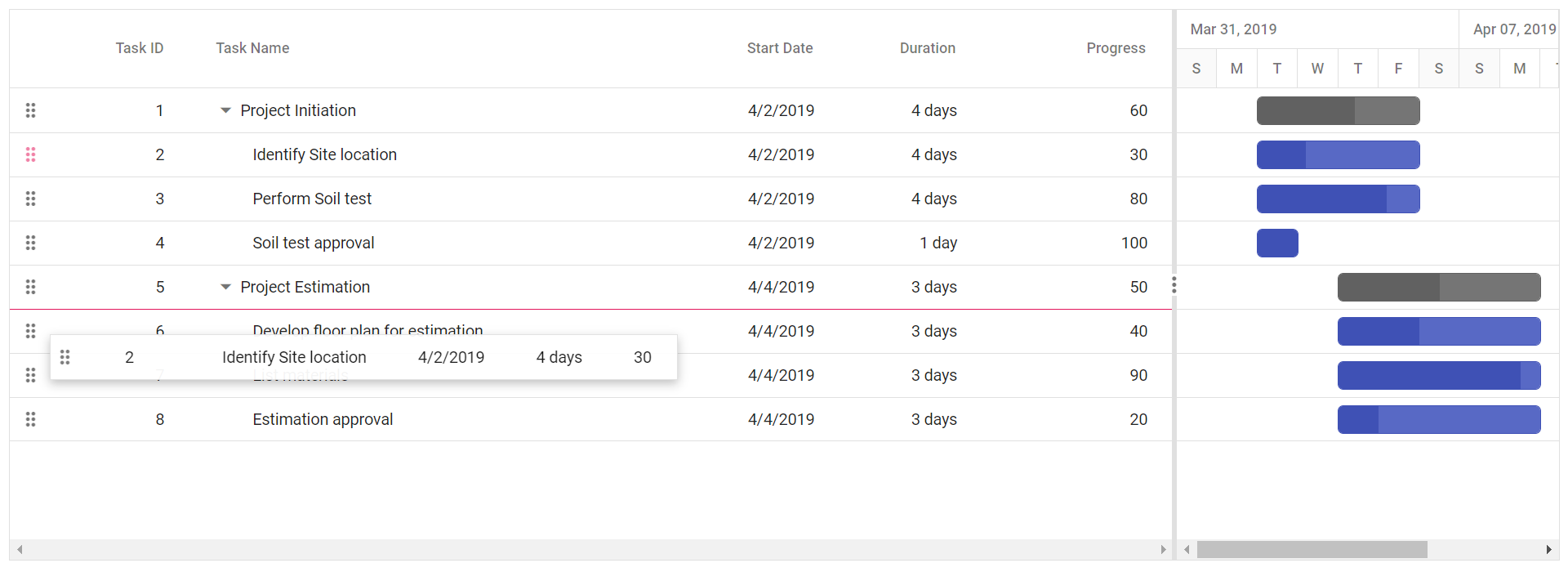
Below
If the border line appears at the bottom of the target row (e.g., Task ID: 6) while dropping, the row will be placed below the target row as a sibling.
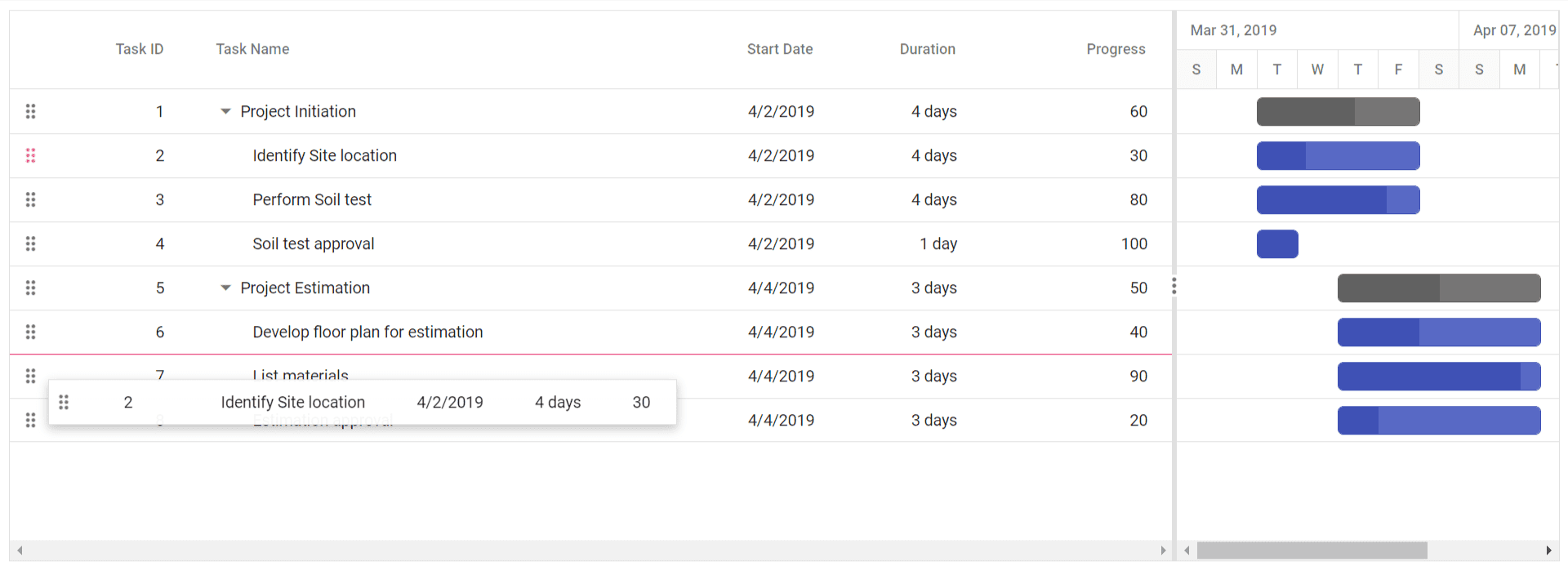
Child
If the border line appears at both the top and bottom of the target row (e.g., Task ID: 6) while dropping, the row will be added as a child to the target row.
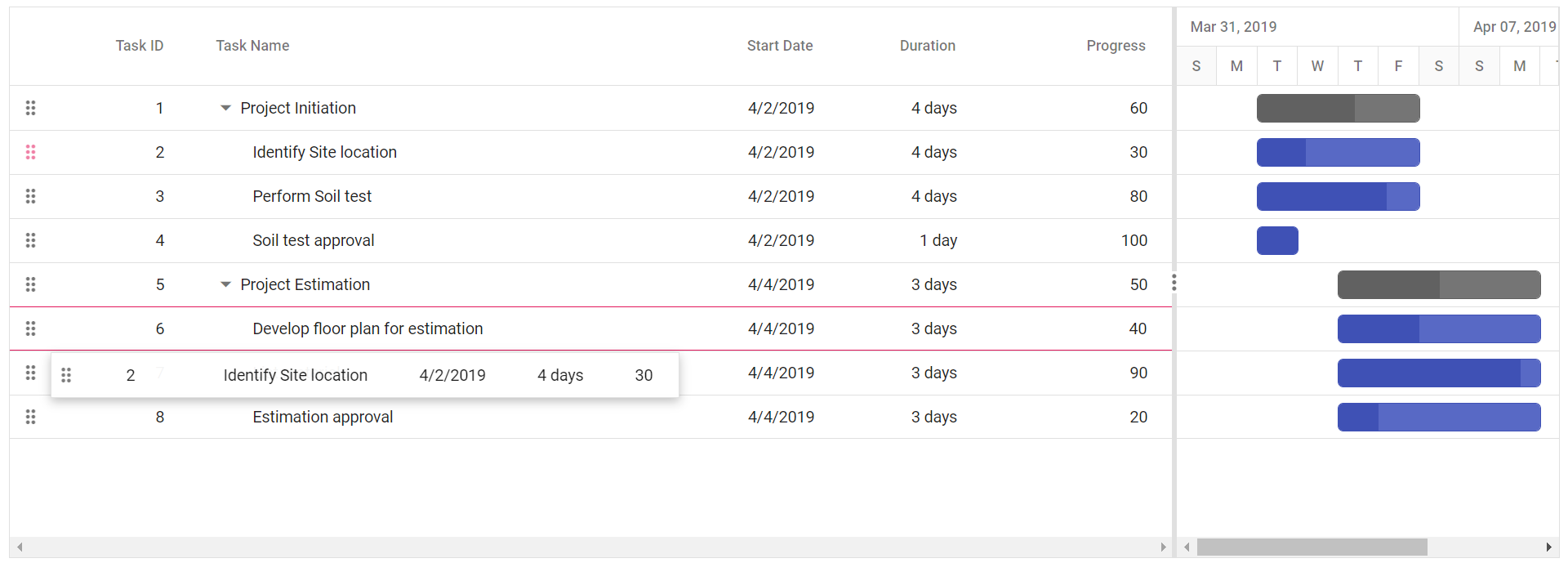
Drag and drop to custom component
You can drag rows from the Gantt Chart component into custom components for seamless data transfer. To enable this feature, set the allowRowDragAndDrop property to true, and configure the targetID property within the rowDropSettings object of the treeGrid in the Gantt instance, inside the load event. The value of targetID must match the ID of the destination component. You can use the rowDrop event to handle the drop and perform necessary actions.
Drag and drop multiple rows together
You can drag and drop multiple rows simultaneously in the Gantt Chart control. To enable this functionality, set the selectionSettings.type property to Multiple , and set the allowRowDragAndDrop property is set to true.
Taskbar drag and drop between rows
You can rearrange rows in the Gantt Chart control by dragging the taskbar element. This functionality is enabled by setting the allowTaskbarDragAndDrop property to true, allowing taskbars to be repositioned across rows for improved scheduling control.
Perform row drag and drop action programmatically
To rearrange rows programmatically in the Gantt Chart control, use the reorderRows method. This method accepts the following parameters:
- fromIndexes: Indexes of the rows to be moved.
- toIndex: Target index for placement.
- position: Placement relative to the target (e.g., above or below).
In the example, a click event on an external button moves the row at index 1 below the row at index 2.
Customize the drag and drop action
Customize the drag and drop behavior in the Gantt Chart control using the rowDragStartHelper, rowDragStart, rowDrag, and rowDrop events. These events provide control over the drag lifecycle, allowing precise handling of row interactions.
In this example, drag and drop actions are customized using event hooks. The rowDragStartHelper event prevents dragging for the row where TaskID is 2, while the rowDrop event cancels the drop action for the row where TaskID is 4. Additionally, rowDragStart and rowDrag apply background styling based on the values in the Progress column.
Prevent reordering a row as child to another row
To prevent rows from being reordered as children, set args.cancel to true in the rowDrop event. After canceling the default drop action, use the reorderRows method to reposition the row at a specific index.
In the example, the drop action in Child position is blocked, and the dragged row is reordered above the target row.