Resources with Allocation and Task Mapping in JavaScript Gantt Chart
Resources in the JavaScript Gantt Chart control represent people, equipment, or materials allocated to tasks, and they can be visualized in taskbars and labels for clear utilization tracking. Define a resource collection in the resources property, map its fields with resourceFields, and assign the resources to each task through taskFields.resourceInfo. This mapping enables resource names to appear in columns or labels with labelSettings, highlights workloads and overallocation, and supports taskbar customization through the queryTaskbarInfo event. Resources also include ARIA labels for accessibility and adapt to responsive layouts, although narrow screens may truncate names when multiple resources are assigned. By default, resources allocate 100% unit if the unit is not specified.
Configure resource collection
The resource collection defines available resources as JSON objects with an ID, name, unit, and group, and these fields are mapped through resourceFields. Each task in the data source can then reference the matching resources by using taskFields.resourceInfo:
- id: Maps to a unique identifier for task assignment.
- name: Maps to the resource name displayed in labels or columns.
- unit: Maps to the work capacity percentage (0-100%) per day.
- group: Maps to categories for grouping resources.
The following code demonstrates resource collection setup:
var projectResources = [
  {
    resourceId: 1,
    resourceName: "Martin Tamer",
    resourceGroup: "Planning Team",
    resourceUnit: 50,
  },
  {
    resourceId: 2,
    resourceName: "Rose Fuller",
    resourceGroup: "Testing Team",
    resourceUnit: 70,
  },
  {
    resourceId: 3,
    resourceName: "Margaret Buchanan",
    resourceGroup: "Approval Team",
  },
  {
    resourceId: 4,
    resourceName: "Fuller King",
    resourceGroup: "Development Team",
  },
  {
    resourceId: 5,
    resourceName: "Davolio Fuller",
    resourceGroup: "Approval Team",
  },
  {
    resourceId: 6,
    resourceName: "Van Jack",
    resourceGroup: "Development Team",
    resourceUnit: 40,
  },
];

var resourceFields = {
  id: "resourceId",
  name: "resourceName",
  unit: "resourceUnit",
  group: "resourceGroup",
};
This configuration maps resources for assignment and display.
Assign resources to tasks
Resources are assigned to tasks by declaring a field in the task data source, such as resources, and populating it with the matching resource IDs or resource objects. This field is mapped through taskFields.resourceInfo so the Gantt Chart control can group tasks under the appropriate resource nodes. Assignments can be added or edited dynamically via cell or dialog editing, triggered by double-clicking.
Single resource assignment:
Assign a single resource without unit for default 100% allocation.
{
    TaskID: 2,
    TaskName: 'Identify site location',
    StartDate: new Date('04/02/2019'),
    Duration: 0,
    Progress: 50,
    resources: [1]
}
Multiple resources with custom units:
Assign multiple resources with specific units.
{
    TaskID: 2,
    TaskName: 'Identify site location',
    StartDate: new Date('03/29/2019'),
    Duration: 2,
    Progress: 30,
    resources: [{ resourceId: 1, unit: 70 }, 6]
}
Units from the resource collection apply unless overridden at the task level.
The following example shows resource assignment:
var ganttChart = new ej.gantt.Gantt({
    height: '430px',
    dataSource: GanttData,
    treeColumnIndex: 1,
    projectStartDate: new Date('03/25/2019'),
    projectEndDate: new Date('07/28/2019'),
    taskFields: {
        id: 'TaskID',
        name: 'TaskName',
        startDate: 'StartDate',
        endDate: 'EndDate',
        duration: 'Duration',
        progress: 'Progress',
        dependency: 'Predecessor',
        resourceInfo: 'resources',
        parentID: 'ParentID'
    },
    labelSettings: {
        leftLabel: 'TaskName',
        rightLabel: 'resources'
    },
    resourceFields: {
        id: 'resourceId',
        name: 'resourceName',
        unit: 'Unit'
    },
    resources: [
        { resourceId: 1, resourceName: 'Martin Tamer' },
        { resourceId: 2, resourceName: 'Rose Fuller' },
        { resourceId: 3, resourceName: 'Margaret Buchanan' },
        { resourceId: 4, resourceName: 'Fuller King' },
        { resourceId: 5, resourceName: 'Davolio Fuller' },
        { resourceId: 6, resourceName: 'Van Jack' },
        { resourceId: 7, resourceName: 'Fuller Buchanan' },
        { resourceId: 8, resourceName: 'Jack Davolio' },
        { resourceId: 9, resourceName: 'Tamer Vinet' },
        { resourceId: 10, resourceName: 'Vinet Fuller' },
        { resourceId: 11, resourceName: 'Bergs Anton' },
        { resourceId: 12, resourceName: 'Construction Supervisor' }
    ],
    columns: [
        { field: 'TaskID', visible: false },
        { field: 'TaskName', headerText: 'Task Name', width: 180 },
        { field: 'resources', headerText: 'Resources', width: 160 },
        { field: 'Duration', width: 100 }
    ]
});

ganttChart.appendTo('#Gantt');
<!DOCTYPE html>
<html lang="en">
<head>
<title>EJ2 Gantt</title>
<meta charset="utf-8">
<meta name="viewport" content="width=device-width, initial-scale=1.0">
<meta name="description" content="Typescript Gantt Controls">
<meta name="author" content="Syncfusion">
<link href="index.css" rel="stylesheet">
<link href="https://cdn.syncfusion.com/ej2/35.1.37/tailwind3.css" rel="stylesheet" type="text/css">
<script src="https://cdn.syncfusion.com/ej2/35.1.37/dist/ej2.min.js" type="text/javascript"></script>
<script src="es5-datasource.js" type="text/javascript"></script>
</head>
<body>
<div id="container">
<div id="Gantt"></div>
</div>
<script>
var ele = document.getElementById('container');
if (ele) {
ele.style.visibility = "visible";
}
</script>
<script src="index.js" type="text/javascript"></script>
</body>
</html>Manage resource assignments
Add or remove resources via cell or dialog editing. Cell editing modifies assignments by double-clicking the resource cell, while dialog editing uses the resource tab in the edit dialog.
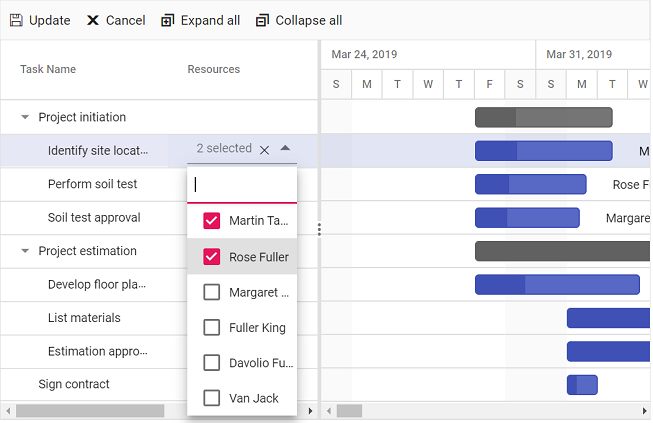
Alt text: Resource cell editing in the Gantt grid for assignment modifications.
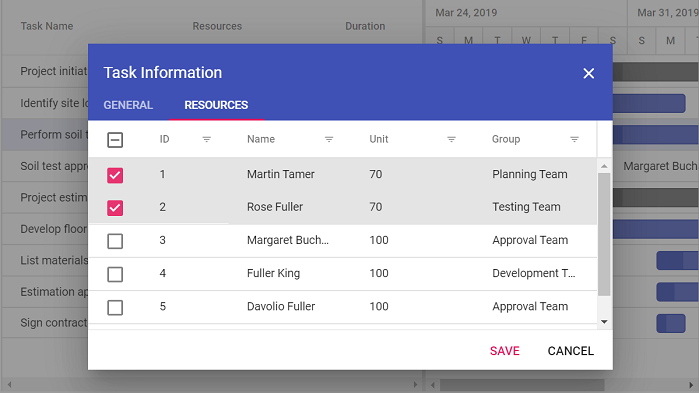
Alt text: Resource dialog editing tab for multiple allocations and units.
Customize resource styling
Customize resource display using column templates for the resource column and the queryTaskbarInfo event for taskbar styling based on assigned resources.
The following example demonstrates custom resource styling:
ej.gantt.Gantt.Inject(ej.gantt.Edit,ej.gantt.Toolbar,ej.gantt.Selection);

let style;
window.Resources = function (resource) {
    switch(resource) {
        case 'Martin Tamer':
            style = "display: flex; padding: 1.5px 12px; gap: 10px; width: 81px; height: 24px; border-radius: 24px; background: #DFECFF " ;
            break;
        case 'Rose Fuller':
            style = "display: flex; padding: 1.5px 12px; gap: 10px; width: 71px; height: 24px; border-radius: 24px; background: #E4E4E7 " ;
            break;
        case 'Margaret Buchanan':
            style = "display: flex; padding: 1.5px 12px; gap: 10px; width: 123px; height: 24px; border-radius: 24px; background: #DFFFE2 " ;
            break;
        case 'Tamer Vinet':
            style = "display: flex; padding: 1.5px 12px; gap: 10px; width: 75px; height: 24px; border-radius: 24px; background: #FFEBE9 " ;
            break;
    }
    return style;
}

window.ResourcesStyles = function (resource) {
    switch(resource) {
        case 'Martin Tamer':
            style = "width: 72px; height: 22px; font-style: normal; font-weight: 500; font-size: 14px; line-height: 22px; text-align: center; color: #006AA6" ;
            break;
        case 'Rose Fuller':
            style = "width: 72px; height: 22px; font-style: normal; font-weight: 500; font-size: 14px; line-height: 22px; text-align: center; color: #766B7C" ;
            break;
        case 'Margaret Buchanan':
            style = "width: 72px; height: 22px; font-style: normal; font-weight: 500; font-size: 14px; line-height: 22px; text-align: center; color: #00A653" ;
            break;
        case 'Tamer Vinet':
            style = "width: 72px; height: 22px; font-style: normal; font-weight: 500; font-size: 14px; line-height: 22px; text-align: center; color: #FF3740" ;
            break;
    }
    return style;
}
var gantt = new ej.gantt.Gantt({
    dataSource: GanttData,
    resources: editingResources,
    queryTaskbarInfo(args) {
        if (args.data.resources == 'Martin Tamer') {
            args.taskbarBgColor = '#DFECFF';
            args.progressBarBgColor = '#006AA6'
        }else if (args.data.resources == 'Rose Fuller') {
            args.taskbarBgColor = '#E4E4E7';
            args.progressBarBgColor = '#766B7C'
        }
        else if (args.data.resources == 'Margaret Buchanan') {
            args.taskbarBgColor = '#DFFFE2';
            args.progressBarBgColor = '#00A653'
        }
        else if (args.data.resources == 'Tamer Vinet') {
            args.taskbarBgColor = '#FFEBE9';
            args.progressBarBgColor = '#FF3740'
        }
    },
    taskFields: {
        id: 'TaskID',
        name: 'TaskName',
        resourceInfo: 'resources',
        startDate: 'StartDate',
        duration: 'Duration',
        progress: 'Progress',
        parentID: 'ParentID'
    },
    resourceFields: {
        id: 'resourceId',
        name: 'resourceName'
    },
    columns: [
        { field: 'TaskID', visible: false },
        { field: 'TaskName', headerText: 'Task Name', width: 250 },
        { field: 'resources', headerText: 'Resources', width: 175, template: '#resColumnTemplate' },
        { field: 'Progress', headerText: 'Progress', width: 150 },
        { field: 'StartDate', headerText: 'Start Date', width: 150 },
        { field: 'Duration', headerText: 'Duration', width: 150 }
    ],
    splitterSettings: {
        columnIndex: 3
    },
    labelSettings: {
        rightLabel: 'resources'
    }
});
gantt.appendTo('#Gantt');
<!DOCTYPE html>
<html lang="en">
<head>
<title>EJ2 Gantt</title>
<meta charset="utf-8">
<meta name="viewport" content="width=device-width, initial-scale=1.0">
<meta name="description" content="Typescript Gantt Controls">
<meta name="author" content="Syncfusion">
<link href="index.css" rel="stylesheet">
<link href="https://cdn.syncfusion.com/ej2/35.1.37/tailwind3.css" rel="stylesheet" type="text/css">
<script src="https://cdn.syncfusion.com/ej2/35.1.37/dist/ej2.min.js" type="text/javascript"></script>
<script src="es5-datasource.js" type="text/javascript"></script>
</head>
<body>
<div id="container">
<div id="Gantt"></div>
</div>
<script>
var ele = document.getElementById('container');
if (ele) {
ele.style.visibility = "visible";
}
</script>
<script type="text/x-template" id="resColumnTemplate">
${if(ganttProperties.resourceNames)}
<div style= "${Resources(data.ganttProperties.resourceNames)}">
<span style= "${ResourcesStyles(data.ganttProperties.resourceNames)}">${ganttProperties.resourceNames}</span>
</div>
${/if}
</script>
<script src="index.js" type="text/javascript"></script>
</body>
</html>This configuration applies background colors to resource columns and taskbars, with the queryTaskbarInfo event modifying taskbar properties dynamically.