Getting Started with JavaScript Gantt Chart
The JavaScript Gantt Chart is a UI control used to visualize and manage project schedules using a timeline view. It supports hierarchical task data, scheduling, and rich interactive features.
This section explains the steps required to create a simple Essential® JS 2 Gantt Chart and demonstrates the basic usage of the Gantt Chart control in a JavaScript application.
Prerequisites
To get started, ensure the following software is installed on the machine.
-
Check out the download and installation section of Essential Studio® JavaScript. If you are using Syncfusion® CDN resources to build your web application, you can skip the Essential Studio® JavaScript prerequisite.
A valid Syncfusion® license is required for commercial use. Register or sign in to obtain a license key from your Syncfusion account.
Setup local environment
Refer to the following steps to set up the local environment.
Step 1: Create a root folder named my-app for the application.
Step 2: Create my-app/resources/scripts and my-app/resources/styles folders to store local scripts and styles.
Step 3: Open Visual Studio Code and create my-app/index.js and my-app/index.html files to initialize the Essential® JS 2 Gantt Chart control.
Adding Syncfusion® resources
The Essential® JS 2 Gantt Chart control can be initialized by using either of the following ways.
Using local scripts and styles
To use local scripts and styles for the Syncfusion® Gantt Chart control:
Follow the steps below to set up the required resources:
1. Download Essential® Studio® JavaScript (Essential® JS 2): Obtain the global scripts and styles from the official website: Essential Studio® JavaScript (Essential® JS 2)
2. Copy Files to Resources Folder: After installing the Essential® JS 2 product build, the required scripts and styles will be available in the installed directory.
Navigate to the installed location and copy the required Gantt Chart scripts, dependent scripts, and styles into your project structure.
-
Scripts: Copy into the
my-app/resources/scriptsfolder. -
Styles: Copy into the
my-app/resources/stylesfolder.
3. Locate Script and Style Files: Identify the location of the Gantt Chart’s script and style files.
Use the following path format to find the required files:
Script path:
- Script:
**(installed location)**/Syncfusion/Essential Studio/{RELEASE_VERSION}/Essential JS 2/{PACKAGE_NAME}/dist/global/{PACKAGE_NAME}.min.js
Style path:
- Styles:
**(installed location)**/Syncfusion/Essential Studio/{RELEASE_VERSION}/Essential JS 2/{PACKAGE_NAME}/styles/tailwind3.css
Example Paths:
- Script:
C:/Program Files (x86)/Syncfusion/Essential Studio/33.1.44/Essential JS 2/ej2-gantt/dist/global/ej2-gantt.min.js- Styles:
C:/Program Files (x86)/Syncfusion/Essential Studio/33.1.44/Essential JS 2/ej2-gantt/styles/tailwind3.css
4. Reference Scripts and Styles: After copying the files, include the required scripts and styles in the index.html file.
Here is a sample configuration for referencing the Gantt Chart scripts and styles in an HTML file:
<!DOCTYPE html>
  <html xmlns="http://www.w3.org/1999/xhtml">
       <head>
            <title>Essential JS 2 Gantt</title>
             <!-- Essential JS 2 gantt's dependent tailwind3 theme -->
            <link href="resources/base/styles/tailwind3.css" rel="stylesheet" type="text/css"/>
            <link href="resources/buttons/styles/tailwind3.css" rel="stylesheet" type="text/css"/>
            <link href="resources/popups/styles/tailwind3.css" rel="stylesheet" type="text/css"/>
            <link href="resources/navigations/styles/tailwind3.css" rel="stylesheet" type="text/css"/>
            <link href="resources/notifications/styles/tailwind3.css" rel="stylesheet" type="text/css"/>
            <link href="resources/lists/styles/tailwind3.css" rel="stylesheet" type="text/css"/>
            <link href="resources/dropdowns/styles/tailwind3.css" rel="stylesheet" type="text/css"/>
            <link href="resources/inputs/styles/tailwind3.css" rel="stylesheet" type="text/css"/>
            <link href="resources/calendars/styles/tailwind3.css" rel="stylesheet" type="text/css"/>
            <link href="resources/layouts/styles/tailwind3.css" rel="stylesheet" type="text/css"/>
            <link href="resources/richtexteditor/styles/tailwind3.css" rel="stylesheet" type="text/css"/>
            <link href="resources/grids/styles/tailwind3.css" rel="stylesheet" type="text/css"/>
            <link href="resources/treegrid/styles/tailwind3.css" rel="stylesheet" type="text/css"/>
            <!-- Essential JS 2 tailwind3 theme -->
            <link href="resources/gantt/styles/tailwind3.css" rel="stylesheet" type="text/css"/>

            <!-- Essential JS 2 Gantt's dependent scripts -->
            <script src="resources/scripts/ej2-base.min.js" type="text/javascript"></script>
            <script src="resources/scripts/ej2-data.min.js" type="text/javascript"></script>
            <script src="resources/scripts/ej2-buttons.min.js" type="text/javascript"></script>
            <script src="resources/scripts/ej2-popups.min.js" type="text/javascript"></script>
            <script src="resources/scripts/ej2-navigations.min.js" type="text/javascript"></script>
            <script src="resources/scripts/ej2-notifications.min.js" type="text/javascript"></script>
            <script src="resources/scripts/ej2-lists.min.js" type="text/javascript"></script>
            <script src="resources/scripts/ej2-dropdowns.min.js" type="text/javascript"></script>
            <script src="resources/scripts/ej2-inputs.min.js" type="text/javascript"></script>
            <script src="resources/scripts/ej2-calendars.min.js" type="text/javascript"></script>
            <script src="resources/scripts/ej2-layouts.min.js" type="text/javascript"></script>
            <script src="resources/scripts/ej2-richtexteditor.min.js" type="text/javascript"></script>
            <script src="resources/scripts/ej2-grids.min.js" type="text/javascript"></script>
            <script src="resources/scripts/ej2-treegrid.min.js" type="text/javascript"></script>
            <script src="resources/scripts/ej2-splitbuttons.min.js" type="text/javascript"></script>
            <script src="resources/scripts/ej2-excel-export.min.js" type="text/javascript"></script>
            <script src="resources/scripts/ej2-file-utils.min.js" type="text/javascript"></script>
            <script src="resources/scripts/ej2-compression.min.js" type="text/javascript"></script>
            <script src="resources/scripts/ej2-pdf-export.min.js" type="text/javascript"></script>
            <!-- Essential JS 2 Gantt's global script -->
            <script src="resources/scripts/ej2-gantt.min.js" type="text/javascript"></script>
       </head>
       <body>
           <!-- Add the HTML <div> element for Gantt Chart  -->
             <div id="Gantt"></div>
             <script src="index.js" type="text/javascript"></script>
       </body>
  </html>
Using CDN link for scripts and styles
Using CDN links to include the Syncfusion® Gantt Chart control’s scripts and styles directly in the index.html file.
Use the following CDN link format to refer in the index.html files:
Script CDN link:
- Script:
http://cdn.syncfusion.com/ej2/{PACKAGE_NAME}/dist/global/{PACKAGE_NAME}.min.js
Style CDN link:
- Styles:
http://cdn.syncfusion.com/ej2/{PACKAGE_NAME}/styles/tailwind3.css
Example CDN link:
The following example shows how to reference the Gantt Chart scripts and styles in an HTML file using CDN links:
<!DOCTYPE html>
  <html xmlns="http://www.w3.org/1999/xhtml">
       <head>
            <title>Essential JS 2 Gantt</title>
            <!-- Essential JS 2 gantt's dependent tailwind3 theme -->
            <link href="https://cdn.syncfusion.com/ej2/33.1.44/ej2-base/styles/tailwind3.css" rel="stylesheet" type="text/css"/>
            <link href="https://cdn.syncfusion.com/ej2/33.1.44/ej2-buttons/styles/tailwind3.css" rel="stylesheet" type="text/css"/>
            <link href="https://cdn.syncfusion.com/ej2/33.1.44/ej2-popups/styles/tailwind3.css" rel="stylesheet" type="text/css"/>
            <link href="https://cdn.syncfusion.com/ej2/33.1.44/ej2-navigations/styles/tailwind3.css" rel="stylesheet" type="text/css"/>
            <link href="https://cdn.syncfusion.com/ej2/33.1.44/ej2-notifications/styles/tailwind3.css" rel="stylesheet" type="text/css"/>
            <link href="https://cdn.syncfusion.com/ej2/33.1.44/ej2-lists/styles/tailwind3.css" rel="stylesheet" type="text/css"/>
            <link href="https://cdn.syncfusion.com/ej2/33.1.44/ej2-dropdowns/styles/tailwind3.css" rel="stylesheet" type="text/css"/>
            <link href="https://cdn.syncfusion.com/ej2/33.1.44/ej2-inputs/styles/tailwind3.css" rel="stylesheet" type="text/css"/>
            <link href="https://cdn.syncfusion.com/ej2/33.1.44/ej2-calendars/styles/tailwind3.css" rel="stylesheet" type="text/css"/>
            <link href="https://cdn.syncfusion.com/ej2/33.1.44/ej2-layouts/styles/tailwind3.css" rel="stylesheet" type="text/css"/>
            <link href="https://cdn.syncfusion.com/ej2/33.1.44/ej2-richtexteditor/styles/tailwind3.css" rel="stylesheet" type="text/css"/>
            <link href="https://cdn.syncfusion.com/ej2/33.1.44/ej2-grids/styles/tailwind3.css" rel="stylesheet" type="text/css"/>
            <link href="https://cdn.syncfusion.com/ej2/33.1.44/ej2-treegrid/styles/tailwind3.css" rel="stylesheet" type="text/css"/>
            <!-- Essential JS 2 tailwind3 theme -->
            <link href="https://cdn.syncfusion.com/ej2/33.1.44/ej2-gantt/styles/tailwind3.css" rel="stylesheet" type="text/css"/>

            <!-- Essential JS 2 Gantt's dependent scripts -->
            <script src="https://cdn.syncfusion.com/ej2/33.1.44/ej2-base/dist/global/ej2-base.min.js" type="text/javascript"></script>
            <script src="https://cdn.syncfusion.com/ej2/33.1.44/ej2-data/dist/global/ej2-data.min.js" type="text/javascript"></script>
            <script src="https://cdn.syncfusion.com/ej2/33.1.44/ej2-buttons/dist/global/ej2-buttons.min.js" type="text/javascript"></script>
            <script src="https://cdn.syncfusion.com/ej2/33.1.44/ej2-popups/dist/global/ej2-popups.min.js" type="text/javascript"></script>
            <script src="https://cdn.syncfusion.com/ej2/33.1.44/ej2-navigations/dist/global/ej2-navigations.min.js" type="text/javascript"></script>
            <script src="https://cdn.syncfusion.com/ej2/33.1.44/ej2-notifications/dist/global/ej2-notifications.min.js" type="text/javascript"></script>
            <script src="https://cdn.syncfusion.com/ej2/33.1.44/ej2-lists/dist/global/ej2-lists.min.js" type="text/javascript"></script>
            <script src="https://cdn.syncfusion.com/ej2/33.1.44/ej2-dropdowns/dist/global/ej2-dropdowns.min.js" type="text/javascript"></script>
            <script src="https://cdn.syncfusion.com/ej2/33.1.44/ej2-inputs/dist/global/ej2-inputs.min.js" type="text/javascript"></script>
            <script src="https://cdn.syncfusion.com/ej2/33.1.44/ej2-calendars/dist/global/ej2-calendars.min.js" type="text/javascript"></script>
            <script src="https://cdn.syncfusion.com/ej2/33.1.44/ej2-layouts/dist/global/ej2-layouts.min.js" type="text/javascript"></script>
            <script src="https://cdn.syncfusion.com/ej2/33.1.44/ej2-richtexteditor/dist/global/ej2-richtexteditor.min.js" type="text/javascript"></script>
            <script src="https://cdn.syncfusion.com/ej2/33.1.44/ej2-grids/dist/global/ej2-grids.min.js" type="text/javascript"></script>
            <script src="https://cdn.syncfusion.com/ej2/33.1.44/ej2-treegrid/dist/global/ej2-treegrid.min.js" type="text/javascript"></script>
            <script src="https://cdn.syncfusion.com/ej2/33.1.44/ej2-splitbuttons/dist/global/ej2-splitbuttons.min.js" type="text/javascript"></script>
            <script src="https://cdn.syncfusion.com/ej2/33.1.44/ej2-excel-export/dist/global/ej2-excel-export.min.js" type="text/javascript"></script>
            <script src="https://cdn.syncfusion.com/ej2/33.1.44/ej2-file-utils/dist/global/ej2-file-utils.min.js" type="text/javascript"></script>
            <script src="https://cdn.syncfusion.com/ej2/33.1.44/ej2-compression/dist/global/ej2-compression.min.js" type="text/javascript"></script>
            <script src="https://cdn.syncfusion.com/ej2/33.1.44/ej2-pdf-export/dist/global/ej2-pdf-export.min.js" type="text/javascript"></script>
            <!-- Essential JS 2 Gantt's global script -->
            <script src="https://cdn.syncfusion.com/ej2/33.1.44/ej2-gantt/dist/global/ej2-gantt.min.js" type="text/javascript"></script>
       </head>
       <body>
           <!-- Add the HTML <div> element for Gantt Chart -->
             <div id="Gantt"></div>
             <script src="index.js" type="text/javascript"></script>
       </body>
  </html>
Single script and style CDN reference for all controls:
A single CDN link can be used to include all Syncfusion® JavaScript control resources.
Use the following links:
Script (For all controls):
- Script reference: https://cdn.syncfusion.com/ej2/33.1.44/dist/ej2.min.js
Styles (For all controls):
- Style reference: https://cdn.syncfusion.com/ej2/33.1.44/tailwind3.css
Create sample task data
Define a simple task list with hierarchical relationships. Each task must have a StartDate and either a Duration or EndDate to render properly. If both are provided, EndDate takes precedence.
var ganttData = [
    {TaskID: 1, TaskName: 'Project initiation', StartDate: new Date('2024-04-01'), EndDate: new Date('2024-04-15')},
    {TaskID: 2, TaskName: 'Identify site location', StartDate: new Date('2024-04-01'), Duration: 4, ParentID: 1},
    {TaskID: 3, TaskName: 'Perform site survey', StartDate: new Date('2024-04-01'), Duration: 4, ParentID: 1},
    {TaskID: 4, TaskName: 'Soil testing', StartDate: new Date('2024-04-01'), Duration: 3, ParentID: 1},
    {TaskID: 5, TaskName: 'Project estimation', StartDate: new Date('2024-04-15'), EndDate: new Date('2024-04-25')},
    {TaskID: 6, TaskName: 'Develop floor plan', StartDate: new Date('2024-04-15'), Duration: 5, ParentID: 5},
    {TaskID: 7, TaskName: 'Estimate project cost', StartDate: new Date('2024-04-15'), Duration: 5, ParentID: 5}
];
Configure task fields mapping
Map the data fields to Gantt Chart properties using the taskFields property:
var taskFields = {
    id: 'TaskID',
    name: 'TaskName',
    startDate: 'StartDate',
    duration: 'Duration',
    endDate: 'EndDate',
    parentID: 'ParentID'
};
Field mapping reference
| Property | Description | Required |
|---|---|---|
id |
Unique task identifier | Yes |
name |
Task display name | Yes |
startDate |
Task start date | Yes |
duration |
Task duration in days (numeric, optional decimal) | No (use endDate instead) |
endDate |
Task end date | No (use duration instead) |
parentID |
Parent task ID for hierarchy | No |
progress |
Task completion percentage | No |
dependency |
Predecessor relationships (e.g., 2FS+1d) |
No |
hasChildMapping |
Indicates whether a row has child rows (load-on-demand) | No |
resourceInfo |
Field name that holds resource data | No |
Render the Gantt Chart control
Add a container element in the index.html file to render the Gantt Chart control. Then, reference the index.js file in the index.html file.
In this documentation, the ej2.min.js script and tailwind3.css theme file are used, which include all Essential® JS 2 controls and their dependent scripts and styles.
Add the following HTML element to the index.html file. This element acts as the container for rendering the Gantt Chart control.
<!DOCTYPE html>
  <html xmlns="http://www.w3.org/1999/xhtml">
       <head>
            <title>Essential JS 2 Gantt</title>
            <!-- Essential JS 2 all tailwind3 theme -->
            <link href="https://cdn.syncfusion.com/ej2/33.1.44/tailwind3.css" rel="stylesheet" type="text/css"/>
             <!-- Essential JS 2 all script -->
            <script src="http://cdn.syncfusion.com/ej2/dist/ej2.min.js" type="text/javascript"></script>
       </head>
       <body>
           <!-- Add the HTML <div> element for Gantt Chart -->
             <div id="Gantt"></div>
             <script src="index.js" type="text/javascript"></script>
       </body>
  </html>
Place the following code in the index.js file to create and configure the Gantt Chart control. The appendTo method renders the Gantt Chart control into the target DOM element.
var ganttChart = new ej.gantt.Gantt({
    dataSource: [
        {TaskID: 1, TaskName: 'Project initiation', StartDate: new Date('2024-04-01'), EndDate: new Date('2024-04-15')},
        {TaskID: 2, TaskName: 'Identify site location', StartDate: new Date('2024-04-01'), Duration: 4, ParentID: 1},
        {TaskID: 3, TaskName: 'Perform site survey', StartDate: new Date('2024-04-01'), Duration: 4, ParentID: 1},
        {TaskID: 4, TaskName: 'Soil testing', StartDate: new Date('2024-04-01'), Duration: 3, ParentID: 1},
        {TaskID: 5, TaskName: 'Project estimation', StartDate: new Date('2024-04-15'), EndDate: new Date('2024-04-25')},
        {TaskID: 6, TaskName: 'Develop floor plan', StartDate: new Date('2024-04-15'), Duration: 5, ParentID: 5},
        {TaskID: 7, TaskName: 'Estimate project cost', StartDate: new Date('2024-04-15'), Duration: 5, ParentID: 5}
    ],
    taskFields: {
        id: 'TaskID',
        name: 'TaskName',
        startDate: 'StartDate',
        duration: 'Duration',
        parentID: 'ParentID'
    }
});
ganttChart.appendTo('#Gantt');
Run the application
Run the index.html file in a web browser to view the Essential® JS 2 Gantt Chart control.
Output
The Gantt Chart displays:
- Task hierarchy with parent-child relationships
- Timeline view showing task bars
- Automatically calculated dates based on duration
The chart displays two parent tasks (Project initiation, Project estimation) with subtasks shown in a tree structure. Task bars are rendered on the timeline, sized according to their duration and start dates.
You can preview the following sample by clicking the Preview Sample button.
var taskData = [
    {TaskID: 1, TaskName: 'Project initiation', StartDate: new Date('2024-04-01'), EndDate: new Date('2024-04-15')},
    {TaskID: 2, TaskName: 'Identify site location', StartDate: new Date('2024-04-01'), Duration: 4, ParentID: 1},
    {TaskID: 3, TaskName: 'Perform site survey', StartDate: new Date('2024-04-01'), Duration: 4, ParentID: 1},
    {TaskID: 4, TaskName: 'Soil testing', StartDate: new Date('2024-04-01'), Duration: 3, ParentID: 1},
    {TaskID: 5, TaskName: 'Project estimation', StartDate: new Date('2024-04-15'), EndDate: new Date('2024-04-25')},
    {TaskID: 6, TaskName: 'Develop floor plan', StartDate: new Date('2024-04-15'), Duration: 5, ParentID: 5},
    {TaskID: 7, TaskName: 'Estimate project cost', StartDate: new Date('2024-04-15'), Duration: 5, ParentID: 5}
];
var ganttChart = new ej.gantt.Gantt({
    dataSource: taskData,
    taskFields: {
        id: 'TaskID',
        name: 'TaskName',
        startDate: 'StartDate',
        duration: 'Duration',
        parentID: 'ParentID'
    }
});
ganttChart.appendTo('#Gantt');
<!DOCTYPE html><html lang="en"><head>
<title>EJ2 Gantt</title>
<meta charset="utf-8">
<meta name="viewport" content="width=device-width, initial-scale=1.0">
<meta name="description" content="Typescript Gantt Controls">
<meta name="author" content="Syncfusion">
<link href="index.css" rel="stylesheet">
<link href="https://cdn.syncfusion.com/ej2/35.1.37/tailwind3.css" rel="stylesheet" type="text/css">
<script src="https://cdn.syncfusion.com/ej2/35.1.37/dist/ej2.min.js" type="text/javascript"></script>
</head>
<body>
<div id="container">
<div id="Gantt"></div>
</div>
<script>
var ele = document.getElementById('container');
if(ele) {
ele.style.visibility = "visible";
}
</script>
<script src="index.js" type="text/javascript"></script>
</body></html>Deploy the application
The Essential® JS 2 Gantt Chart control features are segregated into individual feature-wise modules. The Essential Studio® JavaScript (Essential® JS 2) build and CDN scripts contain code for all features used in Gantt Chart, so you should avoid using them in production. You are strongly recommended to generate script files for production using the Syncfusion® Custom Resource Generator (CRG) for Essential® JS 2. CRG allows you to generate the bundled script for the currently enabled features in Gantt Chart. See the CRG getting started guide for step-by-step instructions.
Error handling
Error handling identifies, displays, and helps recover from errors raised by the Gantt Chart control. In Gantt Chart, error handling is performed by using the actionFailure event. The following scenarios are handled by this event:
-
Invalid duration: The duration field accepts only numerical values with an optional decimal point. Entering non-numerical values triggers the
actionFailureevent and displays error information in the event argument. -
Invalid dependency: The dependency field accepts only a number followed by a predecessor type (FS, FF, SS, SF). Entering invalid values, such as special characters or incorrect predecessor types, triggers the
actionFailureevent and displays error information in the event argument. -
Invalid offset: The offset accepts only numerical values or their word equivalents followed by a unit. Entering invalid values, such as special characters, triggers the
actionFailureevent and displays error information in the event argument. -
Failure to map task fields: The data source fields necessary for rendering tasks should be mapped to the Gantt Chart control using the taskFields property. Failure to map
taskFieldsin the sample triggers theactionFailureevent and displays error information in the event argument. -
Failure to map resource fields: To assign resources to a task, resource fields should be mapped to the Gantt Chart control using the resourceFields property. Failure to map
resourceFieldsin the sample triggers theactionFailureevent and displays error information in the event argument. -
Failure to map
isPrimaryKey: The isPrimaryKey field is crucial for CRUD operations. Failure to map the id column in the Gantt Chart column collection, or to setisPrimaryKeyon one of the columns, triggers theactionFailureevent and displays error information in the event argument. -
Invalid date format: The format property under
topTierandbottomTierdetermines how the timelines are displayed in the top tier and bottom tier of the Gantt chart. If theformatdoes not contain a valid standard date format, it triggers theactionFailureevent and displays error information in the event argument. -
Failure to map
hasChildMapping: The hasChildMapping property should be configured for load-on-demand. Ensure it is properly configured in taskFields. Failure to maphasChildMappingin theload-on-demandsample triggers theactionFailureevent and displays error information in the event argument. -
Invalid day in event markers: The day should be configured in eventMarkers to render striplines on a particular day. Failure to configure the
dayineventMarkerstriggers theactionFailureevent and displays error information in the event argument.
Additionally, TreeGrid-side error handling information is also displayed from the Gantt
actionFailureevent. For more details on TreeGrid-side error handling, refer here.
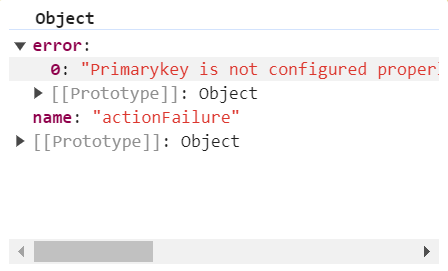
The following code example shows how to use the actionFailure event in the Gantt Chart control to display an exception when isPrimaryKey is not configured properly in the Gantt Chart column.
var ganttChart = new ej.gantt.Gantt({
    dataSource: [
		{TaskID: 1, TaskName: 'Project initiation', StartDate: new Date('2024-04-01'), EndDate: new Date('2024-04-15')},
		{TaskID: 2, TaskName: 'Identify site location', StartDate: new Date('2024-04-01'), Duration: 4, ParentID: 1},
		{TaskID: 3, TaskName: 'Perform site survey', StartDate: new Date('2024-04-01'), Duration: 4, ParentID: 1},
		{TaskID: 4, TaskName: 'Soil testing', StartDate: new Date('2024-04-01'), Duration: 3, ParentID: 1},
		{TaskID: 5, TaskName: 'Project estimation', StartDate: new Date('2024-04-15'), EndDate: new Date('2024-04-25')},
		{TaskID: 6, TaskName: 'Develop floor plan', StartDate: new Date('2024-04-15'), Duration: 5, ParentID: 5},
		{TaskID: 7, TaskName: 'Estimate project cost', StartDate: new Date('2024-04-15'), Duration: 5, ParentID: 5}
	],
	taskFields: {
		id: 'TaskID',
        name: 'TaskName',
        startDate: 'StartDate',
        duration: 'Duration',
        parentID: 'ParentID'
	},
	columns: [
		{ field: 'TaskName', width: '150' },
		{ field: 'StartDate', width: '150' },
		{ field: 'Duration', width: '150' }
	],
	actionFailure: (args) => {
		let span = document.createElement('span');
		((ganttChart.element).parentNode).insertBefore(span,(ganttChart).element);
		span.style.color = '#FF0000'
		span.innerHTML = args.error[0];
	}
});
ganttChart.appendTo('#Gantt');
<!DOCTYPE html><html lang="en"><head>
<title>EJ2 Gantt</title>
<meta charset="utf-8">
<meta name="viewport" content="width=device-width, initial-scale=1.0">
<meta name="description" content="Typescript Gantt Controls">
<meta name="author" content="Syncfusion">
<link href="index.css" rel="stylesheet">
<link href="https://cdn.syncfusion.com/ej2/35.1.37/tailwind3.css" rel="stylesheet" type="text/css">
<script src="https://cdn.syncfusion.com/ej2/35.1.37/dist/ej2.min.js" type="text/javascript"></script>
<script src="es5-datasource.js" type="text/javascript"></script>
</head>
<body>
<div id="container">
<div id="Gantt"></div>
</div>
<script>
var ele = document.getElementById('container');
if(ele) {
ele.style.visibility = "visible";
}
</script>
<script src="index.js" type="text/javascript"></script>
</body></html>The following screenshot represents the Gantt Chart Exception handling in actionFailure event.