Column Resizing with Dynamic Width Adjustment in JavaScript Gantt Chart
The Syncfusion® JavaScript Gantt Chart control allows you to resize columns dynamically by dragging the edges of column headers. This feature enhances readability and layout flexibility, especially when working with large datasets. To enable this feature, set the allowResizing property to true in the Gantt configuration.
Column width can be adjusted by dragging the right edge of the header, with changes applied immediately.
To use the column resize feature, inject the Resize module into the Gantt Chart control.
- You can disable resizing for a particular column, by specifying columns.allowResizing to false.
- In RTL mode, you can click and drag the left edge of header cell to resize the column.
- The width property of the column can be set initially to define the default width of the column. However, when column resizing is enabled, you can override the default width by manually resizing the columns.
Restrict the resizing based on minimum and maximum width
The Gantt chart control allows restricting column resizing within a defined range to maintain layout consistency. This ensures column widths remain within the specified limits during resizing.
To enable this, set the minWidth and maxWidth properties in the column configuration.
The following example demonstrates how the TaskID column can be configured with a minimum width of 100 pixels and a maximum of 200 pixels, while the TaskName column can be set between 150 and 300 pixels.
Prevent resizing for particular column
You can prevent resizing for a specific column in the Gantt Chart control to maintain a consistent column width. To disable resizing, set the allowResizing property of the respective column to false.
The following example demonstrates how to disable resizing for the TaskID column.
You can also prevent resizing by setting
args.cancelto true in the resizeStart event.
Column resizing modes
The JavaScript Gantt Chart control supports two resizing modes that determine how column widths behave during resizing. These modes are configured using the resizeSettings.mode property of the underlying TreeGrid. Resizing behavior is defined using the ResizeSettingsModel interface, where the mode property specifies the type of resizing to be applied.
There are two available resizing modes:
- Normal mode: Columns retain their defined widths. If the total column width is less than the Gantt width, empty space appears to the right. If it exceeds, a horizontal scrollbar is shown.
- Auto mode: Columns automatically expand or contract to fill the available space based on the Gantt width.
To apply a resizing mode, set the resizeSettings.mode property on the grid object inside the Gantt instance. This can be done during the load event or dynamically based on user interaction.
The following example demonstrates how to set the resizeSettings.mode to Normal or Auto based on the DropDownList change event.
When the autoFit property of grid object in gantt instance is set to true, the gantt will automatically adjust its column width based on the content inside them. In
normalresize mode, if theautoFitproperty is set to true, the gantt will maintain any empty space that is left over after resizing the columns. However, inautoresize mode, the gantt will ignore any empty space.
Resize columns programmatically
You can programmatically resize columns in the JavaScript Gantt Chart control by accessing the target column using the getColumnByField method and updating its width property. This is useful for implementing custom UI controls or dynamic layout adjustments. To reflect the change, call the refreshColumns method from the treeGrid object within the Gantt instance.
The following example demonstrates how to resize a column externally using the change event of the DropDownList control.
The
refreshColumnsmethod oftreeGridobject in gantt instance is used to refresh the gantt after the column widths are updated. Column resizing externally is useful when you want to provide a custom interface to the user for resizing columns.
Customize column resizing behavior using events
You can control column resizing using resizeStart, resizing, and resizeStop events.
The following example demonstrates how resizing events work: resizeStart cancels resizing of the TaskID column, resizing prevents changes when the field is Duration, and resizeStop applies custom CSS styles to the resized column.
The
ResizeArgsobject passed to the events contains information such as the current column width, new column width, column index, and the original event. The resizing event is triggered multiple times during a single resize operation, so be careful when performing heavy operations in this event.
Touch interaction
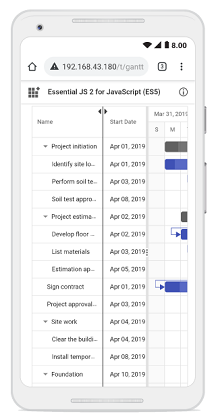
The Gantt Chart control supports touch interactions for mobile devices. Users can resize columns by tapping and dragging the floating handler, or use the column menu to autofit columns.
Resizing columns on touch devices:
To resize a column:
- Tap the right edge of the column header.
- A floating handler appears over the column border.
- Drag the handler to adjust the column width.
The screenshot below illustrates column resizing on a touch device.