URL Adaptor for Remote Data Binding in Blazor Gantt Chart
The UrlAdaptor enables the Blazor Gantt Chart to load and manage task data from a remote server through a custom API service. It is used when the application stores data on a server and needs to fetch, update, or delete records through an API rather than loading everything at once on the client side.
This section provides a step-by-step guide to retrieving data using the UrlAdaptor and binding it to the Blazor Gantt Chart, including server side data operations and CRUD actions.
Creating an API service
To configure a server with the Blazor Gantt Chart, follow these steps:
1. Create a Blazor web app
You can create a Blazor Web App named URLAdaptor using Visual Studio, either via Microsoft Templates or the Blazor Extension. Make sure to configure the appropriate interactive render mode and interactivity location.
2. Create a model class
Add a new folder named Models. Then, add a model class named TaskData.cs to represent the Blazor Gantt Chart task data.
namespace URLAdaptor.Models
{
    public class TaskData
    {
        public int TaskId { get; set; }
        public string TaskName { get; set; }
        public DateTime? StartDate { get; set; }
        public DateTime? EndDate { get; set; }
        public int? ParentID { get; set; }
        public int Progress { get; set; }
        public string? Predecessor { get; set; }
        public string Duration { get; set; }

        public static List<TaskData> GetAllRecords()
        {
            List<TaskData> DataCollection = new List<TaskData>();

            int x = 0;
            int duration = 0;

            // Base start date (change if needed)
            DateTime startDate = new DateTime(2026, 04, 02);

            for (int i = 1; i <= 2; i++)
            {
                // Create parent task (no separate variable name like parent1/parent2)
                int parentID = ++x;

                DataCollection.Add(new TaskData()
                {
                    TaskID = parentID,
                    TaskName = "Task " + parentID,          // Parent
                    StartDate = startDate,
                    EndDate = startDate.AddDays(26),
                    Duration = "20",
                    Progress = 0,
                    ParentID = null,
                    Predecessor = null
                });

                // Reset child start for each parent
                DateTime childStart = startDate;

                for (int j = 1; j <= 4; j++)
                {
                    // Move start like your sample: first child same date, next children based on duration+2
                    childStart = childStart.AddDays(j == 1 ? 0 : duration + 2);
                    duration = 5;

                    int childId = ++x;

                    DataCollection.Add(new TaskData()
                    {
                        TaskID = childId,
                        TaskName = "Task " + childId,        // Child
                        StartDate = childStart,
                        EndDate = childStart.AddDays(duration),
                        Duration = duration.ToString(),
                        Progress = 0,
                        ParentID = parentID,
                        Predecessor = j > 1 ? (childId - 1) + "FS" : null
                    });
                }

                // Move next parent start date after current parent ends (+2 days gap)
                startDate = startDate.AddDays(28);
                duration = 0;
            }
            return DataCollection;
        }
    }
}
3. Create an API controller
Create an API controller file named GanttController.cs under Controllers folder to establish data communication with the Blazor Gantt Chart.
using Microsoft.AspNetCore.Mvc;
using Syncfusion.Blazor;
using Syncfusion.Blazor.Data;
using URLAdaptor.Models;

namespace URLAdaptor.Controllers
{
    [ApiController]
    public class GanttController : ControllerBase
    {
        /// <summary>
        /// Retrieves the list of tasks.
        /// </summary>
        /// <returns>Retrieve data from the data source.</returns>
        [HttpGet]
        [Route("api/[controller]/GetTaskData")]
        public List<TaskData> GetTaskData()
        {
            return TaskData.GetAllRecords().ToList();
        }

        /// <summary>
        /// Handles server-side data operations and returns the processed data.
        /// </summary>
        /// <param name="DataManagerRequest">
        /// The request object contains parameters for searching, filtering, sorting, skip, and take.
        /// </param>
        /// <returns>Returns the processed data and total record count in result and count format.</returns>
        [HttpPost]
        [Route("api/[controller]")]
        public object Post([FromBody] DataManagerRequest DataManagerRequest)
        {
            // Retrieve data source and convert to queryable.
            IQueryable<TaskData> DataSource = GetTaskData().AsQueryable();

            // Get total records count.
            int totalRecordsCount = DataSource.Count();

            // Return data and count.
            return new { result = DataSource, count = totalRecordsCount };
        }
    }
}
The GetTaskData method returns sample Task data. Replace it with your custom logic to fetch data from a database or other sources.
4. Register controllers in Program.cs
Add the following lines in the Program.cs file to register controllers:
// Register controllers in the service container.
builder.Services.AddControllers();

// Map controller routes.
app.MapControllers();
5. Run the application
Run the application in Visual Studio. The API will be accessible at a URL like https://localhost:xxxx/api/gantt (where xxxx represents the port number in launchSettings.json). Verify that the API returns the task data before proceeding.
Connecting Blazor Gantt Chart to an API service
To integrate the Blazor Gantt Chart into your project, follow these steps:
1. Install Blazor Gantt and Themes NuGet packages
To add the Blazor Gantt Chart in the app, open the NuGet Package Manager in Visual Studio (Tools → NuGet Package Manager → Manage NuGet Packages for Solution), search and install Syncfusion.Blazor.Gantt and Syncfusion.Blazor.Themes.
If your Blazor Web App uses WebAssembly or Auto render modes, install the Blazor NuGet packages in the client project.
Alternatively, use the following Package Manager commands:
Install-Package Syncfusion.Blazor.Gantt -Version 34.2.2
Install-Package Syncfusion.Blazor.Themes -Version 34.2.2
Blazor components are available on nuget.org. Refer to the NuGet packages topic for a complete list of available packages.
2. Register Blazor service
- Open the ~/_Imports.razor file and import the required namespaces.
@using Syncfusion.Blazor
@using Syncfusion.Blazor.Gantt
@using Syncfusion.Blazor.Data- Register the Blazor service in the ~/Program.cs file.
using Syncfusion.Blazor;

builder.Services.AddSyncfusionBlazor();
For apps using WebAssembly or Auto (Server and WebAssembly) render modes, register the service in both ~/Program.cs files.
3. Add stylesheet and script resources
Include the theme stylesheet and script references in the ~/Components/App.razor file.
<head>
    ....
    <link href="_content/Syncfusion.Blazor.Themes/bootstrap5.css" rel="stylesheet" />
</head>
....
<body>
    ....
    <script src="_content/Syncfusion.Blazor.Core/scripts/syncfusion-blazor.min.js" type="text/javascript"></script>
</body>
- Refer to the Blazor Themes topic for various methods to include themes (e.g., Static Web Assets, CDN, or CRG).
- Set the render mode to InteractiveServer or InteractiveAuto in your Blazor Web App configuration.
4. Add Blazor Gantt Chart and configure with server
To connect the Blazor Gantt Chart to a hosted API, use the Url property of SfDataManager.
The SfDataManager offers multiple adaptor options to connect with remote database based on an API service. Below is an example of the UrlAdaptor configuration where an API service is set up to return the resulting data in the result and count format.
@using Syncfusion.Blazor.Gantt
@using Syncfusion.Blazor.Data
@using Syncfusion.Blazor
@using URLAdaptor.Models

<SfGantt TValue="TaskData" Height="450px">
    <SfDataManager Url="/api/gantt" Adaptor="Adaptors.UrlAdaptor"></SfDataManager>
    <GanttTaskFields Id="TaskId" Name="TaskName" StartDate="StartDate" EndDate="EndDate" Duration="Duration" Progress="Progress"
                     ParentID="ParentID" Dependency="Predecessor">
    </GanttTaskFields>
    <GanttColumns>
        <GanttColumn Field="TaskId" HeaderText="Task ID" Width="90"></GanttColumn>
        <GanttColumn Field="TaskName" HeaderText="Task Name" Width="220"></GanttColumn>
        <GanttColumn Field="StartDate" HeaderText="Start Date" Width="140" Format="d"></GanttColumn>
        <GanttColumn Field="EndDate" HeaderText="End Date" Width="140" Format="d"></GanttColumn>
        <GanttColumn Field="Duration" HeaderText="Duration" Width="110"></GanttColumn>
        <GanttColumn Field="Predecessor" HeaderText="Predecessor" Width="140"></GanttColumn>
        <GanttColumn Field="Progress" HeaderText="Progress" Width="110"></GanttColumn>
    </GanttColumns>
</SfGantt>
using Microsoft.AspNetCore.Mvc;
using Syncfusion.Blazor.Data;
using Syncfusion.Blazor;
using URLAdaptor.Models;
namespace URLAdaptor.Controllers
{
[ApiController]
public class GanttController : ControllerBase
{
/// <summary>
/// Retrieves the list of tasks.
/// </summary>
/// <returns>Retrieve data from the data source.</returns>
[HttpGet]
[Route("api/[controller]/GetTaskData")]
public List<TaskData> GetTaskData()
{
return TaskData.GetAllRecords().ToList();
}
/// <summary>
/// Handles server-side data operations and returns the processed data.
/// </summary>
/// <param name="DataManagerRequest">
/// The request object contains parameters for searching, filtering, sorting, skip, and take.
/// </param>
/// <returns>Returns the data and total count in result and count format.</returns>
[HttpPost]
[Route("api/[controller]")]
public object Post([FromBody] DataManagerRequest DataManagerRequest)
{
// Retrieve data source and convert to queryable.
IQueryable<TaskData> DataSource = GetTaskData().AsQueryable();
// Get total records count.
int totalRecordsCount = DataSource.Count();
// Return data and count.
return new { result = DataSource, count = totalRecordsCount };
}
}
}Replace
https://localhost:xxxx/api/gantt(Replacexxxxwith the port number shown in the launchSettings.json) with the actual URL of your API endpoint that provides the data in a consumable format (e.g., JSON).
5. Run the application
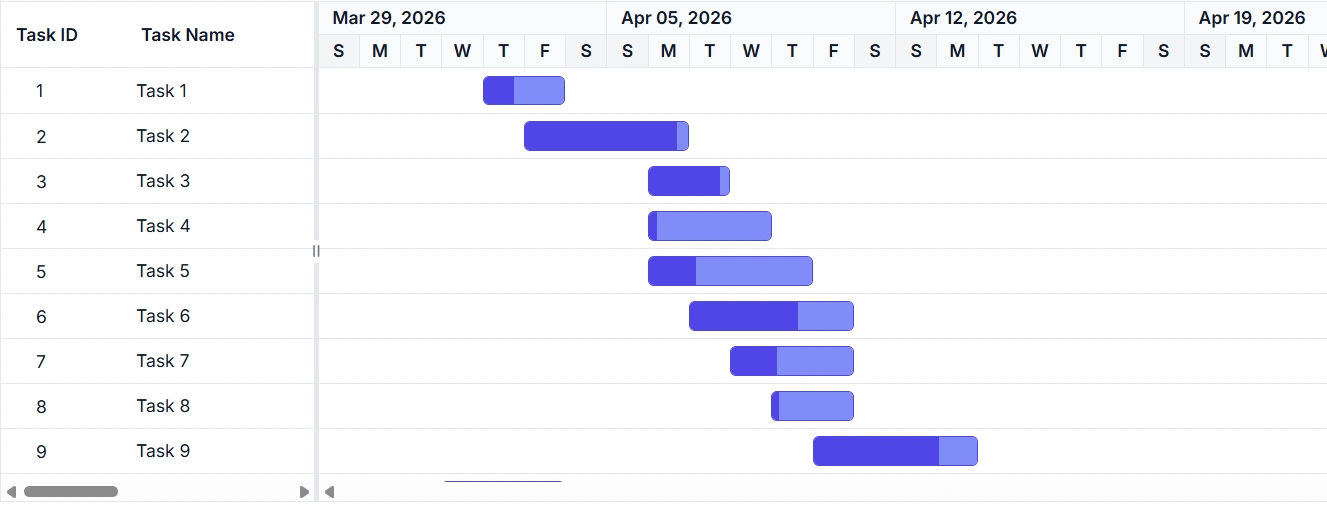
When you run the application, the Blazor Gantt Chart will display data fetched from the API.
- The Blazor Gantt Chart supports server-side operations such as searching, sorting and filtering. These can be handled using methods like PerformSearching, PerformFiltering, PerformSorting, PerformTake, and PerformSkip from the Syncfusion.Blazor.Data package. Let’s explore how to manage these data operations using the
UrlAdaptor.- In an API service project, add Syncfusion.Blazor.Data by opening the NuGet package manager in Visual Studio (Tools → NuGet Package Manager → Manage NuGet Packages for Solution), search and install it.
Handling searching operation
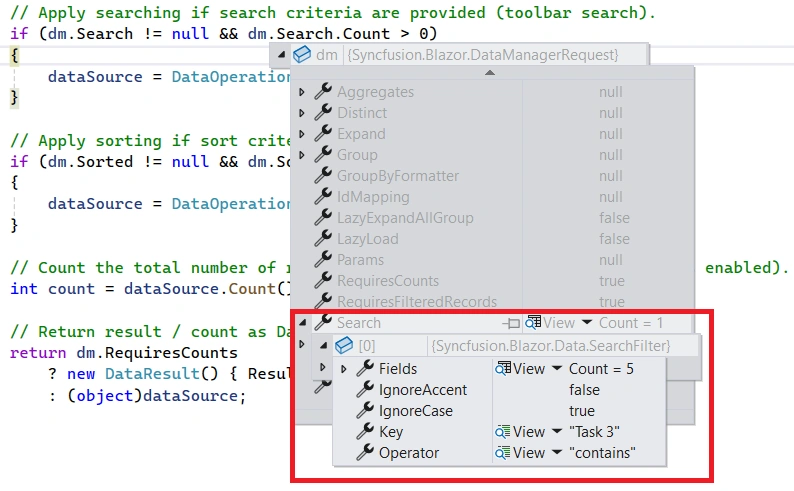
To handle the searching operation, ensure that your API endpoint supports custom searching criteria. Implement the searching logic on the server side using the PerformSearching method from the DataOperations class. This allows the custom data source to undergo searching based on the criteria specified in the incoming DataManagerRequest object.
/// <summary>
/// Handles server-side data operations such as searching and returns the processed data.
/// </summary>
/// <param name="DataManagerRequest">The request object contains searched details.</param>
/// <returns>Returns a response containing the processed data and the total record count.</returns>
[HttpPost]
[Route("api/[controller]")]
public object Post([FromBody] DataManagerRequest DataManagerRequest)
{
    // Retrieve data from the data source.
    IQueryable<TaskData> DataSource = GetTaskData().AsQueryable();

    // Handling searching operation.
    if (DataManagerRequest.Search != null && DataManagerRequest.Search.Count > 0)
    {
        DataSource = DataOperations.PerformSearching(DataSource, DataManagerRequest.Search);
        // Add custom logic here if needed and remove above method.
    }

    // Get the total records count.
    int totalRecordsCount = DataSource.Count();

    // Return data based on the request.
    return new { result = DataSource, count = totalRecordsCount };
}
@using Syncfusion.Blazor.Gantt
@using Syncfusion.Blazor.Data
@using URLAdaptor.Models
<SfGantt TValue="TaskData" Height="450px" Toolbar="@(new List<string>() { "Search" })">
<SfDataManager Url="/api/gantt" Adaptor="Adaptors.UrlAdaptor"></SfDataManager>
<GanttTaskFields Id="TaskId" Name="TaskName" StartDate="StartDate" EndDate="EndDate" Duration="Duration" Progress="Progress"
ParentID="ParentID" Dependency="Predecessor">
</GanttTaskFields>
<GanttColumns>
<GanttColumn Field="TaskId" HeaderText="Task ID" Width="90"></GanttColumn>
<GanttColumn Field="TaskName" HeaderText="Task Name" Width="220"></GanttColumn>
<GanttColumn Field="StartDate" HeaderText="Start Date" Width="140" Format="d"></GanttColumn>
<GanttColumn Field="EndDate" HeaderText="End Date" Width="140" Format="d"></GanttColumn>
<GanttColumn Field="Duration" HeaderText="Duration" Width="110"></GanttColumn>
<GanttColumn Field="Predecessor" HeaderText="Predecessor" Width="140"></GanttColumn>
<GanttColumn Field="Progress" HeaderText="Progress" Width="110"></GanttColumn>
</GanttColumns>
</SfGantt>Handling filtering operation
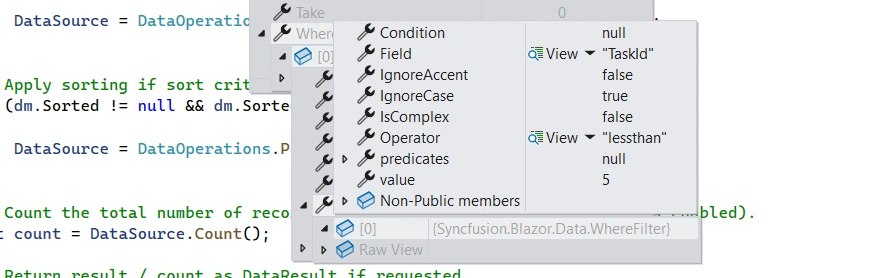
To handle the filtering operation, ensure that your API endpoint supports custom filtering criteria. Implement the filtering logic on the server side using the PerformFiltering method from the DataOperations class. This allows the custom data source to undergo filtering based on the criteria specified in the incoming DataManagerRequest object.
Column filtering
/// <summary>
/// Handles server-side data operations such as filtering and returns the processed data.
/// </summary>
/// <param name="DataManagerRequest">The request object contains filtered details.</param>
/// <returns>Returns a response containing the processed data and the total record count.</returns>
[HttpPost]
[Route("api/[controller]")]
public object Post([FromBody] DataManagerRequest DataManagerRequest)
{
    // Retrieve data from the data source.
    IQueryable<TaskData> DataSource = GetTaskData().AsQueryable();

    if (DataManagerRequest.Where != null && DataManagerRequest.Where.Count > 0)
    {
        // Filtering
        if (DataManagerRequest.Where[0].Field != null && DataManagerRequest.Where[0].Field == @nameof(TaskData.ParentID)){}
        else
        {
            DataSource = DataOperations.PerformFiltering(DataSource, DataManagerRequest.Where, DataManagerRequest.Where[0].Operator);
        }
    }

    // Get the total records count.
    int totalRecordsCount = DataSource.Count();

    // Return data based on the request.
    return new { result = DataSource, count = totalRecordsCount };
}
@using Syncfusion.Blazor.Gantt
@using Syncfusion.Blazor.Data
@using Syncfusion.Blazor
@using URLAdaptor.Models
<SfGantt TValue="TaskData" Height="450px" AllowFiltering="true">
<SfDataManager Url="/api/gantt" Adaptor="Adaptors.UrlAdaptor"></SfDataManager>
<GanttTaskFields Id="TaskId" Name="TaskName" StartDate="StartDate" EndDate="EndDate" Duration="Duration" Progress="Progress"
ParentID="ParentID" Dependency="Predecessor">
</GanttTaskFields>
<GanttColumns>
<GanttColumn Field="TaskId" HeaderText="Task ID" Width="90"></GanttColumn>
<GanttColumn Field="TaskName" HeaderText="Task Name" Width="220"></GanttColumn>
<GanttColumn Field="StartDate" HeaderText="Start Date" Width="140" Format="d"></GanttColumn>
<GanttColumn Field="EndDate" HeaderText="End Date" Width="140" Format="d"></GanttColumn>
<GanttColumn Field="Duration" HeaderText="Duration" Width="110"></GanttColumn>
<GanttColumn Field="Predecessor" HeaderText="Predecessor" Width="140"></GanttColumn>
<GanttColumn Field="Progress" HeaderText="Progress" Width="110"></GanttColumn>
</GanttColumns>
</SfGantt>Handling sorting operation
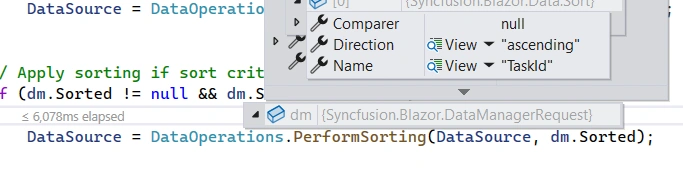
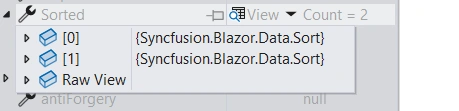
To handle the sorting operation, ensure that your API endpoint supports custom sorting criteria. Implement the sorting logic on the server side using the PerformSorting method from the DataOperations class. This allows the custom data source to undergo sorting based on the criteria specified in the incoming DataManagerRequest object.
Single column sorting
Multi column sorting
/// <summary>
/// Handles server-side data operations such as sorting and returns the processed data.
/// </summary>
/// <param name="DataManagerRequest">The request object contains sorted details.</param>
/// <returns>Returns a response containing the processed data and the total record count.</returns>
[HttpPost]
[Route("api/[controller]")]
public object Post([FromBody] DataManagerRequest DataManagerRequest)
{
    // Retrieve data from the data source.
    IQueryable<TaskData> DataSource = GetTaskData().AsQueryable();

    // Handling sorting operation.
    if (DataManagerRequest.Sorted != null && DataManagerRequest.Sorted.Count > 0)
    {
        DataSource = DataOperations.PerformSorting(DataSource, DataManagerRequest.Sorted);
        // Add custom logic here if needed and remove above method.
    }

    // Get the total count of records.
    int totalRecordsCount = DataSource.Count();

    // Return data based on the request.
    return new { result = DataSource, count = totalRecordsCount };
}
@using Syncfusion.Blazor.Gantt
@using Syncfusion.Blazor.Data
@using Syncfusion.Blazor
@using URLAdaptor.Models
<SfGantt TValue="TaskData" Height="450px" AllowSorting="true">
<SfDataManager Url="/api/gantt" Adaptor="Adaptors.UrlAdaptor"></SfDataManager>
<GanttTaskFields Id="TaskId" Name="TaskName" StartDate="StartDate" EndDate="EndDate" Duration="Duration" Progress="Progress"
ParentID="ParentID" Dependency="Predecessor">
</GanttTaskFields>
<GanttColumns>
<GanttColumn Field="TaskId" HeaderText="Task ID" Width="90"></GanttColumn>
<GanttColumn Field="TaskName" HeaderText="Task Name" Width="220"></GanttColumn>
<GanttColumn Field="StartDate" HeaderText="Start Date" Width="140" Format="d"></GanttColumn>
<GanttColumn Field="EndDate" HeaderText="End Date" Width="140" Format="d"></GanttColumn>
<GanttColumn Field="Duration" HeaderText="Duration" Width="110"></GanttColumn>
<GanttColumn Field="Predecessor" HeaderText="Predecessor" Width="140"></GanttColumn>
<GanttColumn Field="Progress" HeaderText="Progress" Width="110"></GanttColumn>
</GanttColumns>
</SfGantt>Handling CRUD operations
The Blazor Gantt Chart communicates CRUD (Create, Read, Update, and Delete) actions to the server through dedicated URL properties on SfDataManager: InsertUrl, UpdateUrl, RemoveUrl, and BatchUrl. Each action triggers an HTTP POST to its corresponding endpoint, allowing the server to apply the appropriate database operation. To enable editing, refer to the editing documentation.
CRUD operations mapping
CRUD operations within the Blazor Gantt Chart can be mapped to server-side controller actions using specific properties:
- InsertUrl: Specifies the URL for inserting new data.
- RemoveUrl: Specifies the URL for removing existing data.
- UpdateUrl: Specifies the URL for updating existing data.
- BatchUrl: Specifies the URL for batch editing.
To enable editing in Blazor Gantt Chart, refer to the editing documentation. In the example below, the Toolbar property is configured to display toolbar items for editing purposes.
@using Syncfusion.Blazor.Gantt
@using Syncfusion.Blazor.Data
@using Syncfusion.Blazor
@using URLAdaptor.Models

<SfGantt TValue="TaskData" Height="450px" AllowFiltering="true" AllowSorting="true" Toolbar="@(new List<string>() { "Add", "Edit", "Delete", "Update", "Cancel", "Search" })">
    <SfDataManager Url="/api/gantt" InsertUrl="/api/gantt/Insert" UpdateUrl="/api/gantt/Update" RemoveUrl="/api/gantt/Remove" Adaptor="Adaptors.UrlAdaptor"></SfDataManager>
    <GanttTaskFields Id="TaskId" Name="TaskName" StartDate="StartDate" EndDate="EndDate" Duration="Duration" Progress="Progress"
                     ParentID="ParentID" Dependency="Predecessor">
    </GanttTaskFields>
    <GanttEditSettings AllowAdding="true" AllowEditing="true" AllowTaskbarEditing="true" AllowDeleting="true" />
    <GanttColumns>
        <GanttColumn Field="TaskId" HeaderText="Task ID" Width="90"></GanttColumn>
        <GanttColumn Field="TaskName" HeaderText="Task Name" Width="220"></GanttColumn>
        <GanttColumn Field="StartDate" HeaderText="Start Date" Width="140" Format="d"></GanttColumn>
        <GanttColumn Field="EndDate" HeaderText="End Date" Width="140" Format="d"></GanttColumn>
        <GanttColumn Field="Duration" HeaderText="Duration" Width="110"></GanttColumn>
        <GanttColumn Field="Predecessor" HeaderText="Predecessor" Width="140"></GanttColumn>
        <GanttColumn Field="Progress" HeaderText="Progress" Width="110"></GanttColumn>
    </GanttColumns>
</SfGantt>
Normal/Inline editing is the default edit Mode for the Gantt. To enable CRUD operations, ensure that the IsPrimaryKey property is set to true for a specific Blazor Gantt Chart column, ensuring that its value is unique.
The below class is used to structure data sent during CRUD operations.
public class CRUDModel<T> where T : class
{
    /// <summary>The action type (for example: "insert", "update", "remove", "batch").</summary>
    [JsonPropertyName("action")]
    public string? Action { get; set; }

    /// <summary>The name of the key column used by the client.</summary>
    [JsonPropertyName("keyColumn")]
    public string? KeyColumn { get; set; }

    /// <summary>The key value identifying a single record (for single operations).</summary>
    [JsonPropertyName("key")]
    public object? Key { get; set; }

    /// <summary>The single entity payload for insert/update operations.</summary>
    [JsonPropertyName("value")]
    public T? Value { get; set; }

    /// <summary>Collection of added records for batch operations.</summary>
    [JsonPropertyName("added")]
    public List<T>? Added { get; set; }

    /// <summary>Collection of changed records for batch operations.</summary>
    [JsonPropertyName("changed")]
    public List<T>? Changed { get; set; }

    /// <summary>Collection of deleted records for batch operations.</summary>
    [JsonPropertyName("deleted")]
    public List<T>? Deleted { get; set; }

    /// <summary>Additional parameters sent by the client.</summary>
    [JsonPropertyName("params")]
    public IDictionary<string, object>? Params { get; set; }
}
Insert operation:
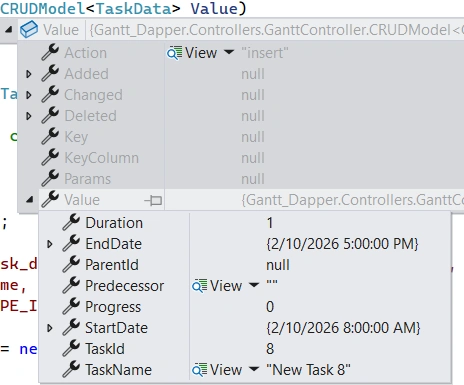
To insert a new record, use the InsertUrl property to specify the controller action mapping URL for the insert operation. The details of the newly added record are passed to the newRecord parameter.
/// <summary>
/// Inserts a new data item into the data collection.
/// </summary>
/// <param name="newRecord">It contains the new record detail that needs to be inserted.</param>
/// <returns>Returns void.</returns>
[HttpPost]
[Route("api/[controller]/Insert")]
public void Insert([FromBody] CRUDModel<TaskData> newRecord)
{
    if (newRecord.value != null)
    {
        // Add the new record to the data collection.
        TaskData.GetAllRecords().Insert(0, newRecord.value);
    }
}
Update operation:
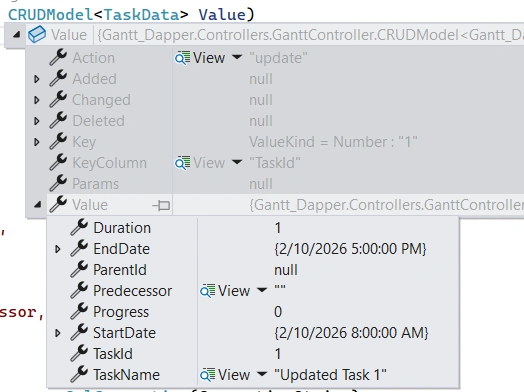
For updating existing records, use the UpdateUrl property to specify the controller action mapping URL for the update operation. The details of the updated record are passed to the updatedRecord parameter.
/// <summary>
/// Update a existing data item from the data collection.
/// </summary>
/// <param name="updatedRecord">It contains the updated record detail that needs to be updated.</param>
/// <returns>Returns void.</returns>
[HttpPost]
[Route("api/[controller]/Update")]
public void Update([FromBody] CRUDModel<TaskData> updatedRecord)
{
    var updatedTask = updatedRecord.value;
    if (updatedTask != null)
    {
        var data = TaskData.GetAllRecords().FirstOrDefault(or => or.TaskID == updatedTask.TaskID);
        if (data != null)
        {
            // Update the existing record.
            data.TaskID = updatedTask.TaskID;
            data.TaskName = updatedTask.TaskName;
            data.StartDate = updatedTask.StartDate;
            data.EndDate = updatedTask.EndDate;
            // Update other properties similarly.
        }
    }
}
Delete operation:
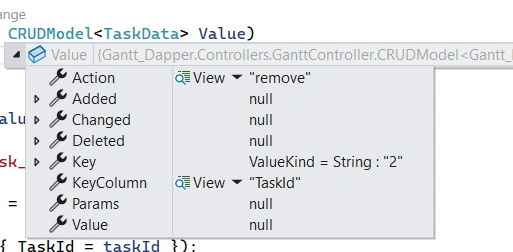
To delete existing records, use the RemoveUrl property to specify the controller action mapping URL for the delete operation. The primary key value of the deleted record is passed to the deletedRecord parameter.
/// <summary>
/// Remove a specific data item from the data collection.
/// </summary>
/// <param name="deletedRecord">It contains the specific record detail that needs to be removed.</param>
/// <returns>Returns void.</returns>
[HttpPost]
[Route("api/[controller]/Remove")]
public void Remove([FromBody] CRUDModel<TaskData> deletedRecord)
{
    // Get the key value from the deletedRecord.
    int taskID = int.Parse(deletedRecord.key.ToString());
    var data = TaskData.GetAllRecords().FirstOrDefault(task => task.TaskID == taskID);
    if (data != null)
    {
        // Remove the record from the data collection.
        TaskData.GetAllRecords().Remove(data);
    }
}
Applicable scenarios for the UrlAdaptor
- Project tracking systems – Centralized databases that expose task data through a single API endpoint.
- Construction and engineering schedules – Work breakdown structures (Phase → Stage → Activity → Task) where the Gantt must always reflect the latest server state.
- Team collaboration tools – Concurrent editing scenarios where the server is the source of truth.
- Resource and capacity planning – Planning dashboards that persist schedule changes immediately without a full page reload.
- Legacy system integration – A lightweight API wrapper around an existing system or third-party platform allows the Gantt to connect without migrating or duplicating data.
Key technical points of the UrlAdaptor
-
Works with any backend – The
UrlAdaptorcommunicates through standard HTTP POST endpoints and is not tied to a specific server technology. - Server-side data operations – Searching, filtering, and sorting are handled on the server, so the Gantt only receives the rows it needs.
- Reduced client payload – The server slices and shapes the data before sending it, so the browser does not hold the full task list in memory.
- Full CRUD lifecycle – Insert, update, delete, and batch operations are each routed to their own API endpoint.
- Custom authentication and authorization – Authentication (JWT, cookies, API keys) and row-level permissions can be enforced in the API before the data reaches the Gantt.
- Reusable API – The same endpoint can serve other UI components, mobile apps, or third-party integrations.