Scrolling in Syncfusion ASP.NET Core Gantt Chart
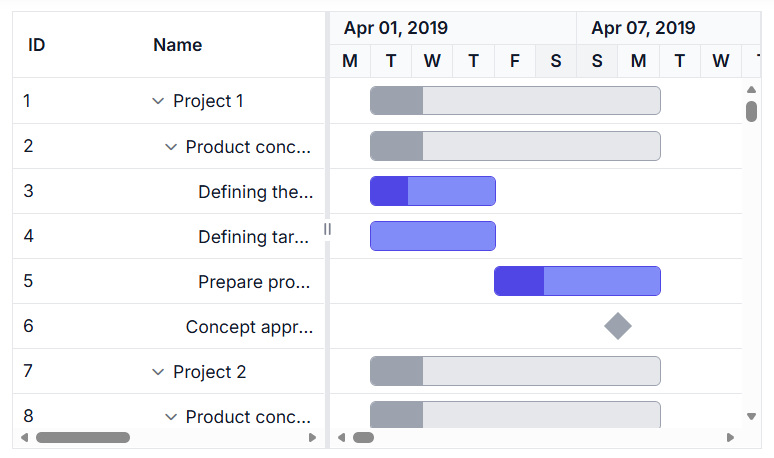
Scrolling in the ASP.NET Core Gantt Chart component enables smooth navigation across extensive project datasets and long timelines. It ensures taskbars, grid rows, and timeline cells remain visible within the viewport. Scrollbars automatically appear when content exceeds the component’s defined height and width, supporting vertical scrolling for rows, horizontal scrolling for columns, and timeline scrolling for extended chart areas.
Virtual scrolling enhances performance by rendering only the visible portion of the dataset. Scrollbars are equipped with ARIA labels for accessibility, making them compatible with screen readers. They also adapt to responsive layouts, although horizontal scrolling may be required on narrow screens with wide timelines.
By default, both
heightandwidthare set to auto.
Configure scrollbar display
Scrollbars appear based on content size:
- Vertical scrollbar: Triggers when task row height exceeds the component’s height.
- Horizontal scrollbar: Triggers when column width exceeds the tree grid pane.
- Timeline scrollbar: Triggers when the timeline exceeds the chart area.
For precise layout control, set fixed dimensions using pixel values for both width and height.
<ejs-gantt id="Gantt" dataSource="@Model.GanttDataSourceCollection" height="350px" width="600px" treeColumnIndex="1">
    <e-gantt-taskfields id="TaskId" name="TaskName" startDate="StartDate" duration="Duration" progress="Progress"
        parentID="ParentId">
    </e-gantt-taskfields>
</ejs-gantt>
using Microsoft.AspNetCore.Mvc.RazorPages;
namespace CoreSamples.Pages
{
public class IndexModel : PageModel
{
public List<GanttDataSource> GanttDataSourceCollection { get; set; }
public void OnGet()
{
GanttDataSourceCollection = GetTaskCollection();
}
private List<GanttDataSource> GetTaskCollection()
{
List<GanttDataSource> virtualData = new List<GanttDataSource>();
List<GanttDataSource> tempData = new List<GanttDataSource>()
{
new GanttDataSource
{
TaskId = 1,
TaskName = "Product concept",
StartDate = new DateTime(2019, 4, 2),
EndDate = new DateTime(2019, 4, 21),
ParentId = 0
},
new GanttDataSource
{
TaskId = 2,
TaskName = "Defining the product and its usage",
StartDate = new DateTime(2019, 4, 2),
Duration = 3,
Progress = 30,
ParentId = 1
},
new GanttDataSource
{
TaskId = 3,
TaskName = "Defining target audience",
StartDate = new DateTime(2019, 4, 2),
Duration = 3,
ParentId = 1
},
new GanttDataSource
{
TaskId = 4,
TaskName = "Prepare product sketch and notes",
StartDate = new DateTime(2019, 4, 5),
Duration = 2,
Progress = 30,
ParentId = 1
},
new GanttDataSource
{
TaskId = 5,
TaskName = "Concept approval",
StartDate = new DateTime(2019, 4, 8),
Duration = 0,
ParentId = 0
}
};
for (int i = 0; i < 50; i++)
{
int x = virtualData.Count + 1;
virtualData.Add(new GanttDataSource
{
TaskId = x,
TaskName = $"Project {i + 1}"
});
foreach (var item in tempData)
{
virtualData.Add(new GanttDataSource
{
TaskId = item.TaskId + x,
TaskName = item.TaskName,
StartDate = item.StartDate,
EndDate = item.EndDate,
Duration = item.Duration,
Progress = item.Progress,
ParentId = item.ParentId + x
});
}
}
return virtualData;
}
}
public class GanttDataSource
{
public int TaskId { get; set; }
public string TaskName { get; set; }
public DateTime? StartDate { get; set; }
public DateTime? EndDate { get; set; }
public int? Duration { get; set; }
public int? Progress { get; set; }
public int? ParentId { get; set; }
}
}
Configure responsive scrolling
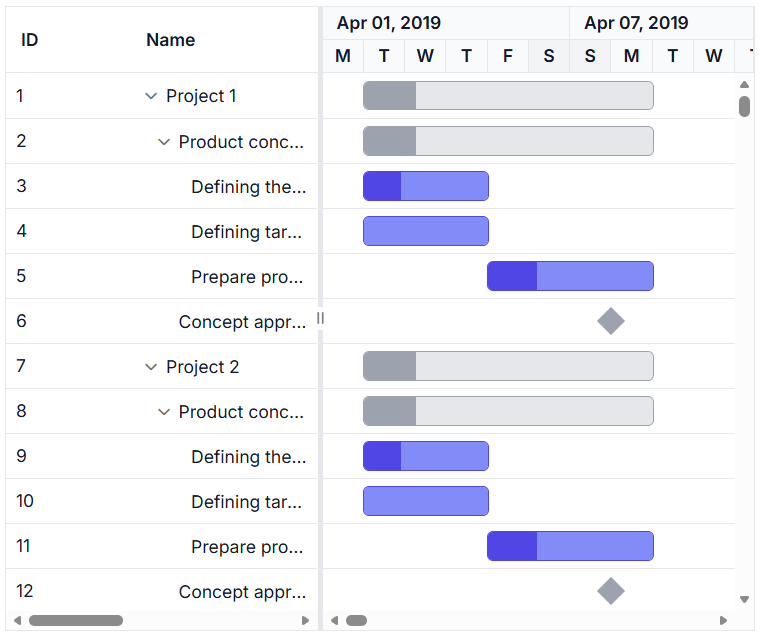
You can make the Gantt Chart component responsive by setting its width and height to 100%, allowing it to fully occupy the parent container. When height is set to 100%, the parent element must have a defined height to support proper layout rendering. The Gantt will automatically adjust when the container is resized.
<ejs-gantt id='Gantt' dataSource="ViewBag.dataSource" height="100%" width="100%">
        <e-gantt-taskfields id="TaskId" name="TaskName" startDate="StartDate"
            endDate="EndDate" duration="Duration" progress="Progress" child="SubTasks">
        </e-gantt-taskfields>
        <e-gantt-editsettings allowAdding="true" allowEditing="true" allowDeleting="true">
        </e-gantt-editsettings>
    </ejs-gantt>
public IActionResult Index()
{
ViewBag.DataSource = GanttData.EditingData();
return View();
}
Scroll to task row and timeline
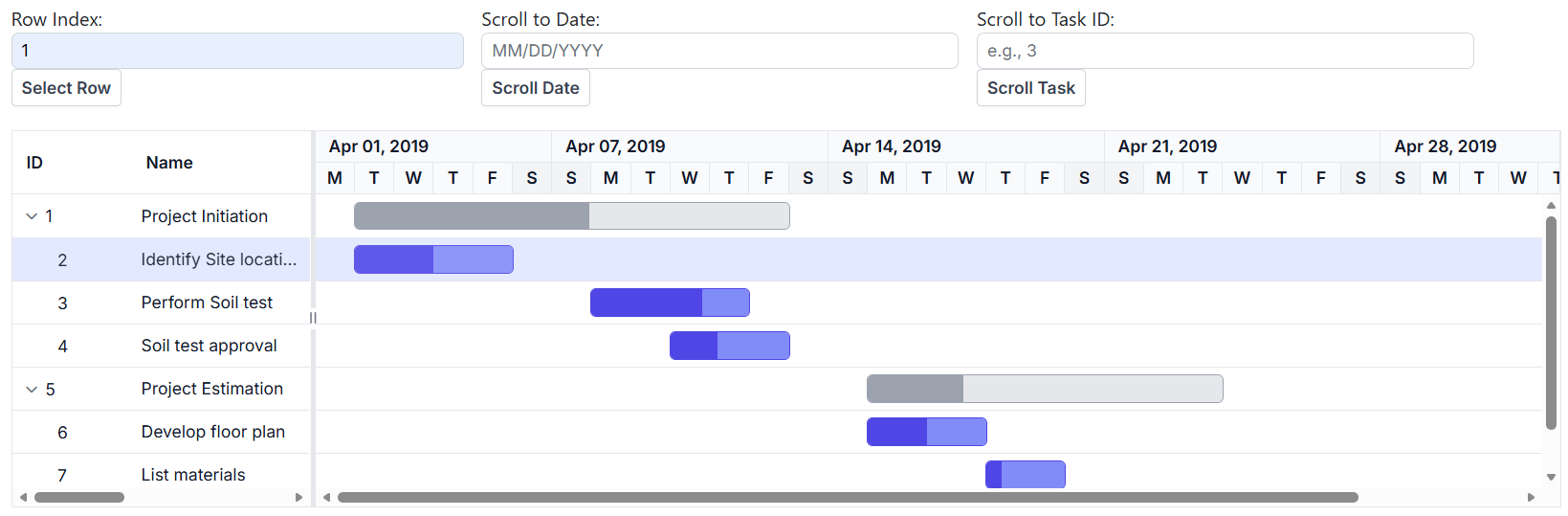
The ASP.NET Core Gantt Chart component provides built-in support for automatically scrolling to specific tasks and timeline positions, which is especially useful when working with large datasets.
To scroll vertically to a specific task row, use the selectRow method to select the desired task and apply setScrollTop to bring the selected row into view.
To scroll horizontally to a specific timeline date, use the scrollToDate method. This helps focus the timeline on a particular point in time.
To scroll directly to a specific task within the timeline, use the scrollToTask method with the task ID. This ensures the task is visible within the timeline view.
<div style="display:flex; gap:15px; margin-bottom:20px;">

    <div>
        <label for="rowIndex">Row Index:</label>
        <input type="number" id="rowIndex" class="e-input" placeholder="e.g., 1" />
        <button id="selectRowBtn" class="e-btn">Select Row</button>
    </div>

    <div>
        <label for="scrollDate">Scroll to Date:</label>
        <input type="text" id="scrollDate" class="e-input" placeholder="MM/DD/YYYY" />
        <button id="scrollDateBtn" class="e-btn">Scroll Date</button>
    </div>

    <div>
        <label for="taskId">Scroll to Task ID:</label>
        <input type="number" id="taskId" class="e-input" placeholder="e.g., 3" />
        <button id="scrollTaskBtn" class="e-btn">Scroll Task</button>
    </div>

</div>

<div style="height:500px;">
    <ejs-gantt id="Gantt"
               dataSource="@Model.GanttDataSourceCollection"
               height="315px">

        <e-gantt-taskfields id="TaskId"
                            name="TaskName"
                            startDate="StartDate"
                            duration="Duration"
                            progress="Progress"
                            parentID="ParentId">
        </e-gantt-taskfields>

    </ejs-gantt>
</div>

<script>
    document.addEventListener('DOMContentLoaded', function () {

        var gantt = document.getElementById('Gantt').ej2_instances[0];

        document.getElementById('selectRowBtn').addEventListener('click', function () {
            var rowIndex = parseInt(document.getElementById('rowIndex').value);
            if (!isNaN(rowIndex)) {
                gantt.selectionModule.selectRow(rowIndex);
                gantt.setScrollTop(gantt.rowHeight * rowIndex);
            }
        });

        document.getElementById('scrollDateBtn').addEventListener('click', function () {
            var dateValue = document.getElementById('scrollDate').value;
            if (dateValue) {
                gantt.scrollToDate(dateValue);
            }
        });

        document.getElementById('scrollTaskBtn').addEventListener('click', function () {
            var taskId = document.getElementById('taskId').value;
            if (taskId) {
                gantt.scrollToTask(taskId);
            }
        });
    });
</script>
using Microsoft.AspNetCore.Mvc.RazorPages;
namespace CoreSamples.Pages
{
public class IndexModel : PageModel
{
public List<GanttDataSource> GanttDataSourceCollection { get; set; }
public void OnGet()
{
GanttDataSourceCollection = GetTaskCollection();
}
private List<GanttDataSource> GetTaskCollection()
{
return new List<GanttDataSource>()
{
new GanttDataSource
{
TaskId = 1,
TaskName = "Project Initiation",
StartDate = new DateTime(2019, 4, 2),
Duration = 5,
Progress = 60
},
new GanttDataSource
{
TaskId = 2,
TaskName = "Identify Site location",
StartDate = new DateTime(2019, 4, 2),
Duration = 4,
Progress = 50,
ParentId = 1
},
new GanttDataSource
{
TaskId = 3,
TaskName = "Perform Soil test",
StartDate = new DateTime(2019, 4, 6),
Duration = 4,
Progress = 70,
ParentId = 1
},
new GanttDataSource
{
TaskId = 4,
TaskName = "Soil test approval",
StartDate = new DateTime(2019, 4, 10),
Duration = 3,
Progress = 40,
ParentId = 1
},
new GanttDataSource
{
TaskId = 5,
TaskName = "Project Estimation",
StartDate = new DateTime(2019, 4, 15),
Duration = 5,
Progress = 30
},
new GanttDataSource
{
TaskId = 6,
TaskName = "Develop floor plan",
StartDate = new DateTime(2019, 4, 15),
Duration = 3,
Progress = 50,
ParentId = 5
},
new GanttDataSource
{
TaskId = 7,
TaskName = "List materials",
StartDate = new DateTime(2019, 4, 18),
Duration = 2,
Progress = 20,
ParentId = 5
},
new GanttDataSource
{
TaskId = 8,
TaskName = "Estimation approval",
StartDate = new DateTime(2019, 4, 20),
Duration = 2,
Progress = 0,
ParentId = 5
}
};
}
}
public class GanttDataSource
{
public int TaskId { get; set; }
public string TaskName { get; set; }
public DateTime? StartDate { get; set; }
public int? Duration { get; set; }
public int? Progress { get; set; }
public int? ParentId { get; set; }
}
}
Synchronize horizontal scroll between Gantt charts
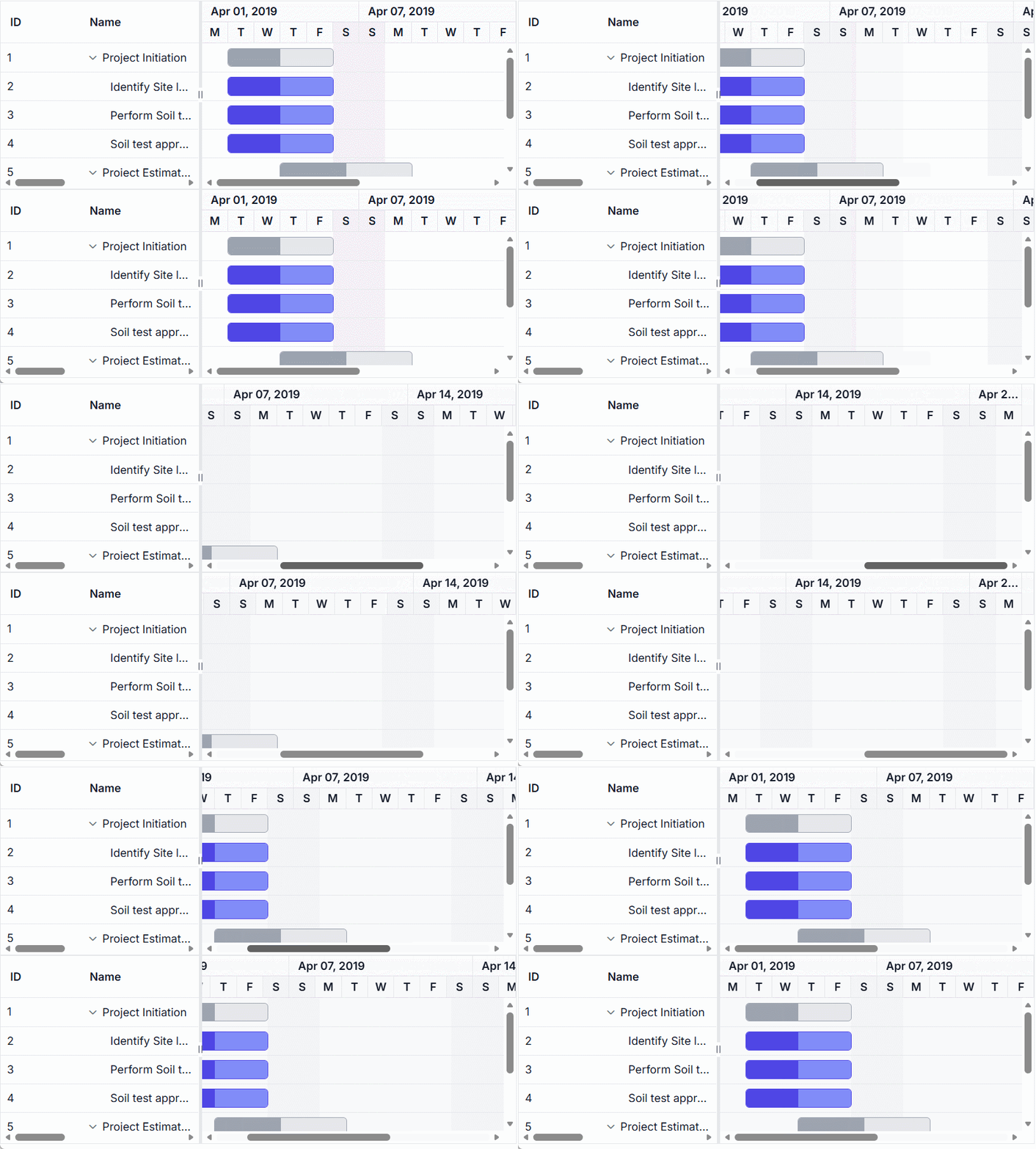
To synchronize horizontal scrolling across multiple Gantt Chart components, handle the actionComplete event with the HorizontalScroll action. This captures the scroll position of the first Gantt chart and applies it to the second Gantt using the scrollLeft property. This approach ensures aligned timeline navigation, which is especially useful for comparing related project data side-by-side, such as parallel schedules.
<div class="control-section" style="height:475px;width:650px;">
    <ejs-gantt id="PrimaryGantt" dataSource="@Model.GanttDataSourceCollection" height="50%" width="100%"
        treeColumnIndex="1" allowSelection="true" dateFormat="MMM dd, y" highlightWeekends="true"
        actionComplete="syncScroll">

        <e-gantt-taskfields id="TaskId" name="TaskName" startDate="StartDate" endDate="EndDate" duration="Duration"
            progress="Progress" parentID="ParentId">
        </e-gantt-taskfields>

    </ejs-gantt>

    <ejs-gantt id="SecondaryGantt" dataSource="@Model.GanttDataSourceCollection" height="50%" width="100%"
        treeColumnIndex="1" allowSelection="true" dateFormat="MMM dd, y" highlightWeekends="true">

        <e-gantt-taskfields id="TaskId" name="TaskName" startDate="StartDate" endDate="EndDate" duration="Duration"
            progress="Progress" parentID="ParentId">
        </e-gantt-taskfields>

    </ejs-gantt>
</div>

<script>
    function syncScroll(args) {
        if (args.action === 'HorizontalScroll') {
            var secondaryGantt = document.getElementById('SecondaryGantt').ej2_instances[0];
            var chartElement = secondaryGantt.element.querySelector('.e-chart-root-container > div');

            if (chartElement) {
                chartElement.scrollLeft = args.scrollLeft;
            }
        }
    }
</script>
using Microsoft.AspNetCore.Mvc.RazorPages;
namespace CoreSamples.Pages
{
public class IndexModel : PageModel
{
public List<GanttDataSource> GanttDataSourceCollection { get; set; }
public void OnGet()
{
GanttDataSourceCollection = GetTaskCollection();
}
private List<GanttDataSource> GetTaskCollection()
{
return new List<GanttDataSource>()
{
new GanttDataSource
{
TaskId = 1,
TaskName = "Project Initiation",
StartDate = new DateTime(2019, 4, 2),
EndDate = new DateTime(2019, 4, 21)
},
new GanttDataSource
{
TaskId = 2,
TaskName = "Identify Site location",
StartDate = new DateTime(2019, 4, 2),
Duration = 4,
Progress = 50,
Verified = true,
ParentId = 1
},
new GanttDataSource
{
TaskId = 3,
TaskName = "Perform Soil test",
StartDate = new DateTime(2019, 4, 2),
Duration = 4,
Progress = 50,
ParentId = 1
},
new GanttDataSource
{
TaskId = 4,
TaskName = "Soil test approval",
StartDate = new DateTime(2019, 4, 2),
Duration = 4,
Progress = 50,
Verified = true,
ParentId = 1
},
new GanttDataSource
{
TaskId = 5,
TaskName = "Project Estimation",
StartDate = new DateTime(2019, 4, 2),
EndDate = new DateTime(2019, 4, 21)
},
new GanttDataSource
{
TaskId = 6,
TaskName = "Develop floor plan for estimation",
StartDate = new DateTime(2019, 4, 4),
Duration = 3,
Progress = 50,
ParentId = 5
},
new GanttDataSource
{
TaskId = 7,
TaskName = "List materials",
StartDate = new DateTime(2019, 4, 4),
Duration = 3,
Progress = 50,
Verified = true,
ParentId = 5
},
new GanttDataSource
{
TaskId = 8,
TaskName = "Estimation approval",
StartDate = new DateTime(2019, 4, 4),
Duration = 3,
Progress = 50,
Verified = true,
ParentId = 5
}
};
}
}
public class GanttDataSource
{
public int TaskId { get; set; }
public string TaskName { get; set; }
public DateTime? StartDate { get; set; }
public DateTime? EndDate { get; set; }
public int? Duration { get; set; }
public int? Progress { get; set; }
public bool Verified { get; set; }
public int? ParentId { get; set; }
}
}