Loading Animation in ASP.NET Core Gantt Chart
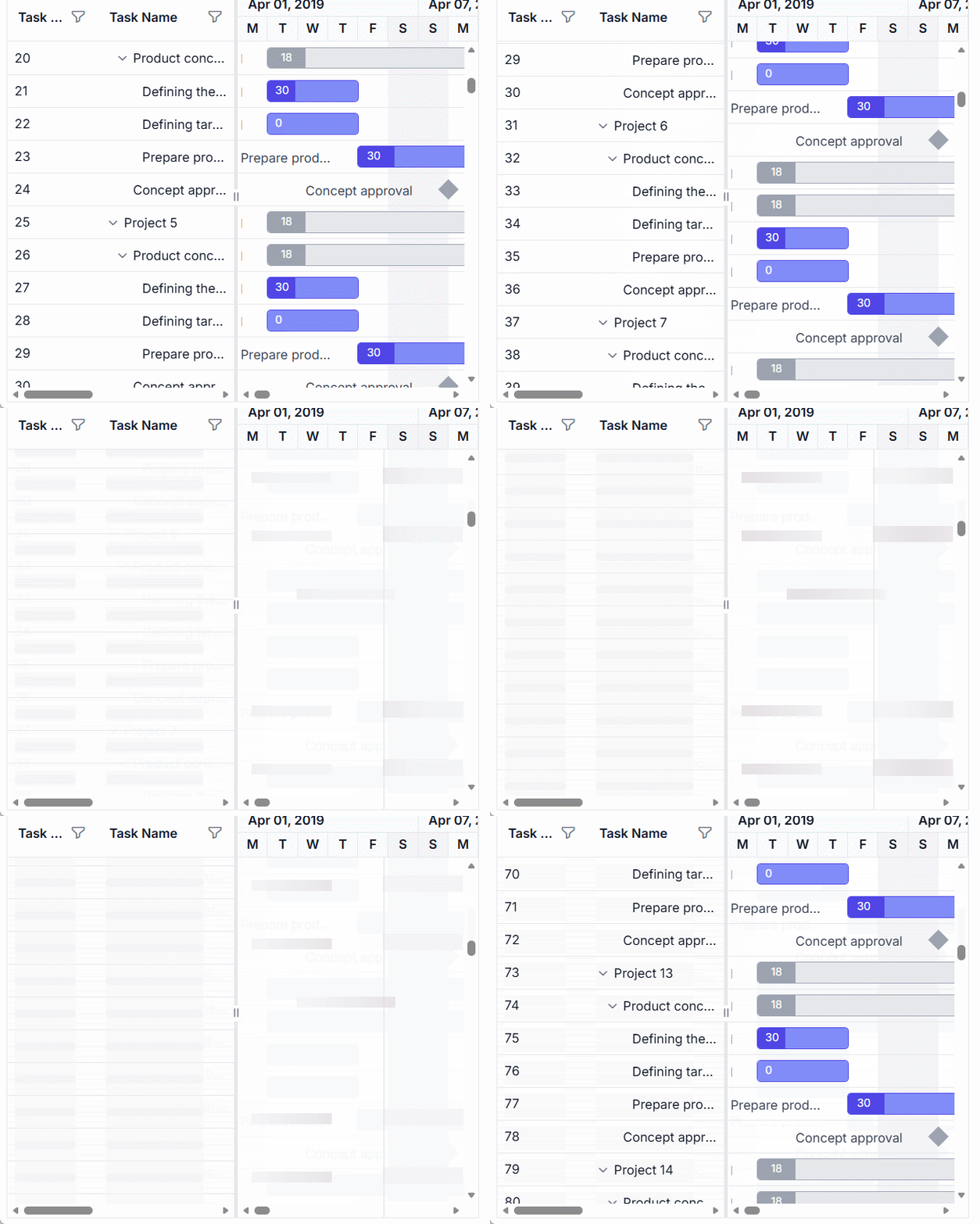
The ASP.NET Core Gantt Chart component displays loading indicators to provide visual feedback during data processing operations like sorting, filtering, scrolling, or data binding, enhancing user experience by signaling active processes. Configured via the loadingIndicator.indicatorType property, indicators support two types: Spinner, a rotating circular animation for quick operations, and Shimmer, an animated placeholder for data-intensive tasks like virtual scrolling with large datasets. Indicators appear automatically during initial data binding, data updates, filtering, sorting, scrolling, and expand/collapse actions, ensuring users perceive system activity. The Spinner is lightweight and ideal for simple updates, while Shimmer previews content layout for complex operations but may be resource-intensive for small datasets. Indicators support accessibility with ARIA labels and adapt to responsive designs for consistent visibility.
Configure loading indicators
Loading indicators are configured using the loadingIndicator property, with indicatorType set to Spinner (default) or Shimmer. Changes to indicatorType require component re-initialization for reflection.
The following example configures a Shimmer indicator:
<ejs-gantt id="Gantt" dataSource="ViewBag.DataSource" height="450px">
    <e-gantt-loadingIndicator indicatorType="Shimmer"></e-gantt-loadingIndicator>
</ejs-gantt>
This code sets a Shimmer indicator for operations like virtual scrolling, providing a modern loading experience. Use Spinner for quick operations to minimize resource usage.
The following example shows indicator usage:
<ejs-gantt id="Gantt" dataSource="@Model.GanttDataSourceCollection" height="450px" treeColumnIndex="1"
    enableVirtualization="true" allowSorting="true" allowFiltering="true" highlightWeekends="true">

    <e-gantt-taskfields id="TaskId" name="TaskName" startDate="StartDate" endDate="EndDate" duration="Duration"
        progress="Progress" parentID="ParentId">
    </e-gantt-taskfields>

    <e-gantt-splittersettings columnIndex="2"></e-gantt-splittersettings>

    <e-gantt-labelsettings leftLabel="TaskName" taskLabel="Progress">
    </e-gantt-labelsettings>

    <e-gantt-loadingindicator indicatorType="Shimmer">
    </e-gantt-loadingindicator>

    <e-gantt-columns>
        <e-gantt-column field="TaskId" headerText="Task ID"></e-gantt-column>
        <e-gantt-column field="TaskName" headerText="Task Name"></e-gantt-column>
        <e-gantt-column field="StartDate" headerText="Start Date"></e-gantt-column>
        <e-gantt-column field="Duration" headerText="Duration"></e-gantt-column>
        <e-gantt-column field="Progress" headerText="Progress"></e-gantt-column>
    </e-gantt-columns>

</ejs-gantt>
using Microsoft.AspNetCore.Mvc.RazorPages;
namespace CoreSamples.Pages
{
public class IndexModel : PageModel
{
public List<GanttDataSource> GanttDataSourceCollection { get; set; }
public void OnGet()
{
GanttDataSourceCollection = GetTaskCollection();
}
private List<GanttDataSource> GetTaskCollection()
{
List<GanttDataSource> virtualData = new List<GanttDataSource>();
List<GanttDataSource> tempData = new List<GanttDataSource>()
{
new GanttDataSource
{
TaskId = 1,
TaskName = "Product concept",
StartDate = new DateTime(2019, 4, 2),
EndDate = new DateTime(2019, 4, 21),
ParentId = 0
},
new GanttDataSource
{
TaskId = 2,
TaskName = "Defining the product and its usage",
StartDate = new DateTime(2019, 4, 2),
Duration = 3,
Progress = 30,
ParentId = 1
},
new GanttDataSource
{
TaskId = 3,
TaskName = "Defining target audience",
StartDate = new DateTime(2019, 4, 2),
Duration = 3,
ParentId = 1
},
new GanttDataSource
{
TaskId = 4,
TaskName = "Prepare product sketch and notes",
StartDate = new DateTime(2019, 4, 5),
Duration = 2,
Progress = 30,
ParentId = 1
},
new GanttDataSource
{
TaskId = 5,
TaskName = "Concept approval",
StartDate = new DateTime(2019, 4, 8),
Duration = 0,
ParentId = 0
}
};
for (int i = 0; i < 50; i++)
{
int x = virtualData.Count + 1;
virtualData.Add(new GanttDataSource
{
TaskId = x,
TaskName = $"Project {i + 1}"
});
foreach (var item in tempData)
{
virtualData.Add(new GanttDataSource
{
TaskId = item.TaskId + x,
TaskName = item.TaskName,
StartDate = item.StartDate,
EndDate = item.EndDate,
Duration = item.Duration,
Progress = item.Progress,
ParentId = item.ParentId + x
});
}
}
return virtualData;
}
}
public class GanttDataSource
{
public int TaskId { get; set; }
public string TaskName { get; set; }
public DateTime? StartDate { get; set; }
public DateTime? EndDate { get; set; }
public int? Duration { get; set; }
public int? Progress { get; set; }
public int? ParentId { get; set; }
}
}
Control loading indicators manually
For custom scenarios, such as asynchronous data processing, manually control indicators using the showSpinner and hideSpinner methods. Ensure that the Gantt client instance is available before invoking these methods.
The following example demonstrates manual control:
<button type="button" onclick="showCustomLoading()">Show loading indicator</button>
<ejs-gantt id="Gantt" dataSource="ViewBag.DataSource" height="450px"></ejs-gantt>

<script>
    function showCustomLoading() {
        var gantt = document.getElementById('Gantt').ej2_instances[0];
        gantt.showSpinner();
        window.setTimeout(function () {
            gantt.hideSpinner();
        }, 2000);
    }
</script>
This code displays a loading indicator during a simulated 2-second data operation, ensuring clear feedback. Use manual control only for specific business logic to avoid overriding automatic behavior.