Styles and Appearance in Blazor File Manager
The following content provides the exact CSS structure that can be used to modify the control’s appearance based on the user preference.
Customizing the Blazor File Manager navigation pane
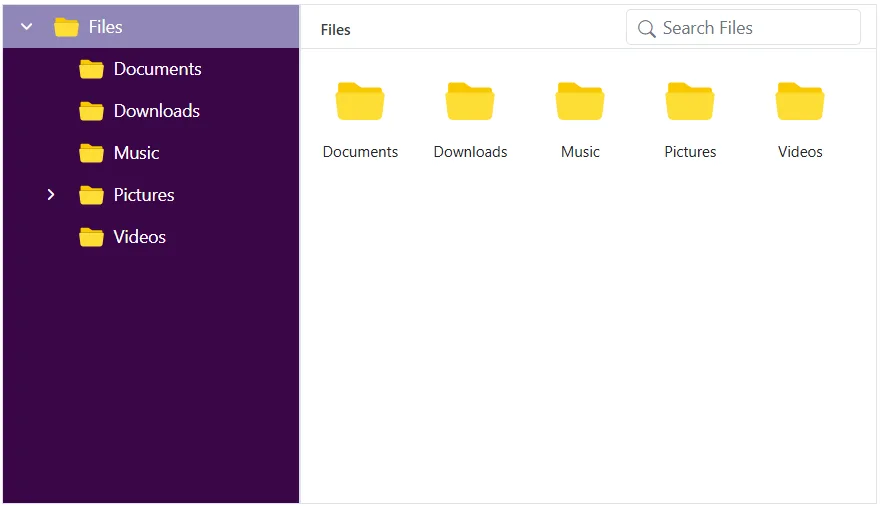
To customize the Blazor File Manager navigation pane, use the .e-navigation selector and apply styles.
/* Set background color for the Blazor File Manager navigation pane */
.e-filemanager .e-navigation {
    background: #3a0647;
}

/* Highlight the active item in the TreeView inside the navigation pane */
.e-filemanager .e-treeview .e-list-item.e-active > .e-fullrow {
    background: #c3d3f9a1;
}

/* Set text color for TreeView items in the navigation pane */
.e-filemanager .e-treeview .e-list-text {
    color: #fff;
}

/* Set icon color for collapsible and expandable TreeView nodes */
.e-treeview .e-icon-collapsible,
.e-treeview .e-icon-expandable {
    color: #fff;
}
Customizing the Blazor File Manager thumbnail
To customize the thumbnails in the Blazor File Manager, you can apply background-image styles to specific CSS selectors that represent different file types, as listed in the table below.
| File Type | CSS Selector |
|---|---|
| Image | .e-fe-image |
| Music | .e-fe-music |
| Excel | .e-fe-xlsx |
| Video | .e-fe-video |
| PowerPoint | .e-fe-pptx |
| RAR | .e-fe-rar |
| ZIP | .e-fe-zip |
| Text | .e-fe-txt |
| JavaScript | .e-fe-js |
| CSS | .e-fe-css |
| HTML | .e-fe-html |
| Unknown | .e-fe-unknown |
| Executable | .e-fe-exe |
| MSI | .e-fe-msi |
| PHP | .e-fe-php |
| Word | .e-fe-doc |
| Word(docx) | .e-fe-docx |
| XML | .e-fe-xml |
| Folder | .e-fe-folder |
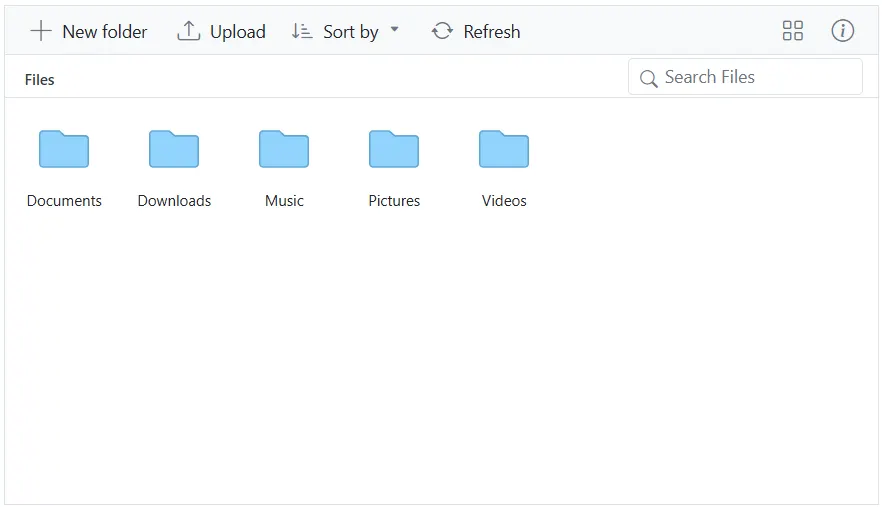
The following example demonstrates how to customize the Blazor File Manager’s thumbnail icon for folders:
/* Applies to both Large Icons view and Details view in the Blazor File Manager */

.e-filemanager .e-large-icons .e-fe-folder, .e-filemanager .e-grid .e-fe-folder {
    background-image: url("data:image/svg+xml;base64,PD94bWwgdmVyc2lvbj0iMS4wIiBlbmNvZGluZz0idXRmLTgiPz48c3ZnIHZlcnNpb249IjEuMSIgaWQ9IkxheWVyXzEiIHhtbG5zPSJodHRwOi8vd3d3LnczLm9yZy8yMDAwL3N2ZyIgeG1sbnM6eGxpbms9Imh0dHA6Ly93d3cudzMub3JnLzE5OTkveGxpbmsiIHg9IjBweCIgeT0iMHB4IiB2aWV3Qm94PSIwIDAgMzIgMzIiIHN0eWxlPSJlbmFibGUtYmFja2dyb3VuZDpuZXcgMCAwIDMyIDMyOyIgeG1sOnNwYWNlPSJwcmVzZXJ2ZSI+PHN0eWxlIHR5cGU9InRleHQvY3NzIj4uc3Qwe2ZpbGw6I0ZGOTI5Mjt9LnN0MXtmaWxsOiNFODdFN0U7fS5zdDJ7ZmlsbDojRkZDM0MzO30uc3Qze2ZpbGw6IzkxRDRGRTt9LnN0NHtmaWxsOiM2M0E3RDM7fS5zdDV7ZmlsbDojQzFFN0ZGO30uc3Q2e2ZpbGw6I0ZGRkZGRjt9LnN0N3tmaWxsOiM4M0Q2Qjk7fS5zdDh7ZmlsbDojNDZDNjhDO30uc3Q5e2ZpbGw6I0JCRThEODt9LnN0MTB7ZmlsbDojRkVCMTdEO30uc3QxMXtmaWxsOiNERDk2NjY7fS5zdDEye2ZpbGw6I0ZFRDRCNzt9LnN0MTN7ZmlsbDojRjJBMkEyO30uc3QxNHtmaWxsOiNGMUM1QzU7fS5zdDE1e2ZpbGw6I0RCQjY2Mzt9LnN0MTZ7ZmlsbDojQ0VBMTUxO30uc3QxN3tmaWxsOiNFQkQ3QTk7fS5zdDE4e2ZpbGw6I0NFQ0VDRTt9LnN0MTl7ZmlsbDojQjdCN0I3O30uc3QyMHtmaWxsOiNFNEU0RTQ7fS5zdDIxe2ZpbGw6IzY1QUFEMTt9LnN0MjJ7ZmlsbDojRTU3QTdBO30uc3QyM3tmaWxsOiNFNkE2RTg7fS5zdDI0e2ZpbGw6I0Q2OEFENjt9LnN0MjV7ZmlsbDojRkZDQ0ZFO30uc3QyNntmaWxsOiM5OENFNUY7fS5zdDI3e2ZpbGw6IzhDQUYyQzt9LnN0Mjh7ZmlsbDojQzZFM0E3O30uc3QyOXtmaWxsOiNGRkI1Nzg7fS5zdDMwe2ZpbGw6I0VEOUY2NDt9LnN0MzF7ZmlsbDojRkZENkI1O30uc3QzMntmaWxsOiNGNEExRUY7fS5zdDMze2ZpbGw6I0REODdERDt9LnN0MzR7ZmlsbDojRjlDQkY2O30uc3QzNXtmaWxsOiNBOEEyRjQ7fS5zdDM2e2ZpbGw6Izg4ODVFODt9LnN0Mzd7ZmlsbDojQ0ZDQ0Y4O30uc3QzOHtmaWxsOiNCQ0JDQkM7fS5zdDM5e2ZpbGw6I0E4QThBODt9LnN0NDB7ZmlsbDojREFEQURBO30uc3Q0MXtmaWxsOiM3N0NDREI7fS5zdDQye2ZpbGw6IzREQkNDMTt9LnN0NDN7ZmlsbDojQjRFM0VCO30uc3Q0NHtmaWxsOiNGRkI3QTQ7fS5zdDQ1e2ZpbGw6I0Y2OUE3Qjt9LnN0NDZ7ZmlsbDojRkZEN0NEO30uc3Q0N3tmaWxsOiM3MUM4RjQ7fS5zdDQ4e2ZpbGw6IzhEQzk3Nzt9LnN0NDl7ZmlsbDojN0NBODUxO30uc3Q1MHtvcGFjaXR5OjAuNDU7ZmlsbDojRkZGRkZGO308L3N0eWxlPjxnPjxwYXRoIGNsYXNzPSJzdDMiIGQ9Ik0yOS41LDI3LjVoLTI3Yy0xLjEsMC0yLTAuOS0yLTJ2LTE5YzAtMS4xLDAuOS0yLDItMmgxMC40bDMuNSwzLjFoMTMuMmMxLjEsMCwyLDAuOSwyLDJ2MTUuOUMzMS41LDI2LjYsMzAuNiwyNy41LDI5LjUsMjcuNXoiLz48cGF0aCBjbGFzcz0ic3Q0IiBkPSJNMjkuNSwyOGgtMjdDMS4xLDI4LDAsMjYuOSwwLDI1LjV2LTE5QzAsNS4xLDEuMSw0LDIuNSw0aDEwLjZsMy41LDMuMWgxM2MxLjQsMCwyLjUsMS4xLDIuNSwyLjV2MTUuOUMzMiwyNi45LDMwLjksMjgsMjkuNSwyOHogTTIuNSw1QzEuNyw1LDEsNS43LDEsNi41djE5QzEsMjYuMywxLjcsMjcsMi41LDI3aDI3YzAuOCwwLDEuNS0wLjcsMS41LTEuNVY5LjZjMC0wLjgtMC43LTEuNS0xLjUtMS41SDE2LjJMMTIuNyw1SDIuNXoiLz48L2c+PC9zdmc+");
}
Customizing the Blazor File Manager layout
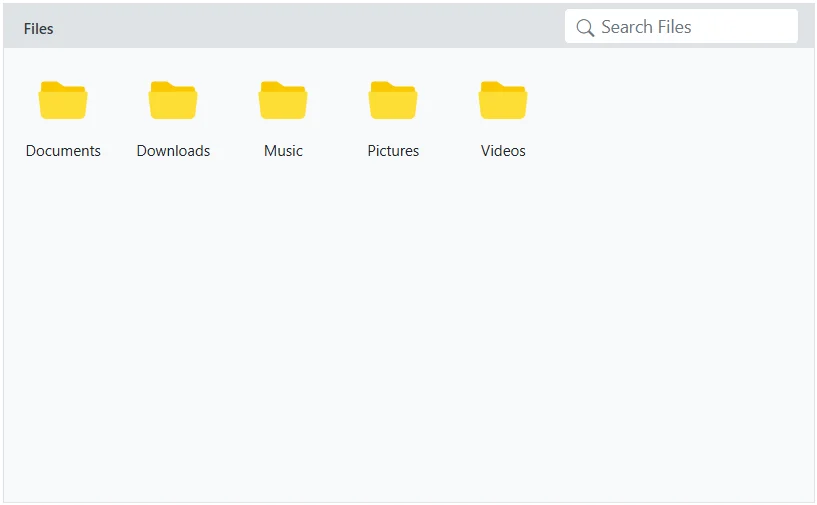
To customize the Blazor File Manager layout, use the .e-layout-content selector and apply styles.
/* Style for breadcrumb (address bar) */
.e-filemanager .e-layout-content .e-address {
    background: #dee2e6;
}

/* Customize the background for the Large Icons view */
.e-filemanager .e-layout-content .e-large-icons {
    background: #f8f9fa;
}

/* Customize the background for the Details view table and content area */
.e-filemanager .e-layout-content .e-grid .e-table,
.e-filemanager .e-grid .e-gridcontent .e-content {
    background: #f8f9fa;
}
Customizing the Blazor File Manager Toolbar
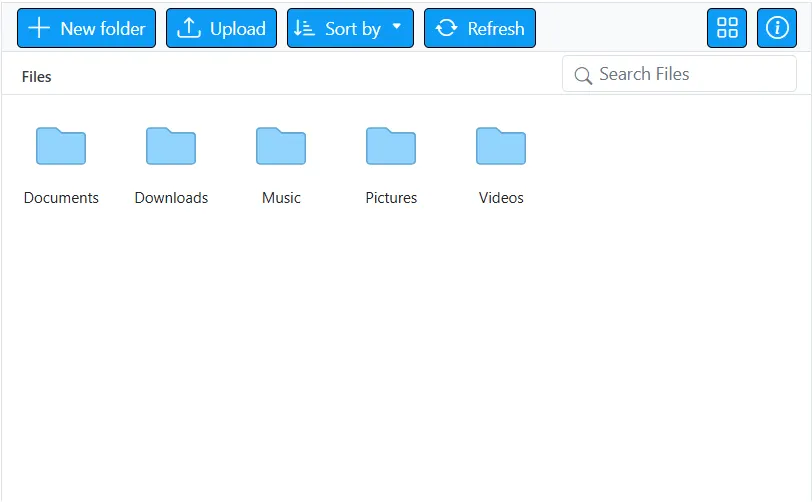
To customize the Blazor File Manager toolbar items, use the .e-toolbar selector and apply styles.
/* Style for individual toolbar buttons */
.e-filemanager .e-toolbar .e-tbar-btn {
        background: #0d9cf6;
    border: 1px solid #000000;
}

/* Style for toolbar icons */
.e-filemanager .e-toolbar .e-tbar-btn .e-icons {
    color: #ffffff;
}

/* Style for toolbar button text */
.e-filemanager .e-toolbar .e-toolbar-item .e-tbar-btn .e-tbar-btn-text {
    color: #ffffff;
}
Customizing the Blazor File Manager selected files/folders
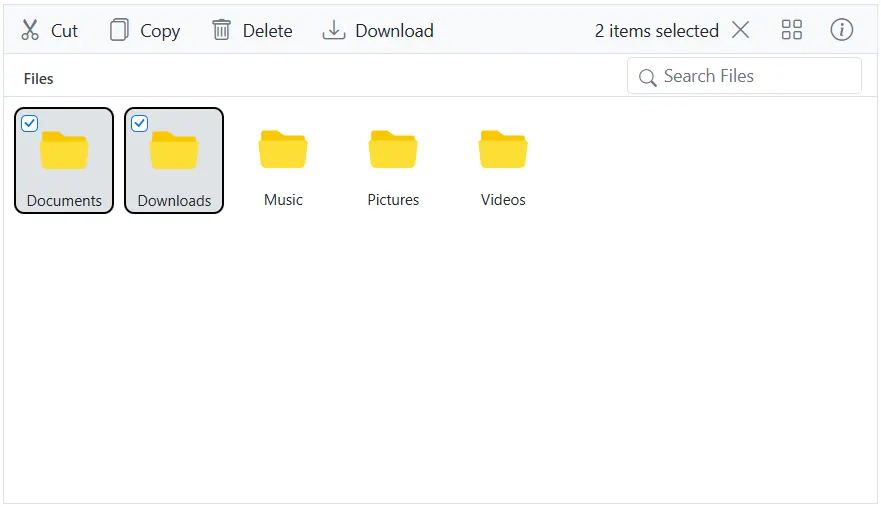
To customize the Blazor File Manager selected files/folders, use the below selectors and apply styles.
/* Highlight for active and hover item in Large Icons view */
.e-filemanager li.e-list-item.e-large-icon.e-active,
.e-filemanager li.e-list-item.e-large-icon.e-active:hover {
    background: #dee2e6;
    border: 2px solid #000000;
    border-radius: 10%;
}

/* Color for text */
.e-filemanager .e-large-icons .e-active {
    color: #212529;
}

/* Highlight for active row in Details view */
.e-filemanager .e-grid td.e-active {
    background: #dee2e6;
}
Customizing the Blazor File Manager Dialog
To customize the dialog popup in the Blazor File Manager, you can apply styles to specific CSS selectors, as listed in the table below.
| Element | CSS Selector |
|---|---|
| Header | .e-dlg-header-content |
| Content | .e-dlg-content |
| Overlay | .e-dlg-overlay |
| Footer | .e-footer-content |
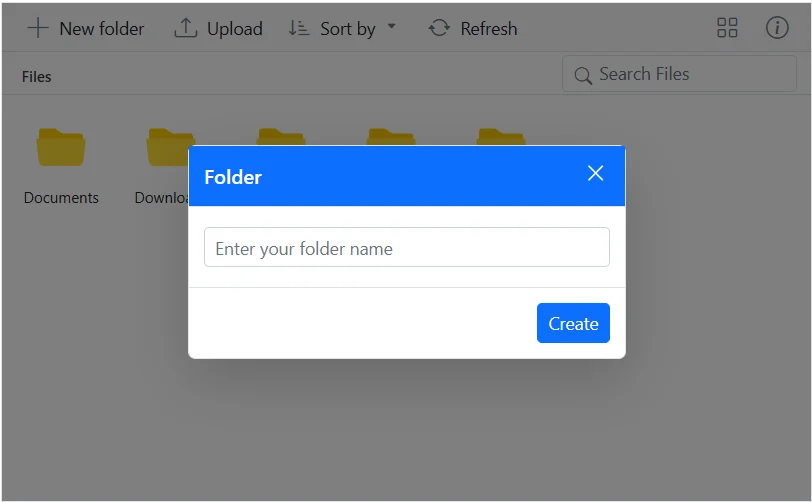
In this example, we have applied styles to the header content.
/* For Blazor File Manager Dialog header */
.e-filemanager .e-dialog .e-dlg-header-content {
    background-color: #0d6efd;
}
/* For Blazor File Manager Dialog header close icon and text*/
.e-filemanager .e-dialog .e-icon-dlg-close,
.e-filemanager .e-dialog .e-dlg-header {
    color: #fff;
}