How to Render the File Manager Inside Other Components in Blazor
The Blazor File Manager component can be rendered within other components, such as Dialog, Tab, and more.
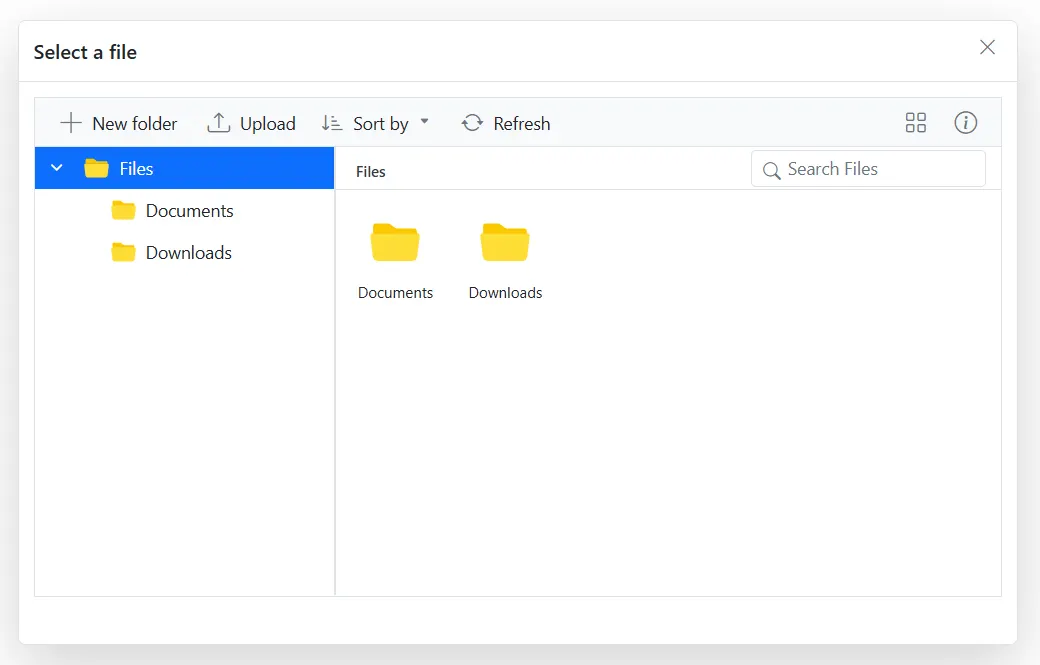
Adding Blazor File Manager inside the Dialog
When rendering the Blazor File Manager component with the Flat Data sample inside the SfDialog component, the Blazor File Manager’s layout height may not update correctly due to the dialog being in a hidden state during initialization.
To overcome this, use the RefreshLayoutAsync method of the Blazor FileManager component within the Opened event of the SfDialog component. This ensures that the Blazor File Manager’s layout is properly initialized and adjusted after the dialog is displayed.
The following example shows how to render the SfFileManager component inside the SfDialog component:
@using Syncfusion.Blazor.Popups
@using Syncfusion.Blazor.FileManager

<SfDialog Width="800px" Height="500px" ShowCloseIcon="true" Visible="true">
    <DialogTemplates>
        <Header>Select a file</Header>
        <Content>
            <SfFileManager @ref="FileManager" TValue="FileManagerDirectoryContent">
                <FileManagerEvents TValue="FileManagerDirectoryContent" OnRead="OnReadAsync"></FileManagerEvents>
            </SfFileManager>
        </Content>
    </DialogTemplates>
    <DialogEvents Opened="@DialogOpened"></DialogEvents>
</SfDialog>

@code {
    private SfFileManager<FileManagerDirectoryContent> FileManager;

    private async Task DialogOpened()
    {
        await FileManager.RefreshLayoutAsync();
    }

    private List<FileManagerDirectoryContent> Data { get; set; }

    protected override void OnInitialized()
    {
        Data = GetData();
    }

    private async Task OnReadAsync(ReadEventArgs<FileManagerDirectoryContent> args)
    {
        string path = args.Path;
        List<FileManagerDirectoryContent> fileDetails = args.Folder;
        var response = new FileManagerResponse<FileManagerDirectoryContent>();

        if (path == "/")
        {
            string parentId = Data
                .Where(x => string.IsNullOrEmpty(x.ParentId))
                .Select(x => x.Id)
                .First();

            response.CWD = Data
                .First(x => string.IsNullOrEmpty(x.ParentId));

            response.Files = Data
                .Where(x => x.ParentId == parentId)
                .ToList();
        }
        else
        {
            var childItem = fileDetails.Count > 0 && fileDetails[0] != null
                ? fileDetails[0]
                : Data.First(x => x.FilterPath == path);

            response.CWD = childItem;
            response.Files = Data
                .Where(x => x.ParentId == childItem.Id)
                .ToList();
        }

        await Task.Yield();
        args.Response = response;
    }

    private List<FileManagerDirectoryContent> GetData()
    {
        return new List<FileManagerDirectoryContent>
        {
            new FileManagerDirectoryContent
            {
                CaseSensitive = false,
                DateCreated = new DateTime(2022, 1, 2),
                DateModified = new DateTime(2022, 2, 3),
                FilterPath = "",
                FilterId = "",
                HasChild = true,
                Id = "0",
                IsFile = false,
                Name = "Files",
                ParentId = null,
                ShowHiddenItems = false,
                Size = 1779448,
                Type = "folder"
            },
            new FileManagerDirectoryContent
            {
                CaseSensitive = false,
                DateCreated = new DateTime(2022, 1, 2),
                DateModified = new DateTime(2022, 2, 3),
                FilterId = "0/",
                FilterPath = "/",
                HasChild = false,
                Id = "1",
                IsFile = false,
                Name = "Documents",
                ParentId = "0",
                ShowHiddenItems = false,
                Size = 680786,
                Type = "folder"
            },
            new FileManagerDirectoryContent
            {
                CaseSensitive = false,
                DateCreated = new DateTime(2022, 1, 2),
                DateModified = new DateTime(2022, 2, 3),
                FilterId = "0/",
                FilterPath = "/",
                HasChild = false,
                Id = "2",
                IsFile = false,
                Name = "Downloads",
                ParentId = "0",
                ShowHiddenItems = false,
                Size = 6172,
                Type = "folder"
            },
            new FileManagerDirectoryContent
            {
                CaseSensitive = false,
                DateCreated = new DateTime(2022, 1, 2),
                DateModified = new DateTime(2022, 2, 3),
                FilterId = "0/1/",
                FilterPath = "/Documents/",
                HasChild = false,
                Id = "5",
                IsFile = true,
                Name = "EJ2 File Manager.docx",
                ParentId = "1",
                ShowHiddenItems = false,
                Size = 12403,
                Type = ".docx"
            },
            new FileManagerDirectoryContent
            {
                CaseSensitive = false,
                DateCreated = new DateTime(2022, 1, 2),
                DateModified = new DateTime(2022, 2, 3),
                FilterId = "0/1/",
                FilterPath = "/Documents/",
                HasChild = false,
                Id = "6",
                IsFile = true,
                Name = "EJ2 File Manager.pdf",
                ParentId = "1",
                ShowHiddenItems = false,
                Size = 90099,
                Type = ".pdf"
            }
        };
    }
}
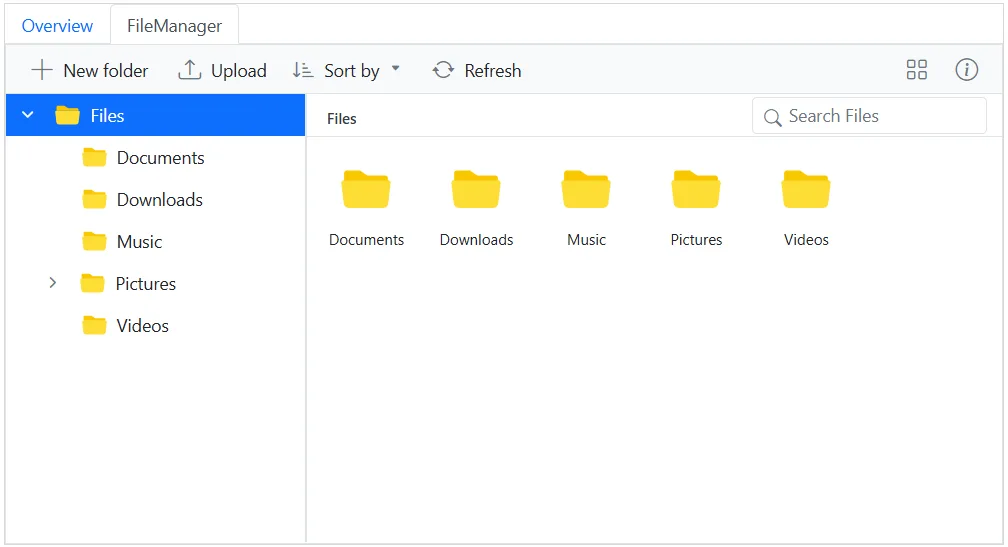
Adding Blazor File Manager inside the Tab
The following example demonstrates how to integrate the Blazor File Manager component within the content area of a Tab component. This setup allows users to manage files directly within a tabbed interface, providing an organized and efficient file management experience.
@using Syncfusion.Blazor.FileManager
@using Syncfusion.Blazor.Navigations

<SfTab Width="800px" CssClass="default-tab">
    <TabItems>
        <TabItem>
            <ChildContent>
                <TabHeader Text="Overview"></TabHeader>
            </ChildContent>
            <ContentTemplate>
                The Blazor FileManager component includes a context menu for performing file operations,
                a large-icons view for displaying files and folders, and a breadcrumb for navigation.
                However, these basic functionalities can be extended using additional feature modules
                like the toolbar, navigation pane, and details view to simplify navigation and
                file operations within the file system.
            </ContentTemplate>
        </TabItem>

        <TabItem>
            <ChildContent>
                <TabHeader Text="FileManager"></TabHeader>
            </ChildContent>
            <ContentTemplate>
                <SfFileManager TValue="FileManagerDirectoryContent">
                    <FileManagerAjaxSettings Url="https://physical-service.syncfusion.com/api/FileManager/FileOperations"
                                             UploadUrl="https://physical-service.syncfusion.com/api/FileManager/Upload"
                                             DownloadUrl="https://physical-service.syncfusion.com/api/FileManager/Download"
                                             GetImageUrl="https://physical-service.syncfusion.com/api/FileManager/GetImage">
                    </FileManagerAjaxSettings>
                </SfFileManager>
            </ContentTemplate>
        </TabItem>
    </TabItems>
</SfTab>

<style>
    .default-tab {
        border: 1px solid #d7d7d7;
    }
</style>