Views in ASP.NET MVC File Manager
The view section displays files and folders for user browsing. The view API can also be used to change the initial view of the File Manager.
The File Manager has two types of views to display the files and folders.
LargeIcons View
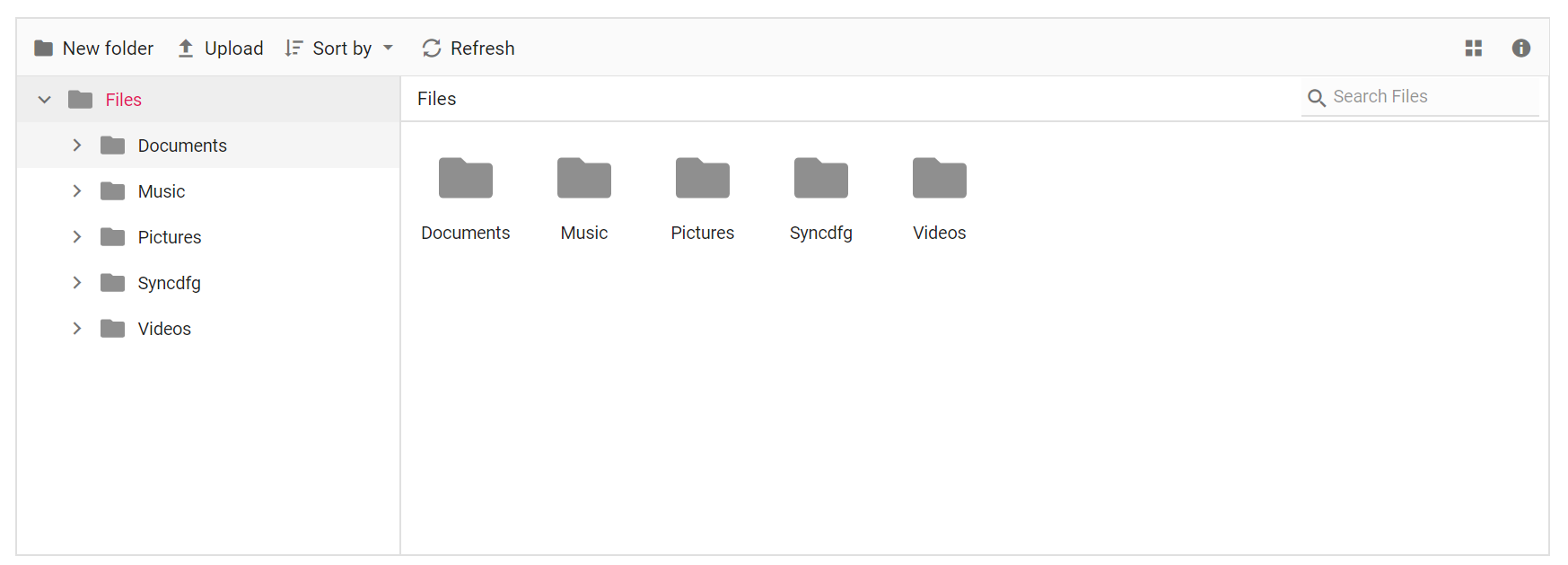
By default, File Manager is rendered with the large icons view. The following example demonstrates this.
<div class="control-section">
    <div class="sample-container">
        <!-- Declare File Manager control -->
        @Html.EJS().FileManager("filemanager").AjaxSettings(new Syncfusion.EJ2.FileManager.FileManagerAjaxSettings
        {
            Url = "/Home/FileOperations",
            GetImageUrl = "/Home/GetImage",
            UploadUrl = "/Home/Upload",
            DownloadUrl = "/Home/Download"
        }).Render()
        <!-- end of File Manager control -->
    </div>
</div>
using System;
using System.Collections.Generic;
using System.Linq;
using System.Web.Mvc;
//File Manager's base functions are available in the below package
using Syncfusion.EJ2.FileManager.Base;
//File Manager's operations are available in the below package
using Syncfusion.EJ2.FileManager.PhysicalFileProvider;
using Newtonsoft.Json;
// Use the package for hosting
using System.Web.Hosting;
namespace WebApplication.Controllers
{
public class HomeController : Controller
{
// Accessing the File Operations from File Manager package
PhysicalFileProvider operation = new PhysicalFileProvider();
public HomeController()
{
// Map the path of the files to be accessed with the host
var path = HostingEnvironment.MapPath("~/Content/Files");
// Assign the mapped path as root folder
operation.RootFolder(path);
}
public ActionResult FileOperations(FileManagerDirectoryContent args)
{
// Processing the File Manager operations
switch (args.Action)
{
case "read":
// Path - Current path; ShowHiddenItems - Boolean value to show/hide hidden items
return Json(operation.ToCamelCase(operation.GetFiles(args.Path, args.ShowHiddenItems)));
case "delete":
// Path - Current path where of the folder to be deleted; Names - Name of the files to be deleted
return Json(operation.ToCamelCase(operation.Delete(args.Path, args.Names)));
case "copy":
// Path - Path from where the file was copied; TargetPath - Path where the file/folder is to be copied; RenameFiles - Files with same name in the copied location that is confirmed for renaming; TargetData - Data of the copied file
return Json(operation.ToCamelCase(operation.Copy(args.Path, args.TargetPath, args.Names, args.RenameFiles, args.TargetData)));
case "move":
// Path - Path from where the file was cut; TargetPath - Path where the file/folder is to be moved; RenameFiles - Files with same name in the moved location that is confirmed for renaming; TargetData - Data of the moved file
return Json(operation.ToCamelCase(operation.Move(args.Path, args.TargetPath, args.Names, args.RenameFiles, args.TargetData)));
case "details":
if (args.Names == null)
{
args.Names = new string[] { };
}
// Path - Current path where details of file/folder is requested; Name - Names of the requested folders
return Json(operation.ToCamelCase(operation.Details(args.Path, args.Names)));
case "create":
// Path - Current path where the folder is to be created; Name - Name of the new folder
return Json(operation.ToCamelCase(operation.Create(args.Path, args.Name)));
case "search":
// Path - Current path where the search is performed; SearchString - String typed in the searchbox; CaseSensitive - Boolean value which specifies whether the search must be casesensitive
return Json(operation.ToCamelCase(operation.Search(args.Path, args.SearchString, args.ShowHiddenItems, args.CaseSensitive)));
case "rename":
// Path - Current path of the renamed file; Name - Old file name; NewName - New file name
return Json(operation.ToCamelCase(operation.Rename(args.Path, args.Name, args.NewName)));
}
return null;
}
// Processing the Upload operation
public ActionResult Upload(string path, IList<System.Web.HttpPostedFileBase> uploadFiles, string action)
{
FileManagerResponse uploadResponse;
//Invoking upload operation with the required paramaters
// path - Current path where the file is to uploaded; uploadFiles - Files to be uploaded; action - name of the operation(upload)
uploadResponse = operation.Upload(path, uploadFiles, action, null);
return Content("");
}
// Processing the Download operation
public ActionResult Download(string downloadInput)
{
FileManagerDirectoryContent args = JsonConvert.DeserializeObject<FileManagerDirectoryContent>(downloadInput);
//Invoking download operation with the required paramaters
// path - Current path where the file is downloaded; Names - Files to be downloaded;
return operation.Download(args.Path, args.Names);
}
// Processing the GetImage operation
public ActionResult GetImage(FileManagerDirectoryContent args)
{
//Invoking GetImage operation with the required paramaters
// path - Current path of the image file; Id - Image file id;
return operation.GetImage(args.Path, args.Id, false, null, null);
}
public ActionResult Index()
{
return View();
}
}
}The output will look like the image below.
Customize existing Large Icons View
The large icons view layout can be customized using the largeIconsTemplate property, which allows you to display file or folder information, apply custom formatting, and use conditional rendering based on item type. You can customize it further based on your application requirements.
<div class="control-section">
    <div class="sample-container">
        @Html.EJS().FileManager("filemanager").AjaxSettings(
            new Syncfusion.EJ2.FileManager.FileManagerAjaxSettings
            {
                Url = "/Home/FileOperations",
                GetImageUrl = "/Home/GetImage",
                UploadUrl = "/Home/Upload",
                DownloadUrl = "/Home/Download"
            }
            ).CssClass("e-fm-template-sample").LargeIconsTemplate("#largeIconsTemplate").Render()
    </div>
</div>

<script id="largeIconsTemplate" type="text/x-template">
    ${getLargeIconsViewTemplateJSON(data)}
</script>

<script>

    function getLargeIconsViewTemplateJSON(item) {
        const name = item.name;
        const date = item.dateCreated ? new Date(item.dateCreated).toLocaleDateString("en-US", {
            year: 'numeric', month: 'long', day: 'numeric'
        }) : '';
        const iconClass = getFileIconCssClass(item);
        return `
                <div class="custom-icon-card">
                    <div class="file-header">
                        <div class="file-name" title="${name}">${name}</div>
                    </div>
                    <div class="${iconClass}"></div>
                    <div class="file-formattedDate">Created on ${date}</div>
                </div>`;
    }

    function getFileIconCssClass(item) {
        if (!item.isFile) return "e-list-icon e-fe-folder";
        const map = {
            jpg: "image",
            jpeg: "image",
            png: "image",
            gif: "image",
            mp3: "music",
            wav: "music",
            mp4: "video",
            avi: "video",
            doc: "doc",
            docx: "docx",
            ppt: "pptx",
            pptx: "pptx",
            xls: "xlsx",
            xlsx: "xlsx",
            txt: "txt",
            js: "js",
            css: "css",
            html: "html",
            exe: "exe",
            msi: "msi",
            php: "php",
            xml: "xml",
            zip: "zip",
            rar: "rar",
            pdf: "pdf"
        };
        const extension = (item.name.split('.').pop() || "").toLowerCase();
        return "e-list-icon e-fe-" + (map[extension] || "unknown");
    }
</script>

<style>
    .e-fm-template-sample .custom-icon-card {
        padding: 8px;
        border: 1px solid #ccc;
        border-radius: 10px;
        height: 100%;
        box-sizing: border-box;
        display: flex;
        flex-direction: column;
        justify-content: flex-start;
        align-items: center;
    }

    .e-fm-template-sample .file-header {
        display: contents;
        align-items: center;
        width: 100%;
        margin-bottom: 10px;
    }

    .e-fm-template-sample .file-name {
        font-size: 14px;
        font-weight: 600;
        white-space: nowrap;
        overflow: hidden;
        text-overflow: ellipsis;
        max-width: 110px;
    }

    .e-fm-template-sample .file-formattedDate {
        font-size: 12px;
        margin-top: 8px;
        text-align: center;
        font-weight: 600;
    }

    .e-filemanager.e-fm-template-sample .e-large-icons .e-list-item {
        height: 150px;
        width: 135px;
    }
</style>
using System;
using System.Collections.Generic;
using System.Linq;
using System.Web.Mvc;
//File Manager's base functions are available in the below package
using Syncfusion.EJ2.FileManager.Base;
//File Manager's operations are available in the below package
using Syncfusion.EJ2.FileManager.PhysicalFileProvider;
using Newtonsoft.Json;
// Use the package for hosting
using System.Web.Hosting;
namespace WebApplication.Controllers
{
public class HomeController : Controller
{
// Accessing the File Operations from File Manager package
PhysicalFileProvider operation = new PhysicalFileProvider();
public HomeController()
{
// Map the path of the files to be accessed with the host
var path = HostingEnvironment.MapPath("~/Content/Files");
// Assign the mapped path as root folder
operation.RootFolder(path);
}
public ActionResult FileOperations(FileManagerDirectoryContent args)
{
// Processing the File Manager operations
switch (args.Action)
{
case "read":
// Path - Current path; ShowHiddenItems - Boolean value to show/hide hidden items
return Json(operation.ToCamelCase(operation.GetFiles(args.Path, args.ShowHiddenItems)));
case "delete":
// Path - Current path where of the folder to be deleted; Names - Name of the files to be deleted
return Json(operation.ToCamelCase(operation.Delete(args.Path, args.Names)));
case "copy":
// Path - Path from where the file was copied; TargetPath - Path where the file/folder is to be copied; RenameFiles - Files with same name in the copied location that is confirmed for renaming; TargetData - Data of the copied file
return Json(operation.ToCamelCase(operation.Copy(args.Path, args.TargetPath, args.Names, args.RenameFiles, args.TargetData)));
case "move":
// Path - Path from where the file was cut; TargetPath - Path where the file/folder is to be moved; RenameFiles - Files with same name in the moved location that is confirmed for renaming; TargetData - Data of the moved file
return Json(operation.ToCamelCase(operation.Move(args.Path, args.TargetPath, args.Names, args.RenameFiles, args.TargetData)));
case "details":
if (args.Names == null)
{
args.Names = new string[] { };
}
// Path - Current path where details of file/folder is requested; Name - Names of the requested folders
return Json(operation.ToCamelCase(operation.Details(args.Path, args.Names)));
case "create":
// Path - Current path where the folder is to be created; Name - Name of the new folder
return Json(operation.ToCamelCase(operation.Create(args.Path, args.Name)));
case "search":
// Path - Current path where the search is performed; SearchString - String typed in the searchbox; CaseSensitive - Boolean value which specifies whether the search must be casesensitive
return Json(operation.ToCamelCase(operation.Search(args.Path, args.SearchString, args.ShowHiddenItems, args.CaseSensitive)));
case "rename":
// Path - Current path of the renamed file; Name - Old file name; NewName - New file name
return Json(operation.ToCamelCase(operation.Rename(args.Path, args.Name, args.NewName)));
}
return null;
}
// Processing the Upload operation
public ActionResult Upload(string path, IList<System.Web.HttpPostedFileBase> uploadFiles, string action)
{
FileManagerResponse uploadResponse;
//Invoking upload operation with the required paramaters
// path - Current path where the file is to uploaded; uploadFiles - Files to be uploaded; action - name of the operation(upload)
uploadResponse = operation.Upload(path, uploadFiles, action, null);
return Content("");
}
// Processing the Download operation
public ActionResult Download(string downloadInput)
{
FileManagerDirectoryContent args = JsonConvert.DeserializeObject<FileManagerDirectoryContent>(downloadInput);
//Invoking download operation with the required paramaters
// path - Current path where the file is downloaded; Names - Files to be downloaded;
return operation.Download(args.Path, args.Names);
}
// Processing the GetImage operation
public ActionResult GetImage(FileManagerDirectoryContent args)
{
//Invoking GetImage operation with the required paramaters
// path - Current path of the image file; Id - Image file id;
return operation.GetImage(args.Path, args.Id, false, null, null);
}
public ActionResult Index()
{
return View();
}
}
}Details View
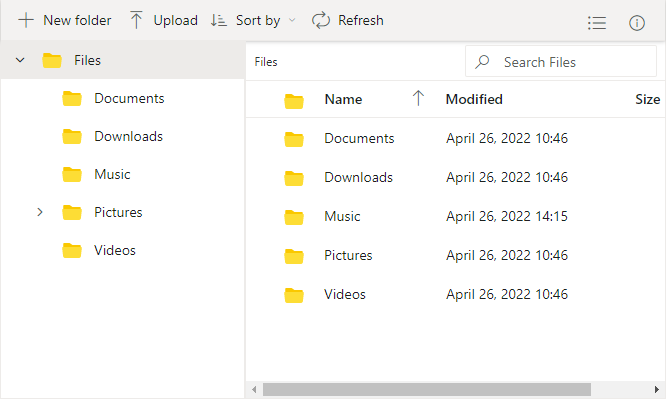
The default appearance of the File Manager can be changed from large icons to details view by using the view property. In the Details view, the files are displayed in a sorted list order. This file list comprises of several columns of information about the files such as Name, Date Modified, Type, and Size. The following example demonstrates the File Manager with details view.
<div class="control-section">
    <div class="sample-container">
        <!-- Declare File Manager control -->
        @Html.EJS().FileManager("filemanager").AjaxSettings(new Syncfusion.EJ2.FileManager.FileManagerAjaxSettings
        {
            Url = "/Home/FileOperations",
            GetImageUrl = "/Home/GetImage",
            UploadUrl = "/Home/Upload",
            DownloadUrl = "/Home/Download"
        }).View(Syncfusion.EJ2.FileManager.ViewType.Details).Render()
        <!-- end of File Manager control -->
    </div>
</div>
using System;
using System.Collections.Generic;
using System.Linq;
using System.Web.Mvc;
//File Manager's base functions are available in the below package
using Syncfusion.EJ2.FileManager.Base;
//File Manager's operations are available in the below package
using Syncfusion.EJ2.FileManager.PhysicalFileProvider;
using Newtonsoft.Json;
// Use the package for hosting
using System.Web.Hosting;
namespace WebApplication.Controllers
{
public class HomeController : Controller
{
// Accessing the File Operations from File Manager package
PhysicalFileProvider operation = new PhysicalFileProvider();
public HomeController()
{
// Map the path of the files to be accessed with the host
var path = HostingEnvironment.MapPath("~/Content/Files");
// Assign the mapped path as root folder
operation.RootFolder(path);
}
public ActionResult FileOperations(FileManagerDirectoryContent args)
{
// Processing the File Manager operations
switch (args.Action)
{
case "read":
// Path - Current path; ShowHiddenItems - Boolean value to show/hide hidden items
return Json(operation.ToCamelCase(operation.GetFiles(args.Path, args.ShowHiddenItems)));
case "delete":
// Path - Current path where of the folder to be deleted; Names - Name of the files to be deleted
return Json(operation.ToCamelCase(operation.Delete(args.Path, args.Names)));
case "copy":
// Path - Path from where the file was copied; TargetPath - Path where the file/folder is to be copied; RenameFiles - Files with same name in the copied location that is confirmed for renaming; TargetData - Data of the copied file
return Json(operation.ToCamelCase(operation.Copy(args.Path, args.TargetPath, args.Names, args.RenameFiles, args.TargetData)));
case "move":
// Path - Path from where the file was cut; TargetPath - Path where the file/folder is to be moved; RenameFiles - Files with same name in the moved location that is confirmed for renaming; TargetData - Data of the moved file
return Json(operation.ToCamelCase(operation.Move(args.Path, args.TargetPath, args.Names, args.RenameFiles, args.TargetData)));
case "details":
if (args.Names == null)
{
args.Names = new string[] { };
}
// Path - Current path where details of file/folder is requested; Name - Names of the requested folders
return Json(operation.ToCamelCase(operation.Details(args.Path, args.Names)));
case "create":
// Path - Current path where the folder is to be created; Name - Name of the new folder
return Json(operation.ToCamelCase(operation.Create(args.Path, args.Name)));
case "search":
// Path - Current path where the search is performed; SearchString - String typed in the searchbox; CaseSensitive - Boolean value which specifies whether the search must be casesensitive
return Json(operation.ToCamelCase(operation.Search(args.Path, args.SearchString, args.ShowHiddenItems, args.CaseSensitive)));
case "rename":
// Path - Current path of the renamed file; Name - Old file name; NewName - New file name
return Json(operation.ToCamelCase(operation.Rename(args.Path, args.Name, args.NewName)));
}
return null;
}
// Processing the Upload operation
public ActionResult Upload(string path, IList<System.Web.HttpPostedFileBase> uploadFiles, string action)
{
FileManagerResponse uploadResponse;
//Invoking upload operation with the required paramaters
// path - Current path where the file is to uploaded; uploadFiles - Files to be uploaded; action - name of the operation(upload)
uploadResponse = operation.Upload(path, uploadFiles, action, null);
return Content("");
}
// Processing the Download operation
public ActionResult Download(string downloadInput)
{
FileManagerDirectoryContent args = JsonConvert.DeserializeObject<FileManagerDirectoryContent>(downloadInput);
//Invoking download operation with the required paramaters
// path - Current path where the file is downloaded; Names - Files to be downloaded;
return operation.Download(args.Path, args.Names);
}
// Processing the GetImage operation
public ActionResult GetImage(FileManagerDirectoryContent args)
{
//Invoking GetImage operation with the required paramaters
// path - Current path of the image file; Id - Image file id;
return operation.GetImage(args.Path, args.Id, false, null, null);
}
public ActionResult Index()
{
return View();
}
}
}The output will look like the image below.