Customization in ASP.NET Core File Manager
The File Manager control allows customizing its functionalities such as context menu, searching, uploading, and toolbar using APIs. Given below are some of the functionalities that can be customized in the File Manager,
- Context menu customization
- Details view customization
- Navigation pane customization
- Show/Hide file extension
- Show/Hide hidden items
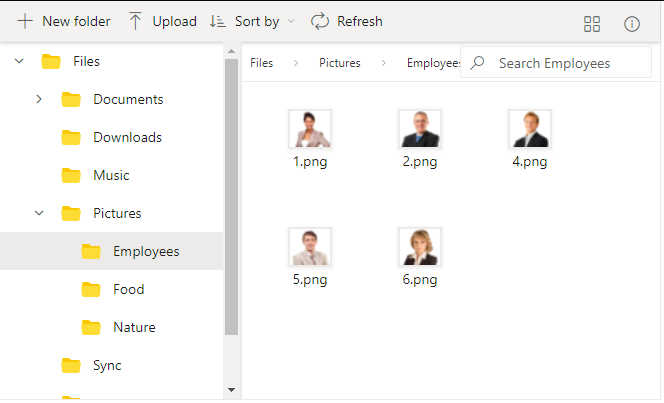
- Show/Hide thumbnail images in large icons view
- Toolbar customization
- Upload customization
- Tooltip customization
Context menu customization
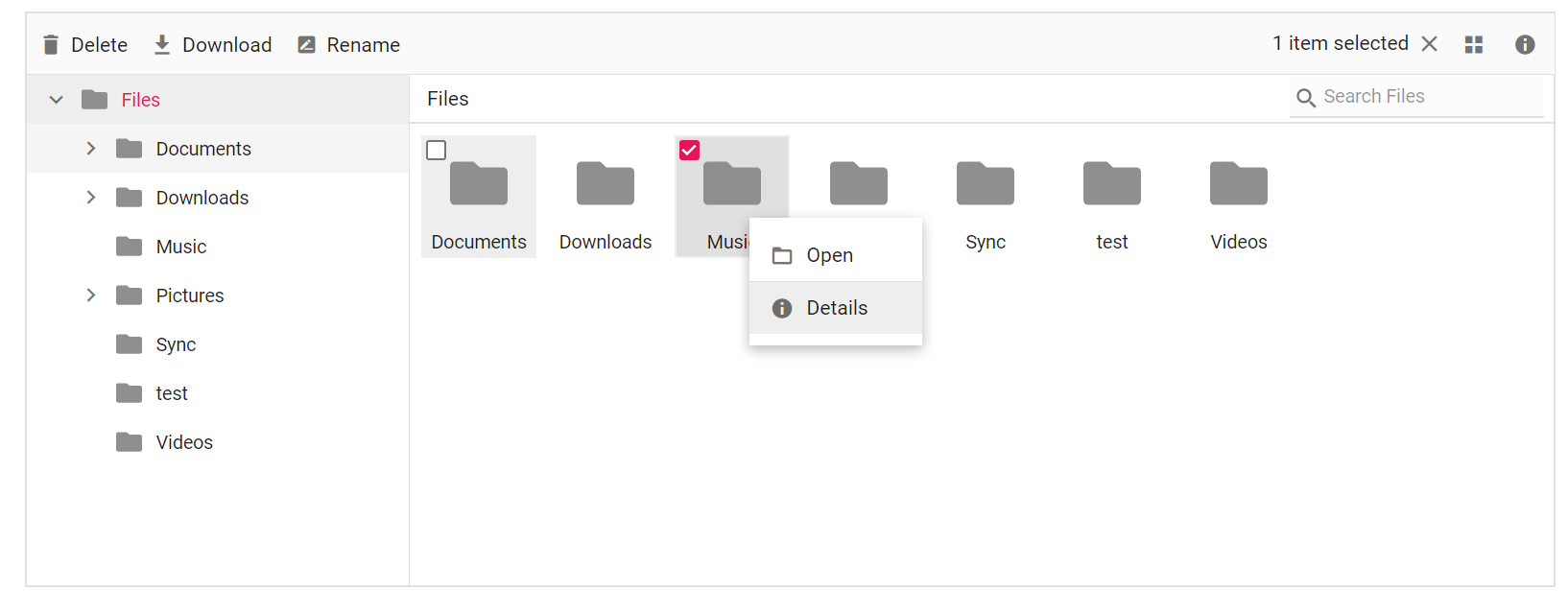
The context menu settings, such as items to be displayed on files, folders, layout click, and visibility, can be customized using the contextMenuSettings property.
@{
    string[] files = new string[] { "Open", "|", "Details" };
    string[] folder = new string[] { "Open", "|", "Details" };
    string[] layout = new string[] { "SortBy", "View", "Refresh", "|", "Details" };
}
<div class=" control-section">
    <div class="sample-container">
        <!-- Declare File Manager control -->
        <ejs-filemanager id="filemanager">
            <e-filemanager-ajaxsettings url="/Home/FileOperations"
                                        downloadUrl="/Home/Download"
                                        uploadUrl="/Home/Upload"
                                        getImageUrl="/Home/GetImage">
            </e-filemanager-ajaxsettings>
            <e-filemanager-contextmenusettings file="files" folder="folder" layout="layout">
            </e-filemanager-contextmenusettings>
        </ejs-filemanager>
        <!-- end of File Manager control -->
    </div>
</div>
using System;
using System.Collections.Generic;
using System.Linq;
//File Manager's base functions are available in the below package
using Syncfusion.EJ2.FileManager.Base;
//File Manager's operations are available in the below package
using Syncfusion.EJ2.FileManager.PhysicalFileProvider;
using Newtonsoft.Json;
// use the package for hosting
using Microsoft.AspNetCore.Mvc;
using Microsoft.AspNetCore.Hosting;
using Microsoft.AspNetCore.Http;
using Microsoft.AspNetCore.Http.Features;
namespace WebApplication.Controllers
{
public class HomeController : Controller
{
public PhysicalFileProvider operation;
public string basePath;
// Root Path in which files and folders are available.
string root = "wwwroot\\Files";
public HomeController(IHostingEnvironment hostingEnvironment)
{
// Map the path of the files to be accessed with the host
this.basePath = hostingEnvironment.ContentRootPath;
this.operation = new PhysicalFileProvider();
// Assign the mapped path as root folder
this.operation.RootFolder(this.basePath + "\\" + this.root);
}
public object FileOperations([FromBody] FileManagerDirectoryContent args)
{
// Restricting modification of the root folder
if (args.Action == "delete" || args.Action == "rename")
{
if ((args.TargetPath == null) && (args.Path == ""))
{
FileManagerResponse response = new FileManagerResponse();
ErrorDetails er = new ErrorDetails
{
Code = "401",
Message = "Restricted to modify the root folder."
};
response.Error = er;
return this.operation.ToCamelCase(response);
}
}
// Processing the File Manager operations
switch (args.Action)
{
case "read":
// Path - Current path; ShowHiddenItems - Boolean value to show/hide hidden items
return this.operation.ToCamelCase(this.operation.GetFiles(args.Path, args.ShowHiddenItems));
case "delete":
// Path - Current path where of the folder to be deleted; Names - Name of the files to be deleted
return this.operation.ToCamelCase(this.operation.Delete(args.Path, args.Names));
case "copy":
// Path - Path from where the file was copied; TargetPath - Path where the file/folder is to be copied; RenameFiles - Files with same name in the copied location that is confirmed for renaming; TargetData - Data of the copied file
return this.operation.ToCamelCase(this.operation.Copy(args.Path, args.TargetPath, args.Names, args.RenameFiles, args.TargetData));
case "move":
// Path - Path from where the file was cut; TargetPath - Path where the file/folder is to be moved; RenameFiles - Files with same name in the moved location that is confirmed for renaming; TargetData - Data of the moved file
return this.operation.ToCamelCase(this.operation.Move(args.Path, args.TargetPath, args.Names, args.RenameFiles, args.TargetData));
case "details":
// Path - Current path where details of file/folder is requested; Name - Names of the requested folders
return this.operation.ToCamelCase(this.operation.Details(args.Path, args.Names));
case "create":
// Path - Current path where the folder is to be created; Name - Name of the new folder
return this.operation.ToCamelCase(this.operation.Create(args.Path, args.Name));
case "search":
// Path - Current path where the search is performed; SearchString - String typed in the searchbox; CaseSensitive - Boolean value which specifies whether the search must be casesensitive
return this.operation.ToCamelCase(this.operation.Search(args.Path, args.SearchString, args.ShowHiddenItems, args.CaseSensitive));
case "rename":
// Path - Current path of the renamed file; Name - Old file name; NewName - New file name
return this.operation.ToCamelCase(this.operation.Rename(args.Path, args.Name, args.NewName));
}
return null;
}
// Processing the Upload operation
public IActionResult Upload(string path, IList<IFormFile> uploadFiles, string action)
{
// Here we have restricted the upload operation for our online samples
if (Response.HttpContext.Request.Host.Value == "ej2.syncfusion.com")
{
Response.Clear();
Response.ContentType = "application/json; charset=utf-8";
Response.StatusCode = 403;
Response.HttpContext.Features.Get<IHttpResponseFeature>().ReasonPhrase = "File Manager's upload functionality is restricted in the online demo. If you need to test upload functionality, please install Syncfusion Essential Studio on your machine and run the demo";
}
// Use below code for performing upload operation
else
{
FileManagerResponse uploadResponse;
//Invoking upload operation with the required paramaters
// path - Current path where the file is to uploaded; uploadFiles - Files to be uploaded; action - name of the operation(upload)
uploadResponse = operation.Upload(path, uploadFiles, action, null);
}
return Content("");
}
// Processing the Download operation
public IActionResult Download(string downloadInput)
{
FileManagerDirectoryContent args = JsonConvert.DeserializeObject<FileManagerDirectoryContent>(downloadInput);
//Invoking download operation with the required paramaters
// path - Current path where the file is downloaded; Names - Files to be downloaded;
return operation.Download(args.Path, args.Names);
}
// Processing the GetImage operation
public IActionResult GetImage(FileManagerDirectoryContent args)
{
//Invoking GetImage operation with the required paramaters
// path - Current path of the image file; Id - Image file id;
return this.operation.GetImage(args.Path, args.Id, false, null, null);
}
public IActionResult Index()
{
return View();
}
}
}The output will be as shown below.
Details view customization
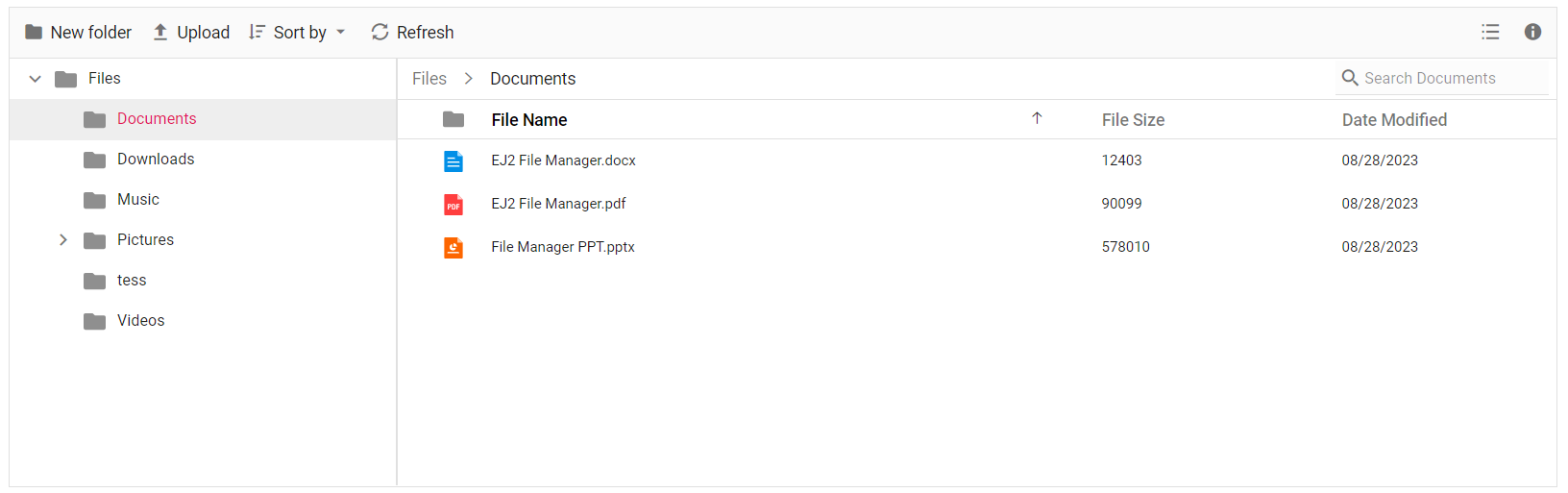
The details view settings like, column width, header text, template for each field can be customized using detailsViewSettings property.
@{
    var customAttribute = new Dictionary<string, string>
    {
        { "class", "e-fe-grid-name" }
    };
}
<div class=" control-section">
    <div class="sample-container">
        <!-- Declare File Manager control -->
        <ejs-filemanager id="filemanager" view="Details">
            <e-filemanager-ajaxsettings url="/Home/FileOperations"
                                        downloadUrl="/Home/Download"
                                        uploadUrl="/Home/Upload"
                                        getImageUrl="/Home/GetImage">
            </e-filemanager-ajaxsettings>
            <e-filemanager-detailsviewsettings>
                <e-detailsviewsettings-columns>
                    <e-detailsviewsettings-column field="name" headerText="File Name" minWidth="120" width="auto" customAttributes="customAttribute" template="${name}"></e-detailsviewsettings-column>
                    <e-detailsviewsettings-column field="size" headerText="File Size" minWidth="120" width="110" template="${size}"></e-detailsviewsettings-column>
                    <e-detailsviewsettings-column field="_fm_modified" headerText="Date Modified" minWidth="50" width="190"></e-detailsviewsettings-column>
                </e-detailsviewsettings-columns>
            </e-filemanager-detailsviewsettings>
        </ejs-filemanager>
        <!-- end of File Manager control -->
    </div>
</div>
using System;
using System.Collections.Generic;
using System.Linq;
//File Manager's base functions are available in the below package
using Syncfusion.EJ2.FileManager.Base;
//File Manager's operations are available in the below package
using Syncfusion.EJ2.FileManager.PhysicalFileProvider;
using Newtonsoft.Json;
// use the package for hosting
using Microsoft.AspNetCore.Mvc;
using Microsoft.AspNetCore.Hosting;
using Microsoft.AspNetCore.Http;
using Microsoft.AspNetCore.Http.Features;
namespace WebApplication.Controllers
{
public class HomeController : Controller
{
public PhysicalFileProvider operation;
public string basePath;
// Root Path in which files and folders are available.
string root = "wwwroot\\Files";
public HomeController(IHostingEnvironment hostingEnvironment)
{
// Map the path of the files to be accessed with the host
this.basePath = hostingEnvironment.ContentRootPath;
this.operation = new PhysicalFileProvider();
// Assign the mapped path as root folder
this.operation.RootFolder(this.basePath + "\\" + this.root);
}
public object FileOperations([FromBody] FileManagerDirectoryContent args)
{
// Restricting modification of the root folder
if (args.Action == "delete" || args.Action == "rename")
{
if ((args.TargetPath == null) && (args.Path == ""))
{
FileManagerResponse response = new FileManagerResponse();
ErrorDetails er = new ErrorDetails
{
Code = "401",
Message = "Restricted to modify the root folder."
};
response.Error = er;
return this.operation.ToCamelCase(response);
}
}
// Processing the File Manager operations
switch (args.Action)
{
case "read":
// Path - Current path; ShowHiddenItems - Boolean value to show/hide hidden items
return this.operation.ToCamelCase(this.operation.GetFiles(args.Path, args.ShowHiddenItems));
case "delete":
// Path - Current path where of the folder to be deleted; Names - Name of the files to be deleted
return this.operation.ToCamelCase(this.operation.Delete(args.Path, args.Names));
case "copy":
// Path - Path from where the file was copied; TargetPath - Path where the file/folder is to be copied; RenameFiles - Files with same name in the copied location that is confirmed for renaming; TargetData - Data of the copied file
return this.operation.ToCamelCase(this.operation.Copy(args.Path, args.TargetPath, args.Names, args.RenameFiles, args.TargetData));
case "move":
// Path - Path from where the file was cut; TargetPath - Path where the file/folder is to be moved; RenameFiles - Files with same name in the moved location that is confirmed for renaming; TargetData - Data of the moved file
return this.operation.ToCamelCase(this.operation.Move(args.Path, args.TargetPath, args.Names, args.RenameFiles, args.TargetData));
case "details":
// Path - Current path where details of file/folder is requested; Name - Names of the requested folders
return this.operation.ToCamelCase(this.operation.Details(args.Path, args.Names));
case "create":
// Path - Current path where the folder is to be created; Name - Name of the new folder
return this.operation.ToCamelCase(this.operation.Create(args.Path, args.Name));
case "search":
// Path - Current path where the search is performed; SearchString - String typed in the searchbox; CaseSensitive - Boolean value which specifies whether the search must be casesensitive
return this.operation.ToCamelCase(this.operation.Search(args.Path, args.SearchString, args.ShowHiddenItems, args.CaseSensitive));
case "rename":
// Path - Current path of the renamed file; Name - Old file name; NewName - New file name
return this.operation.ToCamelCase(this.operation.Rename(args.Path, args.Name, args.NewName));
}
return null;
}
// Processing the Upload operation
public IActionResult Upload(string path, IList<IFormFile> uploadFiles, string action)
{
// Here we have restricted the upload operation for our online samples
if (Response.HttpContext.Request.Host.Value == "ej2.syncfusion.com")
{
Response.Clear();
Response.ContentType = "application/json; charset=utf-8";
Response.StatusCode = 403;
Response.HttpContext.Features.Get<IHttpResponseFeature>().ReasonPhrase = "File Manager's upload functionality is restricted in the online demo. If you need to test upload functionality, please install Syncfusion Essential Studio on your machine and run the demo";
}
// Use below code for performing upload operation
else
{
FileManagerResponse uploadResponse;
//Invoking upload operation with the required paramaters
// path - Current path where the file is to uploaded; uploadFiles - Files to be uploaded; action - name of the operation(upload)
uploadResponse = operation.Upload(path, uploadFiles, action, null);
}
return Content("");
}
// Processing the Download operation
public IActionResult Download(string downloadInput)
{
FileManagerDirectoryContent args = JsonConvert.DeserializeObject<FileManagerDirectoryContent>(downloadInput);
//Invoking download operation with the required paramaters
// path - Current path where the file is downloaded; Names - Files to be downloaded;
return operation.Download(args.Path, args.Names);
}
// Processing the GetImage operation
public IActionResult GetImage(FileManagerDirectoryContent args)
{
//Invoking GetImage operation with the required paramaters
// path - Current path of the image file; Id - Image file id;
return this.operation.GetImage(args.Path, args.Id, false, null, null);
}
public IActionResult Index()
{
return View();
}
}
}Output be like the below.
Navigation pane customization
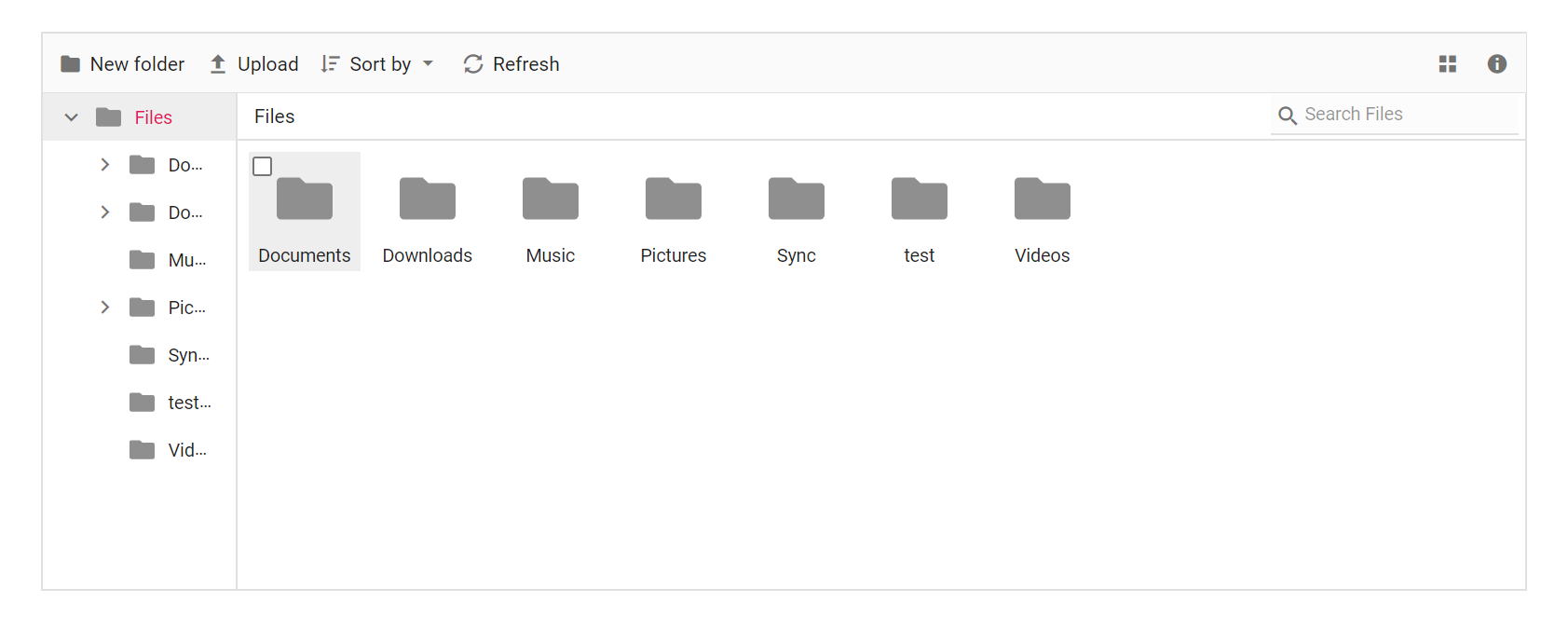
The navigation pane settings like, minimum and maximum width, visibility and sort order can be customized using navigationPaneSettings property.
<div class=" control-section">
    <div class="sample-container">
        <!-- Declare File Manager control -->
        <ejs-filemanager id="filemanager">
            <e-filemanager-ajaxsettings url="/Home/FileOperations"
                                        downloadUrl="/Home/Download"
                                        uploadUrl="/Home/Upload"
                                        getImageUrl="/Home/GetImage">
            </e-filemanager-ajaxsettings>
            <e-filemanager-navigationpanesettings maxWidth="850px" minWidth="140px" sortOrder="Ascending" visible="true">
            </e-filemanager-navigationpanesettings>
        </ejs-filemanager>
        <!-- end of File Manager control -->
    </div>
</div>
using System;
using System.Collections.Generic;
using System.Linq;
//File Manager's base functions are available in the below package
using Syncfusion.EJ2.FileManager.Base;
//File Manager's operations are available in the below package
using Syncfusion.EJ2.FileManager.PhysicalFileProvider;
using Newtonsoft.Json;
// use the package for hosting
using Microsoft.AspNetCore.Mvc;
using Microsoft.AspNetCore.Hosting;
using Microsoft.AspNetCore.Http;
using Microsoft.AspNetCore.Http.Features;
namespace WebApplication.Controllers
{
public class HomeController : Controller
{
public PhysicalFileProvider operation;
public string basePath;
// Root Path in which files and folders are available.
string root = "wwwroot\\Files";
public HomeController(IHostingEnvironment hostingEnvironment)
{
// Map the path of the files to be accessed with the host
this.basePath = hostingEnvironment.ContentRootPath;
this.operation = new PhysicalFileProvider();
// Assign the mapped path as root folder
this.operation.RootFolder(this.basePath + "\\" + this.root);
}
public object FileOperations([FromBody] FileManagerDirectoryContent args)
{
// Restricting modification of the root folder
if (args.Action == "delete" || args.Action == "rename")
{
if ((args.TargetPath == null) && (args.Path == ""))
{
FileManagerResponse response = new FileManagerResponse();
ErrorDetails er = new ErrorDetails
{
Code = "401",
Message = "Restricted to modify the root folder."
};
response.Error = er;
return this.operation.ToCamelCase(response);
}
}
// Processing the File Manager operations
switch (args.Action)
{
case "read":
// Path - Current path; ShowHiddenItems - Boolean value to show/hide hidden items
return this.operation.ToCamelCase(this.operation.GetFiles(args.Path, args.ShowHiddenItems));
case "delete":
// Path - Current path where of the folder to be deleted; Names - Name of the files to be deleted
return this.operation.ToCamelCase(this.operation.Delete(args.Path, args.Names));
case "copy":
// Path - Path from where the file was copied; TargetPath - Path where the file/folder is to be copied; RenameFiles - Files with same name in the copied location that is confirmed for renaming; TargetData - Data of the copied file
return this.operation.ToCamelCase(this.operation.Copy(args.Path, args.TargetPath, args.Names, args.RenameFiles, args.TargetData));
case "move":
// Path - Path from where the file was cut; TargetPath - Path where the file/folder is to be moved; RenameFiles - Files with same name in the moved location that is confirmed for renaming; TargetData - Data of the moved file
return this.operation.ToCamelCase(this.operation.Move(args.Path, args.TargetPath, args.Names, args.RenameFiles, args.TargetData));
case "details":
// Path - Current path where details of file/folder is requested; Name - Names of the requested folders
return this.operation.ToCamelCase(this.operation.Details(args.Path, args.Names));
case "create":
// Path - Current path where the folder is to be created; Name - Name of the new folder
return this.operation.ToCamelCase(this.operation.Create(args.Path, args.Name));
case "search":
// Path - Current path where the search is performed; SearchString - String typed in the searchbox; CaseSensitive - Boolean value which specifies whether the search must be casesensitive
return this.operation.ToCamelCase(this.operation.Search(args.Path, args.SearchString, args.ShowHiddenItems, args.CaseSensitive));
case "rename":
// Path - Current path of the renamed file; Name - Old file name; NewName - New file name
return this.operation.ToCamelCase(this.operation.Rename(args.Path, args.Name, args.NewName));
}
return null;
}
// Processing the Upload operation
public IActionResult Upload(string path, IList<IFormFile> uploadFiles, string action)
{
// Here we have restricted the upload operation for our online samples
if (Response.HttpContext.Request.Host.Value == "ej2.syncfusion.com")
{
Response.Clear();
Response.ContentType = "application/json; charset=utf-8";
Response.StatusCode = 403;
Response.HttpContext.Features.Get<IHttpResponseFeature>().ReasonPhrase = "File Manager's upload functionality is restricted in the online demo. If you need to test upload functionality, please install Syncfusion Essential Studio on your machine and run the demo";
}
// Use below code for performing upload operation
else
{
FileManagerResponse uploadResponse;
//Invoking upload operation with the required paramaters
// path - Current path where the file is to uploaded; uploadFiles - Files to be uploaded; action - name of the operation(upload)
uploadResponse = operation.Upload(path, uploadFiles, action, null);
}
return Content("");
}
// Processing the Download operation
public IActionResult Download(string downloadInput)
{
FileManagerDirectoryContent args = JsonConvert.DeserializeObject<FileManagerDirectoryContent>(downloadInput);
//Invoking download operation with the required paramaters
// path - Current path where the file is downloaded; Names - Files to be downloaded;
return operation.Download(args.Path, args.Names);
}
// Processing the GetImage operation
public IActionResult GetImage(FileManagerDirectoryContent args)
{
//Invoking GetImage operation with the required paramaters
// path - Current path of the image file; Id - Image file id;
return this.operation.GetImage(args.Path, args.Id, false, null, null);
}
public IActionResult Index()
{
return View();
}
}
}Output be like the below.
Show/Hide file extension
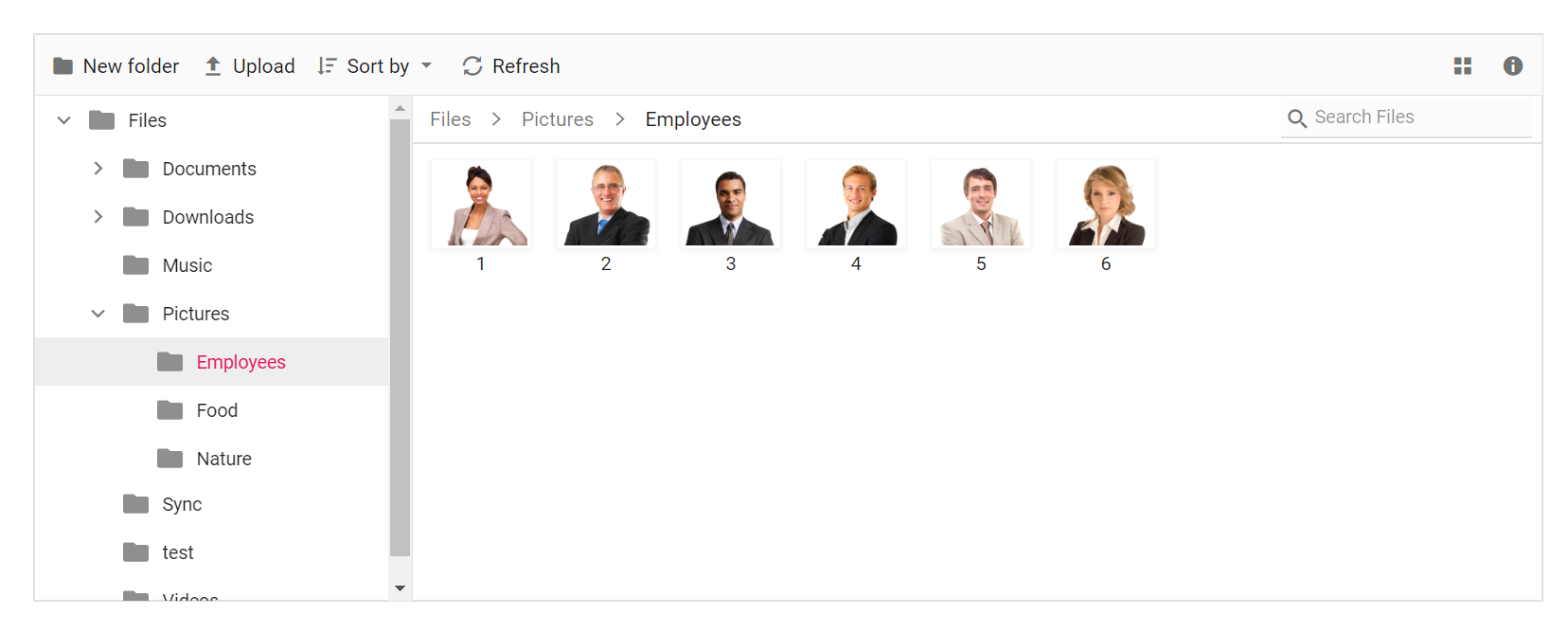
The file extensions are displayed in the File Manager by default. This can be hidden by disabling the showFileExtension property.
In File Manager fileLoad and fileOpen events are triggered before the file/folder is rendered and before the file/folder is opened respectively. These events can be utilized to perform operations before a file/folder is rendered or opened.
<div class=" control-section">
    <div class="sample-container">
        <!-- Declare File Manager control -->
        <ejs-filemanager id="filemanager" showFileExtension="false" fileLoad="onBeforeFileLoad" fileOpen="onBeforeFileOpen">
            <e-filemanager-ajaxsettings  url="/Home/FileOperations"
                                        downloadUrl="/Home/Download"
                                        uploadUrl="/Home/Upload"
                                        getImageUrl="/Home/GetImage">
            </e-filemanager-ajaxsettings>
        </ejs-filemanager>
        <!-- end of File Manager control -->
    </div>
</div>
<script>
    // File Manager's file beforeFileLoad function
    function onBeforeFileLoad(args) {
        console.log(args.fileDetails.name + " is loading");
    }

    // File Manager's file beforeFileOpen function
    function onBeforeFileOpen(args) {
        console.log(args.fileDetails.name + " is opened");
    }
</script>
using System;
using System.Collections.Generic;
using System.Linq;
//File Manager's base functions are available in the below package
using Syncfusion.EJ2.FileManager.Base;
//File Manager's operations are available in the below package
using Syncfusion.EJ2.FileManager.PhysicalFileProvider;
using Newtonsoft.Json;
// use the package for hosting
using Microsoft.AspNetCore.Mvc;
using Microsoft.AspNetCore.Hosting;
using Microsoft.AspNetCore.Http;
using Microsoft.AspNetCore.Http.Features;
namespace WebApplication.Controllers
{
public class HomeController : Controller
{
public PhysicalFileProvider operation;
public string basePath;
// Root Path in which files and folders are available.
string root = "wwwroot\\Files";
public HomeController(IHostingEnvironment hostingEnvironment)
{
// Map the path of the files to be accessed with the host
this.basePath = hostingEnvironment.ContentRootPath;
this.operation = new PhysicalFileProvider();
// Assign the mapped path as root folder
this.operation.RootFolder(this.basePath + "\\" + this.root);
}
public object FileOperations([FromBody] FileManagerDirectoryContent args)
{
// Restricting modification of the root folder
if (args.Action == "delete" || args.Action == "rename")
{
if ((args.TargetPath == null) && (args.Path == ""))
{
FileManagerResponse response = new FileManagerResponse();
ErrorDetails er = new ErrorDetails
{
Code = "401",
Message = "Restricted to modify the root folder."
};
response.Error = er;
return this.operation.ToCamelCase(response);
}
}
// Processing the File Manager operations
switch (args.Action)
{
case "read":
// Path - Current path; ShowHiddenItems - Boolean value to show/hide hidden items
return this.operation.ToCamelCase(this.operation.GetFiles(args.Path, args.ShowHiddenItems));
case "delete":
// Path - Current path where of the folder to be deleted; Names - Name of the files to be deleted
return this.operation.ToCamelCase(this.operation.Delete(args.Path, args.Names));
case "copy":
// Path - Path from where the file was copied; TargetPath - Path where the file/folder is to be copied; RenameFiles - Files with same name in the copied location that is confirmed for renaming; TargetData - Data of the copied file
return this.operation.ToCamelCase(this.operation.Copy(args.Path, args.TargetPath, args.Names, args.RenameFiles, args.TargetData));
case "move":
// Path - Path from where the file was cut; TargetPath - Path where the file/folder is to be moved; RenameFiles - Files with same name in the moved location that is confirmed for renaming; TargetData - Data of the moved file
return this.operation.ToCamelCase(this.operation.Move(args.Path, args.TargetPath, args.Names, args.RenameFiles, args.TargetData));
case "details":
// Path - Current path where details of file/folder is requested; Name - Names of the requested folders
return this.operation.ToCamelCase(this.operation.Details(args.Path, args.Names));
case "create":
// Path - Current path where the folder is to be created; Name - Name of the new folder
return this.operation.ToCamelCase(this.operation.Create(args.Path, args.Name));
case "search":
// Path - Current path where the search is performed; SearchString - String typed in the searchbox; CaseSensitive - Boolean value which specifies whether the search must be casesensitive
return this.operation.ToCamelCase(this.operation.Search(args.Path, args.SearchString, args.ShowHiddenItems, args.CaseSensitive));
case "rename":
// Path - Current path of the renamed file; Name - Old file name; NewName - New file name
return this.operation.ToCamelCase(this.operation.Rename(args.Path, args.Name, args.NewName));
}
return null;
}
// Processing the Upload operation
public IActionResult Upload(string path, IList<IFormFile> uploadFiles, string action)
{
// Here we have restricted the upload operation for our online samples
if (Response.HttpContext.Request.Host.Value == "ej2.syncfusion.com")
{
Response.Clear();
Response.ContentType = "application/json; charset=utf-8";
Response.StatusCode = 403;
Response.HttpContext.Features.Get<IHttpResponseFeature>().ReasonPhrase = "File Manager's upload functionality is restricted in the online demo. If you need to test upload functionality, please install Syncfusion Essential Studio on your machine and run the demo";
}
// Use below code for performing upload operation
else
{
FileManagerResponse uploadResponse;
//Invoking upload operation with the required paramaters
// path - Current path where the file is to uploaded; uploadFiles - Files to be uploaded; action - name of the operation(upload)
uploadResponse = operation.Upload(path, uploadFiles, action, null);
}
return Content("");
}
// Processing the Download operation
public IActionResult Download(string downloadInput)
{
FileManagerDirectoryContent args = JsonConvert.DeserializeObject<FileManagerDirectoryContent>(downloadInput);
//Invoking download operation with the required paramaters
// path - Current path where the file is downloaded; Names - Files to be downloaded;
return operation.Download(args.Path, args.Names);
}
// Processing the GetImage operation
public IActionResult GetImage(FileManagerDirectoryContent args)
{
//Invoking GetImage operation with the required paramaters
// path - Current path of the image file; Id - Image file id;
return this.operation.GetImage(args.Path, args.Id, false, null, null);
}
public IActionResult Index()
{
return View();
}
}
}Output be like the below.
Show/Hide hidden items
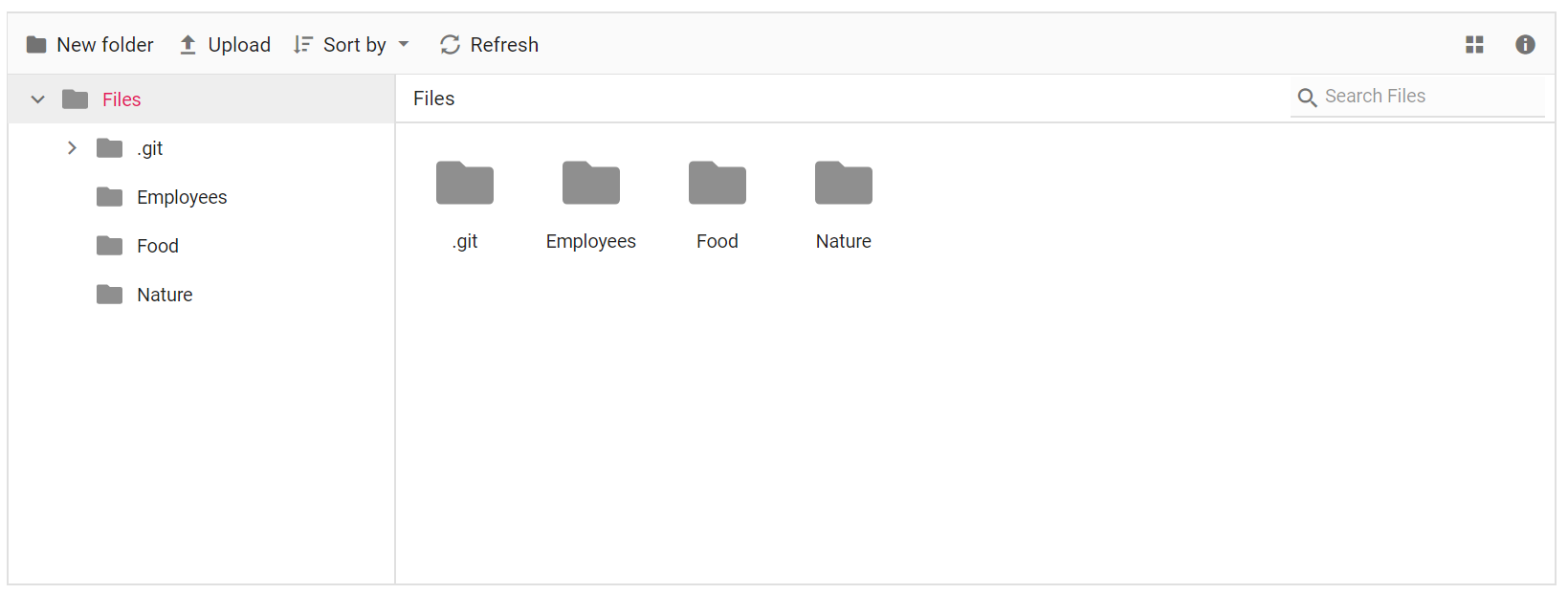
The File Manager provides support to show/hide the hidden items by enabling/disabling the showHiddenItems property.
<div class=" control-section">
    <div class="sample-container">
        <!-- Declare File Manager control -->
        <ejs-filemanager id="filemanager" showHiddenItems="true">
            <e-filemanager-ajaxsettings url="/Home/FileOperations"
                                        downloadUrl="/Home/Download"
                                        uploadUrl="/Home/Upload"
                                        getImageUrl="/Home/GetImage">
            </e-filemanager-ajaxsettings>
        </ejs-filemanager>
        <!-- end of File Manager control -->
    </div>
</div>
using System;
using System.Collections.Generic;
using System.Linq;
//File Manager's base functions are available in the below package
using Syncfusion.EJ2.FileManager.Base;
//File Manager's operations are available in the below package
using Syncfusion.EJ2.FileManager.PhysicalFileProvider;
using Newtonsoft.Json;
// use the package for hosting
using Microsoft.AspNetCore.Mvc;
using Microsoft.AspNetCore.Hosting;
using Microsoft.AspNetCore.Http;
using Microsoft.AspNetCore.Http.Features;
namespace WebApplication.Controllers
{
public class HomeController : Controller
{
public PhysicalFileProvider operation;
public string basePath;
// Root Path in which files and folders are available.
string root = "wwwroot\\Files";
public HomeController(IHostingEnvironment hostingEnvironment)
{
// Map the path of the files to be accessed with the host
this.basePath = hostingEnvironment.ContentRootPath;
this.operation = new PhysicalFileProvider();
// Assign the mapped path as root folder
this.operation.RootFolder(this.basePath + "\\" + this.root);
}
public object FileOperations([FromBody] FileManagerDirectoryContent args)
{
// Restricting modification of the root folder
if (args.Action == "delete" || args.Action == "rename")
{
if ((args.TargetPath == null) && (args.Path == ""))
{
FileManagerResponse response = new FileManagerResponse();
ErrorDetails er = new ErrorDetails
{
Code = "401",
Message = "Restricted to modify the root folder."
};
response.Error = er;
return this.operation.ToCamelCase(response);
}
}
// Processing the File Manager operations
switch (args.Action)
{
case "read":
// Path - Current path; ShowHiddenItems - Boolean value to show/hide hidden items
return this.operation.ToCamelCase(this.operation.GetFiles(args.Path, args.ShowHiddenItems));
case "delete":
// Path - Current path where of the folder to be deleted; Names - Name of the files to be deleted
return this.operation.ToCamelCase(this.operation.Delete(args.Path, args.Names));
case "copy":
// Path - Path from where the file was copied; TargetPath - Path where the file/folder is to be copied; RenameFiles - Files with same name in the copied location that is confirmed for renaming; TargetData - Data of the copied file
return this.operation.ToCamelCase(this.operation.Copy(args.Path, args.TargetPath, args.Names, args.RenameFiles, args.TargetData));
case "move":
// Path - Path from where the file was cut; TargetPath - Path where the file/folder is to be moved; RenameFiles - Files with same name in the moved location that is confirmed for renaming; TargetData - Data of the moved file
return this.operation.ToCamelCase(this.operation.Move(args.Path, args.TargetPath, args.Names, args.RenameFiles, args.TargetData));
case "details":
// Path - Current path where details of file/folder is requested; Name - Names of the requested folders
return this.operation.ToCamelCase(this.operation.Details(args.Path, args.Names));
case "create":
// Path - Current path where the folder is to be created; Name - Name of the new folder
return this.operation.ToCamelCase(this.operation.Create(args.Path, args.Name));
case "search":
// Path - Current path where the search is performed; SearchString - String typed in the searchbox; CaseSensitive - Boolean value which specifies whether the search must be casesensitive
return this.operation.ToCamelCase(this.operation.Search(args.Path, args.SearchString, args.ShowHiddenItems, args.CaseSensitive));
case "rename":
// Path - Current path of the renamed file; Name - Old file name; NewName - New file name
return this.operation.ToCamelCase(this.operation.Rename(args.Path, args.Name, args.NewName));
}
return null;
}
// Processing the Upload operation
public IActionResult Upload(string path, IList<IFormFile> uploadFiles, string action)
{
// Here we have restricted the upload operation for our online samples
if (Response.HttpContext.Request.Host.Value == "ej2.syncfusion.com")
{
Response.Clear();
Response.ContentType = "application/json; charset=utf-8";
Response.StatusCode = 403;
Response.HttpContext.Features.Get<IHttpResponseFeature>().ReasonPhrase = "File Manager's upload functionality is restricted in the online demo. If you need to test upload functionality, please install Syncfusion Essential Studio on your machine and run the demo";
}
// Use below code for performing upload operation
else
{
FileManagerResponse uploadResponse;
//Invoking upload operation with the required paramaters
// path - Current path where the file is to uploaded; uploadFiles - Files to be uploaded; action - name of the operation(upload)
uploadResponse = operation.Upload(path, uploadFiles, action, null);
}
return Content("");
}
// Processing the Download operation
public IActionResult Download(string downloadInput)
{
FileManagerDirectoryContent args = JsonConvert.DeserializeObject<FileManagerDirectoryContent>(downloadInput);
//Invoking download operation with the required paramaters
// path - Current path where the file is downloaded; Names - Files to be downloaded;
return operation.Download(args.Path, args.Names);
}
// Processing the GetImage operation
public IActionResult GetImage(FileManagerDirectoryContent args)
{
//Invoking GetImage operation with the required paramaters
// path - Current path of the image file; Id - Image file id;
return this.operation.GetImage(args.Path, args.Id, false, null, null);
}
public IActionResult Index()
{
return View();
}
}
}Output be like the below.
Show/Hide thumbnail images in large icons view
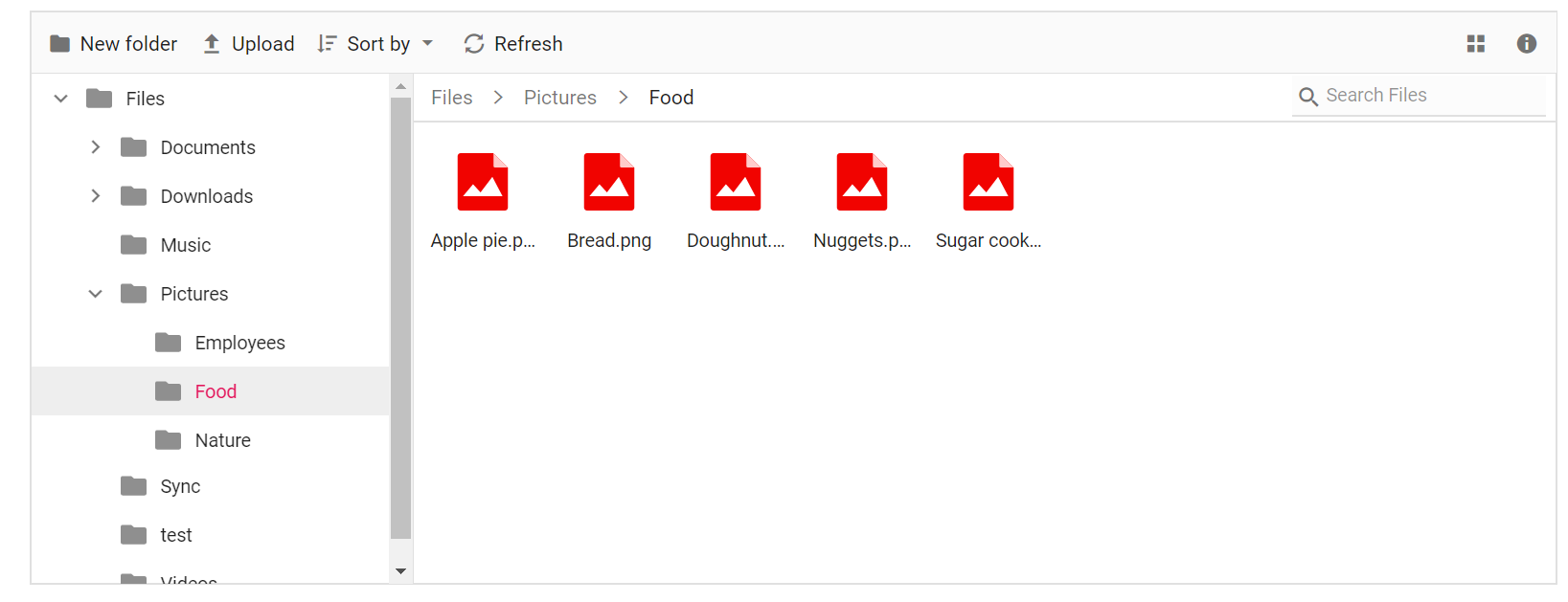
The thumbnail images are displayed in the File Manager’s large icons view by default. This can be hidden by disabling the showThumbnail property.
<div class=" control-section">
    <div class="sample-container">
        <!-- Declare File Manager control -->
        <ejs-filemanager id="filemanager" showThumbnail="false">
            <e-filemanager-ajaxsettings url="/Home/FileOperations"
                                        downloadUrl="/Home/Download"
                                        uploadUrl="/Home/Upload"
                                        getImageUrl="/Home/GetImage">
            </e-filemanager-ajaxsettings>
        </ejs-filemanager>
        <!-- end of File Manager control -->
    </div>
</div>
using System;
using System.Collections.Generic;
using System.Linq;
//File Manager's base functions are available in the below package
using Syncfusion.EJ2.FileManager.Base;
//File Manager's operations are available in the below package
using Syncfusion.EJ2.FileManager.PhysicalFileProvider;
using Newtonsoft.Json;
// use the package for hosting
using Microsoft.AspNetCore.Mvc;
using Microsoft.AspNetCore.Hosting;
using Microsoft.AspNetCore.Http;
using Microsoft.AspNetCore.Http.Features;
namespace WebApplication.Controllers
{
public class HomeController : Controller
{
public PhysicalFileProvider operation;
public string basePath;
// Root Path in which files and folders are available.
string root = "wwwroot\\Files";
public HomeController(IHostingEnvironment hostingEnvironment)
{
// Map the path of the files to be accessed with the host
this.basePath = hostingEnvironment.ContentRootPath;
this.operation = new PhysicalFileProvider();
// Assign the mapped path as root folder
this.operation.RootFolder(this.basePath + "\\" + this.root);
}
public object FileOperations([FromBody] FileManagerDirectoryContent args)
{
// Restricting modification of the root folder
if (args.Action == "delete" || args.Action == "rename")
{
if ((args.TargetPath == null) && (args.Path == ""))
{
FileManagerResponse response = new FileManagerResponse();
ErrorDetails er = new ErrorDetails
{
Code = "401",
Message = "Restricted to modify the root folder."
};
response.Error = er;
return this.operation.ToCamelCase(response);
}
}
// Processing the File Manager operations
switch (args.Action)
{
case "read":
// Path - Current path; ShowHiddenItems - Boolean value to show/hide hidden items
return this.operation.ToCamelCase(this.operation.GetFiles(args.Path, args.ShowHiddenItems));
case "delete":
// Path - Current path where of the folder to be deleted; Names - Name of the files to be deleted
return this.operation.ToCamelCase(this.operation.Delete(args.Path, args.Names));
case "copy":
// Path - Path from where the file was copied; TargetPath - Path where the file/folder is to be copied; RenameFiles - Files with same name in the copied location that is confirmed for renaming; TargetData - Data of the copied file
return this.operation.ToCamelCase(this.operation.Copy(args.Path, args.TargetPath, args.Names, args.RenameFiles, args.TargetData));
case "move":
// Path - Path from where the file was cut; TargetPath - Path where the file/folder is to be moved; RenameFiles - Files with same name in the moved location that is confirmed for renaming; TargetData - Data of the moved file
return this.operation.ToCamelCase(this.operation.Move(args.Path, args.TargetPath, args.Names, args.RenameFiles, args.TargetData));
case "details":
// Path - Current path where details of file/folder is requested; Name - Names of the requested folders
return this.operation.ToCamelCase(this.operation.Details(args.Path, args.Names));
case "create":
// Path - Current path where the folder is to be created; Name - Name of the new folder
return this.operation.ToCamelCase(this.operation.Create(args.Path, args.Name));
case "search":
// Path - Current path where the search is performed; SearchString - String typed in the searchbox; CaseSensitive - Boolean value which specifies whether the search must be casesensitive
return this.operation.ToCamelCase(this.operation.Search(args.Path, args.SearchString, args.ShowHiddenItems, args.CaseSensitive));
case "rename":
// Path - Current path of the renamed file; Name - Old file name; NewName - New file name
return this.operation.ToCamelCase(this.operation.Rename(args.Path, args.Name, args.NewName));
}
return null;
}
// Processing the Upload operation
public IActionResult Upload(string path, IList<IFormFile> uploadFiles, string action)
{
// Here we have restricted the upload operation for our online samples
if (Response.HttpContext.Request.Host.Value == "ej2.syncfusion.com")
{
Response.Clear();
Response.ContentType = "application/json; charset=utf-8";
Response.StatusCode = 403;
Response.HttpContext.Features.Get<IHttpResponseFeature>().ReasonPhrase = "File Manager's upload functionality is restricted in the online demo. If you need to test upload functionality, please install Syncfusion Essential Studio on your machine and run the demo";
}
// Use below code for performing upload operation
else
{
FileManagerResponse uploadResponse;
//Invoking upload operation with the required paramaters
// path - Current path where the file is to uploaded; uploadFiles - Files to be uploaded; action - name of the operation(upload)
uploadResponse = operation.Upload(path, uploadFiles, action, null);
}
return Content("");
}
// Processing the Download operation
public IActionResult Download(string downloadInput)
{
FileManagerDirectoryContent args = JsonConvert.DeserializeObject<FileManagerDirectoryContent>(downloadInput);
//Invoking download operation with the required paramaters
// path - Current path where the file is downloaded; Names - Files to be downloaded;
return operation.Download(args.Path, args.Names);
}
// Processing the GetImage operation
public IActionResult GetImage(FileManagerDirectoryContent args)
{
//Invoking GetImage operation with the required paramaters
// path - Current path of the image file; Id - Image file id;
return this.operation.GetImage(args.Path, args.Id, false, null, null);
}
public IActionResult Index()
{
return View();
}
}
}Output be like the below.
Toolbar customization
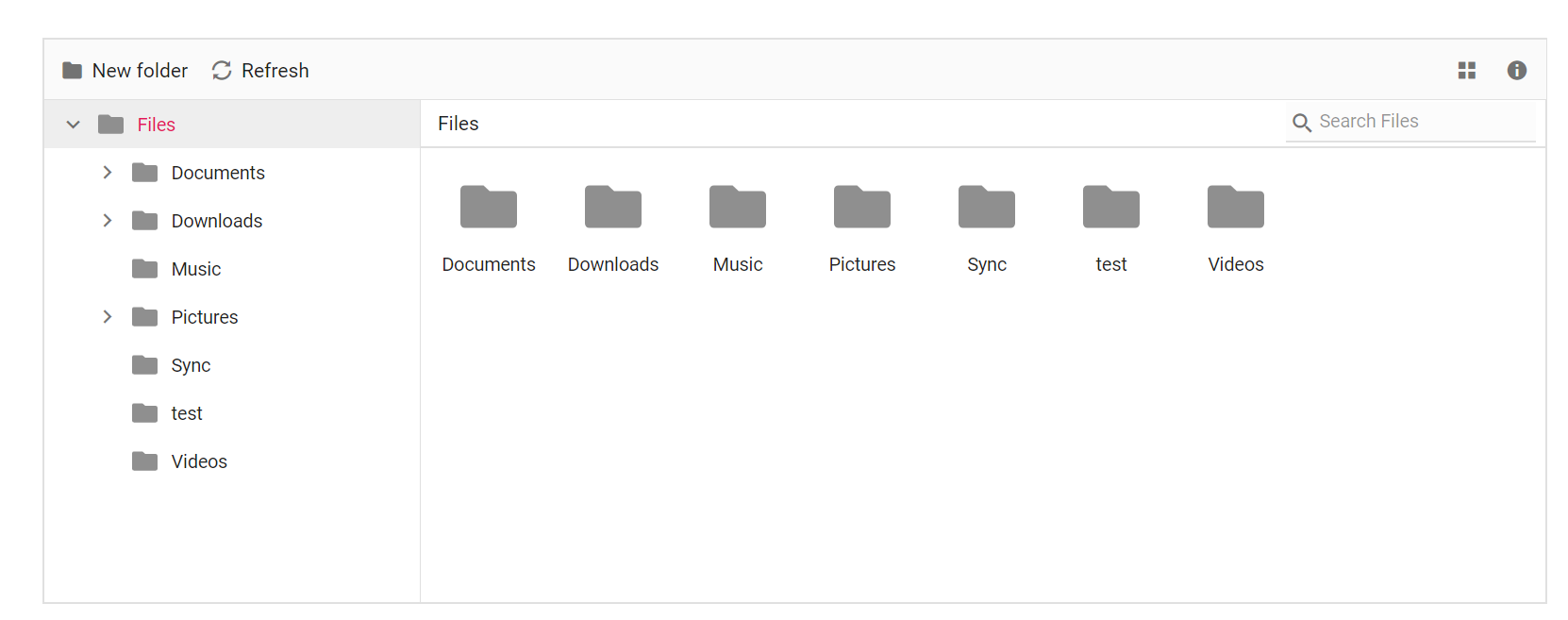
The toolbar settings, such as items to be displayed in the toolbar and visibility, can be customized using the toolbarSettings property.
@{
    string[] items = new string[] { "NewFolder", "Refresh", "View", "Details" };
}
<div class=" control-section">
    <div class="sample-container">
        <!--  Filemanager control declaration -->
        <ejs-filemanager id="file">
            <e-filemanager-ajaxsettings url="/Home/FileOperations"
                                        downloadUrl="/Home/Download"
                                        uploadUrl="/Home/Upload"
                                        getImageUrl="/Home/GetImage">
            </e-filemanager-ajaxsettings>
            <e-filemanager-toolbarsettings items="items">
            </e-filemanager-toolbarsettings>
        </ejs-filemanager>
        <!-- end of File Manager control -->
    </div>
</div>
using System;
using System.Collections.Generic;
using System.Linq;
//File Manager's base functions are available in the below package
using Syncfusion.EJ2.FileManager.Base;
//File Manager's operations are available in the below package
using Syncfusion.EJ2.FileManager.PhysicalFileProvider;
using Newtonsoft.Json;
// use the package for hosting
using Microsoft.AspNetCore.Mvc;
using Microsoft.AspNetCore.Hosting;
using Microsoft.AspNetCore.Http;
using Microsoft.AspNetCore.Http.Features;
namespace WebApplication.Controllers
{
public class HomeController : Controller
{
public PhysicalFileProvider operation;
public string basePath;
// Root Path in which files and folders are available.
string root = "wwwroot\\Files";
public HomeController(IHostingEnvironment hostingEnvironment)
{
// Map the path of the files to be accessed with the host
this.basePath = hostingEnvironment.ContentRootPath;
this.operation = new PhysicalFileProvider();
// Assign the mapped path as root folder
this.operation.RootFolder(this.basePath + "\\" + this.root);
}
public object FileOperations([FromBody] FileManagerDirectoryContent args)
{
// Restricting modification of the root folder
if (args.Action == "delete" || args.Action == "rename")
{
if ((args.TargetPath == null) && (args.Path == ""))
{
FileManagerResponse response = new FileManagerResponse();
ErrorDetails er = new ErrorDetails
{
Code = "401",
Message = "Restricted to modify the root folder."
};
response.Error = er;
return this.operation.ToCamelCase(response);
}
}
// Processing the File Manager operations
switch (args.Action)
{
case "read":
// Path - Current path; ShowHiddenItems - Boolean value to show/hide hidden items
return this.operation.ToCamelCase(this.operation.GetFiles(args.Path, args.ShowHiddenItems));
case "delete":
// Path - Current path where of the folder to be deleted; Names - Name of the files to be deleted
return this.operation.ToCamelCase(this.operation.Delete(args.Path, args.Names));
case "copy":
// Path - Path from where the file was copied; TargetPath - Path where the file/folder is to be copied; RenameFiles - Files with same name in the copied location that is confirmed for renaming; TargetData - Data of the copied file
return this.operation.ToCamelCase(this.operation.Copy(args.Path, args.TargetPath, args.Names, args.RenameFiles, args.TargetData));
case "move":
// Path - Path from where the file was cut; TargetPath - Path where the file/folder is to be moved; RenameFiles - Files with same name in the moved location that is confirmed for renaming; TargetData - Data of the moved file
return this.operation.ToCamelCase(this.operation.Move(args.Path, args.TargetPath, args.Names, args.RenameFiles, args.TargetData));
case "details":
// Path - Current path where details of file/folder is requested; Name - Names of the requested folders
return this.operation.ToCamelCase(this.operation.Details(args.Path, args.Names));
case "create":
// Path - Current path where the folder is to be created; Name - Name of the new folder
return this.operation.ToCamelCase(this.operation.Create(args.Path, args.Name));
case "search":
// Path - Current path where the search is performed; SearchString - String typed in the searchbox; CaseSensitive - Boolean value which specifies whether the search must be casesensitive
return this.operation.ToCamelCase(this.operation.Search(args.Path, args.SearchString, args.ShowHiddenItems, args.CaseSensitive));
case "rename":
// Path - Current path of the renamed file; Name - Old file name; NewName - New file name
return this.operation.ToCamelCase(this.operation.Rename(args.Path, args.Name, args.NewName));
}
return null;
}
// Processing the Upload operation
public IActionResult Upload(string path, IList<IFormFile> uploadFiles, string action)
{
// Here we have restricted the upload operation for our online samples
if (Response.HttpContext.Request.Host.Value == "ej2.syncfusion.com")
{
Response.Clear();
Response.ContentType = "application/json; charset=utf-8";
Response.StatusCode = 403;
Response.HttpContext.Features.Get<IHttpResponseFeature>().ReasonPhrase = "File Manager's upload functionality is restricted in the online demo. If you need to test upload functionality, please install Syncfusion Essential Studio on your machine and run the demo";
}
// Use below code for performing upload operation
else
{
FileManagerResponse uploadResponse;
//Invoking upload operation with the required paramaters
// path - Current path where the file is to uploaded; uploadFiles - Files to be uploaded; action - name of the operation(upload)
uploadResponse = operation.Upload(path, uploadFiles, action, null);
}
return Content("");
}
// Processing the Download operation
public IActionResult Download(string downloadInput)
{
FileManagerDirectoryContent args = JsonConvert.DeserializeObject<FileManagerDirectoryContent>(downloadInput);
//Invoking download operation with the required paramaters
// path - Current path where the file is downloaded; Names - Files to be downloaded;
return operation.Download(args.Path, args.Names);
}
// Processing the GetImage operation
public IActionResult GetImage(FileManagerDirectoryContent args)
{
//Invoking GetImage operation with the required paramaters
// path - Current path of the image file; Id - Image file id;
return this.operation.GetImage(args.Path, args.Id, false, null, null);
}
public IActionResult Index()
{
return View();
}
}
}Output be like the below.
See Also
Upload customization
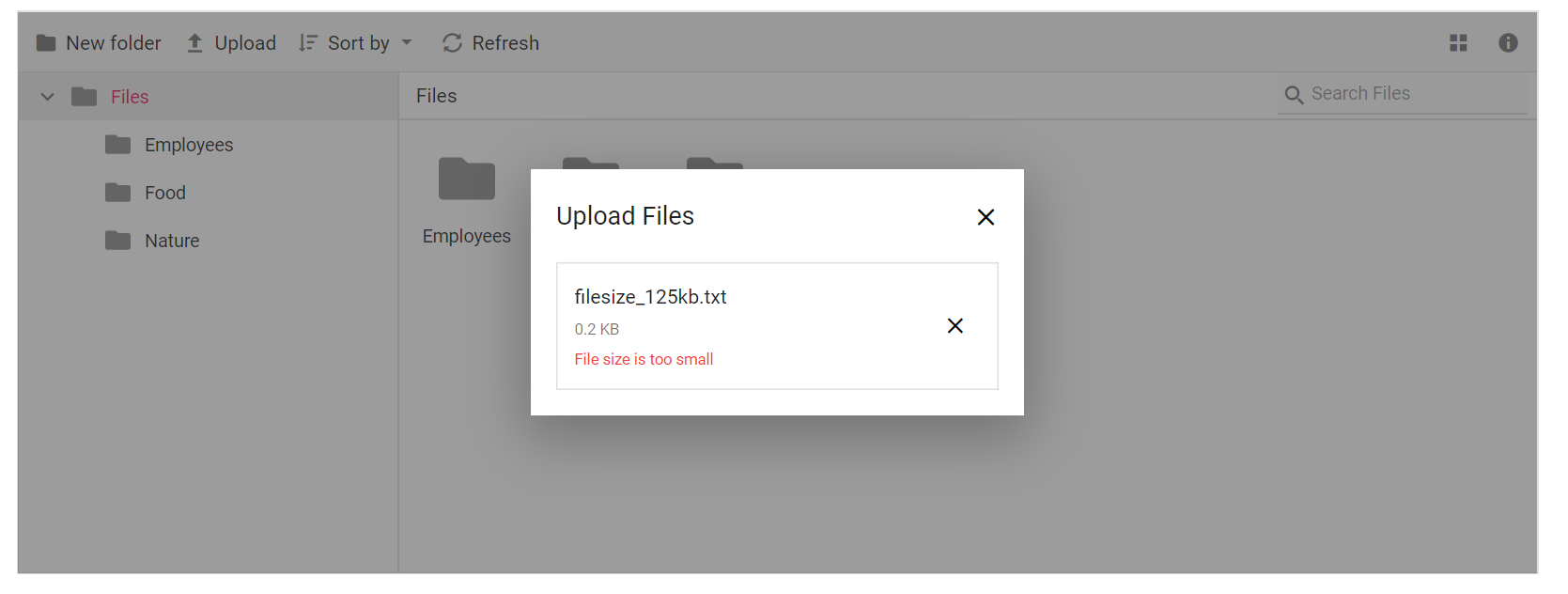
The upload settings, such as minimum and maximum file size and enabling auto upload, can be customized using the uploadSettings property.
<div class=" control-section">
    <div class="sample-container">
        <!-- Declare File Manager control -->
        <ejs-filemanager id="filemanager">
            <e-filemanager-ajaxsettings url="/Home/FileOperations"
                                        downloadUrl="/Home/Download"
                                        uploadUrl="/Home/Upload"
                                        getImageUrl="/Home/GetImage">
            </e-filemanager-ajaxsettings>
            <e-filemanager-uploadsettings maxFileSize="233332" minFileSize="250" autoUpload="true"></e-filemanager-uploadsettings>
        </ejs-filemanager>
        <!-- end of File Manager control -->
    </div>
</div>
using System;
using System.Collections.Generic;
using System.Linq;
//File Manager's base functions are available in the below package
using Syncfusion.EJ2.FileManager.Base;
//File Manager's operations are available in the below package
using Syncfusion.EJ2.FileManager.PhysicalFileProvider;
using Newtonsoft.Json;
// use the package for hosting
using Microsoft.AspNetCore.Mvc;
using Microsoft.AspNetCore.Hosting;
using Microsoft.AspNetCore.Http;
using Microsoft.AspNetCore.Http.Features;
namespace WebApplication.Controllers
{
public class HomeController : Controller
{
public PhysicalFileProvider operation;
public string basePath;
// Root Path in which files and folders are available.
string root = "wwwroot\\Files";
public HomeController(IHostingEnvironment hostingEnvironment)
{
// Map the path of the files to be accessed with the host
this.basePath = hostingEnvironment.ContentRootPath;
this.operation = new PhysicalFileProvider();
// Assign the mapped path as root folder
this.operation.RootFolder(this.basePath + "\\" + this.root);
}
public object FileOperations([FromBody] FileManagerDirectoryContent args)
{
// Restricting modification of the root folder
if (args.Action == "delete" || args.Action == "rename")
{
if ((args.TargetPath == null) && (args.Path == ""))
{
FileManagerResponse response = new FileManagerResponse();
ErrorDetails er = new ErrorDetails
{
Code = "401",
Message = "Restricted to modify the root folder."
};
response.Error = er;
return this.operation.ToCamelCase(response);
}
}
// Processing the File Manager operations
switch (args.Action)
{
case "read":
// Path - Current path; ShowHiddenItems - Boolean value to show/hide hidden items
return this.operation.ToCamelCase(this.operation.GetFiles(args.Path, args.ShowHiddenItems));
case "delete":
// Path - Current path where of the folder to be deleted; Names - Name of the files to be deleted
return this.operation.ToCamelCase(this.operation.Delete(args.Path, args.Names));
case "copy":
// Path - Path from where the file was copied; TargetPath - Path where the file/folder is to be copied; RenameFiles - Files with same name in the copied location that is confirmed for renaming; TargetData - Data of the copied file
return this.operation.ToCamelCase(this.operation.Copy(args.Path, args.TargetPath, args.Names, args.RenameFiles, args.TargetData));
case "move":
// Path - Path from where the file was cut; TargetPath - Path where the file/folder is to be moved; RenameFiles - Files with same name in the moved location that is confirmed for renaming; TargetData - Data of the moved file
return this.operation.ToCamelCase(this.operation.Move(args.Path, args.TargetPath, args.Names, args.RenameFiles, args.TargetData));
case "details":
// Path - Current path where details of file/folder is requested; Name - Names of the requested folders
return this.operation.ToCamelCase(this.operation.Details(args.Path, args.Names));
case "create":
// Path - Current path where the folder is to be created; Name - Name of the new folder
return this.operation.ToCamelCase(this.operation.Create(args.Path, args.Name));
case "search":
// Path - Current path where the search is performed; SearchString - String typed in the searchbox; CaseSensitive - Boolean value which specifies whether the search must be casesensitive
return this.operation.ToCamelCase(this.operation.Search(args.Path, args.SearchString, args.ShowHiddenItems, args.CaseSensitive));
case "rename":
// Path - Current path of the renamed file; Name - Old file name; NewName - New file name
return this.operation.ToCamelCase(this.operation.Rename(args.Path, args.Name, args.NewName));
}
return null;
}
// Processing the Upload operation
public IActionResult Upload(string path, IList<IFormFile> uploadFiles, string action)
{
// Here we have restricted the upload operation for our online samples
if (Response.HttpContext.Request.Host.Value == "ej2.syncfusion.com")
{
Response.Clear();
Response.ContentType = "application/json; charset=utf-8";
Response.StatusCode = 403;
Response.HttpContext.Features.Get<IHttpResponseFeature>().ReasonPhrase = "File Manager's upload functionality is restricted in the online demo. If you need to test upload functionality, please install Syncfusion Essential Studio on your machine and run the demo";
}
// Use below code for performing upload operation
else
{
FileManagerResponse uploadResponse;
//Invoking upload operation with the required paramaters
// path - Current path where the file is to uploaded; uploadFiles - Files to be uploaded; action - name of the operation(upload)
uploadResponse = operation.Upload(path, uploadFiles, action, null);
}
return Content("");
}
// Processing the Download operation
public IActionResult Download(string downloadInput)
{
FileManagerDirectoryContent args = JsonConvert.DeserializeObject<FileManagerDirectoryContent>(downloadInput);
//Invoking download operation with the required paramaters
// path - Current path where the file is downloaded; Names - Files to be downloaded;
return operation.Download(args.Path, args.Names);
}
// Processing the GetImage operation
public IActionResult GetImage(FileManagerDirectoryContent args)
{
//Invoking GetImage operation with the required paramaters
// path - Current path of the image file; Id - Image file id;
return this.operation.GetImage(args.Path, args.Id, false, null, null);
}
public IActionResult Index()
{
return View();
}
}
}Output be like the below, when file size is below the minFileSize.
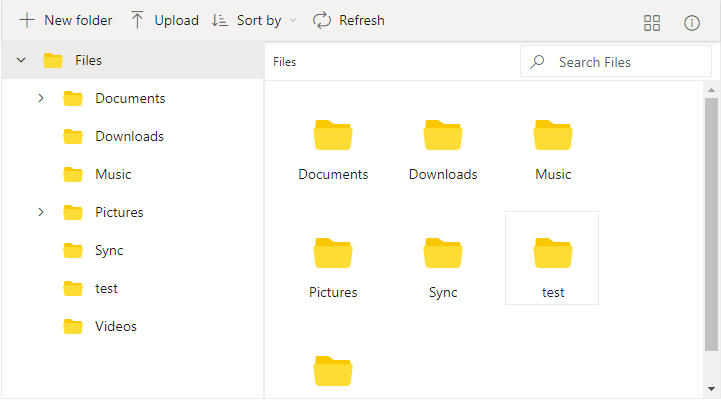
Output be like the below, when file size is above the minFileSize.
Tooltip customization
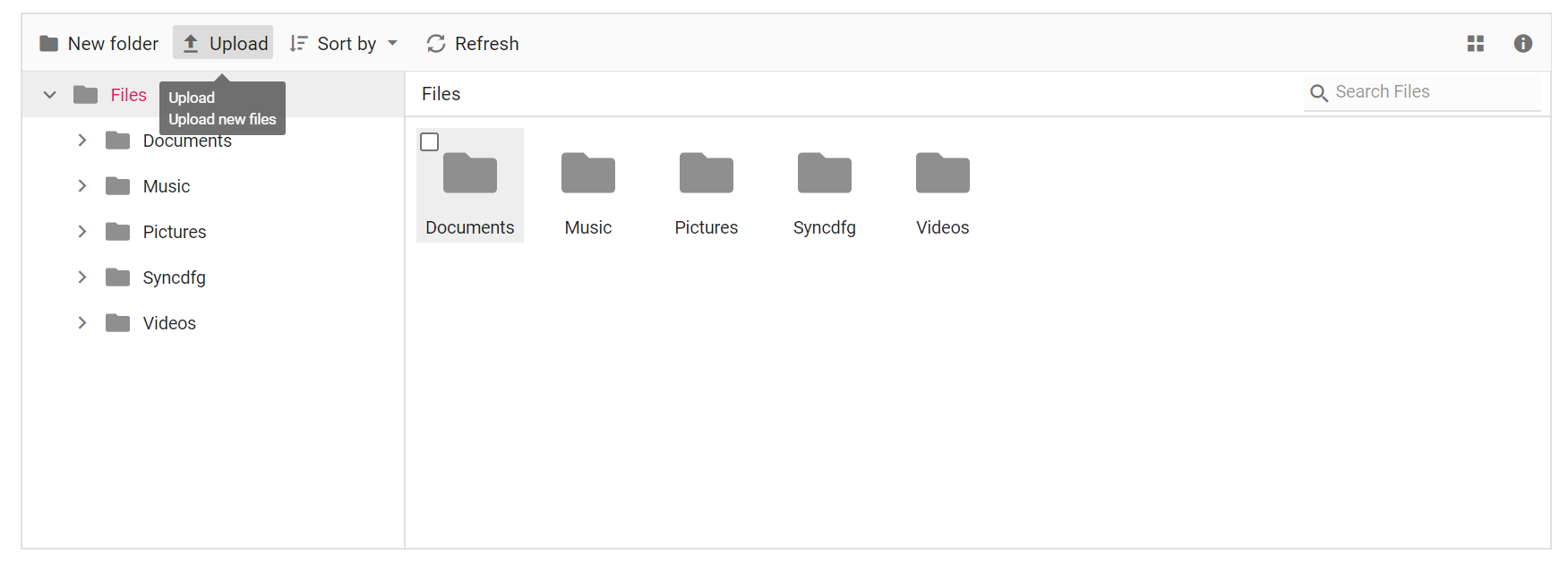
The tooltip value can be customized by adding extra content to the title of the toolbar, navigation pane, details view and large icons of the File Manager element.
<div class=" control-section">
    <div class="sample-container">
        <!--  Filemanager control declaration -->
        <ejs-filemanager id="file" created="addTooltip" fileLoad="fileLoad">
            <e-filemanager-ajaxsettings url="/Home/FileOperations"
                                        downloadUrl="/Home/Download"
                                        uploadUrl="/Home/Upload"
                                        getImageUrl="/Home/GetImage">
            </e-filemanager-ajaxsettings>
        </ejs-filemanager>
        <!-- end of File Manager control -->
    </div>
</div>
<script>

    function addTooltip() {
        var fileObj = document.getElementById("file").ej2_instances[0];
        var tooltip = new ej.popups.Tooltip({
            target: '#' + fileObj.element.id + '_toolbar [title]',
            beforeRender: onTooltipBeforeRender
        });
        tooltip.appendTo('#' + fileObj.element.id + '_toolbar');
    }
    function onTooltipBeforeRender(args) {
        var fileObj = document.getElementById("file").ej2_instances[0].element.id;
        var buttonId = args.target.childNodes[0].id;
        var description = '';
        switch (buttonId) {
            case fileObj + '_tb_newfolder':
                description = 'Create a new folder';
                break;
            case fileObj + '_tb_upload':
                description = 'Upload new files';
                break;
            case fileObj + '_tb_cut':
                description = 'Cut files and folders from the current location';
                break;
            case fileObj + '_tb_copy':
                description = 'Copy files and folders from the current location';
                break;
            case fileObj + '_tb_paste':
                description = 'Paste files and folders in the current location';
                break;
            case fileObj + '_tb_delete':
                description = 'Delete selected files and folders';
                break;
            case fileObj + '_tb_download':
                description = 'Download selected files and folders';
                break;
            case fileObj + '_tb_rename':
                description = 'Rename selected file or folder';
                break;
            case fileObj + '_tb_sortby':
                description = 'Change the file sorting order';
                break;
            case fileObj + '_tb_refresh':
                description = 'Refresh the current location';
                break;
            case fileObj + '_tb_selection':
                description = 'Following items are currently selected:';
                for (var i = 0; i < fileObj.selectedItems.length; i++) {
                    description = description + '</br>' + fileObj.selectedItems[i];
                }
                break;
            case fileObj + '_tb_view':
                description = 'Switch the layout view';
                break;
            case fileObj + '_tb_details':
                description = 'Get the details of the seletced items';
                break;
            default:
                description = '';
                break;
        }
        this.content = args.target.getAttribute('title') + '</br>' + description;
    }

    function fileLoad(args) {

        //Native tooltip customization to display additonal information in new line
        var target = args.element;
        if (args.module === 'DetailsView') {
            var ele = select('[title]', args.element);
            var title = args.fileDetails.name +
                '\n' + args.fileDetails.dateModified;
            ele.setAttribute('title', title);
        }
        else if (args.module === 'LargeIconsView') {
            var title = args.fileDetails.name +
                '\n' + args.fileDetails.dateModified;
            target.setAttribute('title', title);
        }
    }
</script>
using System;
using System.Collections.Generic;
using System.Linq;
//File Manager's base functions are available in the below package
using Syncfusion.EJ2.FileManager.Base;
//File Manager's operations are available in the below package
using Syncfusion.EJ2.FileManager.PhysicalFileProvider;
using Newtonsoft.Json;
// use the package for hosting
using Microsoft.AspNetCore.Mvc;
using Microsoft.AspNetCore.Hosting;
using Microsoft.AspNetCore.Http;
using Microsoft.AspNetCore.Http.Features;
namespace WebApplication.Controllers
{
public class HomeController : Controller
{
public PhysicalFileProvider operation;
public string basePath;
// Root Path in which files and folders are available.
string root = "wwwroot\\Files";
public HomeController(IHostingEnvironment hostingEnvironment)
{
// Map the path of the files to be accessed with the host
this.basePath = hostingEnvironment.ContentRootPath;
this.operation = new PhysicalFileProvider();
// Assign the mapped path as root folder
this.operation.RootFolder(this.basePath + "\\" + this.root);
}
public object FileOperations([FromBody] FileManagerDirectoryContent args)
{
// Restricting modification of the root folder
if (args.Action == "delete" || args.Action == "rename")
{
if ((args.TargetPath == null) && (args.Path == ""))
{
FileManagerResponse response = new FileManagerResponse();
ErrorDetails er = new ErrorDetails
{
Code = "401",
Message = "Restricted to modify the root folder."
};
response.Error = er;
return this.operation.ToCamelCase(response);
}
}
// Processing the File Manager operations
switch (args.Action)
{
case "read":
// Path - Current path; ShowHiddenItems - Boolean value to show/hide hidden items
return this.operation.ToCamelCase(this.operation.GetFiles(args.Path, args.ShowHiddenItems));
case "delete":
// Path - Current path where of the folder to be deleted; Names - Name of the files to be deleted
return this.operation.ToCamelCase(this.operation.Delete(args.Path, args.Names));
case "copy":
// Path - Path from where the file was copied; TargetPath - Path where the file/folder is to be copied; RenameFiles - Files with same name in the copied location that is confirmed for renaming; TargetData - Data of the copied file
return this.operation.ToCamelCase(this.operation.Copy(args.Path, args.TargetPath, args.Names, args.RenameFiles, args.TargetData));
case "move":
// Path - Path from where the file was cut; TargetPath - Path where the file/folder is to be moved; RenameFiles - Files with same name in the moved location that is confirmed for renaming; TargetData - Data of the moved file
return this.operation.ToCamelCase(this.operation.Move(args.Path, args.TargetPath, args.Names, args.RenameFiles, args.TargetData));
case "details":
// Path - Current path where details of file/folder is requested; Name - Names of the requested folders
return this.operation.ToCamelCase(this.operation.Details(args.Path, args.Names));
case "create":
// Path - Current path where the folder is to be created; Name - Name of the new folder
return this.operation.ToCamelCase(this.operation.Create(args.Path, args.Name));
case "search":
// Path - Current path where the search is performed; SearchString - String typed in the searchbox; CaseSensitive - Boolean value which specifies whether the search must be casesensitive
return this.operation.ToCamelCase(this.operation.Search(args.Path, args.SearchString, args.ShowHiddenItems, args.CaseSensitive));
case "rename":
// Path - Current path of the renamed file; Name - Old file name; NewName - New file name
return this.operation.ToCamelCase(this.operation.Rename(args.Path, args.Name, args.NewName));
}
return null;
}
// Processing the Upload operation
public IActionResult Upload(string path, IList<IFormFile> uploadFiles, string action)
{
// Here we have restricted the upload operation for our online samples
if (Response.HttpContext.Request.Host.Value == "ej2.syncfusion.com")
{
Response.Clear();
Response.ContentType = "application/json; charset=utf-8";
Response.StatusCode = 403;
Response.HttpContext.Features.Get<IHttpResponseFeature>().ReasonPhrase = "File Manager's upload functionality is restricted in the online demo. If you need to test upload functionality, please install Syncfusion Essential Studio on your machine and run the demo";
}
// Use below code for performing upload operation
else
{
FileManagerResponse uploadResponse;
//Invoking upload operation with the required paramaters
// path - Current path where the file is to uploaded; uploadFiles - Files to be uploaded; action - name of the operation(upload)
uploadResponse = operation.Upload(path, uploadFiles, action, null);
}
return Content("");
}
// Processing the Download operation
public IActionResult Download(string downloadInput)
{
FileManagerDirectoryContent args = JsonConvert.DeserializeObject<FileManagerDirectoryContent>(downloadInput);
//Invoking download operation with the required paramaters
// path - Current path where the file is downloaded; Names - Files to be downloaded;
return operation.Download(args.Path, args.Names);
}
// Processing the GetImage operation
public IActionResult GetImage(FileManagerDirectoryContent args)
{
//Invoking GetImage operation with the required paramaters
// path - Current path of the image file; Id - Image file id;
return this.operation.GetImage(args.Path, args.Id, false, null, null);
}
public IActionResult Index()
{
return View();
}
}
}Output be like the below.
Maintaining component state on page reload
The File Manager supports maintaining the component state on page reload. This can be achieved by enabling enablePersistence property which maintains the following,
- Previous view of the File Manager - View
- Previous path of the File Manager - Path
- Previous selected items of the File Manager - SelectedItems
For every operation in File Manager, ajax request will be sent to the server which then processes the request and sends back the response. When the ajax request is success, success event will be triggered and failure event will be triggered if the request gets failed.
<div class=" control-section">
    <div class="sample-container" style="padding:10px">
        <!-- Declare File Manager control -->
        <ejs-filemanager id="filemanager" enablePersistence="true" success="onSuccess" failure="onFailure">
            <e-filemanager-ajaxsettings url="/Home/FileOperations"
                                        downloadUrl="/Home/Download"
                                        uploadUrl="/Home/Upload"
                                        getImageUrl="/Home/GetImage">
            </e-filemanager-ajaxsettings>
        </ejs-filemanager>
        <!-- end of File Manager control -->
    </div>
</div>
<script>
    // File Manager's file onSuccess function
    function onSuccess() {
        console.log("Ajax request successful");
    }

    // File Manager's file onError function
    function onFailure() {
        console.log("Ajax request has failed");
    }
</script>
The files of the current folder opened in the File Manager can be refreshed programmatically by calling
refreshFilesmethod
Specifying the current path of the File Manager
The current path of the File Manager can be specified initially or dynamically using the path property.
The following code snippet demonstrates specifying the current path in File Manager on rendering.
<div class=" control-section">
    <div class="sample-container">
        <ejs-filemanager id="filemanager" path="/Pictures/Employees">
            <e-filemanager-ajaxsettings url="/Home/FileOperations"
                                        downloadUrl="/Home/Download"
                                        uploadUrl="/Home/Upload"
                                        getImageUrl="/Home/GetImage">
            </e-filemanager-ajaxsettings>
        </ejs-filemanager>
    </div>
</div>