Working with ZUGFeRD invoice
24 Jul 202615 minutes to read
The ZUGFeRD invoice is one of the uniformed data format for electronic invoices based on the ISO standard PDF/A-3, which is specifically designed for long term archiving. The ZUGFeRD invoice contains both human-readable invoice and machine-readable structured invoice data (XML).
Generating ZUGFeRD invoice
The Syncfusion® .NET PDF library supports creating PDF documents with PDF/A-3b conformance, allowing external files to be added as attachments. ZUGFeRD has three versions: ZugferdVersion 1.0, ZugferdVersion 2.0, and Factur-X.
ZUGFeRD includes six conformance levels:
- Basic: Represents structured data for simple invoices. Additional information can be included as free text.
- Comfort: Provides structured data for fully automated invoice processing.
- Extended: Includes additional structured data for exchanging invoices across different industry segments.
- Minimum: Represents basic invoice details compatible with the French Standard Factur-X.
- EN16931: Fully compliant with the EU Standard, though it only defines the core elements of an invoice.
- XRechnung: Aligns with Germany’s e-invoicing regulations, ensuring compliance with EN 16931 standards.
NOTE
The Minimum and EN16931 conformance levels are only supported in ZugferdVersion 2.0.
The XRechnung conformance level is only supported in Factur-X.
A PDF/A-3 file contains embedded XML data, making the invoice both human-readable (PDF) and machine-readable (XML) within the same document.
The ZUGFeRD invoice document can be created by specifying the conformance level as Pdf_A3B through PdfConformanceLevel Enum when creating the new PDF document and set the ZugferdConformanceLevel property as Basic in ZugferdConformanceLevel Enum.
//Create ZUGFeRD invoice PDF document
PdfDocument document = new PdfDocument(PdfConformanceLevel.Pdf_A3B);

//Set ZUGFeRD conformance level
document.ZugferdConformanceLevel = ZugferdConformanceLevel.Basic;
//Create ZUGFeRD invoice PDF document
PdfDocument document = new PdfDocument(PdfConformanceLevel.Pdf_A3B);
//Set ZUGFeRD conformance level
document.ZugferdConformanceLevel = ZugferdConformanceLevel.Basic;'Create ZUGFeRD invoice PDF document
Dim document As PdfDocument = New PdfDocument(PdfConformanceLevel.Pdf_A3B)
'Set ZUGFeRD conformance level
document.ZugferdConformanceLevel = ZugferdConformanceLevel.BasicUsing PDF/A-3b conformance, you can create a ZUGFeRD invoice PDF by specifying the ZugferdVersion property as ZugferdVersion2_0 of ZugferdVersion Enum. By default, ZugferdVersion1.0 used.
//Create ZUGFeRD invoice PDF document
PdfDocument document = new PdfDocument(PdfConformanceLevel.Pdf_A3B);
//Specifies ZUGFeRD version
document.ZugferdVersion = ZugferdVersion.ZugferdVersion2_0;//Create ZUGFeRD invoice PDF document
PdfDocument document = new PdfDocument(PdfConformanceLevel.Pdf_A3B);
//Specifies ZUGFeRD version
document.ZugferdVersion = ZugferdVersion.ZugferdVersion2_0;'Create ZUGFeRD invoice PDF document
Dim document As PdfDocument = New PdfDocument(PdfConformanceLevel.Pdf_A3B)
'Specifies ZUGFeRD version
document.ZugferdVersion = ZugferdVersion.ZugferdVersion2_0Adding ZUGFeRD structured data as attachment
The PDF/A-3b conformance supports the external files as attachment to the PDF document using PdfAttachment class.
//Creates an attachment
FileStream invoiceStream = new FileStream("../../Data/ZUGFeRD-invoice.xml", FileMode.Open, FileAccess.Read);
PdfAttachment attachment = new PdfAttachment("ZUGFeRD-invoice.xml", invoiceStream);
attachment.Relationship = PdfAttachmentRelationship.Alternative;
attachment.ModificationDate = DateTime.Now;
attachment.Description = "ZUGFeRD-invoice";
attachment.MimeType = "application/xml";
//Add attachment to PDF document
document.Attachments.Add(attachment);//Creates an attachment
FileStream invoiceStream = new FileStream("../../Data/ZUGFeRD-invoice.xml", FileMode.Open, FileAccess.Read);
PdfAttachment attachment = new PdfAttachment("ZUGFeRD-invoice.xml", invoiceStream);
attachment.Relationship = PdfAttachmentRelationship.Alternative;
attachment.ModificationDate = DateTime.Now;
attachment.Description = "ZUGFeRD-invoice";
attachment.MimeType = "application/xml";
//Add attachment to PDF document
document.Attachments.Add(attachment);'Creates an attachment
Dim invoiceStream As FileStream = New FileStream("../../Data/ZUGFeRD-invoice.xml", FileMode.Open, FileAccess.Read)
Dim attachment As PdfAttachment = New PdfAttachment("ZUGFeRD-invoice.xml", invoiceStream)
attachment.Relationship = PdfAttachmentRelationship.Alternative
attachment.ModificationDate = DateTime.Now
attachment.Description = "ZUGFeRD-invoice"
attachment.MimeType = "application/xml"
//Add attachment to PDF document
document.Attachments.Add(attachment)NOTE
XML Naming Guidelines
As per the ZUGFeRD standard guidelines, the XML file name must follow the specified format:
- ZUGFeRD 1.0: The file name should be “ZUGFeRD-invoice.xml”.
- ZUGFeRD 2.0: The file name should be “zugferd-invoice.xml”.
- Factur-X: The file name should be “factur-x.xml”, except for XRechnung, where the file name must be “xrechnung.xml”.
Using PDF/A-3b conformance, you can create a ZUGFeRD invoice PDF by specifying the ZugferdVersion property as Factur-X in the ZugferdVersion Enum.
using Syncfusion.Pdf.Interactive;
using Syncfusion.Pdf;
//Create a new PDF document
PdfDocument document = new PdfDocument(PdfConformanceLevel.Pdf_A3B);
//Set ZUGFeRD conformance level
document.ZugferdConformanceLevel = ZugferdConformanceLevel.XRechnung;
//Set ZUGFeRD version
document.ZugferdVersion = ZugferdVersion.FacturX;
// Load the font file as stream
FileStream fontStream = new FileStream(@"xrechnung.xml", FileMode.Open, FileAccess.Read);
//Set an attachment
PdfAttachment attachment = new PdfAttachment(@"xrechnung.xml", fontStream);
attachment.Relationship = PdfAttachmentRelationship.Alternative;
attachment.ModificationDate = DateTime.Now;
attachment.Description = " ZUGFeRD-Xrechnung";
attachment.MimeType = "text/xml";
//Add attachment to PDF document
document.Attachments.Add(attachment);
//Save the document
document.Save("Output.pdf");
//Closes the document
document.Close(true);using Syncfusion.Pdf.Interactive;
using Syncfusion.Pdf;
//Create a new PDF document
PdfDocument document = new PdfDocument(PdfConformanceLevel.Pdf_A3B);
//Set ZUGFeRD conformance level
document.ZugferdConformanceLevel = ZugferdConformanceLevel.XRechnung;
//Set ZUGFeRD version
document.ZugferdVersion = ZugferdVersion.FacturX;
// Load the font file as stream
FileStream fontStream = new FileStream(@"xrechnung.xml", FileMode.Open, FileAccess.Read);
//Set an attachment
PdfAttachment attachment = new PdfAttachment(@"xrechnung.xml", fontStream);
attachment.Relationship = PdfAttachmentRelationship.Alternative;
attachment.ModificationDate = DateTime.Now;
attachment.Description = " ZUGFeRD-Xrechnung";
attachment.MimeType = "text/xml";
//Add attachment to PDF document
document.Attachments.Add(attachment);
//Save the document
document.Save("Output.pdf");
//Closes the document
document.Close(true);Imports Syncfusion.Pdf.Interactive
Imports Syncfusion.Pdf
'Create a new PDF document.
Dim document As New PdfDocument(PdfConformanceLevel.Pdf_A3B)
'Set ZUGFeRD conformance level.
document.ZugferdConformanceLevel = ZugferdConformanceLevel.XRechnung
'Set ZUGFeRD version.
document.ZugferdVersion = ZugferdVersion.FacturX
'Load the XML file as a stream.
Dim invoiceStream As New FileStream("xrechnung.xml", FileMode.Open, FileAccess.Read)
'Set an attachment.
Dim attachment As New PdfAttachment("xrechnung.xml", invoiceStream)
attachment.Relationship = PdfAttachmentRelationship.Alternative
attachment.ModificationDate = DateTime.Now
attachment.Description = "ZUGFeRD-Xrechnung"
attachment.MimeType = "text/xml"
' Add attachment to PDF document
document.Attachments.Add(attachment)
' Save the document
document.Save("Output.pdf")
' Closes the document
document.Close(True)You can download a complete working sample from GitHub.
Complete code
The complete code to create ZUGFeRD invoice PDF document as follows.
using Syncfusion.Pdf.Interactive;
using Syncfusion.Pdf;
//Create ZUGFeRD invoice PDF document
PdfDocument document = new PdfDocument(PdfConformanceLevel.Pdf_A3B);

//Set ZUGFeRD conformance level
document.ZugferdConformanceLevel = ZugferdConformanceLevel.Basic;
//Creates an attachment
FileStream invoiceStream = new FileStream("ZUGFeRD - invoice.xml", FileMode.Open, FileAccess.Read);
PdfAttachment attachment = new PdfAttachment("ZUGFeRD-invoice.xml", invoiceStream);
attachment.Relationship = PdfAttachmentRelationship.Alternative;
attachment.ModificationDate = DateTime.Now;
attachment.Description = "ZUGFeRD-invoice";
attachment.MimeType = "application/xml";
//Add attachment to PDF document
document.Attachments.Add(attachment);
//Save the document
document.Save("Output.pdf");
//Close the document
document.Close(true);using Syncfusion.Pdf.Interactive;
using Syncfusion.Pdf;
//Create ZUGFeRD invoice PDF document
PdfDocument document = new PdfDocument(PdfConformanceLevel.Pdf_A3B);
//Set ZUGFeRD conformance level
document.ZugferdConformanceLevel = ZugferdConformanceLevel.Basic;
//Creates an attachment
FileStream invoiceStream = new FileStream("ZUGFeRD - invoice.xml", FileMode.Open, FileAccess.Read);
PdfAttachment attachment = new PdfAttachment("ZUGFeRD-invoice.xml", invoiceStream);
attachment.Relationship = PdfAttachmentRelationship.Alternative;
attachment.ModificationDate = DateTime.Now;
attachment.Description = "ZUGFeRD-invoice";
attachment.MimeType = "application/xml";
//Add attachment to PDF document
document.Attachments.Add(attachment);
//Save and close the document
document.Save("Zugferd.pdf");
document.Close(true);Imports Syncfusion.Pdf.Interactive
Imports Syncfusion.Pdf
'Create ZUGFeRD invoice PDF document
Dim document As PdfDocument = New PdfDocument(PdfConformanceLevel.Pdf_A3B)

'Set ZUGFeRD conformance level
document.ZugferdConformanceLevel = ZugferdConformanceLevel.Basic
'Creates an attachment
Dim invoiceStream As FileStream = New FileStream("ZUGFeRD - invoice.xml", FileMode.Open, FileAccess.Read)
Dim attachment As PdfAttachment = New PdfAttachment("ZUGFeRD-invoice.xml", invoiceStream)
'Add attachment to PDF document.
document.Attachments.Add(attachment)
'Save and close the document.
document.Save("Zugferd.pdf")
document.Close(True)You can download a complete working sample from GitHub.
Extract ZUGFeRD invoice from PDF
You can extract the ZUGFeRD invoice XML data from a PDF document using the PdfAttachment class. The following code sample iterates through the attachments collection of the loaded document and writes each attachment’s raw bytes to a file on disk.
using Syncfusion.Pdf.Interactive;
using Syncfusion.Pdf.Parsing;

// Load the PDF document.
PdfLoadedDocument document = new PdfLoadedDocument("Sample.pdf");

// Iterate through the attachments and save each one to disk.
foreach (PdfAttachment attachment in document.Attachments)
{
    // Write the attachment data to a file stream.
    using (FileStream stream = new FileStream(attachment.FileName, FileMode.Create, FileAccess.Write))
    {
        stream.Write(attachment.Data, 0, attachment.Data.Length);
    }
}

// Save and close the document.
document.Save("Output.pdf");
document.Close(true);
using Syncfusion.Pdf.Interactive;
using Syncfusion.Pdf.Parsing;
// Load the PDF document.
PdfLoadedDocument document = new PdfLoadedDocument("Sample.pdf");
// Iterate through the attachments and save each one to disk.
foreach (PdfAttachment attachment in document.Attachments)
{
// Write the attachment data to a file stream.
using (FileStream stream = new FileStream(attachment.FileName, FileMode.Create, FileAccess.Write))
{
stream.Write(attachment.Data, 0, attachment.Data.Length);
}
}
// Save and close the document.
document.Save("Output.pdf");
document.Close(true);Imports Syncfusion.Pdf.Interactive
Imports Syncfusion.Pdf.Parsing
' Load the PDF document.
Dim document As New PdfLoadedDocument("Sample.pdf")
' Iterate through the attachments and save each one to disk.
For Each attachment As PdfAttachment In document.Attachments
' Write the attachment data to a file stream.
Using stream As New FileStream(attachment.FileName, FileMode.Create, FileAccess.Write)
stream.Write(attachment.Data, 0, attachment.Data.Length)
End Using
Next
' Save and close the document.
document.Save("Output.pdf")
document.Close(True)NOTE
The original sample called
s.Dispose()manually to close the output stream. The equivalent and safer pattern is theusingblock shown above, which guarantees the stream is closed and its resources are released even if the write operation throws an exception.
You can download a complete working sample from GitHub.
Validating ZUGFeRD invoices using Adobe Acrobat
The ZUGFeRD invoices can be validated as follows:
-
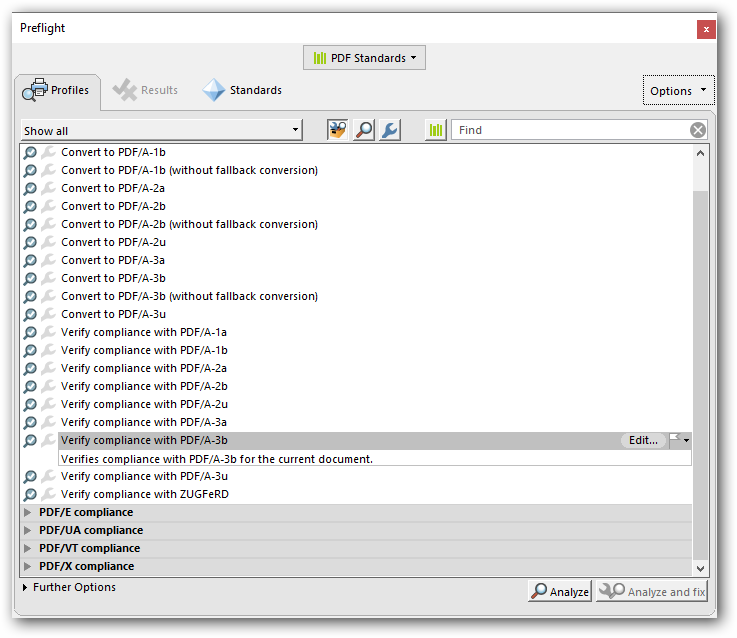
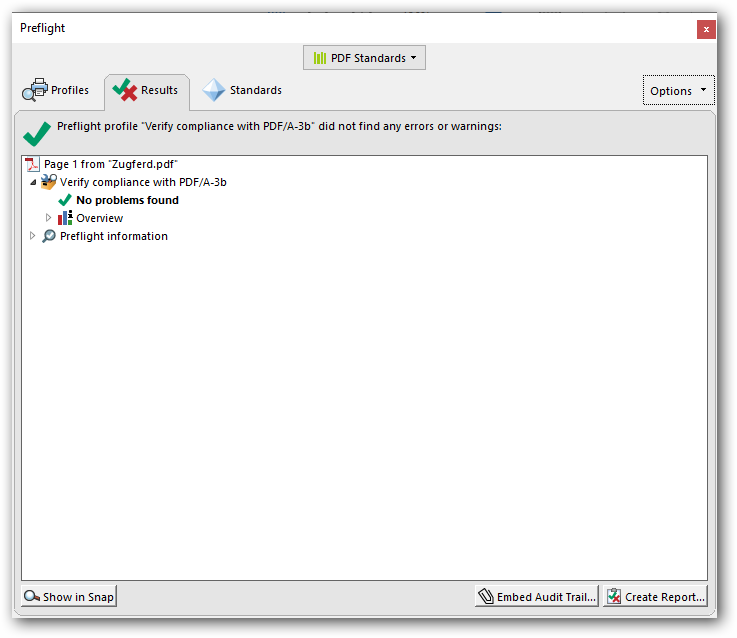
Conformance to the PDF/A-3b standard can be checked with Preflight function in Adobe acrobat.
-
Open the PDF and choose Tools > Print Production > Preflight in the right pane.
-
Select the PDF/A-3b profile and click the Analyze button.
-
* Check the result
-
Conformance to the ZUGFeRD invoice can be checked as follows:
-
Open the PDF and choose Tools > Print Production > Preflight in the right pane.
-
Select the ZUGFeRD profile and click the Analyze button.
-
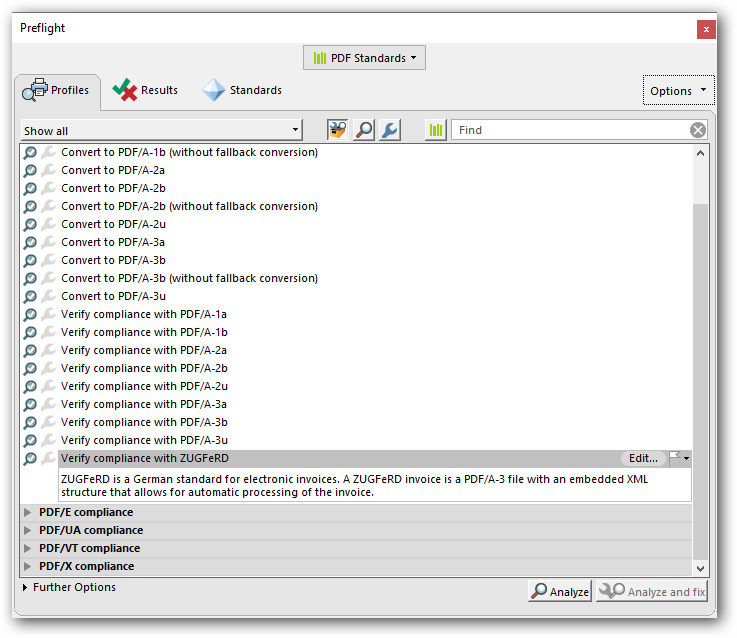
* Check the result