Creating a Syncfusion® PDF Viewer SDK application
11 Mar 20268 minutes to read
Syncfusion® provides the PDF Viewer SDK Template Studio in Visual Studio Code, which allows you to create a Syncfusion application based on the platform selection such as Blazor, and .NET MAUI using Syncfusion® PDF Viewer SDK component. The Syncfusion® application is created with the required Syncfusion® NuGet references, namespaces, styles, and component render code. The Template Studio includes an easy-to-use project wizard that guides you through the process of creating an application with Syncfusion® PDF Viewer SDK component.
NOTE
PDF Viewer SDK project templates from
v33.1.44are supported by the Syncfusion® Visual Studio Code project template.
The instructions below assist you in creating Syncfusion® PDF Viewer SDK Applications using Visual Studio Code:
-
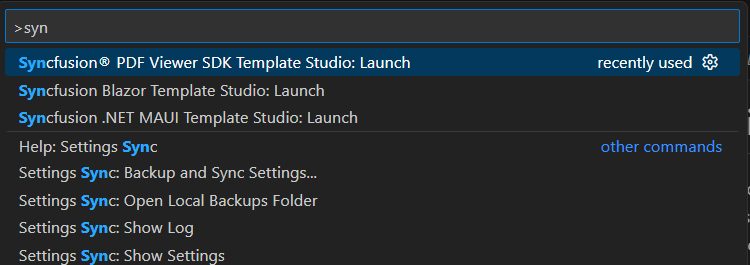
To create a Syncfusion® PDF Viewer SDK application in Visual Studio Code, open the command palette by pressing Ctrl+Shift+P. Search for the word Syncfusion in the Visual Studio Code palette to get the templates provided by Syncfusion®.
-
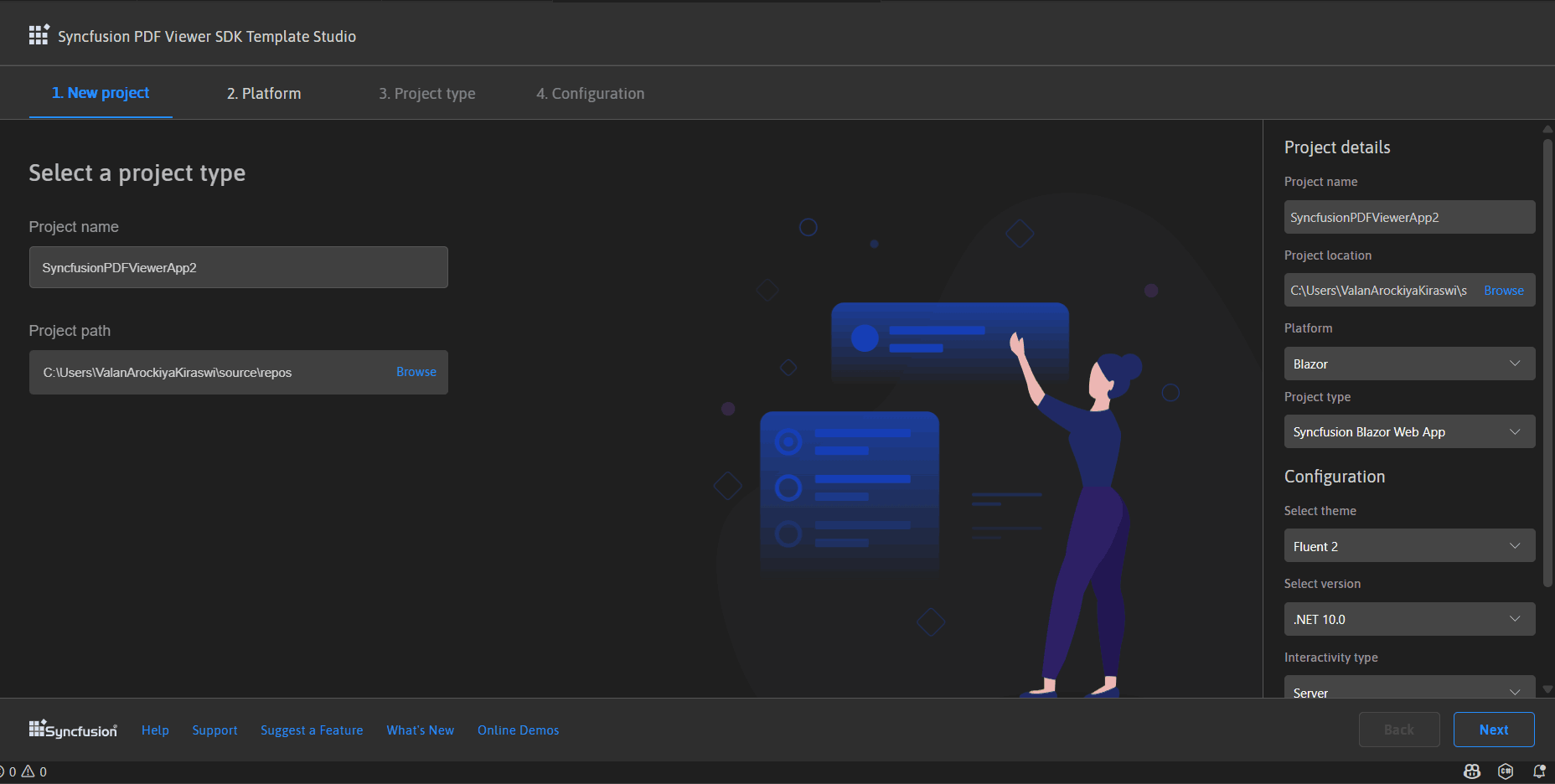
Select Syncfusion PDF Viewer SDK Template Studio: Launch, then press Enter key. The Template Studio wizard for configuring the Syncfusion® PDF Viewer SDK app will be launched. Provide the Project name and Project path.
-
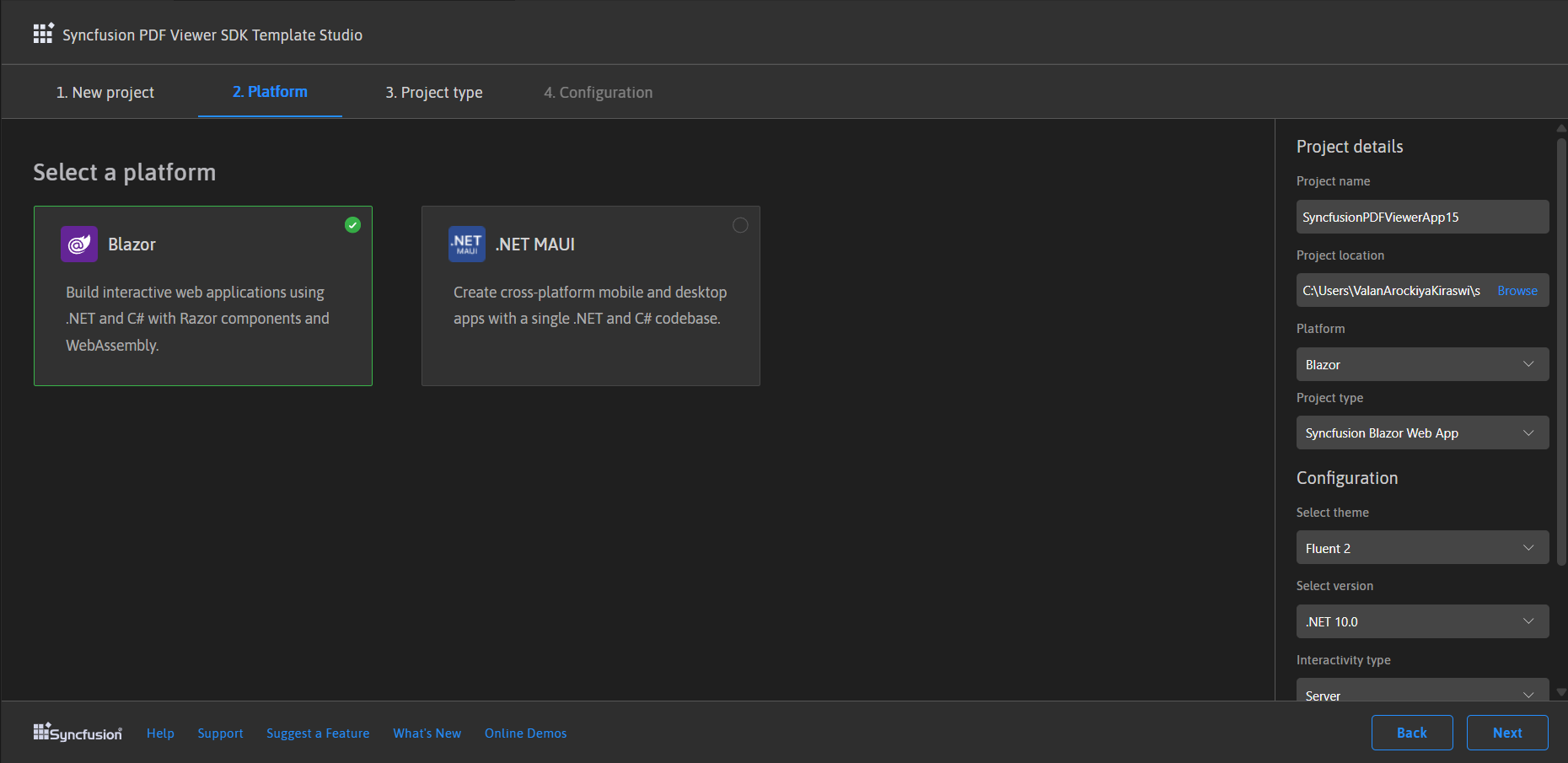
Select either Next or the Platform tab. Syncfusion® PDF Viewer SDK platform types will be displayed. Select the platform to add the Syncfusion® PDF Viewer SDK component.
-
Based on the platform selection, choose the configurations and create the respective application to add the Syncfusion® PDF Viewer SDK component.
-
Blazor Platform:
-
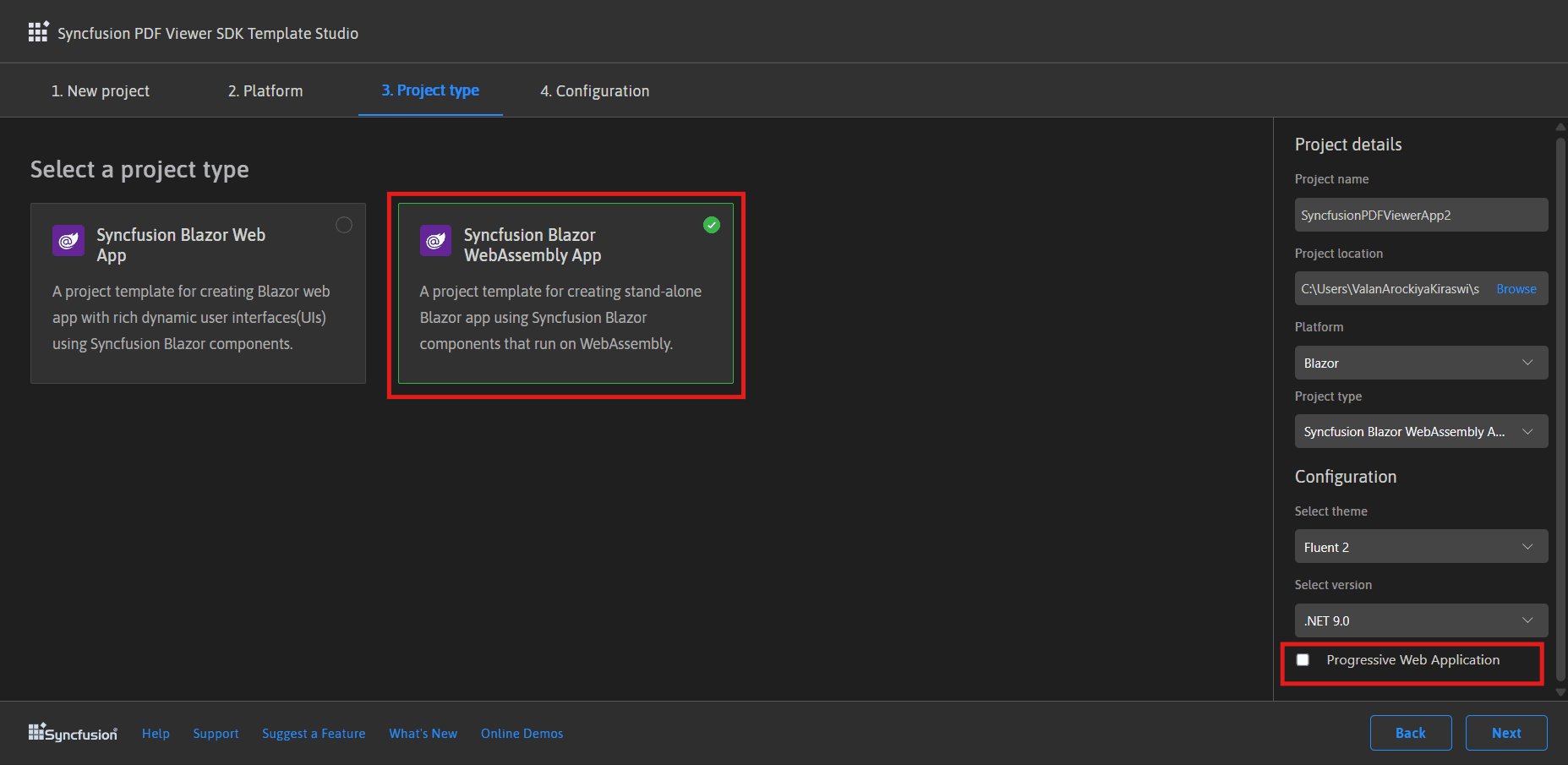
Project type section
Choose one of the Syncfusion® Blazor application types based on the version of the .NET SDK you are using.
.NET SDK version Supported Syncfusion Blazor Application Type .NET 10.0, .NET 9.0, .NET 8.0 Syncfusion Blazor Web App .NET 10.0, .NET 9.0, .NET 8.0 Syncfusion Blazor WebAssembly App In the Syncfusion Blazor Web App application type, you can configure the following options:
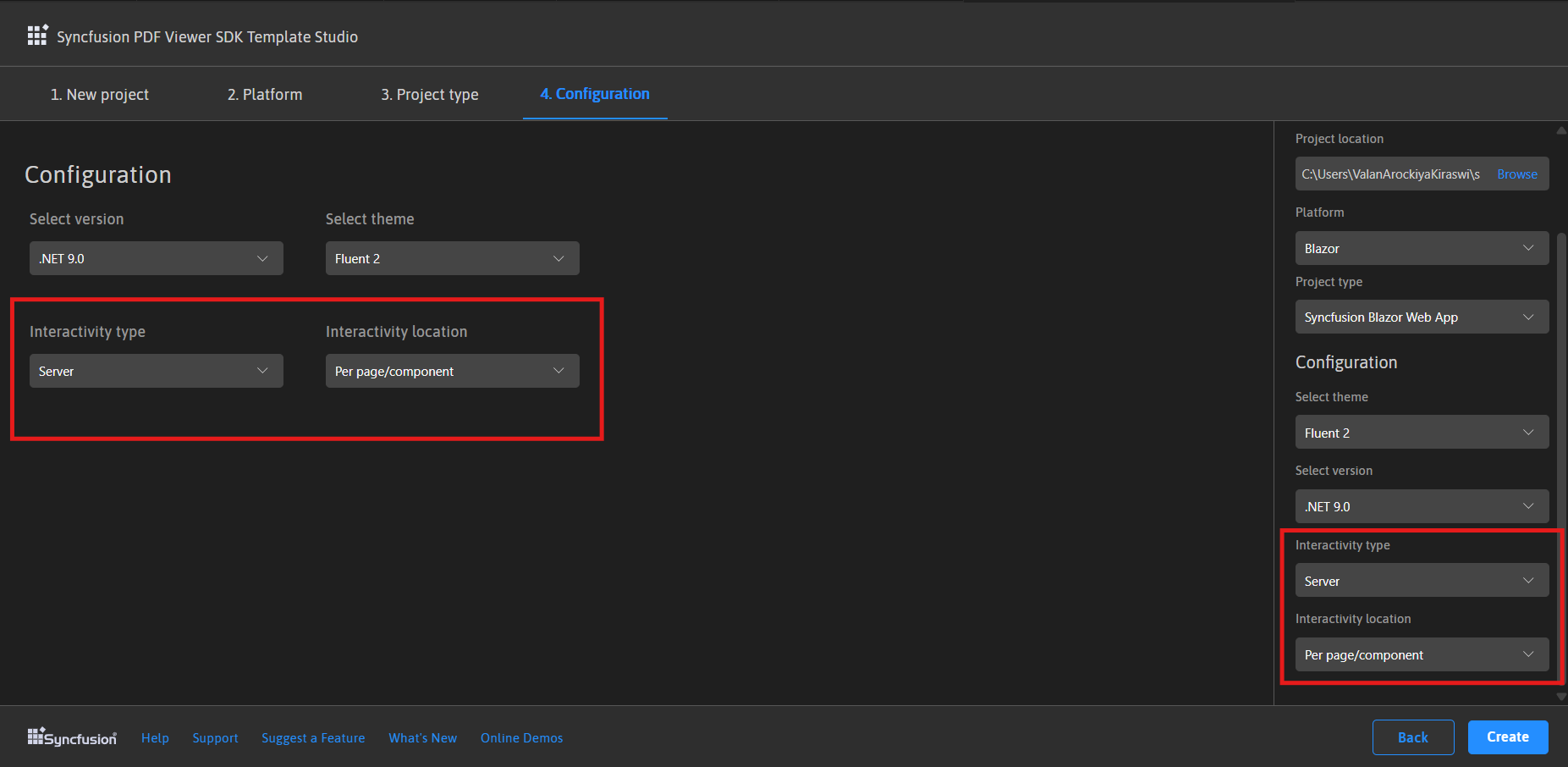
Interactivity type Server, WebAssembly, Auto (Server and WebAssembly) Interactivity location Global, Per page/component 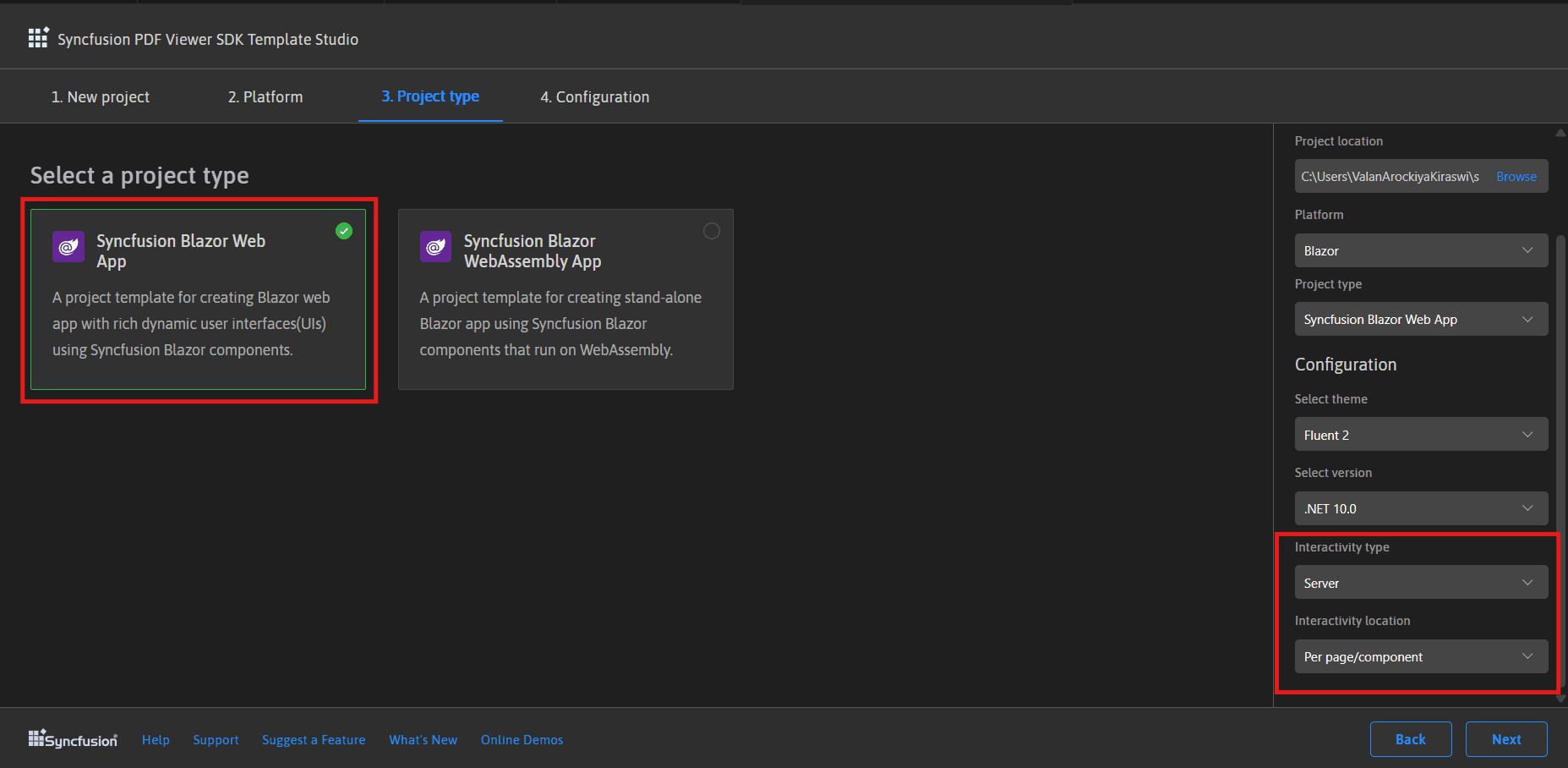
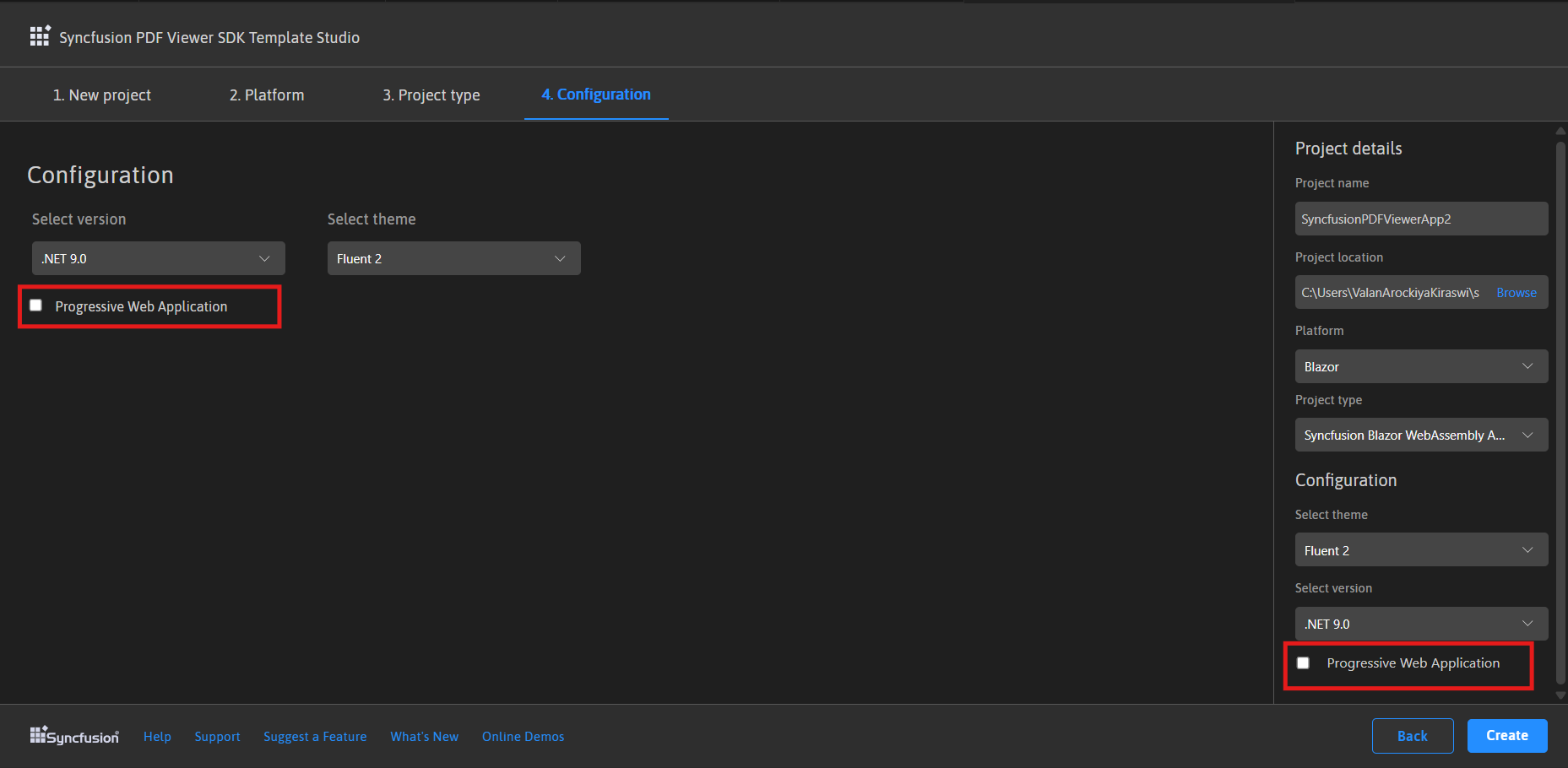
In the Syncfusion Blazor WebAssembly App application type, you can choose Progressive Web Application.
-
Configuration Section
Click Next or the Configuration tab to load the Configuration section. You can choose the required (.NET10.0, .NET 9.0 and .NET 8.0), themes, https configuration, localization option, authentication type, Blazor Web App, and Blazor Web Assembly application types.
Depending on your Syncfusion Blazor Application Type, refer to the table below for supported authentication types.
Syncfusion Blazor Application Type Supported Authentication Types Syncfusion Blazor Web App None and Individual Accounts Syncfusion Blazor WebAssembly App None, Individual Accounts and Microsoft Identity Platform If you choose the Blazor Web App application type, you can customize the Interactivity type and Interactivity location options.
If you choose the Blazor Web Assembly App application type, you can customize the Progressive Web Application option.
Click Create button. The Syncfusion® PDF Viewer SDK Blazor application has been created. The created Syncfusion® PDF Viewer SDK Blazor app has the Syncfusion NuGet packages, styles, and the render code for Syncfusion® PDF Viewer SDK component.
-
-
. NET MAUI Platform
-
Configuration Section
You can select the required .NET Core Version (.NET 9.0 or .NET 10.0) and themes
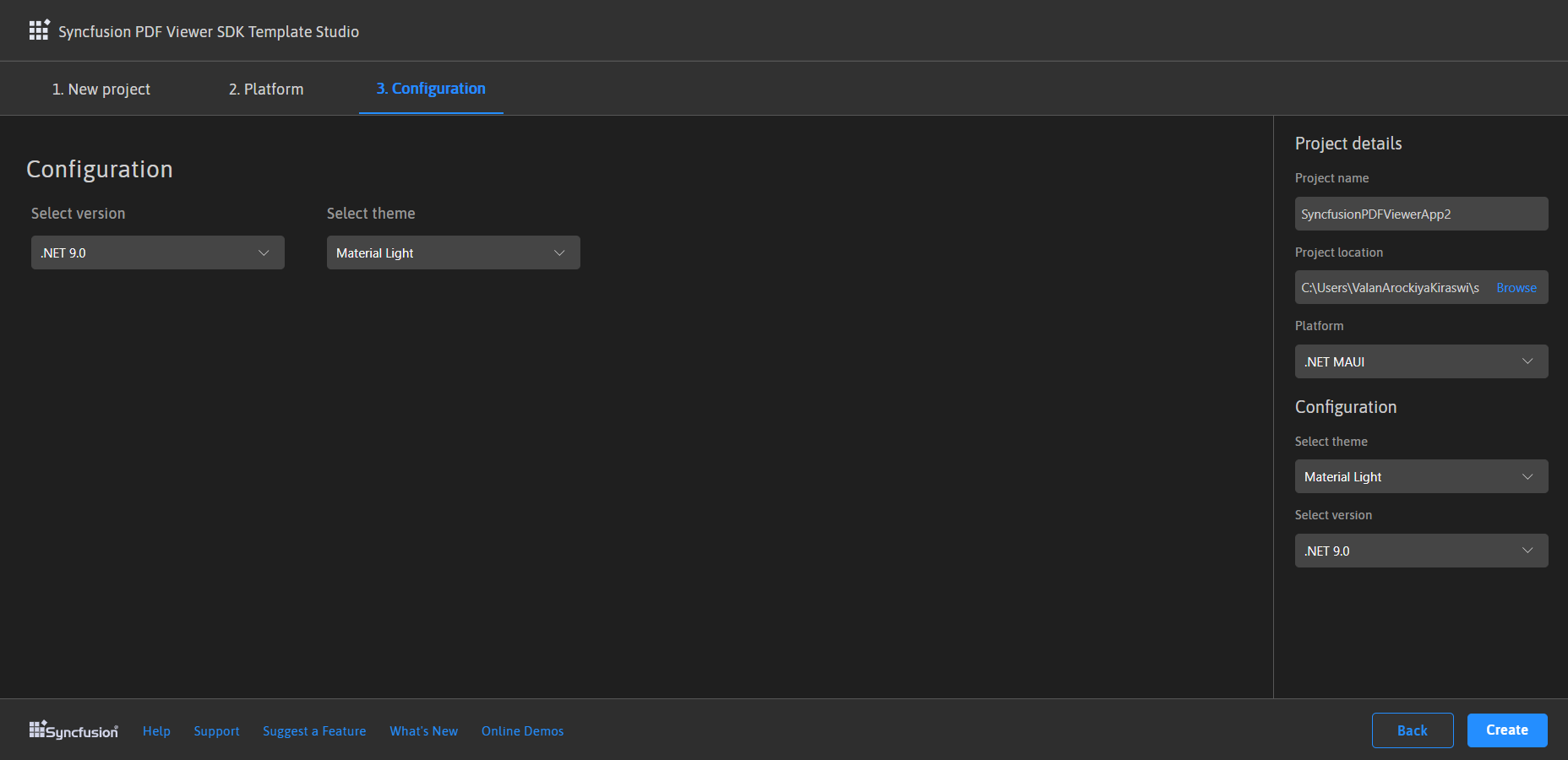
Click Create button. The Syncfusion® PDF Viewer SDK .NET MAUI application has been created and has the Syncfusion NuGet packages, styles, and the render code for Syncfusion® PDF Viewer SDK component.
-
-
-
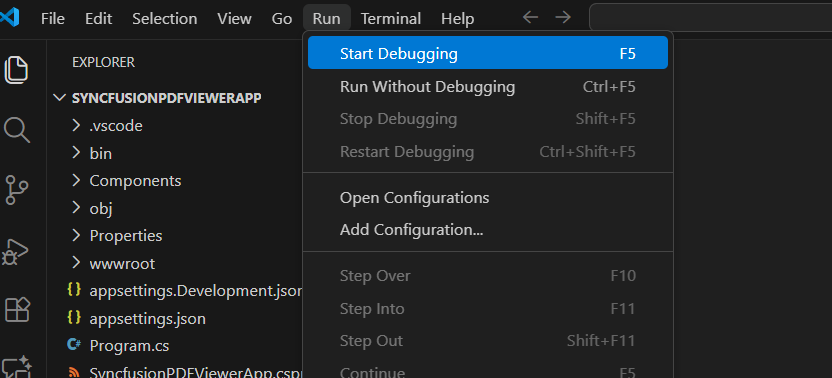
You can run the application to see the Syncfusion® components. Click F5 or go to Run>Start Debugging.
-
The Syncfusion® PDF Viewer SDK application configures with most recent Syncfusion® Blazor NuGet packages version, selected style, namespaces, selected authentication, and component render code for Syncfusion® PDF Viewer SDK components.
-
If you installed the trial setup or NuGet packages from nuget.org you must register the Syncfusion® license key to your application since Syncfusion® introduced the licensing system from 2018 Volume 2 (v16.2.0.41) Essential Studio® release. Navigate to the help topic to generate and register the Syncfusion® license key to your application. Refer to this UG topic for understanding the licensing details in Essential Studio® for Blazor.