Add Syncfusion® DOCX Editor SDK Component to a WPF Application
16 Jul 20262 minutes to read
Syncfusion® supports Visual Studio Item Templates to add the Syncfusion® DOCX Editor SDK component to the corresponding applications with their references.
IMPORTANT
The Syncfusion® DOCX Editor SDK item templates are available from v32.1.19.
The following steps will guide you in adding the Syncfusion® DOCX Editor SDK component to your Visual Studio WPF application.
Add a component using the Syncfusion® DOCX Editor SDK Item Template
-
Open a new or existing WPF application.
Option 1:
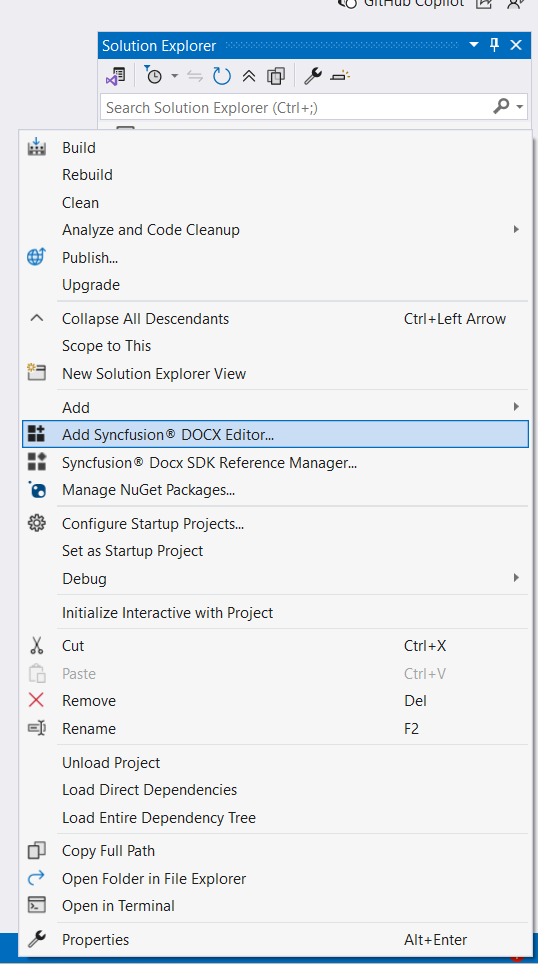
From the Solution Explorer, right-click on the WPF application. Choose Add Syncfusion® DOCX Editor SDK….
Option 2:
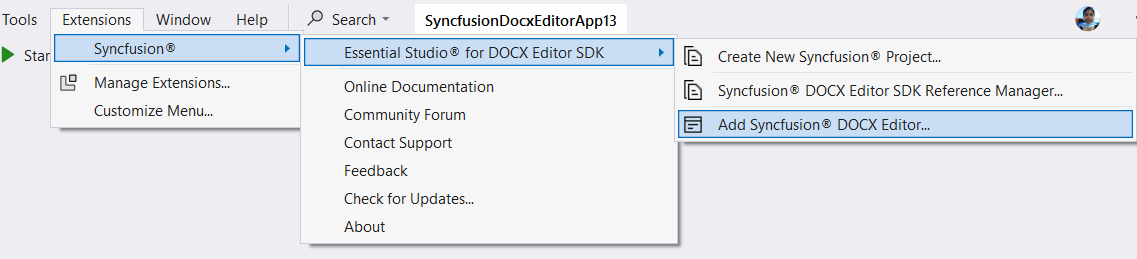
Click Extensions > Essential Studio® for DOCX Editor SDK > Add Syncfusion® DOCX Editor… in Visual Studio.
-
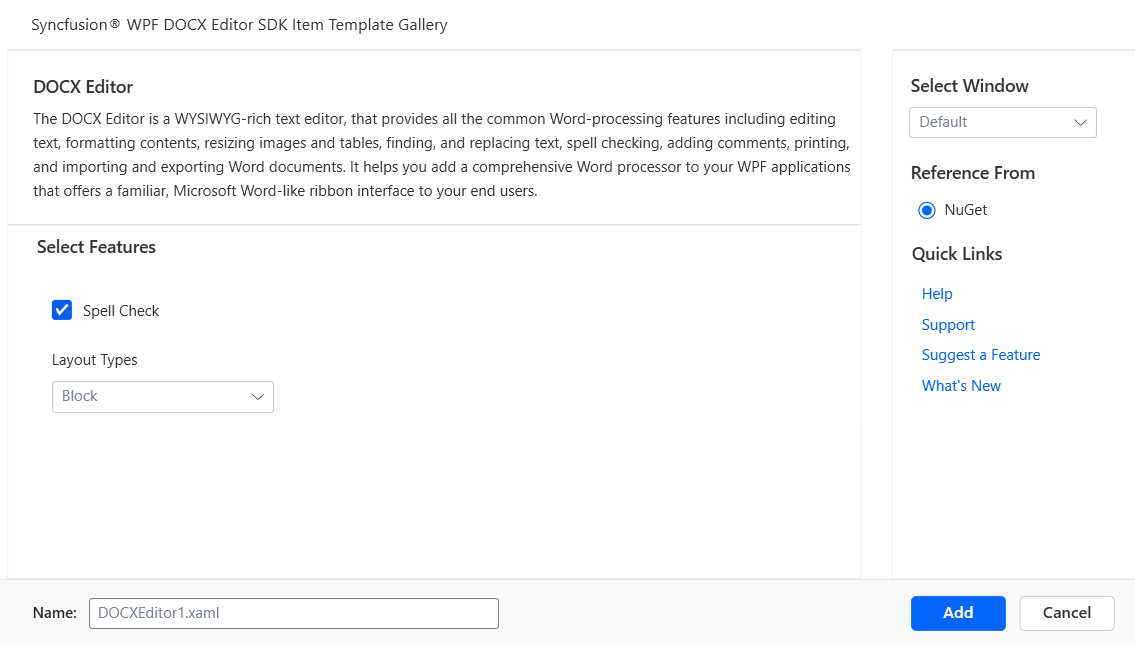
The Syncfusion® DOCX Editor SDK Item Template wizard will be launched, displaying the available components for the WPF application.
-
The component and the features associated with the DOCX Editor SDK component will be presented within your DOCX Editor SDK Item template.
-
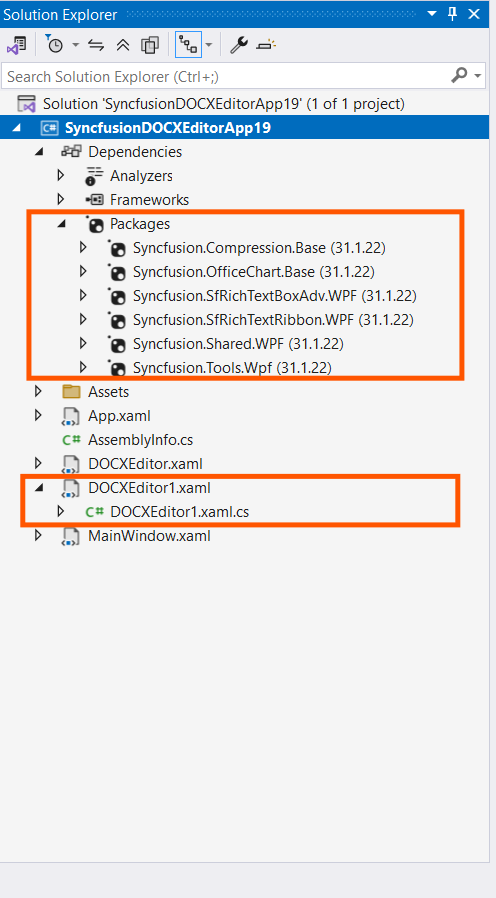
The required Syncfusion® assemblies are added to the project from the NuGet packages reference option.
-
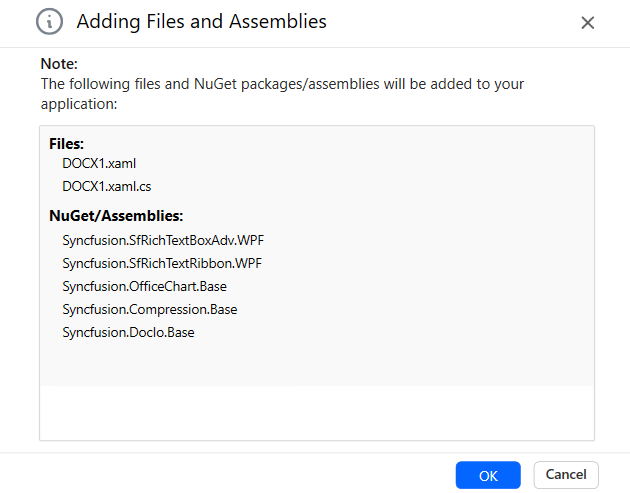
Click Add, and a pop-up will appear providing information about adding Component files and NuGet/Assemblies details.
-
Click OK to incorporate the component into the application, along with the necessary Syncfusion® assemblies.
-
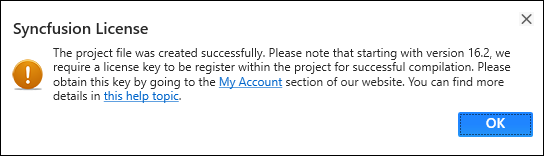
Then, a Syncfusion® licensing registration required message box will be shown if you have installed the trial setup or NuGet packages, since Syncfusion® introduced the licensing system from the 2018 Volume 2 (v16.2.0.41) Essential Studio® release. Navigate to the help topic, which is shown in the licensing message box, to generate and register the Syncfusion® license key to your project. Refer to this blog post for understanding the licensing changes introduced in Essential Studio®.